


 Video Converter Ultimate
 Perakam Skrin
 Pembaikan Video
 Muat Turun Selamat
2 Kaedah Terbaik untuk Menukar Fail SWF ke GIF di Komputer secara Percuma
Saya sedang cuba menyimpan fail FLV yang saya hasilkan (sebuah banner) sebagai GIF animasi menggunakan Flash Professional CS5. Saya sudah lakukan semua langkah tetapi gagal. Namun saya dapati banner SWF saya berfungsi dengan baik, jadi saya hanya mengeksport fail tersebut sebagai SWF. Sekarang saya perlu menukar fail SWF kepada GIF, adakah caranya?
Masalah ini banyak berlaku kerana alasan yang tidak diketahui. Oleh itu, anda boleh mengeksport fail ke SWF, format yang dirancang untuk animasi Flash, dan kemudian mengubah SWF ke GIF. Lebih-lebih lagi, apabila anda telah membuat animasi SWF yang indah dengan fungsi berinteraksi untuk laman web anda, anda mungkin mahu menjadikannya sebagai logo jenama untuk penyebaran dan pengiklanan. Dalam kes ini, anda juga perlu menukar SWF ke fail GIF animasi dengan ukuran yang lebih kecil. Terus baca artikel ini, dan ketahui lebih lanjut mengenai kedua format ini dan cara memindahkan SWF ke GIF animasi secara percuma.

Bahagian 1: SWF VS GIF: Bilakah Saya Harus Menukar Format SWF ke GIF?
SWF: Shock Wave Flash, juga dipanggil format Flash. Ia ialah format yang direka untuk perisian Flash, dan digunakan untuk membina laman web atau menghasilkan animasi. Ia hanya boleh dimainkan pada Flash Player dalam pelayar, dan tidak boleh dihantar melalui platform atau perisian lain.
GIF: Graphic Interchange Format. Sebenarnya ia ialah format grafik, tetapi GIF animasi adalah seperti video pendek yang terdiri daripada berbilang imej. Saiznya yang kecil dan keserasian yang tinggi menjadikannya mudah untuk dihantar atau dikongsi dengan rakan. Cari pemain GIF di sini.
Ringkasan: Format SWF direka untuk hiasan laman web dengan interaksi untuk menarik pelanggan. Tetapi saiznya yang besar dan keserasian yang rendah menjadikannya tidak sesuai untuk dihantar atau digunakan di PowerPoint. GIF animasi serasi dengan banyak peranti dan perisian, jadi anda lebih baik menukar SWF ke fail GIF untuk dihantar dan disebarkan.
Bahagian 2: Cara Terbaik dan Paling Mudah untuk Menukar Video SWF ke Fail GIF secara Percuma
FVC Free Video to GIF Maker ialah penukar video ke GIF yang berkuasa yang boleh menukar MP4, FLV, SWF, dan lebih 100 format lain kepada GIF dengan mudah. Ia menyokong penukaran secara kelompok bagi fail SWF kepada GIF dengan kelajuan yang sangat pantas, yang akan menjimatkan masa anda. Dan anda boleh melaraskan resolusi, kadar bingkai dan bitrate untuk mengekalkan kualiti tinggi bagi fail GIF.
- 1. Tukarkan 100+ format ke GIF termasuk mengubah SWF ke GIF.
- 2. Sesuaikan resolusi video dan kadar bingkai.
- 3. Mampu menambahkan tema, kesan, dan sari kata ke GIF.
- 4. Ubah sekumpulan fail SWF ke GIF dengan cepat.
Muat Turun PercumaUntuk Windows 7 atau lebih baharuMuat Turun Selamat
Muat Turun PercumaUntuk MacOS 10.7 atau lebih baharuMuat Turun Selamat
Langkah 1: Muat turun FVC Free Video to GIF Maker pada Windows/Mac dan lancarkannya. Klik butang Add Files untuk memilih fail SWF yang dikehendaki dan tambahkannya ke dalam penukar video.
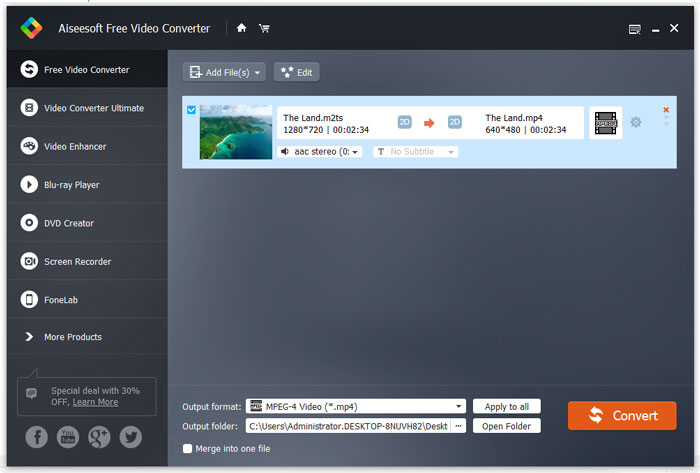
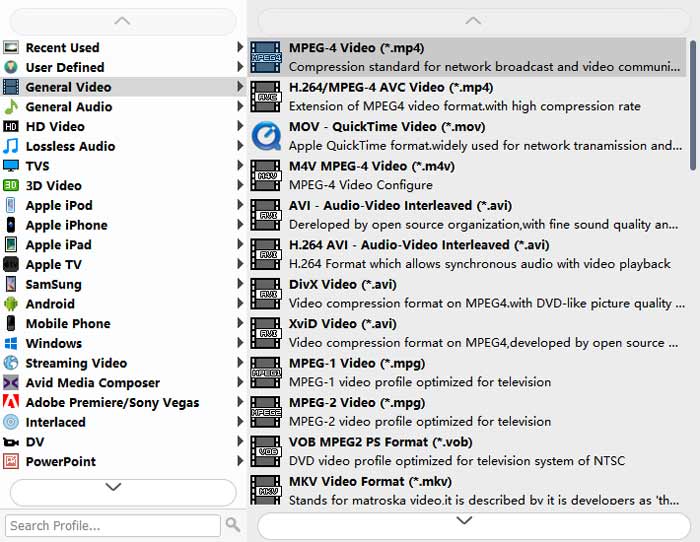
Langkah 2: Klik menu Output File dan pilih format GIF dalam senarai umum. Atau anda boleh terus mencari format GIF dalam kotak carian. Kemudian klik ikon Settings dalam senarai video untuk menukar parameter terperinci. Untuk mengekalkan kualiti tinggi, anda boleh memilih resolusi maksimum 720p dan kadar bingkai 25fps. Kemudian klik butang Save untuk menyimpan tetapan.
Langkah 3: Kembali ke antara muka utama, dan pilih laluan storan. Selepas itu, klik butang Convert untuk mula menukar fail SWF kepada GIF.
Bahagian 3: Cara Mengubah Fail SWF ke Fail GIF Secara Percuma
Terdapat juga penukar video dalam talian yang mudah digunakan untuk anda. Tanpa memuat turun sebarang perisian, anda boleh menukar fail SWF kepada GIF melalui FVC Free Online Video Converter. Tetapi anda harus ambil perhatian bahawa ia mempunyai had pada resolusi video dan kadar bingkai, yang akan menyebabkan banyak kehilangan kualiti daripada fail asal.
Langkah 1: Pergi ke FVC Free Online Video Converter pada mana-mana pelayar. Klik butang Add Files to Convert untuk memasang pelancar, dan kemudian klik butang ini sekali lagi untuk memilih fail SWF yang anda mahu tukar kepada GIF.

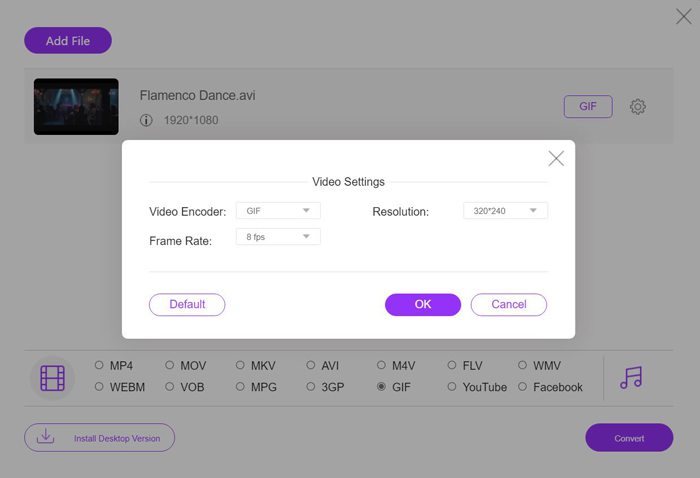
Langkah 2: Pilih format GIF dalam senarai di bahagian bawah dan kemudian klik ikon Settings untuk menukar parameter. Anda hanya boleh memilih resolusi 320x240p dan kadar bingkai 8fps. Kemudian klik butang OK untuk menyimpan tetapan.
Langkah 3: Klik butang Convert dan kemudian pilih folder fail yang dikehendaki untuk menyimpan GIF yang dieksport.
Dengan penukar video dalam talian ini, anda juga boleh menukar fail SWF kepada MP4, MOV, FLV, WMV, AVI, dan lain-lain pada komputer anda.
Bahagian 4: Soalan Lazim Menukar SWF ke GIF Animasi
1. Apakah perbezaan antara SWF dan animasi GIF?
Pertama, kedua-duanya adalah fail animasi dengan kesan animasi. Tetapi fail SWF juga mengandungi kesan interaksi, yang sesuai untuk hiasan laman web. Dan fail SWF mempunyai saiz yang lebih besar dan kualiti yang lebih tinggi daripada GIF. Oleh itu, fail GIF lebih sesuai untuk dihantar di Internet.
2. Mengapa saya hanya boleh mengeksport SWF tetapi bukan GIF pada perisian Flash?
Mungkin anda tidak membuka tetapan GIF di Adobe Flash. Anda boleh pergi ke menu File dan memilih pilihan Publish Settings. Kemudian tandakan kotak GIF Image dan ubah tetapan pemain ke Flash Player 5. Kemudian anda boleh mencuba mengeksport fail GIF sekali lagi. Sekiranya tidak berfungsi, anda boleh cuba menukar fail SWF ke GIF.
3. Bolehkah saya memainkan fail SWF di komputer?
Ya, boleh. Walaupun format SWF tidak disokong oleh kebanyakan pemain video termasuk pemain SWF lalai pada Windows/Mac, anda boleh cuba FVC Free Video Player atau VLC media player, dan sebagainya untuk menonton video SWF.
Kesimpulannya
Tidak dapat mengeksport format GIF pada Flash? Anda boleh mengeksport fail SWF pada mulanya, dan kemudian menukar SWF ke GIF melalui 2 cara mudah yang disebutkan dalam artikel ini. Terlepas dari resolusi rendah dan kadar bingkai, penukar dalam talian percuma mudah untuk semua orang. Tetapi untuk mengekalkan kualiti yang tinggi dan mengubah sekumpulan fail SWF menjadi GIF bersama-sama, muat turun FVC Free Video ke GIF Maker sekarang.
-
 Cara Memampatkan Fail SWF Secara Dalam Talian Tanpa 0 Kehilangan Kualiti
 Fail SWF terlalu besar untuk disimpan di komputer atau dimuat naik dalam talian? Kompres video SWF sekarang dalam talian untuk mengurangkan saiz fail pada kadar pemampatan tinggi sehingga 95%.
-
 Panduan Langkah demi langkah Menukar MP4 ke GIF di Desktop atau Dalam Talian
 Mencari kaedah terbaik untuk menukar video MP4 anda menjadi GIF animasi? Berikut adalah panduan terperinci untuk melakukannya di Photoshop, Windows Movie Maker, penukar video dalam talian dan banyak lagi.
-
 MP4 to SWF Converter - 4 Kaedah Terbaik untuk Menukar MP4 ke SWF Files
 Apabila anda ingin menukar fail MP4 ke SWF, yang boleh dimainkan secara automatik di mana-mana penyemak imbas, anda boleh mengetahui lebih lanjut mengenai 4 penukar MP4 ke SWF yang paling berkesan dari artikel tersebut.
