


 Video Converter Ultimate
 Perakam Skrin
 Pembaikan Video
5 Pemotong MP4 Terhebat: Ketahui Cara Menggunting Video pada PC, Mac dan Peranti Mudah Alih
Jika anda seorang vlogger atau seorang yang bercita-cita tinggi, mengambil video tentang diri anda adalah perkara biasa. Ini akan mengambil banyak usaha dan keyakinan serta anda merakam di hadapan kamera. Selain itu, perkara paling biasa yang dilakukan oleh semua pro dan baru dalam vlogging ialah kesilapan yang anda lakukan. Daripada merakam semula video, mereka cenderung memotongnya dan bergabung dengan video asal. Untuk membuat satu video baharu yang terdiri daripada sudut yang berbeza, paparan, montaj dan banyak lagi, mereka memotongnya daripada video yang berbeza dan menambahkannya menjadi satu. Tetapi sebagai baru dalam pekerjaan seperti ini atau profesional, memilih perapi yang betul adalah sukar. Kerana tidak semua fungsi seperti yang mereka katakan pada iklan alat itu tidak ada dalam alat. Daripada pergi ke artikel lain dan membaca cadangan, apa kata anda belajar daripada ini terlebih dahulu. Memandangkan kami hanya mengumpul bukti sebenar untuk keuntungan anda sendiri. Jadi, di sini dalam senarai adalah pemotong MP4 yang boleh anda gunakan untuk memulakan vlogging. Tetap fokus untuk mengetahui apakah perapi terbaik yang boleh anda gunakan yang memberikan pandangan yang ringkas tetapi profesional kepada video anda.

Bahagian 1. Muat turun Perisian Pemotong Video MP4 Terbaik pada PC dan Mac
Jika kita ingin bercakap tentang yang terbaik, maka anda mesti mengutamakan membaca ini dahulu. Seperti yang dinyatakan tadi, membuat vlog adalah jauh lebih sukar daripada yang kita jangka, bukan sekadar keberanian berdepan kamera dan memuat naiknya. Anda juga perlu mempertimbangkan untuk mempunyai alat serba guna. Yang dapat menghasilkan video yang lebih menarik di mata setiap penonton. FVC Video Converter Ultimate menyediakan fungsi penyuntingan dan penukaran hebat yang boleh digunakan oleh sesiapa sahaja. Sama ada pemula atau profesional, kita mesti mempertimbangkan untuk mencari yang terbaik di pasaran. Walaupun ini versi berbayar, ia tetap memberikan yang paling hebat yang anda ingin miliki. Dan jika anda memilihnya sebagai pilihan peribadi, maka masa depan yang cerah menanti anda. Mahu mula vlogging hari ini? Ikuti langkah ini tentang cara menggunakan pemotong video MP4 ini.
Langkah 1. Klik butang muat turun di bawah dan pasang pada PC atau Mac anda. Ikuti proses tetapan alat dan klik selesai untuk melancarkan perisian.
Muat Turun PercumaUntuk Windows 7 atau lebih baharuMuat Turun Selamat
Muat Turun PercumaUntuk MacOS 10.7 atau lebih baharuMuat Turun Selamat
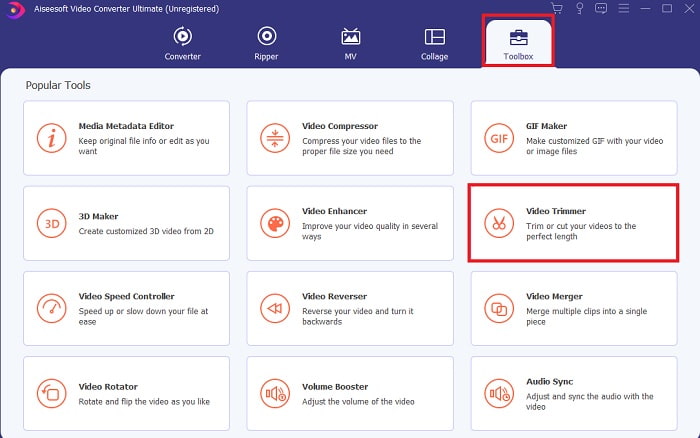
Langkah 2. Jika paparan ini sudah muncul, klik Toolbar dan cari Video Trimmer di bawah.
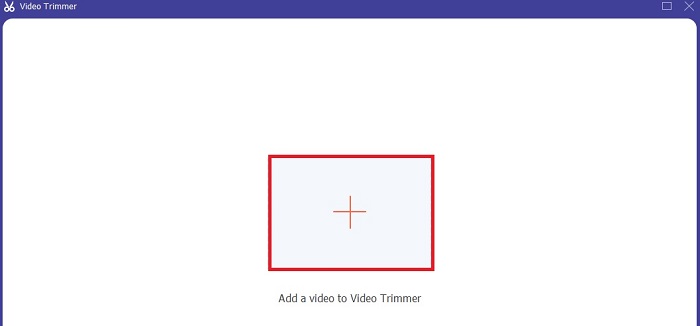
Langkah 3. Klik butang tambah untuk menambah fail. Pilih fail dalam pemacu anda yang ingin dipotong dan klik open untuk memasukkan video.
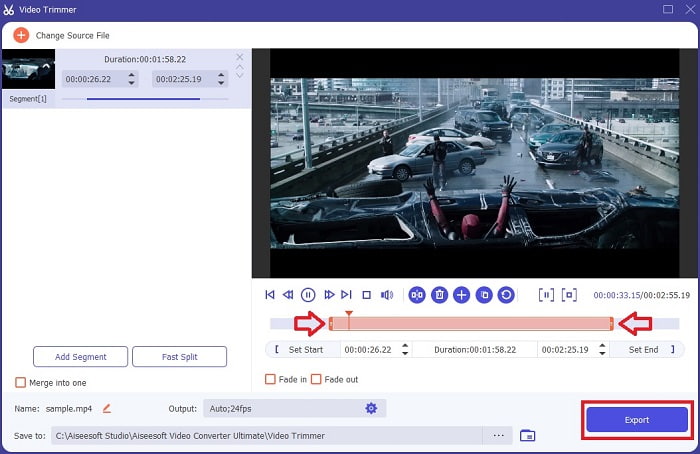
Langkah 4. Untuk melaras titik mula dan akhir video anda, ubah suai playback in and out bagi menetapkan durasi yang anda inginkan. Tambah kesan fade in dan fade out jika mahu. Anda juga boleh menukar output media jika anda klik butang cog. Apabila siap, klik butang Export untuk memulakan proses pemotongan.
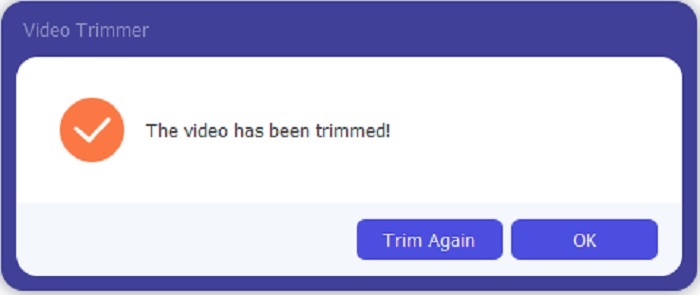
Langkah 5. Tunggu seketika dan kini video anda telah dipotong. Kemudian klik OK atau Trim Again jika anda perlu memotong video lain. Jika anda mahu menambah baik video yang baru sahaja dibuat, klik toolbar sekali lagi dan cari video enhancer.
Kelebihan mempunyai alat penggabungan yang disediakan oleh FVC Video Converter Ultimate with Steps
Tidak seperti mana-mana aplikasi lain, menggabungkan video dalam FVC Video Converter Ultimate adalah sangat mudah untuk dilakukan. Ini adalah ciri bonus jika anda memperoleh alat ini. Seperti yang dikatakan, alat ini adalah pelbagai guna jadi tanpa berlengah lagi mari kita mula menggabungkan video yang berbeza menjadi satu.
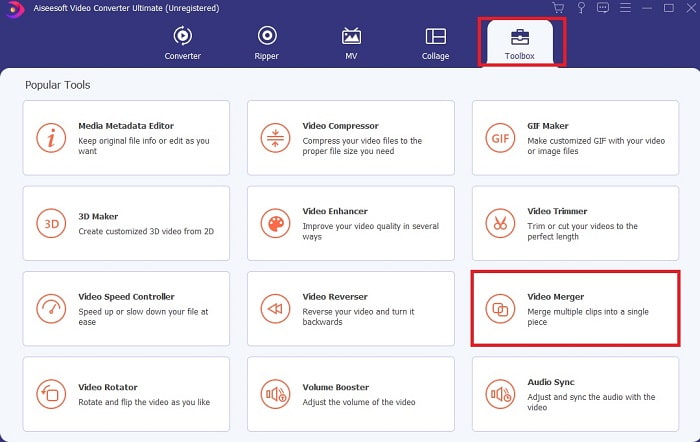
Langkah 1. Buka perisian dan pergi ke Toolbar kemudian cari Video Merger dan klik padanya.
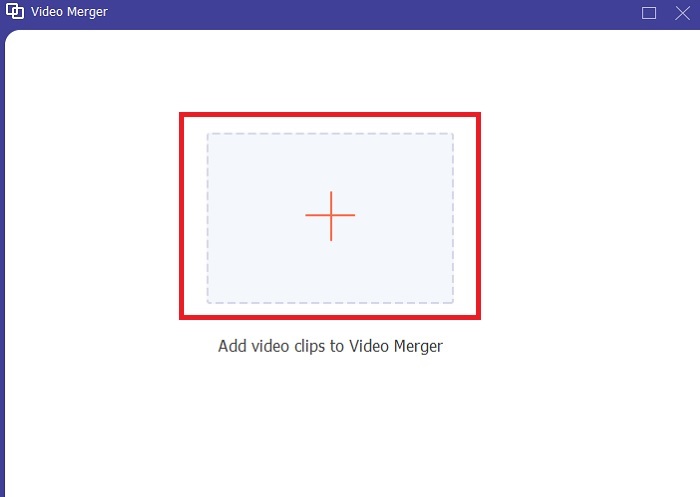
Langkah 2. Klik butang add dan pilih video yang ingin anda gabungkan dan klik open untuk meneruskan. Selepas memilih fail pertama, klik tanda tambah untuk menambah fail lain yang anda mahu gabungkan.
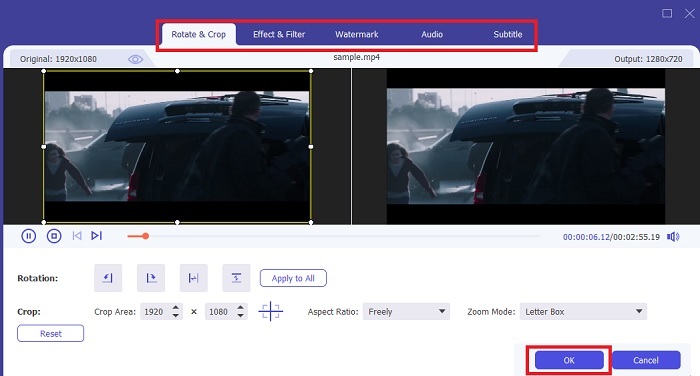
Langkah 3. Pada antara muka, klik butang wand untuk menambah kesan, meningkatkan audio, memutar atau memotong dan menambah sari kata juga. Untuk menyimpan suntingan yang anda buat, klik OK. Lakukan prosedur yang sama pada video lain juga jika anda mahu.
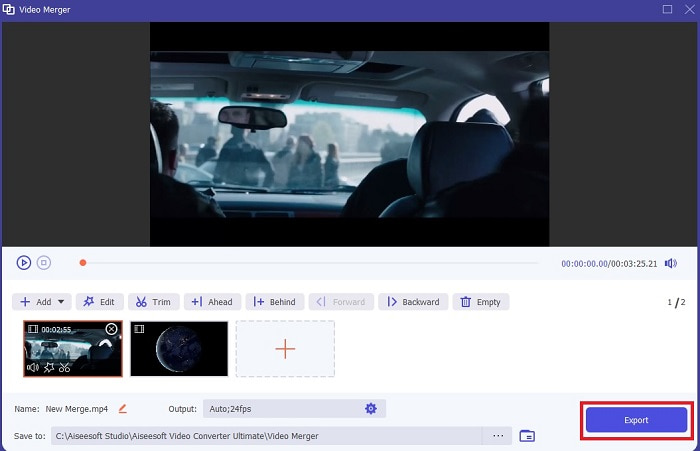
Langkah 4. Jadi, jika anda sudah bersedia untuk memulakan proses, klik Export. Selepas eksport siap, pengurus fail akan terpapar pada skrin anda. Untuk menonton video yang telah dieksport, klik sahaja dan nikmati.
Bahagian 2. Pemotong MP4 Terbaik Dalam Talian
Ini mungkin pemotong yang baik tetapi ia bukan yang terbaik seperti FVC Video Converter Ultimate. Namun sekurang-kurangnya berbaloi untuk mencuba menggunakan pemotong MP4 dalam talian ini.
1. Pemotong Video Dalam Talian 123Apps
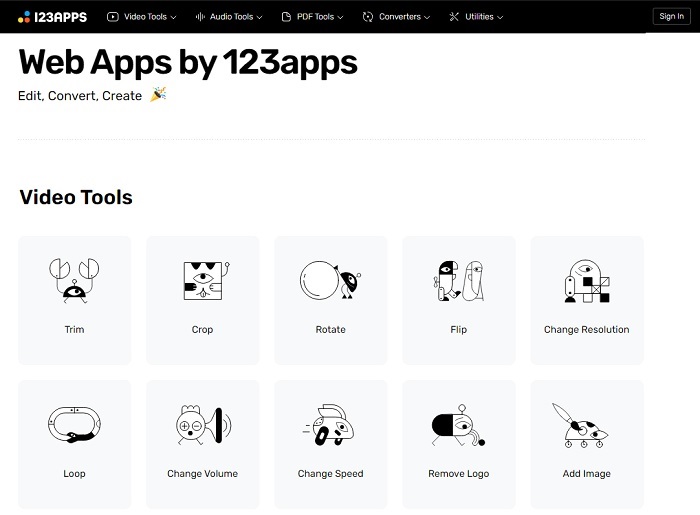
Alat dalam talian pertama ini bertujuan untuk menjadikan video anda lebih baik. Ia boleh melaraskan tempoh video, memangkas, menambah teks dan banyak lagi. Tetapi alat ini mengambil banyak masa anda untuk dieksport. Selepas anda mengeksport anda mesti memuat turunnya, dan proses ini akan bergantung pada kelajuan internet anda. Selain itu, anda tidak boleh melaraskan kualiti video anda. Jadi, jika video anda agak kabur dan perlu melaraskan fpsnya, anda tidak boleh melakukannya di sini. Tetapi tetap, ia patut dicuba.
2. Clideo
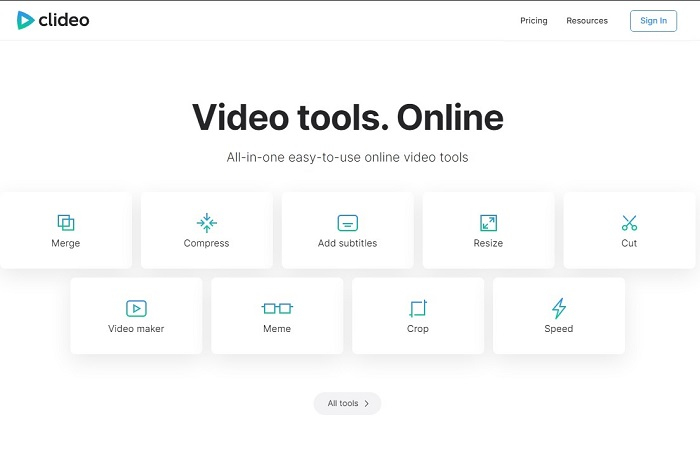
Jika kita bercakap tentang pemotongan, ini juga boleh menjadi pilihan yang baik. Clideo adalah salah satu pemotong MP4 dalam talian terbaik yang anda boleh temui. Sama seperti alat pertama yang disebutkan tadi, alat ini juga menyediakan fungsi penyuntingan asas. Walaupun ia menyokong suntingan asas, ia masih belum mencukupi jika anda mahu menghasilkan video yang benar‑benar menarik perhatian. Namun anda boleh mencubanya secara dalam talian, tidak perlu risau, ia percuma dan selamat juga.
Bahagian 3. 3 Aplikasi Pemotong MP4 Terbaik pada Android dan iOS
Bagaimana jika anda tidak mempunyai desktop untuk menggunakan alatan di atas dan ingin menjadi vlogger adakah masih boleh? Jika anda mempunyai telefon seperti Android atau iOS maka anda boleh menggunakan apl ini untuk melakukan pengeditan dalam telefon anda. Tetapi terdapat beberapa ciri yang tersedia di atas yang tidak ada di sini. Jadi, teruskan membaca di bawah untuk mengetahui apakah alat ini dan pilih daripadanya.
1. iMovie untuk iOS
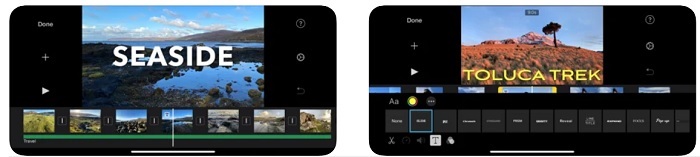
Jika anda mahu menambah suasana ala Hollywood pada video anda maka iMovie ialah perisian yang sesuai. Apl pemotong MP4 ini dicipta hanya untuk pengguna iOS. Tetapi walaupun alat ini menyediakan fungsi penyuntingan tahap tinggi, sesetengah pepijat di dalamnya masih belum dibaiki. Dalam beberapa keadaan, aplikasi sering terhenti setiap kali anda cuba menyunting dan skrin menjadi hitam. Kadangkala video dan audio tidak seiring kerana gangguan teknikal. Ini adalah antara contoh pepijat yang ada; kelihatan remeh tetapi sangat menjengkelkan kebanyakan masa. Jadi, jika anda mahu mencuba iMovie anda masih boleh memuat turunnya di App Store.
2. Editor & Pembuat Video – Viva Video untuk Android
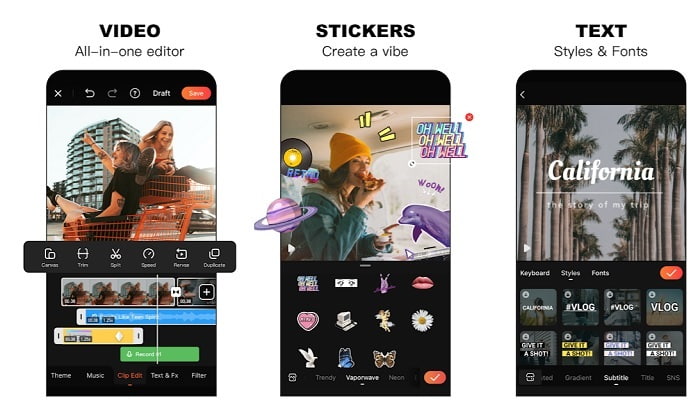
Salah satu pemotong MP4 percuma terbaik pada Android ialah Video Editor & Maker – Viva Video. Sama seperti alat di atas, kedua‑duanya menyediakan fungsi penyuntingan terbaik pada telefon. Seperti transisi video, efek glitch dan banyak lagi tetapi ini adalah alat berbayar. Ada kes di mana ia tidak baik kerana tiada butang nyah langgan untuk menghentikan aplikasi. Jadi cara yang anda fikir paling baik mungkin dengan memadam aplikasi untuk menamatkan langganan, tetapi ia sebenarnya tidak akan tamat. Ia akan terus mengebil kad kredit anda jika anda memilih kaedah pembayaran ini. Namun secara keseluruhan, alat ini memang kelas A, tidak lebih dan tidak kurang.
Bahagian 4. Soalan Lazim tentang Pemotong MP4
Apa itu MP4?
MP4 juga dikenali sebagai format media pelbagai guna. Daripada menyimpan kod, ia menyimpan data video, gambar pegun, sari kata atau teks. Selain itu, ia adalah format video yang paling biasa digunakan di seluruh dunia.
Adakah MP4 lossy atau lossless?
Sebagai format pelbagai guna, MP4 ialah pemampatan lossy.
Apakah format terbaik selain MP4?
Ada beberapa format yang memberikan output media lebih baik berbanding MP4 tetapi tidak sefleksibel format ini. Contohnya WMV, format ini memberikan saiz yang lebih kecil daripada MP4 tetapi tidak serasi dengan Apple. Kerana ia direka sebagai format asal untuk Windows Media Player. Anda boleh memilih untuk menukar fail MP4 anda kepada WMV untuk main balik yang lebih baik.
Kesimpulannya
Sebagai penutup, kini lebih mudah untuk memahami perbezaan setiap alat untuk anda gunakan. Tetapi seperti yang dikatakan tadi, tidak semuanya menyediakan fungsi pemotongan hebat seperti yang boleh dilakukan oleh FVC Video Converter Ultimate. Terutama jika anda mahu mencipta video yang lebih menarik untuk mendapatkan lebih banyak tontonan dan juga keuntungan. Jadi, daripada berpuas hati dengan yang sementara, apa kata anda pilih FVC Video Converter Ultimate untuk menghadapi masa depan dan mendapatkan versi terbaik untuk diri anda.
-
 Panduan Mengubah RMVB ke MP4 pada Windows / Mac (3 Cara Percuma)
 Ingin menukar RMVB kepada MP4 untuk main semula mudah pada komputer atau telefon bimbit anda? Anda akan menemui cara mudah untuk menukar fail RMVB anda kepada MP4 dalam panduan ini.
-
 4 Penukar MP4 ke M4V Terbaik untuk Mengubah Video MP4 menjadi M4V dengan Kemudahan
 Apabila anda perlu menukar fail MP4 ke M4V, anda harus mengetahui lebih banyak perincian mengenai perbezaan antara kedua format, serta penukar MP4 ke M4V terbaik dari artikel tersebut.
-
 AMV Converter - 3 Kaedah Terbaik untuk Menukar MP4 ke AMV pada Win / Mac
 Apa penukar MP4 ke AMV terbaik untuk mengubah video menjadi Video Muzik Amine, anda boleh mengetahui lebih lanjut mengenai 3 kaedah paling berkesan untuk mendapatkan video yang diinginkan dengan mudah dari artikel.
