


 Video Converter Ultimate
 Perakam Skrin
 Pembaikan Video
 Muat Turun Selamat
4 Kaedah Teratas untuk Menukar MP4 ke MOV Percuma
MP4 ialah salah satu format video yang paling popular dan sangat disokong oleh kebanyakan pemain, penyunting dan peranti. Tetapi dalam sesetengah keadaan, anda masih perlu menukar MP4 kepada MOV. Adakah anda tahu cara menukar MP4 kepada MOV?

Apabila anda Google cara menukar MP4 kepada MOV di internet, anda akan dapati banyak penukar video yang boleh membantu anda membuat penukaran video, termasuk beberapa alat penukaran dalam talian percuma. Di dalam hantaran ini, kami akan memberitahu anda 4 cara percuma untuk membantu anda menukar MP4 kepada MOV dengan mudah.
Bahagian 1. Cara Menukar MP4 ke MOV Percuma di Mac / PC Tanpa Kehilangan Kualiti
Walaupun terdapat banyak perisian penukar MP4 kepada MOV yang ditawarkan di pasaran, kebanyakannya akan kehilangan sebahagian kualiti imej dan bunyi semasa penukaran. Jika anda mahu menukar MP4 kepada MOV tanpa kehilangan kualiti, anda patut memilih Free Video Converter.
Penukar Video Percuma direka khas untuk menangani semua jenis penukaran video dan audio. Ia sangat menyokong hampir semua format video / audio termasuk MP4, MOV, MKV, FLV, AVI, WMV, MP3, AAC, FLAC, dan banyak lagi. Ini membolehkan anda menukar MP4 ke MOV secara percuma pada Mac atau Windows PC sambil mengekalkan kualiti asalnya.
Muat Turun PercumaUntuk Windows 7 atau versi lebih baharuMuat Turun Selamat
Muat Turun PercumaUntuk MacOS 10.7 atau versi lebih baharuMuat Turun Selamat
Langkah 1. Klik dua kali butang muat turun di atas dan ikut arahan untuk memasang dan menjalankan penukar MP4 ke MOV percuma ini pada Mac/PC anda. Pastikan anda memuat turun versi yang betul mengikut sistem anda.
Langkah 2. Apabila anda masuk ke tetingkap utama, anda boleh klik Add File(s) untuk mengimport fail MP4 yang anda mahu tukar. Penukar MP4 ke MOV percuma ini dilengkapi dengan fungsi penukaran kelompok yang membolehkan anda menukar satu atau lebih fail MP4 pada satu masa.
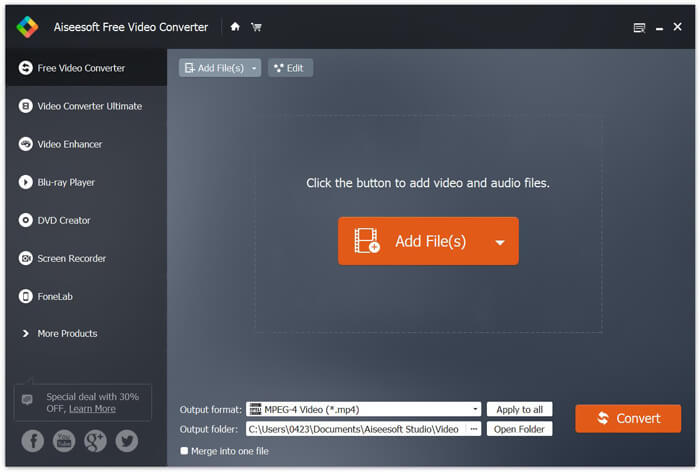
Langkah 3. Klik Output format dan pilih MOV sebagai format sasaran anda daripada senarai juntai bawah. Kini anda boleh klik sahaja butang Convert untuk memulakan penukaran daripada MP4 kepada MOV.
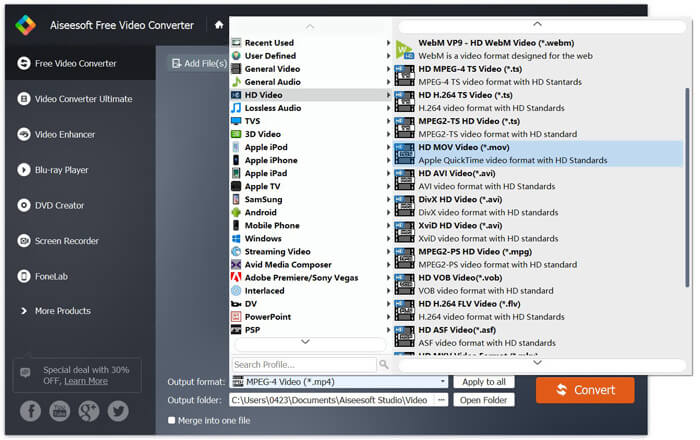
Hanya beberapa saat kemudian, MP4 yang asal akan ditukar ke format MOV. Selain MOV, anda juga boleh menukar MP4 ke MKV, FLV, AVI, dll dengan kualiti yang tinggi. Penukar video percuma ini juga membawa beberapa ciri penyuntingan asas. Sebelum penukaran MP4 ke MOV terakhir, anda boleh menggunakannya untuk mengedit video MP4 anda.
Bahagian 2. Cara Menukar MP4 ke MOV Percuma dengan Penukar Video Dalam Talian
Seperti yang disebutkan di atas, terdapat banyak penukar video dalam talian percuma yang ditawarkan di pasaran yang dapat membantu anda mengubah MP4 menjadi MOV. Di sini dalam catatan ini, kami akan memperkenalkan 2 kaedah mengenai cara menukar MP4 ke MOV secara dalam talian.
1. Penukar Video Dalam Talian Percuma FVC
Jika anda mahu menukar MP4 kepada MOV dalam talian secara percuma, FVC Free Online Video Converter akan menjadi pilihan terbaik anda. Dengan 3 langkah mudah, anda boleh menyiapkan penukaran dan mendapatkan fail yang ditukar tanpa kehilangan kualiti dalam beberapa saat.
Langkah 1. Klik pautan di atas dan pergi ke FVC Free Online Video Converter. Kemudian klik Add Files to Convert di tengah banner. Selepas itu, muat turun dan pasang FVC launcher ke komputer anda.
Muat turun Versi Desktop untuk menukar fail secara kelompok.

Langkah 2. Selepas memilih dan memuat naik video yang anda mahu tukar, anda perlu memilih MOV sebagai format output untuk fail video yang telah ditukar.
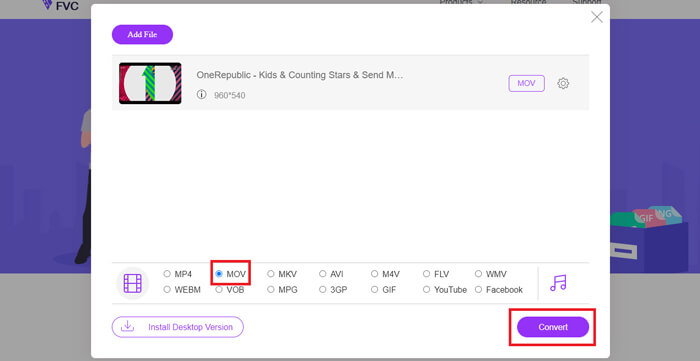
Langkah 3. Klik Convert. Dan anda boleh memilih untuk menyimpan fail yang telah ditukar ke desktop anda. Selepas itu, tunggu seketika untuk mendapatkan video MOV anda.
2. CloudConvert
CloudConvert adalah alat penukaran video dalam talian yang sangat popular dan mudah digunakan. Ia memiliki kemampuan untuk mengubah lebih dari 200 format, termasuk format audio, video, dokumen, ebook, arkib, gambar, spreadsheet atau persembahan. Lebih-lebih lagi, penukar dalam talian yang dipercayai ini akan melindungi data dan privasi anda.
Langkah 1. Buka pelayar anda dan pergi ke laman rasmi CloudConvert. Ia direka bentuk dengan antara muka yang ringkas yang boleh menawarkan pengalaman penukaran yang selesa.
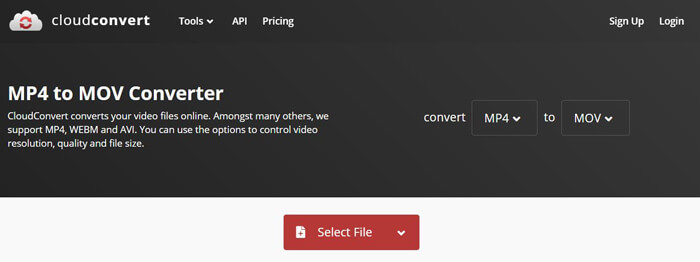
Langkah 2. Klik butang Select File untuk memuat naik fail MP4 yang anda mahu tukar. Di sini anda boleh menambah fail dari komputer, URL, Google Drive, OneDrive atau Dropbox. Dalam langkah ini, anda dibenarkan menambah lebih banyak fail untuk penukaran.
Satu perkara yang perlu anda bimbangkan ialah, penukar MP4 ke MOV percuma ini hanya membolehkan anda menukar video kurang dari 1GB. Anda perlu membeli pakej untuk menukar fail yang lebih besar.
Langkah 3. Klik butang Convert untuk mula memuat naik dan menukar fail MP4 anda. Kemudian anda boleh klik butang Download untuk menyimpan video MOV yang telah ditukar pada komputer anda.

Dengan menggunakan CloudConvert untuk menukar MP4 ke MOV dalam talian, anda perlu meluangkan lebih banyak masa untuk proses memuat naik, menukar dan memuat turun video, terutamanya ketika anda menukar fail yang besar.
Bahagian 3. Cara Menukar MP4 ke MOV dengan Pemain Media VLC
VLC Media Player ialah pemain multimedia sumber terbuka yang popular. Bukan sekadar pemain media, VLC juga boleh berfungsi sebagai alat penukar video untuk membantu anda membuat pelbagai penukaran video. Jika anda memasang VLC pada komputer anda, anda boleh bergantung padanya untuk menukar fail MP4 anda kepada video MOV.
Langkah 1. Buka VLC Media Player pada komputer anda. Jika anda tidak mempunyai VLC, anda boleh pergi ke laman rasminya untuk memuat turunnya secara percuma.
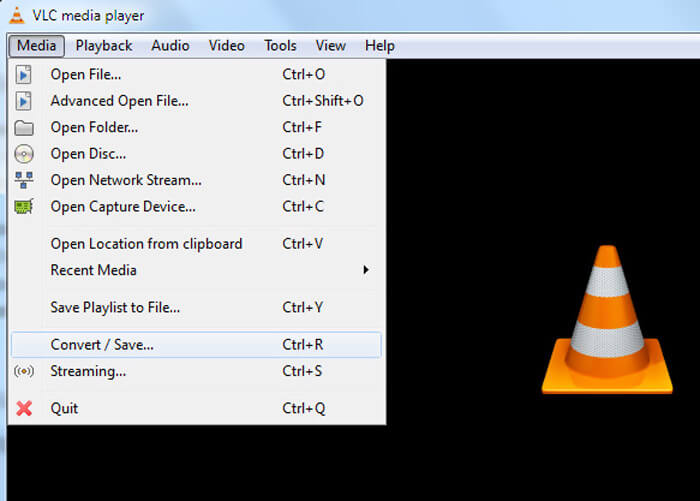
Langkah 2. Klik butang Media pada bar menu dan kemudian pilih pilihan Convert/Save daripada senarai juntai bawah.
Langkah 3. Satu tetingkap Open Media baharu akan muncul. Di sini anda boleh klik File > Add untuk mengimport fail MP4 yang anda mahu tukar.
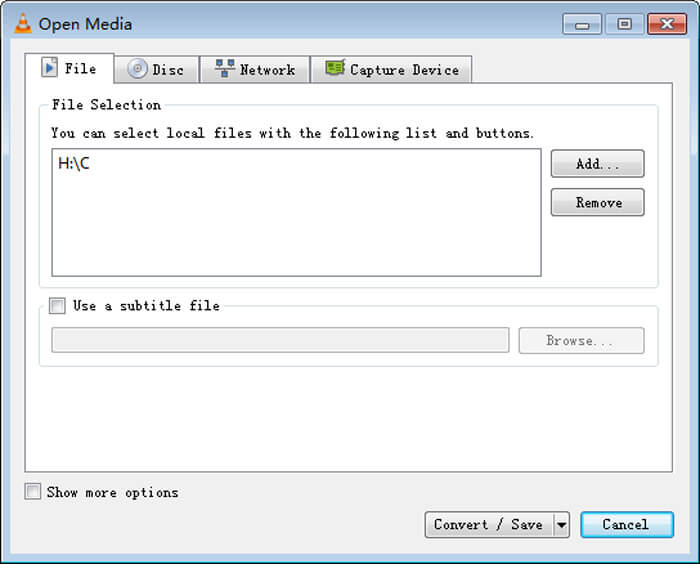
Langkah 4. Klik butang Convert/Save di bahagian bawah untuk mengesahkan operasi. Kemudian anda akan dibawa ke tetingkap Convert di mana anda boleh memilih folder destinasi fail dan format output untuk video yang telah ditukar.
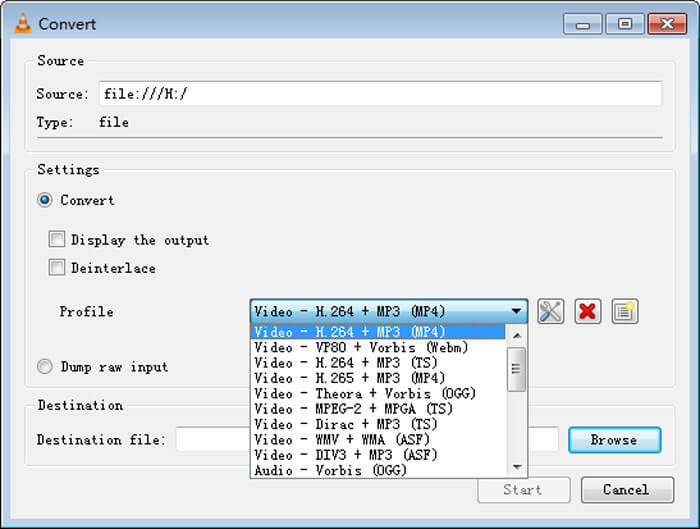
Langkah 5. Pilih MOV sebagai format output daripada senarai juntai bawah Profile. Kemudian klik Start untuk membuat penukaran video daripada MP4 kepada MOV pada VLC.
MP4 lwn MOV
Dikeluarkan oleh Moving Picture Experts Group (MPEG) pada tahun 2001, format MP4 boleh membantu anda menyimpan data video, audio, sari kata dan imej dalam trek yang berasingan. Ia adalah singkatan untuk MPEG-4 Bahagian 14. Selain itu, ia adalah salah satu format paling popular yang digunakan untuk penstriman dan perkongsian video.
Format MOV boleh digunakan untuk menyimpan filem, rancangan TV, klip video pendek atau filem rumah. Ia sebenarnya disimpan dalam Format Fail QuickTime (QTFF), yang telah diperkenalkan oleh Apple pada tahun 1991. Fail MOV sering digunakan apabila orang ingin menyimpan video dengan kualiti yang tinggi.
Bahagian 4. Soalan Lazim Menukar MP4 ke MOV
Soalan 1. Bolehkah QuickTime menukar MP4 ke MOV?
Apabila anda mempunyai keperluan untuk menukar MP4 ke MOV di Mac, anda boleh mencuba QuickTime. Anda boleh membuka video MP4 dengan QuickTime Player. Kemudian klik butang Eksport dan pilih format MOV. Anda boleh menamakan semula fail, memilih lokasi dan resolusi video. Kemudian anda boleh mengklik butang Eksport untuk menukar MP4 ke MOV percuma pada Mac.
Soalan 2. Mana yang lebih baik, MOV atau MP4?
MP4 ialah salah satu format storan fail multimedia yang paling popular. Ia ialah fail bekas digital, hanya pembalut di sekeliling video, bukan video itu sendiri. Sama seperti MP4, MOV juga merupakan fail bekas digital. MOV dikodkan dengan codec MPEG-4.Perbezaan utama antara MOV dan MP4 ialah, MOV kebanyakannya digunakan dalam persekitaran Mac. MOV direka khas untuk QuickTime. MP4 ialah piawaian antarabangsa yang boleh disokong oleh kebanyakan pemain media dan sistem. Secara umum, video MOV selalunya lebih tinggi kualitinya dan lebih besar saiznya. Fail MP4 biasanya lebih mampat dan lebih kecil saiznya. Jadi anda tidak boleh semata-mata mengatakan MOV lebih baik daripada MP4, atau MP4 yang lebih baik.
Soalan 3. Adakah menukar MOV ke MP4 kehilangan kualiti?
Apabila anda ingin menukar MOV ke MP4, atau menukar MP4 ke MOV, anda harus memilih beberapa penukar video profesional. Dalam kebanyakan kes, anda tidak akan melihat kehilangan kualiti selepas penukaran.
Soalan 4. Adakah terdapat penukar MP4 ke MOV percuma?
Terdapat banyak penukar video percuma yang ditawarkan di internet yang dapat membantu anda menukar MP4 ke MOV. Selain CloudConvert yang disyorkan, anda juga boleh bergantung pada FFmpeg, HandBrake, ZAMZAR, Convert Files dan banyak lagi untuk membuat versi penukaran.
-
 Cara Menukar Fail Video MP4 Anda ke Gambar GIF Animasi tanpa Kehilangan Kualiti
 Mencari kaedah terbaik untuk menukar video MP4 anda menjadi GIF animasi? Berikut adalah panduan terperinci untuk melakukannya di Photoshop, Windows Movie Maker, penukar video dalam talian dan banyak lagi.
-
 MOV VS MP4 - Mana Yang Lebih Baik
 MOV VS MP4, yang manakah lebih baik? Catatan ini memberitahu perbezaan antara MP4 dan MOV, sehingga anda dapat memperoleh pilihan yang lebih baik untuk digunakan untuk fail video anda.
-
 Cara Menukar MOV ke MP4 tanpa Kehilangan Kualiti
 Ingin menukar fail MOV (Apple QuickTime Movie) ke MP4? Catatan ini berkongsi 4 kaedah percuma untuk menukar fail video MOV anda ke format MP4 pada Windows 10/8/7 / XP dan Mac OS X.

