


 Video Converter Ultimate
 Perakam Skrin
 Pembaikan Video
 Muat Turun Selamat
Bagaimana Kami Boleh Menukar Format M4A kepada MP3 pada Komputer secara Percuma
M4A ialah format fail audio proprietari Apple yang menggunakan codec MPEG-4. Ia sangat serupa dengan format MP4, kecuali MP4 boleh memuatkan data video sebagai tambahan kepada fail audio. MP3 dikeluarkan lebih awal, pada tahun 1993, dan masih merupakan piawaian paling berwibawa untuk menyimpan muzik. Kelebihan terbesarnya ialah ia memampatkan audio dengan sangat cekap, memastikan tiada kehilangan kualiti audio yang ketara semasa menyampaikan saiz fail yang lebih kecil.
M4A memberikan kita kualiti bunyi yang lebih baik berbanding MP3. Jika anda fikir bahawa fail M4A lebih besar daripada fail MP3, anda silap. Sebenarnya, fail M4A boleh menjadi hampir separuh saiz MP3, dan ia juga menyokong pengguna menambah perlindungan DRM untuk mengelakkan orang lain mengedarkan audio tanpa kebenaran. M4A telah dianggap sebagai pengganti MP3, tetapi keserasiannya masih jauh lebih rendah. Muzik M4A hanya boleh dimainkan pada sesetengah peranti dan platform, jadi adalah lebih baik untuk menukar muzik M4A kepada MP3 jika kita mahu berkongsi fail audio dengan rakan-rakan dengan lebih mudah. Di sini, kami memilih lima kaedah untuk menukar M4A ke MP3 untuk disyorkan kepada anda, bersama langkah penggunaan masing-masing.

Bahagian 1. Cara Terbaik untuk Menukar M4A kepada MP3 [Pantas & Tiada Kehilangan Kualiti]
FVC Video Converter Ultimate
Selepas ujian dan perbandingan sebenar, FVC Video Converter Ultimate ialah penukar M4A ke MP3 terbaik yang patut dicuba. Sebagai aplikasi desktop, ia serasi dengan kedua-dua sistem operasi Windows dan Mac dan menyokong lebih 1000+ format input dan output. Ia boleh menyelesaikan hampir semua tugas penukaran fail dengan mudah. Walaupun fail format M4A biasanya lebih besar daripada MP3, kita hampir tidak dapat merasakan sebarang perubahan dalam kualiti bunyi apabila kita menggunakan FVC Video Converter Ultimate untuk menukar M4A ke MP3. Aplikasi ini juga dilengkapi dengan pemecut perkakasan yang memastikan fail output dihasilkan 30X lebih pantas, malah boleh memproses berbilang tugas secara kelompok dengan satu klik.
Ia patut dicuba bukan sahaja kerana prestasinya yang sangat baik dalam penukaran format. Antara mukanya juga mengandungi set lengkap alat penyuntingan audio, yang boleh meningkatkan kualiti bunyi dengan mudah, menghilangkan bunyi bising, panjang pemangkasan dan banyak lagi. Dengan perisian semua-dalam-satu ini, menukar M4A kepada MP3 akan menjadi sangat mudah.
Muat Turun PercumaUntuk Windows 7 atau lebih baharuMuat Turun Selamat
Muat Turun PercumaUntuk MacOS 10.7 atau lebih baharuMuat Turun Selamat
Berikut ialah cara menukar M4A kepada MP3 dengan FVC Video Converter Ultimate.
Langkah 1. Dapatkan FVC Video Converter Ultimate pada peranti anda. Selesaikan tetapan asas dan lancarkannya pada desktop anda. Selepas masuk ke antara muka utama, klik Add Files untuk memilih audio M4A anda.

Langkah 2. Audio yang dipilih akan dimuatkan dengan sangat cepat. Pergi ke Convert All to dan pilih Audio > MP3. Beberapa pilihan output dengan kadar bit dan kualiti bunyi berbeza akan dipaparkan pada halaman. Pilih yang memenuhi keperluan anda.
Jika anda mahu membuat suntingan lanjut, klik ikon Cut.
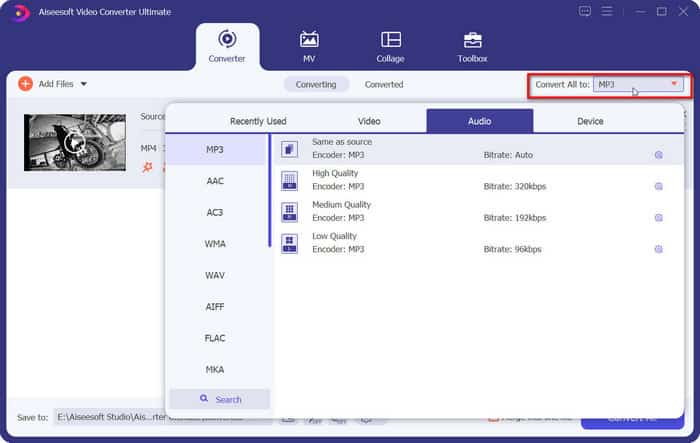
Langkah 3. Pergi ke Save to dan tetapkan laluan storan untuk audio M4A yang telah ditukar. Kemudian klik Convert All.

Bahagian 2. Cara Menukar M4A ke MP3 Dalam Talian
Penukar Audio Percuma FVC
Walaupun alat desktop lebih stabil dan mempunyai lebih banyak fungsi, kita perlu menyelesaikan senarai muat turun dan pemasangan yang panjang sebelum boleh memulakan penukaran. Pakej pemasangan perisian juga akan mengambil banyak ruang memori. Jika kita mahu memulakan penukaran serta-merta dan menjimatkan sedikit ruang storan, kita boleh mendapatkan bantuan penukar M4A ke MP3 dalam talian. Dalam aspek ini, kami mengesyorkan FVC Video Converter Ultimate. Platform ini menyokong banyak format audio popular, termasuk MP3, WMA, AAC, WAV, AC3, FLAC dan sebagainya. Sesetengah penukar dalam talian mempunyai had saiz fail, tetapi FVC Free Audio Converter tidak mempunyai had tersebut, dan kita malah boleh membiarkannya menukar sejumlah besar fail sekaligus.
Berikut ialah cara menukar M4A kepada MP3 dengan Penukar Audio Percuma FVC.
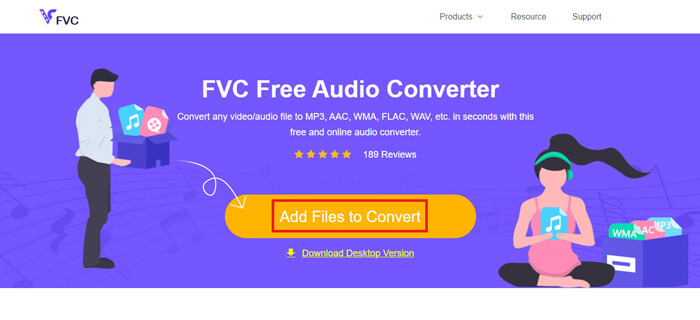
Langkah 1. Buka FVC Free Audio Converter menggunakan pelayar anda. Apabila laman web dimuatkan, klik Add Files to Convert dan muat naik audio M4A anda.
Langkah 2. Selepas menambah, pergi ke bahagian bawah dan pilih MP3 sebagai format output. Tekan ikon tetapan jika anda mahu membuat pelarasan lanjut.
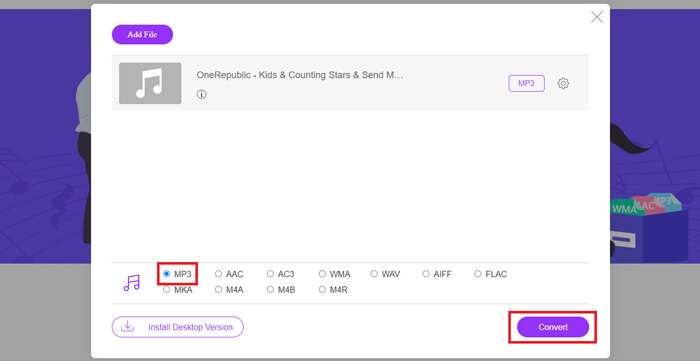
Langkah 3. Akhir sekali, klik Convert untuk memulakan penukaran.
Bahagian 3. Bagaimana untuk Menukar M4A kepada MP3 pada Mac
Jadikan M4A kepada MP3 Menggunakan iTunes
Kedua-dua kaedah di atas berfungsi pada kedua-dua Windows dan Mac. Jika anda seorang pengguna Mac dan ingin mencari penukar percuma yang lebih serasi dengan sistem pengendalian anda, kami mengesyorkan iTunes. Perisian ini dibina ke dalam sistem Apple, dan walaupun ia sering dilihat sebagai pemain multimedia dan alat pengurusan, ia juga menyokong melaksanakan beberapa operasi penukaran format yang mudah. Sebagai nota sampingan, pengguna Windows pun boleh mencuba iTunes.
Berikut ialah cara menukar M4A kepada MP3 pada Mac menggunakan iTunes.
Langkah 1. Jika komputer anda mempunyai iTunes, bukanya. Jika tiada, muat turun dan pasangkannya. Anda perlu log masuk dengan Apple ID dan kata laluan anda.
Langkah 2. Klik File > Add Folder to Library, dan pilih folder tempat audio M4A anda disimpan. Kemudian klik Open untuk memuat naik fail M4A anda ke iTunes.
Langkah 3. Pilih Edit > Preference untuk membuka satu lagi tetingkap.
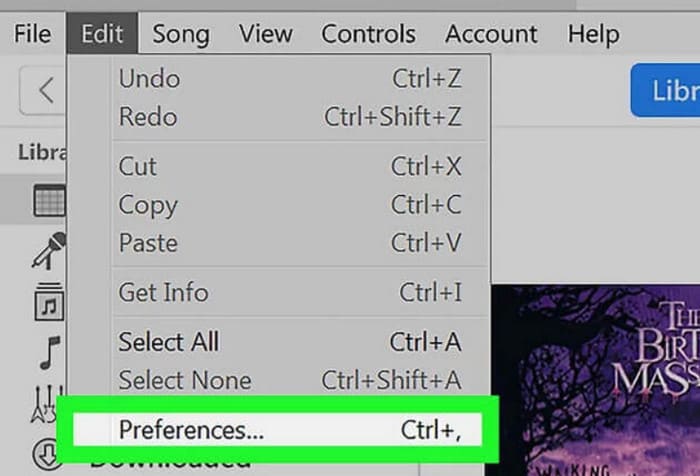
Langkah 4. Dalam tetingkap baharu, klik Import Settings dan pergi ke dialog Import Using. Pilih MP3 Encoder dan klik OK untuk mengekalkan tetapan.
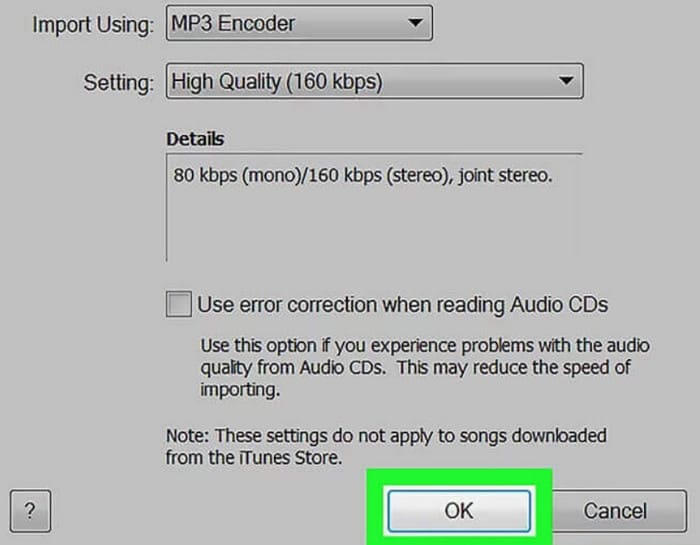
Langkah 5. Kembali ke pustaka iTunes dan cari fail M4A sasaran. Klik File > Convert > Create MP4 Version.

Bahagian 4. Bagaimana untuk Mengubah M4A menjadi MP3 secara Percuma
Antara alatan biasa percuma, terdapat dua lagi yang boleh membantu kami menukar format fail, FFmpeg dan VLC Media Player. dalam bahagian ini kami akan menunjukkan cara menggunakannya masing-masing.
Gunakan FFmpeg untuk Memindahkan M4A ke MP3
FFmpeg terkenal dengan bilangan tugas yang boleh dilakukannya. Walau bagaimanapun, berbanding perisian penyuntingan multimedia tradisional dengan butang dan tetingkap pratonton, FFmpeg beroperasi secara unik. Kita perlu menyediakan templat kod dan mengisi laluan penyimpanan fail. Masukkan arahan kod ke FFmpeg, dan kami akan mendapat fail yang ditukar. Walau bagaimanapun, aplikasi ini tidak begitu mesra kepada orang baru yang tidak berpengalaman; menyediakan kod adalah menyusahkan.
Baca panduan ini untuk menggunakan FFmpeg untuk memindahkan M4A ke MP3.
Langkah 1. Muat turun dan pasang FFmpeg pada komputer anda. Buka aplikasi Terminal.
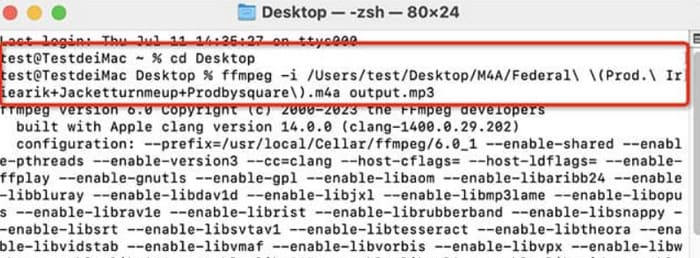
Langkah 2. Sediakan arahan yang perlu anda gunakan.
ffmpeg -i input.m4a output.mp3
Gantikan lokasi input dalam templat di atas dengan laluan storan tempat fail sumber M4A anda berada. Kemudian, gantikan output dengan laluan output yang anda inginkan. Jika anda mahu menukar MP3 ke M4A, tukar kedudukan dua laluan storan ini.
Langkah 3. Taip arahan tersebut ke dalam FFmpeg. Kemudian tekan Enter untuk memulakan penukaran.
Lakukan Penukaran daripada M4A kepada MP3 melalui Pemain Media VLC
VLC Media Player ialah salah satu pemain M4A dan penukar format percuma yang paling dikenali. Ia terkenal kerana boleh membuka fail multimedia dalam hampir semua format dan serasi dengan peranti Windows, Mac dan Linux. Pada halamannya kita juga boleh menemui beberapa alat penyuntingan audio asas.
Berikut ialah cara untuk membuat M4A kepada MP3 dengan VLC Media Player.
Langkah 1. Buka VLC Media Player pada komputer anda. Klik Media > Convert/Save.
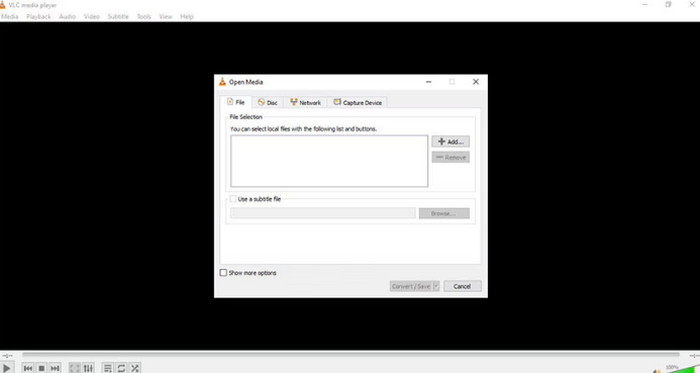
Langkah 2. Lancarkan tetingkap Open Media. Kemudian tekan + Add untuk memuat naik fail M4A anda. Seterusnya, klik Convert/Save sekali lagi.
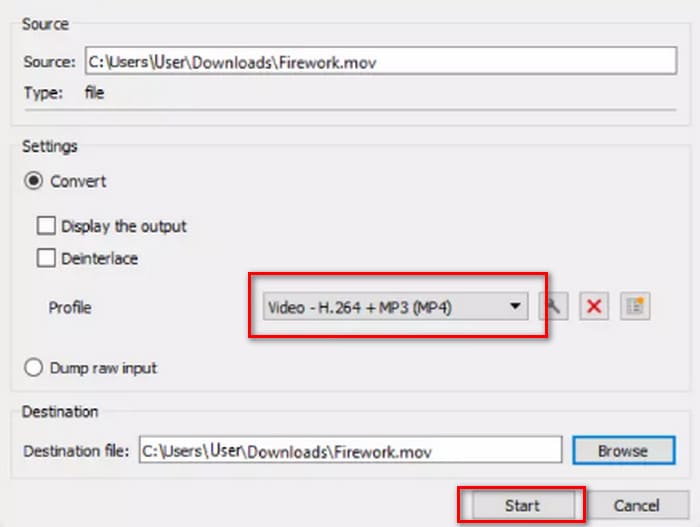
Langkah 3. Satu tetingkap Convert akan muncul. Pilih Profile > Audio - MP3. Akhir sekali, klik Start.
Bahagian 4. Kesimpulan
Dalam artikel ini, kami mengesyorkan lima alat untuk menukar M4A ke MP3 dan cara menggunakannya. Antara perisian desktop, FVC Video Converter Ultimate ialah penukar yang paling serba boleh dan pantas; iTunes sesuai untuk pengguna Mac; VLC Media Player adalah benar-benar percuma tetapi dengan alat penyuntingan yang lebih sedikit; FFmpeg boleh menyelesaikan banyak tugas tetapi agak sukar digunakan. Jika anda mahu mengelakkan muat turun dan pemasangan perisian, anda boleh menggunakan FVC Free Audio Converter.
-
 4 Kaedah Teratas untuk Menukar WMA ke MP3
 Adakah mungkin untuk menukar WMA ke MP3 dengan Windows Media Player? Bagaimana menukar WMA ke MP3 percuma? Catatan ini berkongsi 4 kaedah mudah untuk membantu anda membuat penukaran audio dari WMA ke MP3 di Mac, PC Windows dan dalam talian.
-
 8 Cara Menukar Audio MP4 ke MP3 (Penukaran Batch & Ukuran Besar)
 Sekiranya anda ingin mengekstrak audio MP3 dari video MP4, anda boleh menyemak artikel ini dan mendapatkan 8 penyelesaian. Terdapat kaedah dalam talian dan luar talian untuk menukar MP4 ke MP3 di telefon atau komputer anda dengan mudah.
-
 Pemain M4A - 5 Pemain M4A Teratas untuk Android dan Komputer
 Bagaimana cara memainkan fail M4A di telefon Android? Pemain apa yang boleh bermain M4A? Catatan ini berkongsi 5 pemain M4A percuma terbaik untuk Android, Mac dan PC.

