


 Video Converter Ultimate
 Perakam Skrin
 Pembaikan Video
Cara Memangkas GIF dengan Bantuan Pemotong GIF Terbaik
Memilih GIF yang tepat untuk mesej ialah satu kemestian bagi menyampaikan nada yang betul tentang perkara yang anda maksudkan. Namun begitu, sesetengah GIF perlu dipangkas untuk menunjukkan niat sebenar GIF tersebut. Selain itu, jika anda cuba memangkas GIF anda, kualiti GIF tidak sepatutnya terjejas dan ia perlu mengekalkan fps yang sama. Pada satu tahap, memilih pemangkas yang sesuai untuk memotong GIF anda mungkin agak sukar. Kerana tidak semua alat menyediakan fungsi pemangkasan. Dan sebahagian alat yang mempunyai fungsi pemangkasan akan mengurangkan kualiti dan fps GIF. Dalam artikel ini anda boleh memilih pemangkas GIF yang terbaik, semua alat yang disenaraikan telah pun diuji oleh kami untuk memberikan bukti yang tepat kepada anda. Kami juga menyediakan pemangkas GIF terbaik yang tersedia pada semua platform dan cara menggunakannya. Teruskan membaca tulisan ini untuk mengetahui lebih lanjut.

Bahagian 1. Pemotong GIF Terbaik yang Menyokong Sistem Operasi Windows & Mac
1. Video Percuma FVC kepada Pembuat GIF
Alat ini tersedia pada semua platform seperti Windows dan Mac. Ia adalah pemangkas GIF animasi terbaik yang dibangunkan oleh FVC iaitu FVC Free Video to GIF Maker. Perisian ini membenarkan pengguna meneroka dan menambah baik GIF yang sudah dibuat atau jika mereka mahu mencipta GIF baharu juga. Jadi, jika anda mahu memangkas GIF anda, alat ini membantu anda melakukannya walaupun tanpa sambungan internet. Jadi, pangkas GIF anda supaya lebih jelas dibezakan dengan mudah dan berkesan. Untuk mengetahui cara memangkas GIF anda ikut langkah di bawah untuk maklumat lanjut.
Langkah 1. Pasang alat ke dalam pemacu anda dan laraskan keutamaan mengikut kehendak anda.
Muat Turun PercumaUntuk Windows 7 atau lebih baharuMuat Turun Selamat
Muat Turun PercumaUntuk MacOS 10.7 atau lebih baharuMuat Turun Selamat
Langkah 2. Antara muka mini seperti ini akan muncul pada skrin anda selepas melancarkan alat.
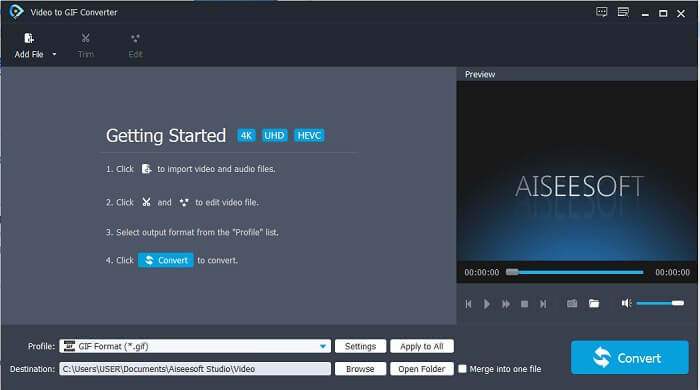
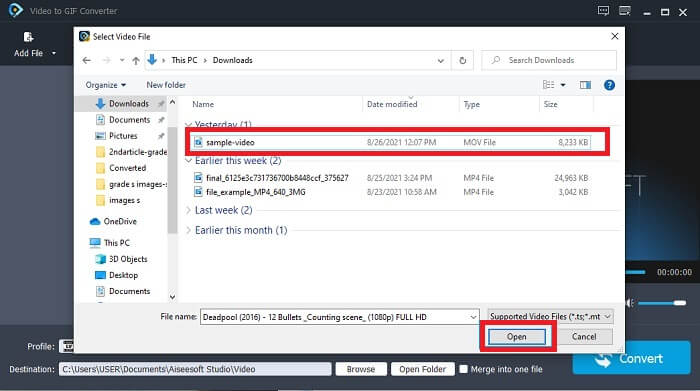
Langkah 3. Klik Add File atau anda juga boleh seret dan lepas fail video ke dalam antara muka alat.
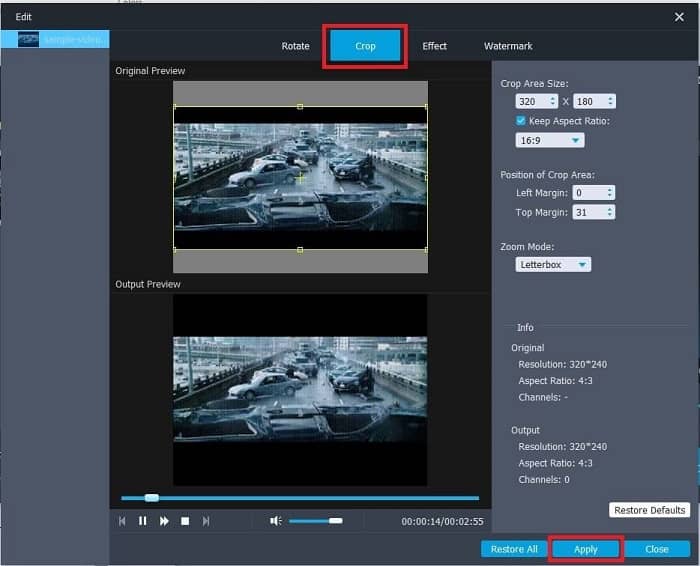
Langkah 4. Tekan Edit untuk menambah baik GIF anda. Pergi ke Crop dan sesuaikan saiz GIF anda. Anda juga boleh menukar Aspect Ratio dan Zoom Mode. Klik Apply untuk menyimpan pelarasan yang telah anda buat.
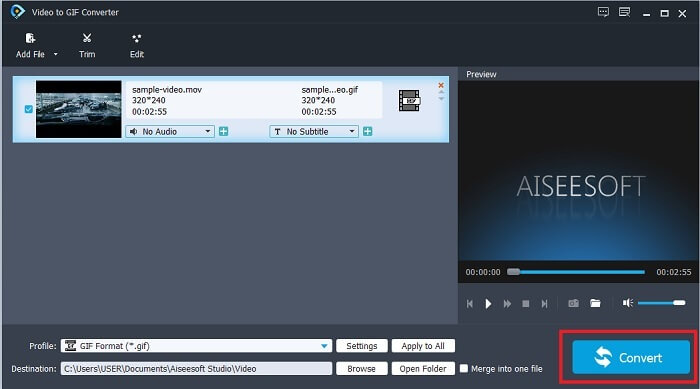
Langkah 5. Klik Convert untuk memulakan penukaran video anda kepada GIF. Jika penukaran telah selesai, anda boleh menyemak output akhir di penjelajah fail dengan menaip nama video tersebut.
Kelebihan
- Semua ciri kecil boleh didapati di sini.
- Ia jauh lebih baik daripada alat dalam talian dan beberapa alat yang boleh dimuat turun juga.
- Buat GIF anda dengan mudah dengan alat ini.
Keburukan
- Anda tidak boleh menggunakan ciri utama yang disediakan versi Ultimate.
- Ia menyokong format video yang lebih rendah daripada versi premium.
2. Video Converter Ultimate
Versi percuma alat ini dapat melakukan kerja mudah tetapi versi premiumnya adalah pemotong GIF terbaik. Video Converter Ultimate bukan sahaja hanya pada nama tetapi juga alat ini adalah yang paling mutakhir dalam menukar mana-mana video ke fail GIF. Tidak seperti versi percuma dan alat di bawah, alat ini dapat menjadikan GIF mudah anda lebih hebat. Ubah GIF anda menjadi luar biasa dengan menambahkan kesan yang hanya dapat disediakan oleh alat ini. Ia juga menyediakan penukaran video menjadi GIF, seperti MP4 ke GIF, penggabungan video menjadi satu, pembuat 3D, dan banyak lagi. Oleh itu, gunakan alat ini sebagai pemotong peribadi anda dan ia tidak akan mengecewakan anda. Selain itu, teruskan membaca langkah-langkah di bawah ini untuk mengetahui cara memotong GIF anda untuk menyampaikan mesej yang lebih khusus kepada penerima anda.
Langkah 1. Sebelum anda boleh menggunakan alat ini, anda perlu memuat turunnya. Pasang alat ke pemacu anda, tukar keutamaan mengikut kehendak anda, dan klik finish untuk mula menjalankan alat pada skrin anda.
Muat Turun PercumaUntuk Windows 7 atau lebih baharuMuat Turun Selamat
Muat Turun PercumaUntuk MacOS 10.7 atau lebih baharuMuat Turun Selamat
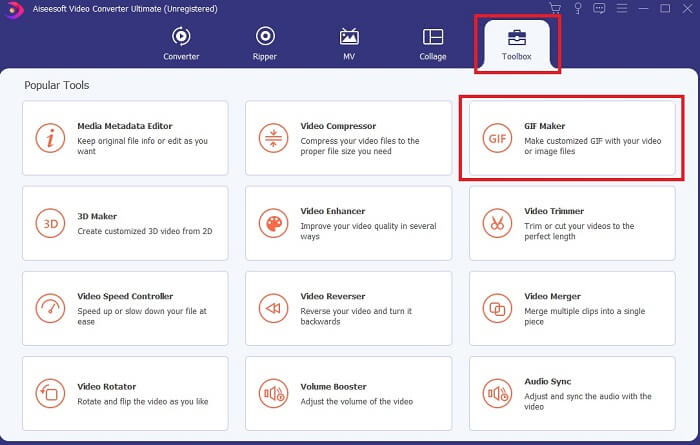
Langkah 2. Jika alat telah dimuat turun sepenuhnya ke dalam pemacu anda, antara muka yang mudah diurus seperti ini akan muncul pada skrin anda. Klik Toolbar dan dalam toolbar klik GIF Maker.
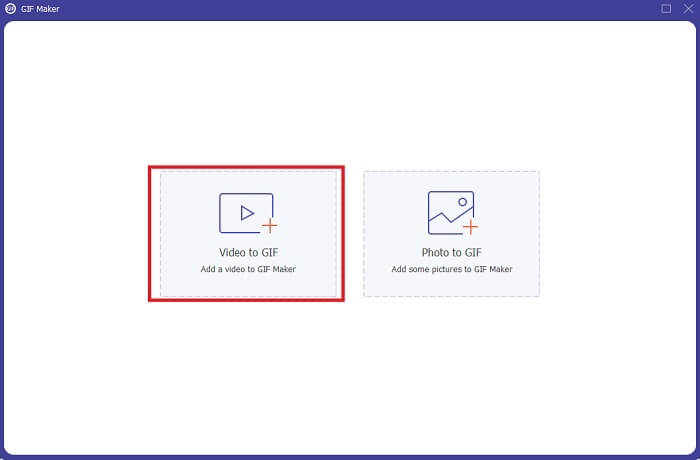
Langkah 3. Untuk menambah video, klik Video to GIF dan cari GIF yang anda mahu pangkas atau edit juga. Selepas memilih video klik Open untuk memulakan GIF Maker.
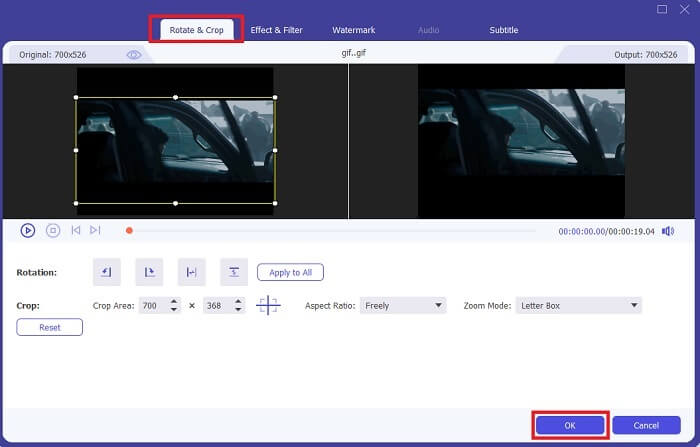
Langkah 4. Klik butang yang mempunyai imej bintang padanya untuk mula menyunting. Klik Rotate & Crop untuk mula memangkas GIF. Anda juga boleh menambah kesan & penapis, tera air, dan sarikata. Jika semua pelarasan telah selesai, tekan OK untuk menyimpan perubahan.
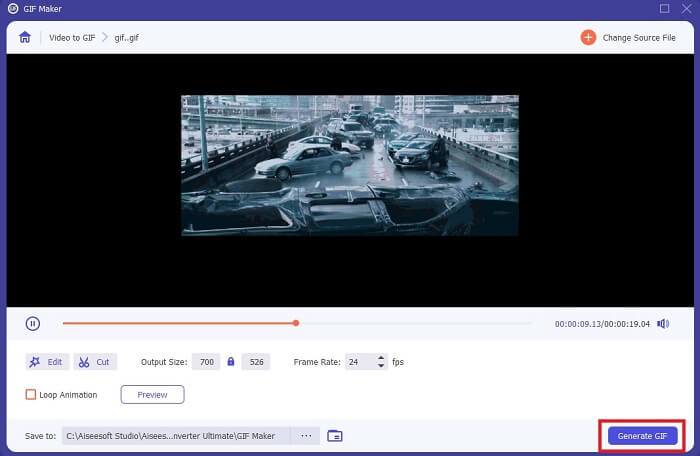
Langkah 5. Tukar lokasi tempat anda mahu menyimpan output akhir supaya lebih mudah dicari. Klik Generate GIF untuk memulakan penukaran. Jika penukaran telah selesai 100%, cari output akhir di lokasi yang anda pilih untuk menyimpannya atau di pengurus fail.
Kelebihan
- Alat penggunaan anda jika anda ingin meningkatkan GIF anda menjadi alat yang lebih interaktif. Gunakan imaginasi anda untuk membumbui perkara ke GIF anda.
- Ia dapat menjadikan GIF anda menjadi output yang mengagumkan dengan menggunakan ciri utama yang tidak dapat disediakan versi premium lain.
- Lebih daripada satu juta pengguna memilih alat ini sebagai alat versi premium pilihan pertama mereka.
Keburukan
- Untuk menggunakan alat ini, anda mesti memberikan pembayaran terlebih dahulu tetapi pasti tidak begitu mahal. Oleh itu, anda mesti mengharapkan yang lebih rendah sekiranya anda membeli alat ini.
- Muat turun alat sebelum anda melancarkannya. Walaupun anda tidak mempunyai internet, anda masih boleh menggunakan alat ini kerana tidak bergantung pada internet.
Bahagian 2. 5 Pemotong GIF Terbaik yang Boleh Anda Akses Melalui Internet
1. iLoveIMG
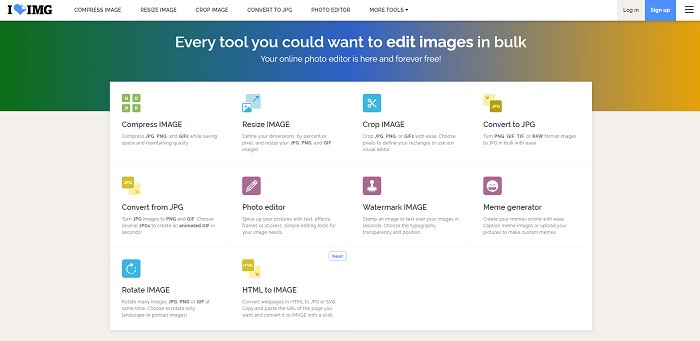
Pangkas GIF anda dengan bantuan pemangkas GIF dalam talian ini. iLoveIMG dikenali sebagai pemangkas GIF, JPG dan PNG dalam talian yang terbaik. Walaupun alat ini tidak boleh menukar video kepada format GIF kerana ia hanya menumpukan pada penambahbaikan GIF, JPG dan PNG sahaja. Namun begitu, antara muka laman web ini lebih daripada yang dijangka kerana ia bukan sahaja ringkas malah lebih interaktif. Jadi, jangan risau akan berasa bosan semasa menggunakan laman web ini. Untuk penilaian, ia mendapat 7 daripada 10, yang mana bagus untuk aplikasi berasaskan web.
Kelebihan
- Terbaik untuk meningkatkan GIF, JPG dan PNG anda.
- Antara muka laman web sangat indah.
- Tidak perlu memuat turun.
Keburukan
- Ada kemungkinan kehilangan data mungkin berlaku jika sambungan terputus.
- Anda tidak boleh menukar format video menjadi format GIF.
2. RedKetchup
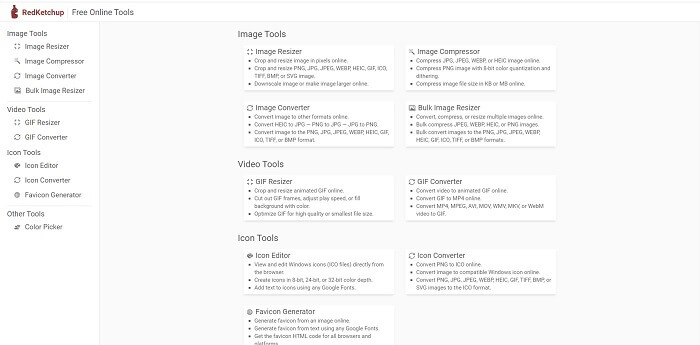
Jika iLoveIMG bukan pilihan untuk anda maka anda perlu cuba menggunakan pemangkas GIF dalam talian ini. RedKetchup sangat informatif kerana penerangan yang diberikannya pada setiap alat penyuntingan yang disediakan. Jadi, menjadi lebih mudah untuk anda memahami bagaimana fungsi ciri tersebut jika anda tiada idea mengenainya. Selain itu, anda boleh menukar imej anda kepada GIF, PNG, JPG, WEBP dan banyak lagi. Ia menyokong lebih banyak format berbanding iLoveIMG tetapi kelemahan alat ini ialah antara muka laman webnya sangat membosankan. Seluruh latar belakang laman web hanya berwarna putih dan satu-satunya perkara yang berwarna ialah nama dan ikon RedKetchup.
Kelebihan
- Ia menyokong lebih banyak format gambar daripada iLoveIMG.
- Setiap ciri alat mempunyai penerangan ringkas sehingga pengguna dapat memahami fungsinya.
- Ini adalah alat dalam talian percuma.
Keburukan
- Halaman web alat ini sangat membosankan untuk dilihat kerana warna monotonnya.
- Ada kemungkinan fail tersebut tidak akan disimpan dengan betul jika internet anda tidak stabil.
3. Kapwing
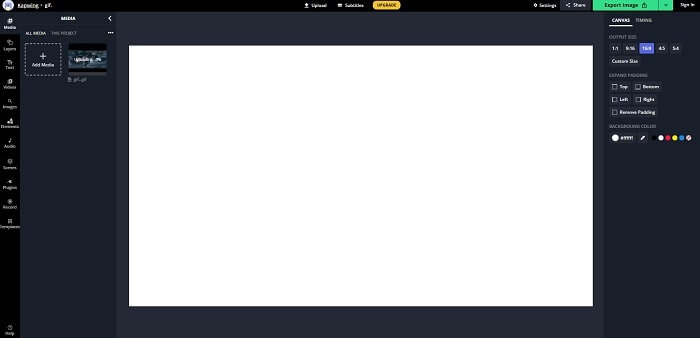
Alat ini mempunyai hampir semua ciri seperti Photoshop tetapi ia berada dalam talian. Ia merupakan pemangkas bingkai GIF dalam talian yang terbaik. Kapwing terkenal untuk menghasilkan GIF terbaik yang anda mahu kongsikan dengan rakan-rakan anda. Tidak seperti dua alat pertama di atas, alat ini menyokong beberapa format video untuk ditukar kepada format GIF. Walaupun mempelajari cara menggunakan alat ini akan mengambil sedikit masa anda, tetapi ia berbaloi. Namun jika anda mahu mencipta GIF ringkas maka alat ini adalah yang terbaik untuk melakukannya. Alat ini mempunyai hampir semua ciri seperti Photoshop tetapi ia berada dalam talian. Ia merupakan pemangkas bingkai GIF dalam talian yang terbaik. Kapwing terkenal untuk menghasilkan GIF terbaik yang anda mahu kongsikan dengan rakan-rakan anda. Tidak seperti dua alat pertama di atas, alat ini menyokong beberapa format video untuk ditukar kepada format GIF. Walaupun mempelajari cara menggunakan alat ini akan mengambil sedikit masa anda, tetapi ia berbaloi. Namun jika anda mahu mencipta GIF ringkas maka alat ini adalah yang terbaik untuk melakukannya.
Kelebihan
- Antara muka laman web alat akan memberi anda suasana yang hampir sama dengan Photoshop.
- Tukar video anda ke format GIF.
- Ciri penyuntingan asas disediakan.
Keburukan
- Pemprosesan hasil akhir video akan selalu bergantung pada seberapa pantas internet anda. Oleh itu, mempunyai banyak kesabaran diperlukan untuk menghasilkan hasil akhir.
- Anda perlu mendaftar untuk mengeluarkan tanda air dari output anda. Oleh itu, harapkan e-mel pada setiap kemas kini yang dinyatakan dan beberapa pengumuman yang menjengkelkan. Kerana anda membiarkan mereka mengakses akaun anda.
4. GIFGIF
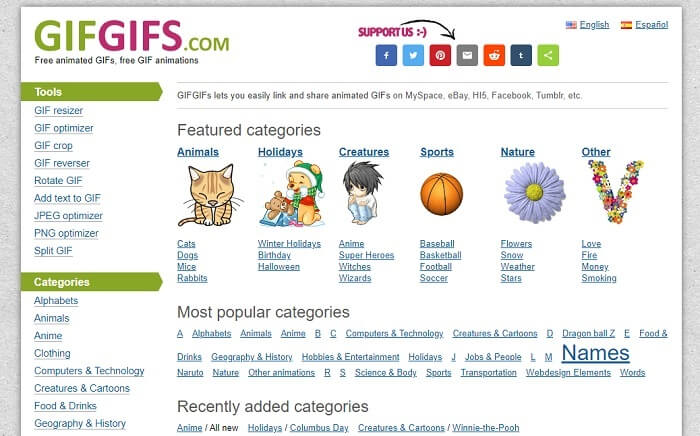
Anda boleh memangkas GIF anda dengan pemangkas GIF tanpa kehilangan kualiti ini. GIFGIFs menyediakan GIF siap sedia terbaik secara dalam talian. Anda boleh memilih daripada kategori yang disediakan seperti abjad, sukan, anime, pakaian dan sebagainya. Selain itu, alat ini bukan sahaja menyediakan ciri terbaik untuk menambah baik GIF anda tetapi anda juga boleh mengoptimumkan JPG dan PNG.
Kelebihan
- Ini adalah pilihan yang baik untuk meningkatkan GIF anda menjadi lebih baik.
- Ia menyokong pengoptimuman JPEG, PNG dan GIF.
- Pilih GIF yang sudah selesai di bahagian kategorinya.
Keburukan
- Ini tidak menyediakan bar carian sehingga sukar untuk mencari GIF sempurna yang ingin anda gunakan.
- Antara muka tidak mengapa. Bukan sesuatu yang istimewa atau harus kita katakan ia tidak baik tetapi tidak buruk.
5. VEED.IO
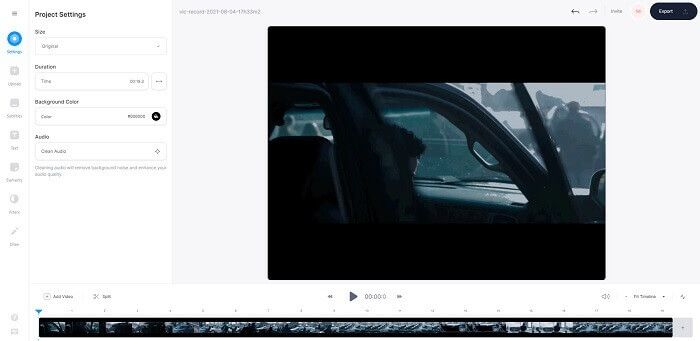
Pilih ini sebagai pemangkas GIF percuma pilihan pertama anda dalam talian tetapi ia juga boleh ditingkatkan menjadi versi premium jika anda mahu. The VEED.IO adalah salah satu alat dalam talian terbaik untuk meningkatkan GIF anda menjadi lebih baik. Tetapi versi percuma alat ini hanya menyokong ukuran fail GIF 50 mb dan untuk menambahkan lebih banyak saiz fail, anda mesti membeli versi alat premium.
Kelebihan
- Ia menyediakan ciri penyuntingan yang hebat untuk menjadikan GIF anda lebih baik.
- Antara muka pengguna yang sederhana.
- Anda boleh menambah sari kata jika anda mahu juga.
Keburukan
- Ia tidak menyediakan pembuat 3D untuk meningkatkan gambar 2D anda.
- Kadang-kadang perisian tersebut macet ketika anda cuba memperbesar garis masa.
Bahagian 3. Soalan Lazim Mengenai GIF Cropper
Adakah format yang lebih baik daripada format GIF?
Walaupun sangat terkenal bahawa GIF adalah format gambar bergerak terbaik di web. Tetapi adakah anda tahu bahawa ada format yang lebih baik daripada GIF? Ini adalah APNG. Format ini memberikan palet warna yang lebih banyak daripada GIF dan lebih baik dalam pemampatan juga. Tetapi anda juga boleh menggunakan WEBP, MNG, FLIF, dan AVIF.
Apakah sebab mengapa GIF dibuat?
Pada lewat tahun 1987, seorang bernama Steve Wilhite bertanya kepada dirinya sama ada ada kemungkinan untuk mencipta saiz fail kecil bagi paparan imej komputer dan pada masa itu juga GIF dilahirkan. Untuk mengetahui lebih lanjut tentang GIF, anda boleh klik di sini.
Mana yang lebih baik? JPG atau GIF?
Format JPG memberikan anda gambar yang lebih terperinci kerana menyokong pelbagai warna sehingga terbaik untuk mengambil gambar. GIF menyediakan sejumlah kecil palet warna tetapi pandai membuat gambar statik.
Kesimpulannya
Sebagai penutup perbincangan, anda mesti memilih pemangkas GIF terbaik yang akan memberikan fungsi pemangkasan yang anda perlukan. Tanpa menjejaskan kualiti GIF itu sendiri walaupun anda memotongnya. Namun adalah jelas bahawa anda perlu memilih alat utama yang dibangunkan oleh FVC. Kerana ia menyediakan ciri GIF terbaik yang anda mahu tambah pada GIF anda untuk menjadikannya lebih menonjol berbanding GIF lain. Jadi, memangkas GIF anda menjadi lebih mudah berbanding sebelum ini jika anda menggunakan Video Converter Ultimate.
-
 Tutorial Memampatkan GIF dan Mengurangkan Saiz Failnya dengan Kualiti Tinggi
 Inilah 2 cara mudah untuk memampatkan GIF di komputer atau telefon bimbit anda. Anda boleh menggunakan FVC Free Video Compressor dan Photoshop mengurangkan saiz fail GIF dalam pelbagai aspek.
-
 Pemain GIF - 5 Pemain GIF Terbaik untuk Windows PC, Mac, Android dan iPhone
 Program apa yang membuka fail GIF? Bagaimana saya melihat GIF di Android? Adakah iPhone mempunyai pemain GIF untuk membuka GIF? Catatan ini berkongsi 5 pemain GIF terbaik untuk anda.
-
 Cara Menukar Video AVI ke Fail GIF Animasi pada Windows / Mac
 Ingin memilih segmen AVI yang menarik untuk membuat meme GIF? Artikel ini akan memberitahu anda 2 kaedah terbaik untuk klip video AVI dan menukar AVI menjadi fail GIF animasi secara percuma.
