


 Video Converter Ultimate
 Perakam Skrin
 Pembaikan Video
 Muat Turun Selamat
Ketahui Kaedah Sempurna tentang Cara Membuat URL daripada Imej
Nowadays, image file formats have become popular. These formats are one of the best ways to share and open images in different browsers and programs. However, there are some instances when you can’t share your images, no matter what extension you use. This situation might be troublesome for other people. But little did we know there was a solution to this type of struggle. If you want to share your photos everywhere and anywhere, the best way is to transcode the image into the URL. This way, you can share the photo to others without the help of any extensions. Fortunately, the article has an exceptional solution for you. Please read this post as we give you the best tutorials on how to turn your images into a link.

Bahagian 1. Kaedah Berkesan untuk Mengubah Imej Menjadi Pautan
Tukar Imej kepada Pautan menggunakan i-Converter
Some image to URL converters online are not working well, so we want to introduce you to i-Converter. It is an online converter you can rely upon to change your image files into a URL link. You can access the online tool on different browsers. It includes Firefox, Chrome, Edge, Explorer, and more. It also has a simple process of converting files. This way, the tool is suitable for you whether you are a skilled user or a beginner. Additionally, it supports various image file formats. You can convert your images to JPEG, BMP, TIFF, PNG, GIF, DOC, and more. Moreover, the i-Converter is free. It means that you can convert your images without purchasing a subscription plan. However, the i-Converter is only exclusive to JPG image files. If your image doesn't have a .jpg file extension, you can't upload it on this online tool. Also, there are times when the tool is not performing well. Since it is an online tool, an internet connection is highly recommended.
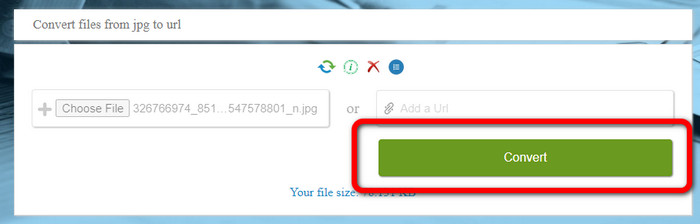
Step 1. Open any browser from your desktop and visit the i-Converter website. When you are already on the main webpage, click the Choose File button. When the computer file appears on the screen, open the image you want to turn into a URL.
Step 2. After uploading the image file you want to convert, click the Convert button. Then, wait for the conversion process. After a few seconds, the tool will give you the link. You can copy the link to the browser to open the image by clicking the Copy Code button.
Cara Menjadikan Imej Pautan Menggunakan Imej ke Pautan
Another online tool you can utilize to convert images to HTML is Image to Link. Compared to the first tool above, the tool supports various input formats like JPG, PNG, and GIF. Also, it offers straightforward methods. After uploading the image, the tool will convert the image automatically. The conversion process is fast so you can get the link quickly. Additionally, Image to Link is available on various web browsers. You can use it on Google, Mozilla, Explorer, and more. All users are capable of operating this tool because of its understandable options. The best thing is that you can convert multiple images at once. This way, converting more files is perfect when using the tool. However, when using the converter, some ads appear on the screen, making it frustrating for users. Also, when converting multiple files, you can only upload up to five images. You also need internet access to use the online image converter.
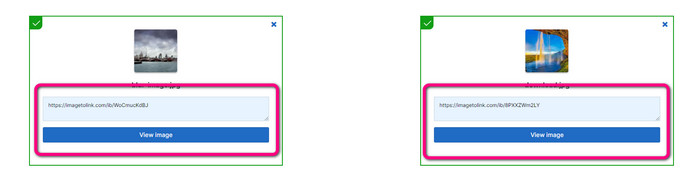
Step 1. Navigate to the Image to Link website from your browser. On the webpage, click the Start Uploading button. Then open the image file you want to convert from your computer file. You can upload up to five images when doing a batch conversion process.
Step 2. After uploading, the tool will automatically turn the image into a link. Afterward, the tool will provide a link that you can use to open the image. To open the image, copy the given link and paste it into your browser.
Bahagian 2. Cara Menukar Imej kepada JPG, PNG dan GIF
Tukar Imej kepada JPG, PNG dan GIF pada Penukar Imej Percuma FVC
One of the leading online image converters you can use is the FVC Free Image Converter. The tool can transcode your image into various formats like JPG, PNG, and GIF. Also, it supports various input formats, including BMP, SVG, ICO, WebP, and more. You can convert images in just a simple method, which is perfect for users. Additionally, The image converter has great features you can enjoy. It is the batch conversion feature. It allows you to upload multiple images and convert them in a single click. Note that you can convert up to 40 image files. It also offers a fast conversion process wherein you can convert images in a few seconds.
Selain itu, FVC Free Image Converter dalam semua pelayar, jadi anda boleh mengendalikannya di mana-mana selagi anda mempunyai sambungan internet. Alat ini juga menjamin privasi anda. Semasa proses penukaran, anda tidak akan menemui sebarang iklan yang menjengkelkan pada skrin anda. Selepas menyimpan imej anda yang ditukar, alat itu akan memadamkan data anda, jadi tiada sesiapa boleh melihat foto anda yang dimuat naik dan ditukar. Gunakan kaedah yang disenaraikan di bawah untuk menukar imej kepada format JPG, PNG atau GIF dengan mudah.
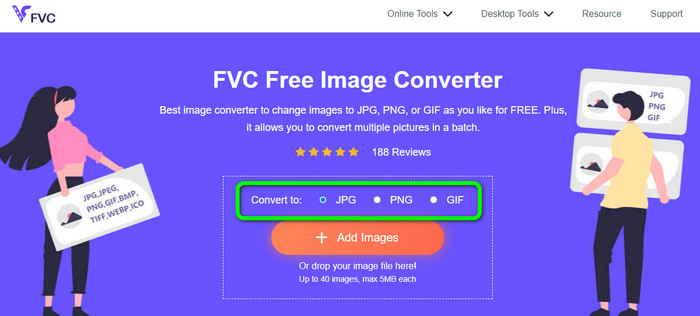
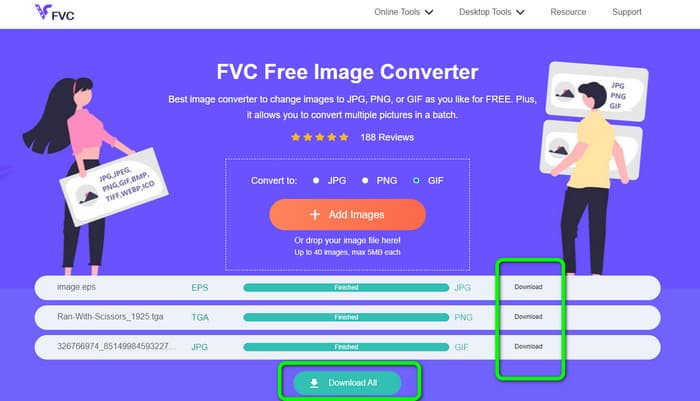
Step 1. Navigate to the official website of FVC Free Image Converter. You can access this online image converter on all browsers. After that, you can click the JPG, PNG, or GIF format from the format option.
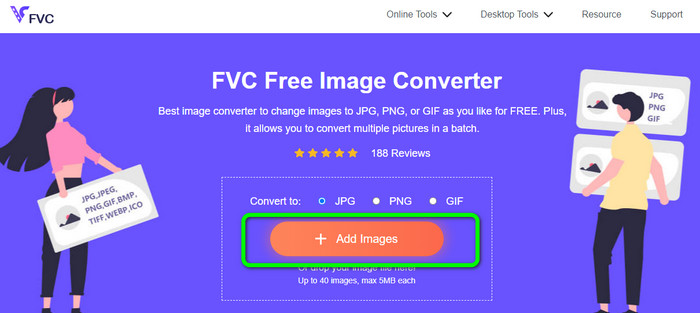
Step 2. Click the Add Images to upload the image file from your computer. You can also drop and drag the file into the box. Since the tool offers a batch conversion process, you can upload multiple files simultaneously.
Step 3. You will see that the image converter will convert the images automatically after the uploading process. When the conversion process is done, click the Download All button to save them in one click. But, if you prefer to save the image manually, click the Download button on the right.
Bahagian 3. Soalan Lazim tentang Menukar Imej kepada Pautan
1. Mengapa menukar imej menjadi pautan?
Anda boleh menggunakan imej sebagai butang jika anda mempunyai laman web atau blog. Dengan cara ini, pengguna boleh mengakses halaman utama anda atau halaman tertentu. Selain itu, adalah mungkin untuk memautkan foto dalam siaran media sosial atau tandatangan e-mel. Selain itu, ini adalah cara yang hebat untuk mengiklankan tapak web atau blog anda dan meningkatkan trafik. Berikut adalah beberapa justifikasi terpenting untuk penukaran URL daripada imej.
2. Apakah faedah menukar imej menjadi pautan?
Mungkin lebih mudah untuk pengguna mengklik pautan anda jika anda menukar gambar menjadi pautan. Jika anda mahu pelawat mengklik pada gambar kecil, menjadikan imej itu sebagai URL akan memberi mereka kawasan yang lebih luas untuk diklik. Berkongsi bahan anda dengan orang lain mungkin menjadikannya lebih mudah untuk menemui barangan atau perkhidmatan baharu.
3. Bagaimanakah cara saya mencari URL imej pada tapak web?
Klik kanan imej dan pilih Salin Pautan Imej untuk mendapatkan URL imej pada tapak web. Anda kemudian boleh membuka URL dalam tab baharu untuk menyimpan imej atau berkongsi URL melalui e-mel, media sosial dan saluran lain.
Kesimpulannya
There you go! Now you have learned the best methods to convert images to links. In addition to that, you discovered the most straightforward ways of converting images to JPG, PNG, and GIF formats. Thus, if you want to change your images to URL links, see the effective methods above. On the other hand, if you want an outstanding image converter to convert images to other formats, use FVC Free Image Converter.
-
 Kaedah Cara Menukar Imej kepada JPG Dalam Talian dan Luar Talian
 Adakah anda ingin menukar fail kepada format JPG atas sebab tertentu? Maka artikel ini adalah untuk anda. Kami akan mengajar anda kaedah terbaik untuk menukar imej anda kepada JPG
-
 Kaedah Berguna untuk Menukar Imej kepada Format PNG dengan Mudah
 Adakah anda sedang mencari cara terbaik untuk menyimpan imej anda sebagai PNG? Tiang panduan ini menawarkan penyelesaian yang sangat baik untuk anda menukar imej kepada PNG dalam talian dan luar talian
-
 Apakah itu JPEG/JPG: Tukar Imej Anda kepada JPG Dengan Mudah
 Adakah anda ingin tahu tentang maksud JPEG? Kami ada jawapan untuk anda. Selain itu, anda akan belajar cara menukar format imej yang berbeza kepada fail JPG. Baca siaran sekarang.
