


 Video Converter Ultimate
 Perakam Skrin
 Pembaikan Video
 Muat Turun Selamat
Cara Menukar JPEG kepada JPG Menggunakan Penukar Imej Terbukti dan Diuji
Sesetengah orang berkata bahawa JPEG dan JPG ialah format yang sama. Ya, itu benar. Tetapi ada sesetengah program hanya menerima sambungan tiga huruf. Jadi, bukannya menggunakan JPEG, ia menjadi JPG. Format JPG ialah format yang popular pada masa kini. Jadi, jika anda juga mahu menukar fail imej JPEG anda kepada format JPG, anda bernasib baik. Panduan ini akan memberikan anda penyelesaian terbaik yang boleh anda cuba. Anda boleh serta‑merta menukar JPEG kepada JPG menggunakan penukar JPEG ke JPG. Penukar ini tersedia dalam talian dan pada peranti mudah alih. Jika anda mahu mengetahui aplikasi‑aplikasi ini, ambillah peluang untuk membaca artikel ini.

Bahagian 1. Cara Berguna untuk Menukar JPEG kepada JPG Dalam Talian
Cara Menukar JPEG kepada JPG pada Penukar Imej Percuma FVC
Cara terbaik untuk menukar JPEG kepada JPG ialah dengan menggunakan FVC Free Image Converter. Ia merupakan pilihan yang sangat baik untuk menukar JPEG kepada JPG atau format lain seperti PNG dan GIF. Ia boleh mengendalikan semua format imej, termasuk JPG, JPEG, PNG, SVG, BMP, TIFF dan GIF. Dengan cara ini, anda tidak perlu risau jika fail imej anda mustahil dibuka pada alat atau peranti tertentu. Cara terbaik ialah menukarnya menggunakan penukar imej dalam talian ini. Selain itu, ia boleh mengekalkan kualiti asal imej yang sangat baik. Anda juga tidak akan melihat perbezaan daripada imej asal selepas proses penukaran. Di samping itu, penukar fail imej FVC menyokong proses penukaran kelompok. Ini bermaksud anda boleh menukar banyak imej pada masa yang sama. Ini jauh lebih mudah dan cekap. Ia sukar ditandingi oleh penukar format imej lain di pasaran.
FVC Free Image Converter boleh mengendalikan sehingga 40 imej pada satu masa. Jadi anda boleh menjimatkan lebih banyak masa. Anda juga tidak perlu membayar sesen pun untuk program ini. Ia adalah penukar imej percuma untuk digunakan. Anda juga tidak perlu membuat akaun untuk mengendalikannya. Apa yang anda perlu lakukan ialah melawat tapak web dan mula menukar. Kita semua tahu bahawa iklan menjengkelkan. Tetapi alat ini tidak mempunyai iklan supaya anda boleh menukar secara aman. Anda boleh mengakses perisian dalam talian ini dalam semua penyemak imbas web, termasuk Chrome, Mozilla, Edge, Explorer dan banyak lagi.
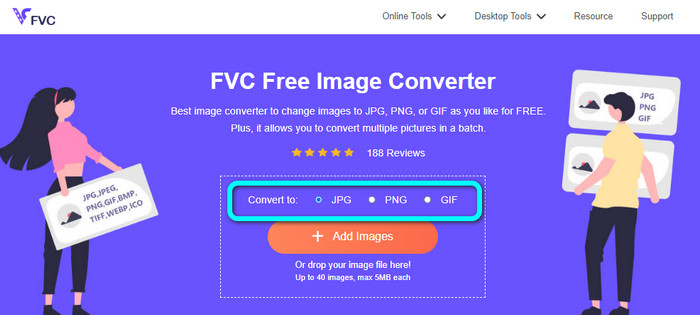
Langkah 1: Buka pelayar anda dan pergi ke laman utama FVC Free Image Converter. Pergi ke pilihan Convert to dan pilih format JPG.
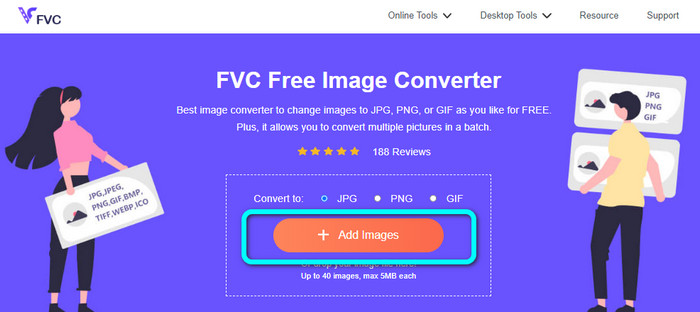
Langkah 2: Selepas anda memilih format fail JPG, klik butang Add Images. Kemudian, folder fail anda akan muncul pada skrin komputer. Tambahkan imej JPEG yang anda ingin tukarkan.
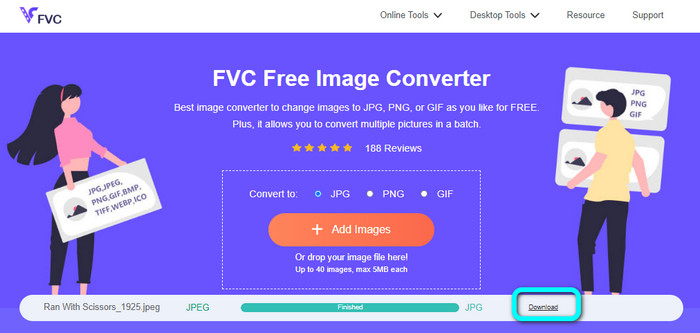
Langkah 3: Apabila anda menambah format imej JPEG, anda akan melihat bahawa imej tersebut akan ditukar secara automatik. Daripada JPEG, ia akan menjadi JPG. Apabila proses penukaran selesai, klik butang Download. Dengan cara ini, anda boleh menyimpan imej JPG anda pada komputer.
Bagaimana untuk Menukar JPEG kepada JPG pada Convertio
Satu lagi penukar JPEG ke JPG yang boleh anda gunakan ialah Convertio. Penukar imej ini boleh menukar JPEG anda kepada JPG dengan kaedah yang sangat mudah. Ia juga menawarkan antara muka mesra pengguna, menjadikannya mudah difahami. Dengan itu, pengguna profesional dan bukan profesional boleh mengendalikan penukar dalam talian ini. Selain itu, proses penukaran kelompok tersedia dalam program ini. Jadi anda boleh menukar pelbagai format imej secara serentak. Proses penukaran juga pantas. Anda boleh menukar imej dalam beberapa saat. Convertio tersedia pada pelayar popular seperti Google, Firefox, Explorer dan sebagainya. Tambahan pula, Convertio mempunyai lebih banyak ciri untuk ditawarkan. Selain menukar imej, anda juga boleh menukar video, audio, dokumen dan banyak lagi.
Walau bagaimanapun, versi boleh diakses program ini mempunyai sekatan. Anda hanya boleh memuat naik imej sehingga 100MB. Selepas itu, anda tidak boleh menukar imej lagi. Jadi, jika anda ingin mengalami ciri penuhnya, beli pelan langganan. Selain itu, sambungan internet yang kukuh diperlukan untuk melihat prestasi tahap tingginya.
Langkah 1: Pergi ke laman utama Convertio. Pilih butang Choose files. Pilih fail imej JPEG dalam folder komputer anda dan buka.

Langkah 2: Selepas anda membuka fail imej JPEG, pilih format JPG daripada pilihan format.
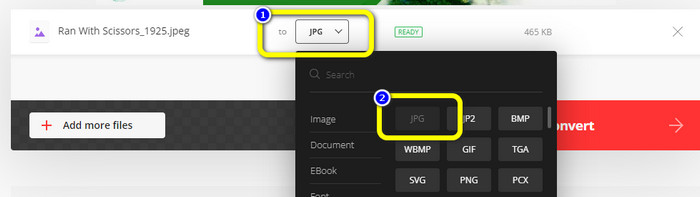
Langkah 3: Selepas anda membuka fail imej JPEG, pilih format JPG daripada pilihan format. Anda juga boleh klik butang Add more files untuk melakukan proses penukaran kelompok.
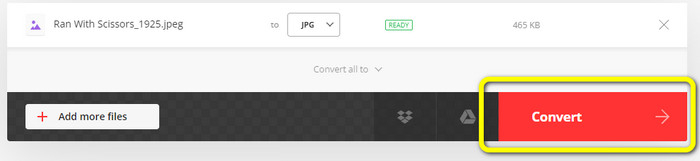
Langkah 4: Klik butang Convert untuk memulakan proses penukaran. Kemudian, selepas proses penukaran, klik butang Download.
Bagaimana untuk Menukar JPEG kepada JPG pada CloudConvert
CloudConvert ialah alat berasaskan web untuk menukar JPEG kepada JPG. Dengan bantuan penukar ini, anda boleh menukar JPEG kepada JPG dengan pantas. Selain itu, alat ini menawarkan antara muka intuitif dengan arahan asas untuk penukaran. Jadi mudah untuk menukar JPEG kepada JPG sama ada anda pengguna mahir atau pemula. Selain itu, CloudConvert tersedia pada pelbagai pelayar. Ia termasuk Mozilla, Explorer dan Firefox, menjadikannya lebih mudah diakses. Bahagian terbaik alat ini ialah anda boleh membuat perubahan pada imej. Anda boleh menggunakan pilihan untuk mengubah resolusi imej, saiz fail dan kualiti. Salah satu keutamaan perisian ini, selain penukaran, ialah privasi pengguna. CloudConvert memastikan maklumat anda terjamin. Ia tidak akan berkongsi data anda dengan pihak lain. Selepas proses penukaran, ia akan memadam imej anda secara automatik selepas 24 jam.
Walau bagaimanapun, penukar imej berasaskan web ini mempunyai kelemahan. Jika anda hanya menggunakan versi percuma, anda hanya boleh menukar 25 imej setiap hari. Anda perlu membeli pelan langganan untuk menukar lebih banyak imej. Selain itu, salah satu keperluan penukar ini ialah akses internet. Memandangkan ia adalah alat dalam talian, sambungan internet diperlukan.
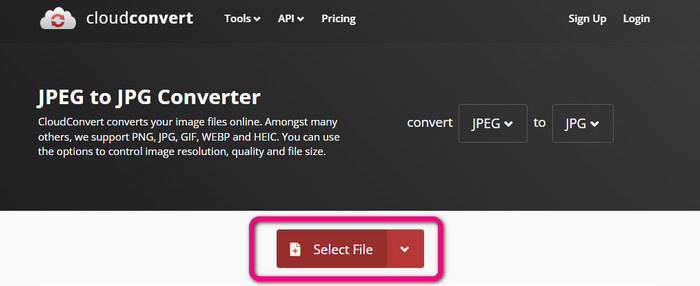
Langkah 1: Klik butang Select File. Kemudian, buka imej JPEG daripada fail anda.
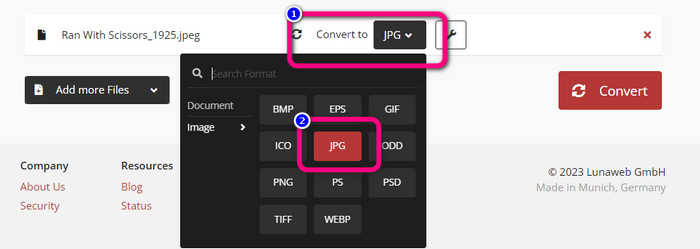
Langkah 2: Pergi ke pilihan Convert to. Pilih format yang dikehendaki, iaitu JPG.
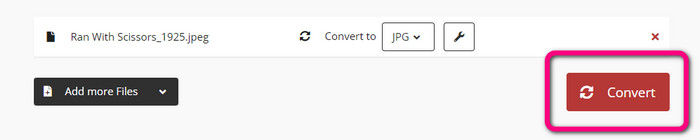
Langkah 3: Apabila anda memilih fail JPG, klik butang Convert. Tunggu proses penukaran dan simpan imej akhir pada desktop anda. Anda juga boleh menggunakan alat ini untuk menukar JPG kepada PNG.
Bahagian 2. Cara Menukar JPEG kepada JPG Menggunakan Android dan iPhone
Bagaimana untuk Menukar JPEG kepada JPG pada Penukar Imej
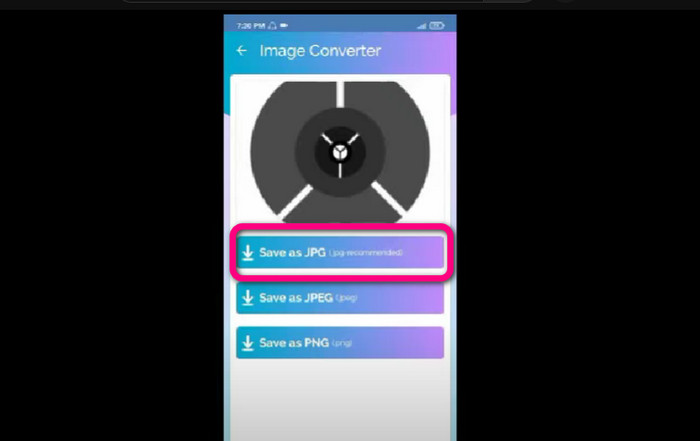
Jika anda mahu menukar JPEG kepada JPG pada Android, gunakan Image Converter. Aplikasi ini tersedia pada peranti Android. Ia mempunyai prosedur penukaran imej yang mudah, menjadikannya sesuai untuk pengguna bukan profesional. Selain itu, anda boleh memuat turun aplikasi ini secara percuma. Ia juga menawarkan antara muka yang mudah difahami. Dengan cara ini, tiada siapa akan keliru semasa menggunakan penukar ini. Tambahan lagi, Image Converter mempunyai proses penukaran yang lancar. Selepas memilih format, ia akan menukar dan menyimpan imej anda pada telefon tanpa sebarang kerumitan. Walau bagaimanapun, ia hanya menyokong format keluaran terhad seperti PNG, JPG dan JPEG. Jadi, anda tidak boleh menggunakan aplikasi ini jika anda mahu menukar imej kepada GIF, SVG, BMP dan lain‑lain.
Langkah 1: Buka aplikasi Play Store dan muat turun aplikasi Image Converter. Kemudian, lancarkan aplikasi selepas proses pemasangan.
Langkah 2: Tekan butang Select Photo untuk melampirkan foto JPEG daripada galeri telefon anda.
Langkah 3: Klik pilihan Save as JPG untuk langkah terakhir. Tunggu proses penukaran. Selepas proses selesai, ia akan menyimpan imej anda secara automatik ke dalam galeri.
Cara Menukar JPEG kepada JPG pada Penukar & Penukar Imej JPG
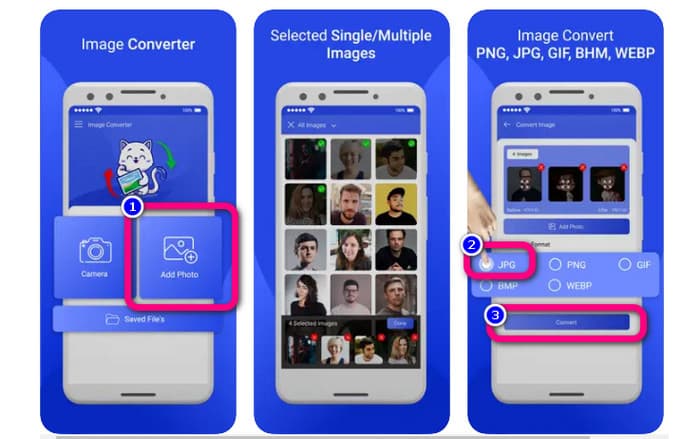
Jika anda mahu menukar JPEG kepada JPG menggunakan iPhone, gunakan JPG Image Converter & Resizer. Perisian ini tersedia di Apple Store. Anda boleh memuat turunnya secara percuma. Selain itu, proses penukaran adalah mudah. Ia mempunyai antara muka intuitif, menjadikannya tidak rumit untuk pengguna. Proses penukaran kelompok tersedia dalam aplikasi ini. Dengan cara ini, anda boleh menukar pelbagai format imej sekali gus. Selain itu, ia menyokong pelbagai format imej. Ia termasuk PNG, BMP, GIF, WebP dan lain‑lain. Namun, anda hanya boleh menggunakan aplikasi ini jika iPhone anda versi iOS 12.0 ke atas. Anda boleh memuat turun aplikasi ini dengan iOS 12.0 dan ke atas.
Langkah 1: Pergi ke Apple Store dan muat turun JPG Image Converter & Resizer. Kemudian, jalankan aplikasi.
Langkah 2: Tekan ikon Add Photo untuk memasukkan imej JPEG yang anda mahu tukarkan. Anda boleh menambah berbilang imej jika mahu.
Langkah 3: Pilih format JPG daripada pilihan format. Selepas itu, pilih butang Convert untuk memulakan proses penukaran.
Bahagian 3. Soalan Lazim tentang Menukar JPEG kepada JPG
1. Bagaimanakah cara saya menukar gambar daripada PNG kepada JPG?
Anda boleh menggunakan FVC Free Image Converter. Penukar imej dalam talian ini menyokong format input seperti PNG. Dengan cara ini, anda boleh menukar imej PNG anda kepada format JPEG. Hanya pergi ke pilihan format dan pilih JPG. Kemudian, klik butang Add Images untuk menambah imej PNG. Selepas itu, klik butang download.
2. Mengapakah fail JPEG saya tidak berfungsi pada Mac saya?
Terdapat dua kemungkinan sebab imej JPEG anda tidak berfungsi. Mungkin MacOS anda tidak dikemas kini. Sebab lain ialah imej JPEG mungkin rosak akibat jangkitan daripada virus. Anda perlu membetulkan imej JPEG anda atau mengemas kini macOS anda.
3. Bagaimana untuk menyimpan foto yang dihantar melalui e-mel dalam format .jpg?
Kotak dialog akan bertanya di mana anda ingin menyimpan imej apabila anda memuat turun imej. Pada ketika itu, anda boleh menyimpan imej anda dalam format yang anda inginkan daripada pilihan format.
Kesimpulannya
Sebagai kesimpulan, pos ini menyediakan cara paling berkesan untuk menukar JPEG kepada JPG menggunakan pelbagai penukar imej. Namun, kebanyakan pengguna lebih menggemari kaedah mudah untuk menukar fail imej. Dalam hal itu, anda boleh menggunakan FVC Free Image Converter, yang boleh menukar pelbagai fail dengan mudah dan serta‑merta.
-
 Apakah Fail PNG: Bagaimana untuk Membuka dan Menukar? [Butiran Penuh]
 Adakah anda tahu apa itu format PNG? Anda boleh mempelajari semua butiran penting fail ini. Baca catatan panduan ini dan serap semua maklumat yang anda boleh dapatkan.
-
 Butiran Penuh tentang Perbezaan JPEG lwn JPG lwn PNG
 Siaran ini akan memberi anda maklumat yang mencukupi tentang perbezaan JPEG lwn JPG lwn PNG. Selain itu, anda akan belajar cara menukar imej kepada fail ini.
-
 Kaedah Cara Menukar Imej kepada JPG Dalam Talian dan Luar Talian
 Adakah anda ingin menukar fail kepada format JPG atas sebab tertentu? Maka artikel ini adalah untuk anda. Kami akan mengajar anda kaedah terbaik untuk menukar imej anda kepada JPG
