


 Video Converter Ultimate
 Perakam Skrin
 Pembaikan Video
3 Cara untuk Menambah Latar Belakang pada Foto Dalam Talian, pada iPhone, Android dan Komputer
Semasa mengedit gambar, anda selalunya perlu membuang latar belakang asal dan menambah latar belakang lain. Untuk gambar dengan latar belakang lutsinar, anda boleh menukar latar belakang dengan mudah menggunakan penyunting imej. Namun dalam kebanyakan kes, anda perlu membuang latar belakang sedia ada terlebih dahulu, kemudian barulah menambah latar belakang baharu pada foto. Adakah anda sedang mencari aplikasi penyunting imej yang baik untuk menambah latar belakang pada foto?
Siaran ini memberitahu 3 kaedah berkesan untuk menambah latar belakang pada foto. Sama ada anda ingin menambah latar belakang putih pada foto secara terus dalam talian, menambah latar belakang pada foto pada iPhone atau menukar latar belakang imej pada peranti Android, anda boleh mengikut kaedah khusus untuk melakukannya.

Bahagian 1. Cara Percuma Menambah Latar Belakang pada Foto Dalam Talian
Untuk menambah latar belakang pada foto dengan cepat, anda boleh cuba beberapa penyunting imej dalam talian terlebih dahulu. Di sini kami sangat mengesyorkan Penghapus Latar Belakang Percuma Dalam Talian yang mudah digunakan untuk anda membuang latar belakang asal gambar dan menambah latar belakang lain padanya. Alat penukar latar belakang imej percuma ini menyokong semua format imej yang kerap digunakan seperti JPG, PNG, GIF dan banyak lagi. Ia menawarkan cara mudah untuk menambah latar belakang putih pada foto atau menggantikan latar belakang semasa dengan gambar lain.
Langkah 1. Buka pelayar web anda seperti Chrome, Safari, Yahoo, IE atau Firefox, dan pergi ke laman penukar latar belakang foto percuma ini. Setelah anda masuk ke halaman tersebut, anda boleh terus klik butang Upload Portrait untuk memilih dan menambah foto anda bagi tujuan pengeditan seterusnya.

Langkah 2. Dengan teknologi AI lanjutan, ia akan memilih objek utama dalam gambar yang anda muat naik secara automatik. Kemudian anda boleh menggunakan fungsi Keep atau Erase untuk membuat suntingan lanjut.
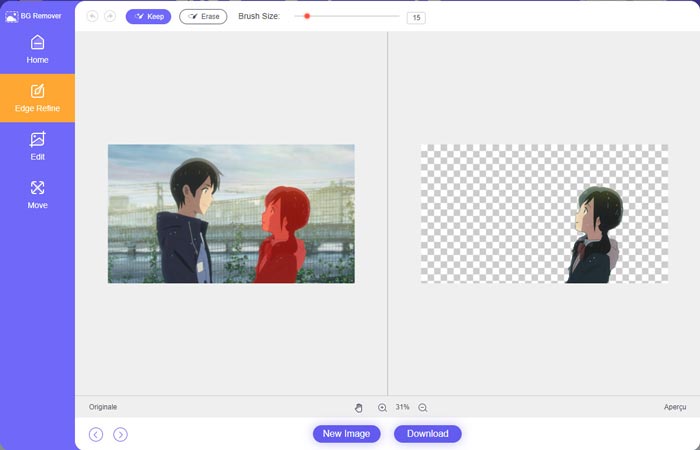
Langkah 3. Klik pilihan Edit di sebelah kiri, dan kemudian anda boleh memilih untuk menukar warna latar belakang, atau menambah latar belakang pada foto. Dalam langkah ini, anda juga boleh menggunakan fungsi Crop untuk menyesuaikan saiz imej mengikut keperluan anda.
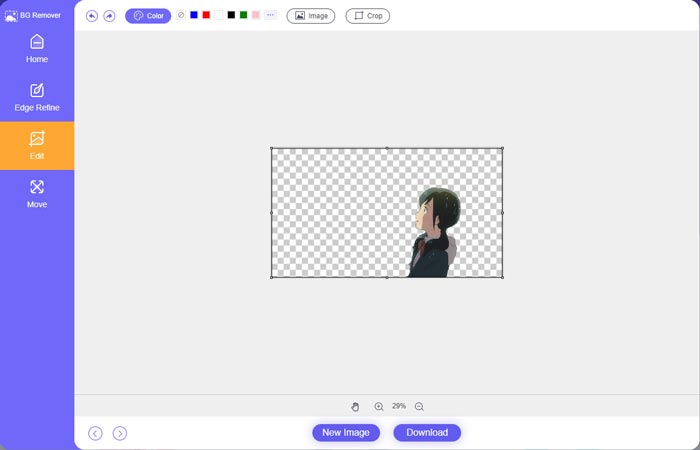
Langkah 4. Selepas anda menambah latar belakang yang sesuai pada foto, anda boleh klik butang Download untuk menyimpannya pada komputer anda. Fail imej yang telah disunting akan disimpan dalam format PNG secara lalai.
Bahagian 2. Bagaimana Menambah Latar Belakang Pada Foto Menggunakan Adobe Photoshop
Adobe Photoshop ialah salah satu penyunting imej paling terkenal yang membawa banyak ciri untuk anda mengedit gambar, kesan tersuai dan melakukan operasi lain. Jika anda telah memasang Photoshop pada komputer anda, anda boleh memilih untuk menambah latar belakang pada foto dalam Photoshop.
Langkah 1. Buka perisian Photoshop pada komputer anda dan tambahkan foto anda ke dalamnya. Anda boleh memuat turun versi Photoshop terkini secara percuma daripada laman web rasmi Adobe. Ambil perhatian bahawa Adobe hanya menawarkan percubaan percuma selama 7 hari untuk anda menggunakan Photoshop.
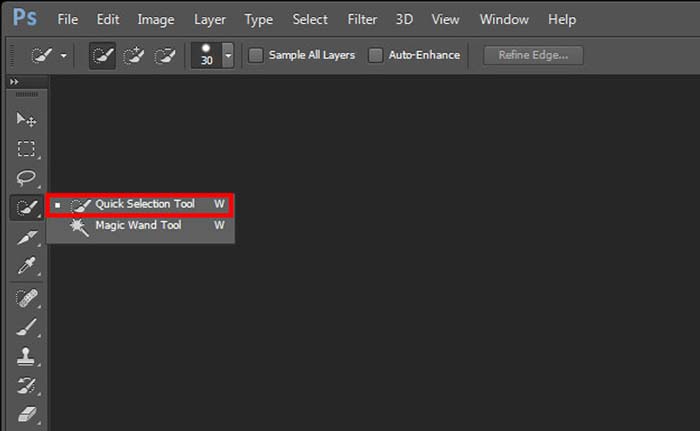
Langkah 2. Apabila foto anda dimuatkan ke dalam Photoshop, anda boleh klik ikon Quick Selection Tool atau Magic Wand Tool pada kotak alat di sebelah kiri untuk memilih latar belakang yang ingin anda tukar.
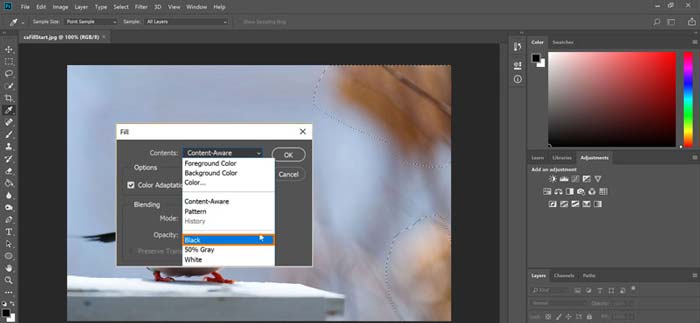
Langkah 3. Selepas memilih latar belakang foto, anda boleh klik kanan padanya dan pilih pilihan Fill. Kini anda boleh menambah latar belakang putih pada foto dengan mudah atau menukar latar belakang kepada warna lain seperti hitam, biru, kelabu atau warna lain yang anda perlukan.
Langkah 4. Jika anda ingin menambah gambar baharu sebagai latar belakang, anda perlu membuang latar belakang yang dipilih terlebih dahulu. Anda boleh menekan kekunci Delete pada papan kekunci untuk menghapuskan latar belakang semasa. Kemudian anda boleh menambah fail imej ke dalam Photoshop dan seret lapisannya ke bawah lapisan latar belakang. Dengan cara ini, anda boleh menggantikan latar belakang asal dengan gambar baharu dengan mudah.
Langkah 5. Setelah anda menambah latar belakang pada foto dalam Photoshop, anda boleh klik menu Fail di bahagian atas dan kemudian pilih pilihan Save As daripada senarai juntai bawah. Pilih format imej yang sesuai untuk foto ini dan simpan pada komputer anda.
Bahagian 3. Bagaimana Menambah Latar Belakang pada Foto pada iPhone dan Telefon Android
Apabila anda ingin menambah latar belakang pada foto pada iPhone, iPad atau telefon Android, anda perlu mencari apl editor latar belakang imej yang baik.
LightX ialah aplikasi penyunting foto serba lengkap untuk pengguna iOS dan Android. Ia menawarkan cara yang mudah untuk membuang latar belakang yang tidak diingini, menambah latar belakang baharu pada foto, menambah pelbagai efek, mencipta swafoto berkualiti tinggi dan banyak lagi terus pada telefon anda. Banyak alat penyuntingan imej lanjutan disediakan dalam aplikasi LightX, seperti pencampuran warna, penyesuaian ketepuan foto, kontras, rona, lengkung dan sebagainya. Anda boleh memuat turunnya daripada App Store atau Google Play Store.
Langkah 1. Pasang dan buka aplikasi LightX pada iPhone, iPad atau telefon Android anda. Berikan kebenaran kepada aplikasi ini untuk mengakses foto pada peranti anda. Tambahkan foto anda ke dalamnya untuk pengeditan latar belakang seterusnya.
Langkah 2. Untuk membuang latar belakang foto semasa dan menukarnya kepada sesuatu yang lain, anda boleh leret ke kiri untuk memaparkan pelbagai pilihan. Di bawah Creative, anda boleh memilih fungsi Cutout untuk menambah latar belakang pada foto. Kini anda perlu memilih objek utama secara manual dan memadamkan latar belakang asal.
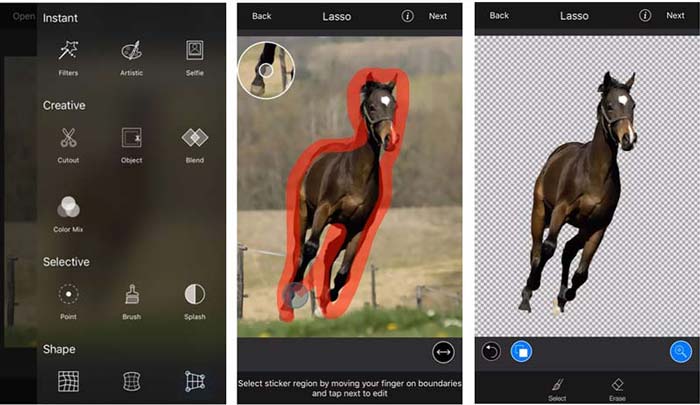
Langkah 3. Selepas membuang latar belakang, anda boleh ketik Next di penjuru kanan atas untuk ke langkah seterusnya. Kemudian anda boleh menggunakan fungsi Crop untuk menukar saiz gambar. Ketik Done untuk mengesahkan operasi anda. Selepas itu, anda boleh ketik BG Image di bahagian bawah skrin untuk menambah latar belakang berbeza pada foto. Anda boleh melaraskan kesan latar belakang baharu dengan bebas mengikut keperluan anda.
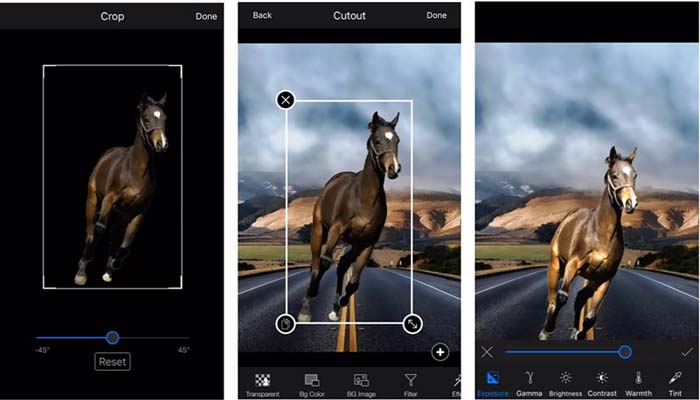
Sama ada anda menggunakan peranti iOS atau Android, anda boleh mengikuti langkah yang sama untuk menambahkan latar belakang pada foto menggunakan apl LightX. Ambil perhatian bahawa, sebagai pengguna iOS, anda perlu membayar $3.99 untuk apl menambah latar belakang ini. Jika anda pengguna Android, anda boleh memasangnya dari Gedung Google Play. Untuk menaik taraf kepada versi premium, anda perlu membayar harga yang sama.
Berkaitan:
Apakah Resolusi Video: Pandangan Mendalam tentang Resolusi & Lain-lain
6 Pilihan Kegemaran Penapis Animasi Snapchat di Snapchat
Bahagian 4. Soalan Lazim Cara Menambah Latar Belakang pada Foto
Bagaimana untuk menambah latar belakang yang berbeza pada foto pada Mac saya?
Anda boleh menggunakan 2 kaedah pertama untuk menukar latar belakang foto anda dengan mudah pada Mac. Selain Penghapus Latar Belakang Percuma Dalam Talian dan Adobe Photoshop yang disyorkan, anda juga boleh bergantung pada beberapa penyunting imej lain untuk menambah latar belakang baharu pada foto anda.
Bagaimana untuk menukar kertas dinding pada iPhone?
iOS menawarkan cara mudah untuk menukar kertas dinding pada iPhone atau iPad. Anda boleh pergi ke apl Tetapan, ketik pilihan Kertas Dinding, dan kemudian ketik Pilih Kertas Dinding Baharu.
Bolehkah saya menambah latar belakang pada foto langsung pada iPhone saya?
Tidak. iPhone tidak menawarkan anda cara langsung untuk menukar latar belakang foto langsung. Anda hanya dibenarkan memangkasnya, menggunakan penapis, melaraskan kesan dan menukarnya kepada imej pegun.
Kesimpulannya
Siaran ini berkongsi 3 kaedah berguna untuk menambah latar belakang pada foto. Apabila anda perlu mengalih keluar latar belakang foto asal dan menambah yang baharu padanya, anda boleh memilih editor imej pilihan anda untuk melakukannya.
-
 3 Cara Teratas untuk Menambah Penapis pada GIF dengan Editor GIF Terbaik [Kegemaran]
 Adakah anda ingin tahu cara menambah penapis pada GIF untuk menjadikannya lebih baik? Dalam blog ini, anda akan mempelajari teknik yang berbeza untuk menambah penapis pada GIF anda dengan mudah.
-
 3 Cara Paling Mudah untuk Menambah Tera Air pada GIF Dalam Talian & Luar Talian
 Menambah tera air pada GIF boleh semudah 1-2-3 jika anda menggunakan alat yang betul dengan betul. Alat di pasaran terlalu luas, tetapi kami akan membentangkan tiga alat yang anda boleh bergantung.
-
 5 Cara Terbaik untuk Menukar Imej kepada GIF Beranimasi [Dikemas kini 2022]
 Perlukan imej penukar kepada GIF? Artikel ini akan menyediakan lima penukar terbaik yang boleh kami temui di pasaran. Jadi, mari's mengetahui alatan ini dengan membaca artikel ini.
