


 Video Converter Ultimate
 Perakam Skrin
 Pembaikan Video
 Muat Turun Selamat
Tingkatkan Resolusi Foto iPhone Menggunakan Cara Terbaik Yang Anda Mesti Tahu [Terbaharu]
Jika anda memerlukan peranti mudah alih yang boleh merakam imej berdefinisi tinggi, memilih iPhone ialah langkah bijak kerana kamera depan dan belakangnya yang inovatif dan berkelas tinggi. Maaf pengguna Android, kita perlu hadapi kenyataan bahawa kamera iPhone terkini jauh lebih baik. Kebanyakan orang biasanya mengambil gambar menggunakan peranti iPhone, tetapi bukan semua imej yang mereka tangkap adalah sempurna; ada yang memerlukan pelarasan, penyuntingan, penambahbaikan atau pembesaran resolusi. Jika anda mahu meningkatkan resolusi foto iPhone anda, ikuti artikel ini kerana kami akan menerangkan maklumat yang anda perlu tahu!

Bahagian 1. Cara Disyorkan: Cara Meningkatkan Resolusi Foto Dalam Talian dengan Penskala Imej Terbaik
Bagaimana cara menukar resolusi foto pada iPhone 13? Jika ini masalah anda, anda perlu menggunakan FVC Free Image Upscaler. Setiap imej yang anda muat naik di sini akan terus dibesarkan resolusinya oleh alat ini dengan teknologi AI yang dibanggakannya. Anda boleh duduk dan berehat selepas memuat naik imej kerana alat ini akan menaikkan resolusi imej yang anda muat naik. Berbeza dengan perisian lain yang anda boleh gunakan, anda tidak perlu memuat turun pemasang untuk menggunakannya. Selain itu, FVC tidak memerlukan anda log masuk akaun, jadi maklumat peribadi anda lebih terjamin dan ia tidak memberikan kuki kepada anda. Jika alat ini menarik minat anda, anda boleh terus ikuti langkah yang kami sediakan di bawah untuk menyelesaikan masalah tersebut.
Langkah 1. Buka alat dalam talian dengan mengklik namanya di atas, dan satu tab baharu akan terbuka secara automatik; ini akan membawa anda ke laman web rasminya.
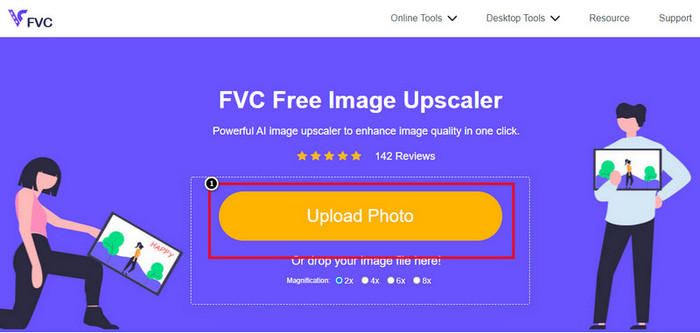
Langkah 2. Tekan Upload Photo untuk memasukkan imej yang anda mahu besarkan dalam alat ini. Selepas anda mengkliknya, satu folder akan muncul pada skrin, pilih imej tersebut dan tekan Open.
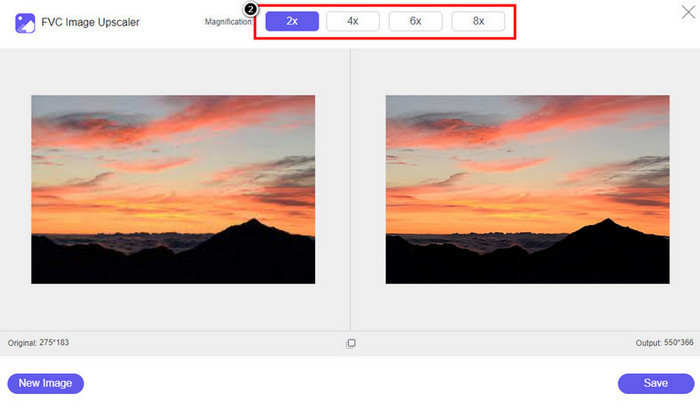
Langkah 3. Pilih jenis Pembesaran yang anda mahu gunakan pada versi imej yang dipertingkat; anda boleh cuba semuanya untuk melihat pilihan mana yang menjadikan imej anda kelihatan lebih baik.
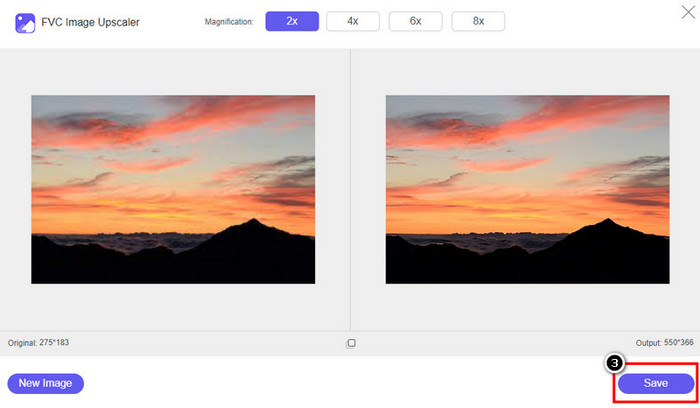
Langkah 4. Klik butang Save untuk memuat turun imej yang telah anda pertingkat di sini; alat ini akan menyimpannya terus ke folder setempat anda. Semak versi imej berskala tinggi yang anda sunting di sini.
Bahagian 2. Cara Menukar Resolusi Foto pada iPhone [Tingkatkan Imej Anda Simpan dengan Mudah]
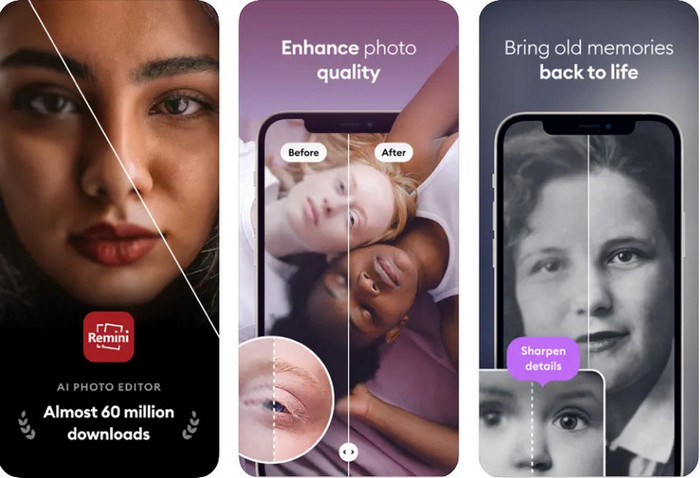
Apl Remini membolehkan anda menukar resolusi gambar di iPhone supaya kelihatan lebih baik. Anda boleh memuat turun aplikasi ini di AppStore apabila anda melayarinya. Aplikasi ini ialah penyunting imej serba lengkap yang boleh membantu anda menambah baik dan menukar imej hitam putih kepada imej berwarna dengan satu leretan sahaja. Dengan aplikasi ini, anda boleh membesarkan sebarang imej sehingga 4x dengan bantuan teknologi AI. Jika anda mahu menggunakan aplikasi ini, maka anda boleh menyalin langkah demi langkah yang kami sertakan seterusnya.
Langkah 1. Muat turun aplikasi pada iPhone anda supaya anda boleh mula menggunakannya.
Langkah 2. Buka aplikasi dan tekan Enhance. Pilih imej yang anda mahu pertingkat yang terdapat dalam Photos anda.
Langkah 3. Tunggu proses untuk mempertingkat imej yang anda muat naik; anda boleh seret gelangsar untuk melihat perbandingan sebelum dan selepas pada imej tersebut.
Langkah 4. Setelah imej siap diproses, klik butang Save untuk memuat turun imej yang telah anda pertingkat.
Bahagian 3. Cara Menukar Resolusi Foto pada Android [Mempertingkatkan Imej Secara Berkesan]
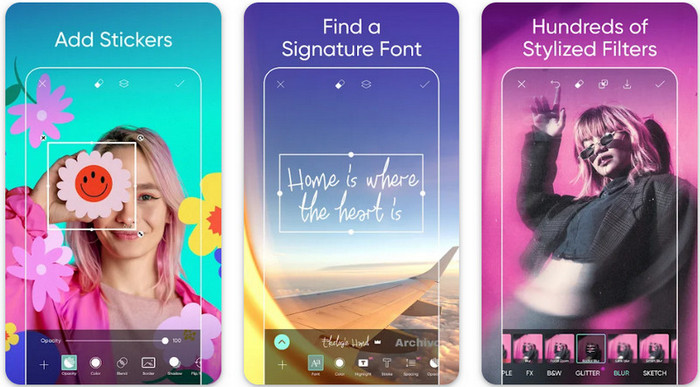
Bagaimana cara menukar resolusi gambar pada Android? Jika anda mahu menaik taraf resolusi imej yang anda tangkap pada Android, anda boleh cuba menggunakan Picsart. Ia ialah aplikasi terkenal yang boleh anda muat turun pada Android untuk menyunting imej yang anda miliki supaya kelihatan lebih baik. Aplikasi ini sarat dengan ciri yang boleh anda manfaatkan. Teknik penambahbaikan yang akan kami ajarkan bukan cara biasa yang anda fikirkan, tetapi ia boleh meningkatkan kualiti imej. Ikuti maklumat terperinci di bawah untuk mengetahui dengan lebih lanjut!
Langkah 1. Muat turun aplikasi melalui Play Store, kemudian lancarkannya. Pilih imej yang anda mahu pertingkat, kemudian muat naik.
Langkah 2. Pergi ke Effects, klik Blur, seret gelangsar kabur dan tetapkan pada 5 hingga 10, kemudian tekan ikon check untuk menyimpannya.
Langkah 3. Buka Tools dan pergi ke Curve.
Langkah 4. Laraskan lengkung dengan menyeretnya ke atas dan ke bawah supaya resolusi imej anda kelihatan lebih baik.
Langkah 5. Tekan ikon check untuk menyimpan perubahan yang anda terapkan pada imej dengan membengkokkan lengkung, kemudian Export imej tersebut.
Bahagian 4. Cara Melaraskan Tetapan Kamera untuk Menangkap Imej yang Lebih Baik! [Petua & Trik]
Bagaimana untuk meningkatkan peleraian foto pada iPhone untuk menangkap potret imej yang lebih baik? Tidak semua ciri dibentangkan pada apl Kamera iPhone anda. Beberapa untuk menjadikan kualiti imej anda lebih baik ialah tetapan. Adakah anda berminat untuk menangani masalah ini? Kemudian teruskan membaca maklumat yang kami tambahkan di bawah.
Langkah 1. Pergi ke Setting anda dan buka Apl Kamera.
Langkah 2. Klik Formats.
Langkah 3. Tetapkan output akhir kepada Most Compatible, iaitu JPEG. Setiap kali anda mengambil gambar, ia akan berada dalam format JPEG, yang kita semua tahu menggunakan pemampatan imej lossy dengan hasil imej berkualiti tinggi.
Berkaitan:
Cara Membetulkan Foto HEIC Menggunakan Alat Terbaik
Penghapus Cela Foto Yang Anda Patut Guna Untuk Kulit Licin Mulus Dalam Imej
Bahagian 5. Soalan Lazim tentang Cara Menukar Resolusi Foto pada iPhone
Apakah yang menyebabkan kualiti imej pada iPhone menjadi teruk?
Terdapat banyak faktor yang perlu anda pertimbangkan apa yang mungkin menjadi masalah. Sebelum menangkap imej, pastikan anda membersihkan kanta iPhone anda dan mempunyai tangan yang stabil, atau anda boleh menggunakan pendirian kamera dan menggunakan ISO tinggi untuk objek bergerak. Jika anda telah melakukannya dan masih mempunyai kualiti yang tidak baik, anda boleh menggunakan alat yang kami gunakan dalam artikel ini.
Adakah menukar kualiti imej menjadikan saiz fail besar?
Sesungguhnya, kualiti imej akan menjadi lebih besar selepas anda mempertingkatkannya. Apabila anda menambah piksel pada imej, selepas anda mempertingkatkannya, saiz fail versi yang dipertingkatkan juga akan menjadi lebih besar.
Adakah menukar peleraian foto pada iPhone mudah?
Ya, anda tidak perlu mempunyai pengalaman bertahun-tahun untuk meningkatkan peleraian foto iPhone anda, jadi jika anda ingin tahu cara melakukannya, anda boleh menyalin langkah yang kami tambahkan di atas dan alatan yang kami perkenalkan yang boleh anda gunakan.
Kesimpulannya
Akhir sekali, kini kita mempunyai gambaran jelas tentang cara menjadikan resolusi foto iPhone lebih baik daripada sebelumnya dengan bantuan aplikasi khusus ini! Kami berharap artikel ini membantu anda menangani masalah dengan pelbagai penyelesaian pada iPhone dan Android. Semua orang tidak suka kualiti imej yang teruk, jadi kami di sini untuk memperbaikinya. Ikuti langkah yang kami sertakan di atas untuk menyelesaikannya dengan cepat!
-
 Cara Menukar Imej Resolusi Rendah kepada Resolusi Tinggi Dalam Talian
 Jika anda ingin mengetahui cara menukar imej resolusi rendah kepada imej resolusi tinggi dalam talian, maka artikel ini adalah untuk anda. Baca sepenuhnya untuk mengetahui caranya.
-
 6 Penyingkiran Foto Jeragat Terbaik yang Mesti Anda Ada Sekarang [2022]
 Perlukan penghilang cela foto untuk memiliki kulit licin? Jangan risau lagi! Di sini, kami akan memperkenalkan alat yang berbeza yang boleh membantu peranti anda.
-
 Keluarkan Tera Air StarUML Menggunakan Versi Percuma & Berbayar yang Boleh Anda Gunakan
 Mahu mengalih keluar tera air StarUML pada output akhir? Nah, terdapat dua cara untuk melakukannya, dan mari kita bincangkannya di sini.
