


 Video Converter Ultimate
 Perakam Skrin
 Pembaikan Video
 Muat Turun Selamat
Cara Memampatkan Fail SVG: Mencapai Output Kualiti Tanpa Rugi
SVG, atau Grafik Vektor Boleh Skala, ialah format imej unik yang menyimpan imej melalui formula matematik berdasarkan titik dan garis tepatnya pada grid. Ini benar-benar bertentangan dengan JPEG, yang merupakan fail raster berasaskan piksel. Selain itu, fail jenis ini biasanya digunakan untuk reka bentuk web dan grafik kerana kebolehskalaan dan saiz fail yang boleh dilaksanakan.
Namun, kini pengguna biasa memampatkan fail ini untuk meningkatkan masa muat dan prestasi. Jadi, jika anda sedang mencari alat pemampatan untuk fail SVG anda, anda berada pada halaman yang betul. Ketahui dalam artikel ini tentang alat pemampatan SVG terbaik dan cara menggunakannya dengan berkesan untuk mengoptimumkan imej anda tanpa mengorbankan kualiti.

Bahagian 1: Mampatkan SVG pada Saiz Minimum Tanpa Kehilangan Kualiti Yang Jelas Dalam Talian
Jika anda mahu memampatkan fail SVG anda kepada saiz minimum tanpa kehilangan kualiti yang ketara secara dalam talian, alat terbaik yang boleh anda gunakan ialah FVC Free Image Compressor. Alat ini adalah 100% percuma, dan berbanding alat pemampat lain yang menawarkan perkhidmatan percuma, alat ini merupakan pengecualian kerana ia memampatkan fail imej sambil mengekalkan kualitinya.
Langkah 1. Pertama, anda perlu melawati laman web rasmi alat ini.
Langkah 2. Sebaik sahaja anda berada pada antara muka utamanya, anda perlu klik butang Upload Images untuk mengimport foto yang ingin anda mampatkan.
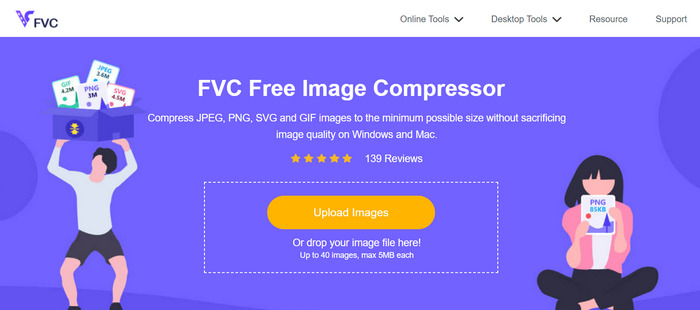
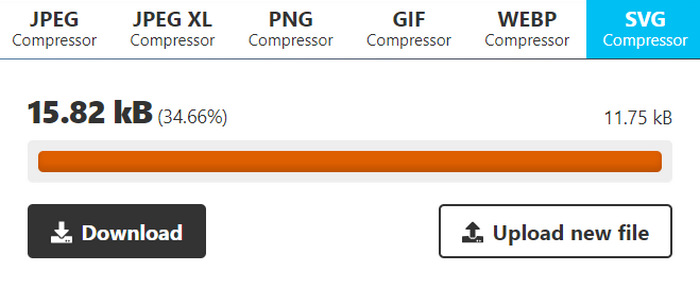
Langkah 3. Tunggu sehingga proses penukaran selesai. Selepas itu, anda akan melihat bar status yang menyatakan ia telah selesai. Sekarang, klik Download untuk menyimpan imej anda.
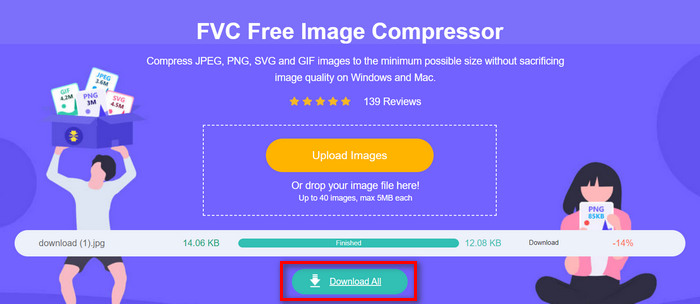
Apa yang terbaik tentang alat pemampatan SVG ini ialah ia melakukan pemampatan automatik semasa muat naik. Selain itu, ciri pemprosesan kelompoknya membolehkan pengguna memampatkan sehingga 40 fail imej secara serentak. Ini berguna untuk mereka yang mempunyai banyak fail SVG yang memerlukan pemampatan. Selain itu, fail ini dengan pantas dan automatik dikurangkan kepada maksimum 5MB untuk memastikan prestasi memuatkan apabila menggunakannya. Akhir sekali, selain daripada fail SVG, anda boleh memampatkan format fail imej lain seperti JPEG, PNG dan GIF.
Bahagian 2: Mampatkan SVG dengan Perisian Profesional- Adobe Illustrator
Jika anda mahu perisian profesional untuk memampatkan fail SVG, Adobe Illustrator akan menjadi pilihan terbaik. Program perisian ini terkenal dengan keupayaan reka bentuk grafik yang canggih. Namun, ia juga mampu mengoptimumkan dan mengurangkan saiz fail fail SVG anda sambil mengekalkan kualiti yang tinggi.
Berikut ialah langkah bagaimana anda boleh memampatkan fail SVG apabila anda menggunakan Adobe Illustrator:
Langkah 1. Pada program Adobe Illustrator anda, buka fail SVG dengan pergi ke tab File dan klik butang Open.
Sebaik sahaja anda berada pada antara muka utama, pergi ke tab File sekali lagi dan klik butang Save As atau tekan Shift-Control-S untuk menyimpan dokumen anda.
Langkah 2. Sekarang, pilih Adobe Illustrator.Ai sebagai jenis fail, tetapkan nama dokumen anda, kemudian tekan Save.
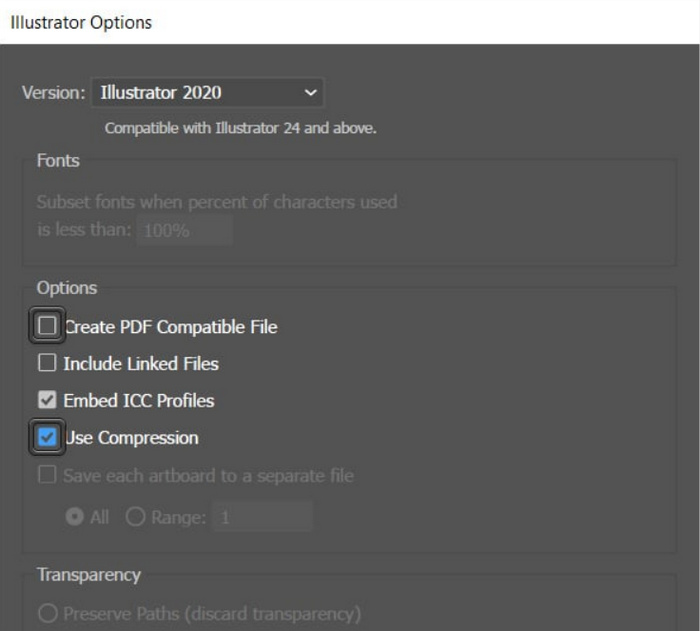
Langkah 3. Seterusnya, nyahpilih kotak Create PDF Compatible File dan pastikan kotak Use Compression ditanda. Setelah selesai, hanya klik OK untuk menyimpan fail yang telah dikecilkan saiznya.
Di sini anda juga boleh menggunakan alat ini untuk mengeksport SVG ke JPG atau PNG yang anda perlukan.
Pengguna boleh memanfaatkan kaedah ini apabila mereka mencipta projek fail SVG dalam program Adobe Illustrator. Program ini mempunyai ciri yang membolehkan pengguna memampatkan fail secara langsung sebelum menyimpannya. Walau bagaimanapun, ini bukan alat pemampatan SVG biasa anda yang menawarkan penukaran kelompok untuk sekumpulan fail SVG dan mempunyai kadar mampatan automatik, tetapi sekali lagi, apabila anda menggunakan program ini, anda boleh dengan mudah dan cepat memampatkan fail jenis ini untuk saiz fail terkecil yang mungkin sambil mengekalkan integriti kualitinya.
Bahagian 3: Mampatkan SVG dengan Kelajuan Pantas
Apabila anda sedang mencari alat pemampatan SVG berkelajuan tinggi, mungkin Compress-Or-Die adalah pilihan yang sesuai untuk anda. Ini ialah alat pemampat imej dalam talian yang bukan sahaja mengurangkan saiz imej fail anda tetapi juga menganalisis dan membaikinya. Selain itu, alat ini memampatkan fail SVG kepada saiz yang lebih kecil sambil mengekalkan kualiti pada tahap maksimum.
Langkah 1. Mula-mula, import fail SVG dengan mengklik butang Select File. Selain itu, anda juga boleh menggunakan fungsi Drag & Drop, atau hanya tampalkan URL.
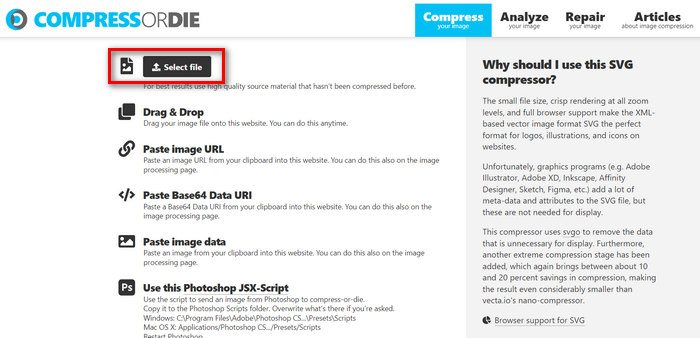
Langkah 2. Setelah anda memilih fail SVG, ia akan dipampatkan secara automatik.
Langkah 3. Selepas pemampatan, anda akan melihat saiz fail baharu bagi fail SVG anda. Kini, untuk menyimpannya, hanya klik butang Download.
Alat ini menawarkan kemudahan dan fleksibiliti apabila ia datang untuk memampatkan fail SVG. Pengguna boleh menyesuaikan tetapan mampatan untuk pelbagai tahap pengoptimuman dan membandingkan imej asal dan dimampatkan. Walau bagaimanapun, kekurangan sokongan untuk pemampatan imej kelompok mengehadkan kecekapan untuk pengguna menguruskan berbilang imej secara serentak. Kelajuan mampatan berbeza-beza bergantung pada faktor seperti saiz imej dan kerumitan. Secara keseluruhannya, walaupun ia cemerlang dalam tugas pemampatan individu, ia mungkin tidak optimum untuk pengguna yang memerlukan keupayaan pemprosesan kelompok.
Bahagian 4: Soalan Lazim tentang Memampatkan SVG
Bolehkah anda mengubah saiz fail SVG untuk Cricut?
ya. Fail SVG ialah grafik vektor boleh skala, bermakna ia boleh diubah saiznya tanpa kehilangan kualiti. Ini menjadikan ia sesuai untuk digunakan dengan mesin pemotong seperti Cricut, kerana anda boleh menukar saiz reka bentuk agar sesuai dengan projek anda dengan sempurna.
Adakah SVG kehilangan kualiti apabila saiznya diubah?
Tidak. SVG tidak kehilangan kualiti apabila saiznya diubah. Tidak seperti format imej lain seperti JPEG atau PNG, yang boleh menjadi piksel apabila diubah saiznya, fail SVG mengekalkan kualitinya kerana ia berdasarkan formula matematik dan bukannya grid piksel tetap.
Bagaimana untuk mencipta SVG yang boleh diubah saiz?
Mencipta SVG yang boleh diubah saiznya melibatkan mereka bentuk grafik menggunakan perisian berasaskan vektor seperti Adobe Illustrator. Semasa menyimpan fail, pastikan ia disimpan dalam format SVG. Format ini membolehkan grafik dizum masuk atau keluar tanpa kehilangan kualiti, menjadikannya boleh diubah saiz untuk pelbagai aplikasi dan peranti. Lihat lebih banyak cara untuk menukar imej kepada SVG di sini.
Kesimpulannya
Itu sahaja, kini anda boleh memampatkan SVG menggunakan 3 alat berbeza mengikut keperluan anda. Setiap satunya menawarkan set ciri unik yang berbeza untuk memenuhi keutamaan dan kehendak anda. Ingat, mengurangkan saiz fail SVG anda bukan sahaja meningkatkan prestasi malah membantu mengoptimumkan penggunaan jalur lebar, memperbaiki masa muat, dan memastikan pengalaman pengguna yang lebih lancar. Jadi, terokai alat-alat ini, cuba ciri-cirinya, dan cari penyelesaian yang paling sesuai dengan aliran kerja anda. Mula memampatkan sekarang!
-
 Cara Teratas dan Mudah untuk Menukar HEIC kepada SVG
 Penukar HEIC kepada SVG ini akan membantu anda menukar HEIC kepada SVG dengan mudah. Baca artikel ini untuk mengetahui alat dalam talian yang terbaik dan percuma ini.
-
 Kaedah Mudah Cara Menukar SVG kepada Format JPG
 Mencari cara terbaik untuk menukar SVG kepada JPG? Siaran ini akan memberikan beberapa tutorial yang pasti anda boleh cuba. Anda juga akan menemui penukar SVG ke JPG untuk anda.
-
 Cara Utama tentang Cara Menukar JPG kepada SVG [Diselesaikan]
 Dalam siaran ini, anda akan mendapat data yang anda tidak mampu terlepas tentang cara terbaik untuk menukar JPG kepada SVG. Baca siaran untuk mendapatkan penukar JPG ke SVG untuk digunakan.
