


 Video Converter Ultimate
 Perakam Skrin
 Pembaikan Video
Cara Memotong Imej dalam Photoshop
Anda boleh melakukan banyak perkara dalam Photoshop; ia ibarat alat serba lengkap untuk menyunting imej. Jika anda telah menggunakan Photoshop dan masih biasa dengan semua fungsinya atau seseorang yang ingin meneroka ciri potongan (cut-out) yang disediakannya, kami sedia membantu anda! Pelajari dan fahami cara memotong imej dalam Photoshop dengan cepat dan mudah. Selain itu, terokai juga kaedah lain untuk memotong imej secara dalam talian jika Photoshop tidak sesuai dengan sumber dan kemahiran anda.
Bahagian 1. Cara Memotong Imej dalam Photoshop
Mempelajari cara memotong imej dalam Photoshop adalah penting kerana ia membolehkan individu memisahkan dan memanipulasi elemen berbeza dalam imej dengan tepat. Kemahiran ini adalah asas untuk tugas seperti mengalih keluar latar belakang, mencipta kolaj dan membuat peningkatan yang disasarkan semasa penyuntingan imej. Sama ada dalam reka bentuk grafik, fotografi produk atau seni digital, keupayaan untuk memotong imej memberikan fleksibiliti dan kawalan kreatif, membolehkan para profesional dan peminat sama-sama mencapai hasil visual yang diingini dalam pelbagai projek.
Inilah cara untuk memotong imej dalam Photoshop:
Langkah 1. Buka imej dalam Photoshop dengan pergi ke tab File.
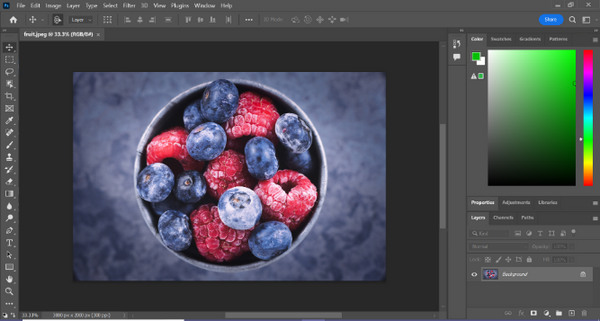
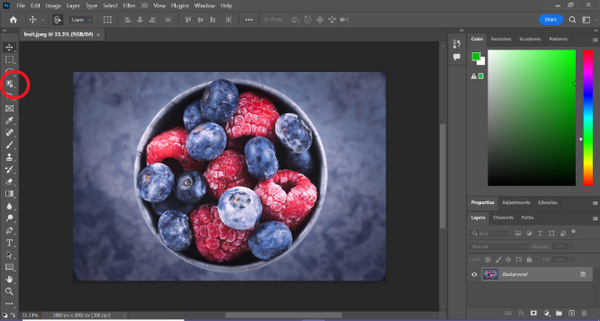
Langkah 2. Pilih alat Object Selection dan seret tetikus ke atas objek anda untuk memilih kawasan yang ingin anda potong.
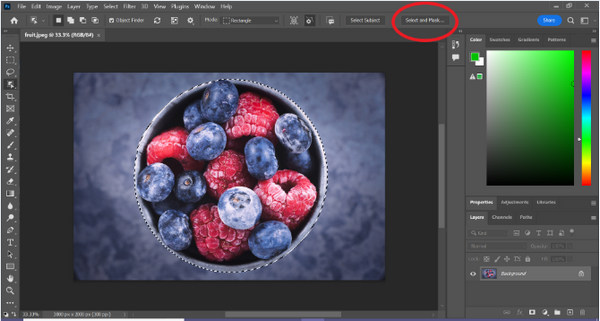
Langkah 3. Klik Select and Mask.
Langkah 4. Laraskan tetapan pemilihan, seperti feathering, jika perlu.
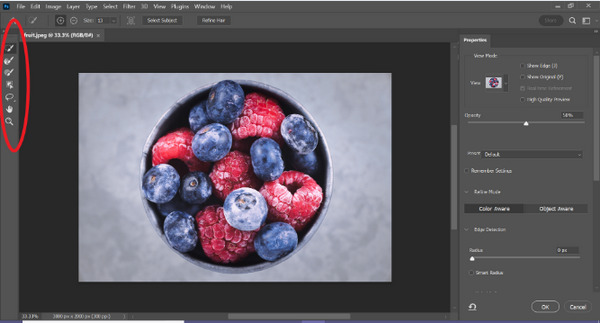
Langkah 5. Klik ikon Mask untuk memotong imej anda dan simpan imej yang telah diubah.
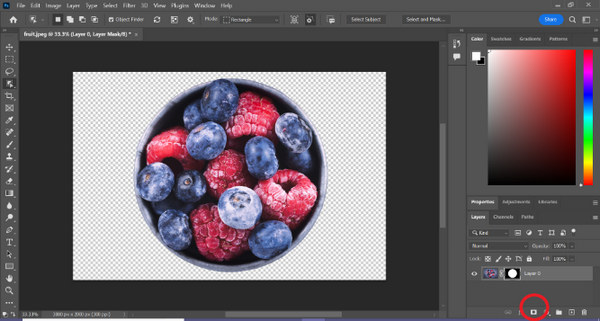
Dengan panduan ringkas ini, anda kini boleh memotong imej dalam Photoshop dengan cepat dan mudah. Hanya ikut panduan ini dan nikmati proses penyuntingan imej yang tepat tanpa sebarang kerumitan. Selain itu, anda boleh menukar warna imej untuk menggantikan bahagian yang telah dipotong.
Bahagian 2. Bagaimana untuk Memotong Imej Tanpa Photoshop Dalam Talian?
Jika anda tidak memasang Photoshop pada komputer anda, ada cara anda boleh memotong imej dalam talian. Walaupun Photoshop ialah alat berkualiti untuk mengedit imej, terutamanya untuk memotong imej dengan sempurna, ia memerlukan kemahiran dan latihan untuk menguasainya. Jadi, jika alat ini tiada di tangan anda, anda boleh menggunakan kaedah ini untuk memotong imej dengan mudah.
Kaedah 1: Pembuang Latar Belakang Dalam Talian FVC
FVC Online Background Remover adalah serba guna dan mesra pengguna, direka untuk membuang latar belakang imej secara automatik dalam format seperti PNG, JPG dan JPEG. Alat ini memudahkan proses mencipta latar belakang telus dan menawarkan pilihan penyesuaian, membolehkan pengguna menggunakan berus untuk memilih kawasan tertentu yang ingin dibuang atau dikekalkan.
Selain itu, FVC Free Background Remover membenarkan pengguna menukar latar belakang imej kepada warna pepejal pilihan mereka atau malah menggantikannya dengan foto lain. Alat ini melangkaui penyingkiran latar belakang, menawarkan ciri penyuntingan mudah seperti pemangkasan, penempatan semula, selak dan putaran, membolehkan pengguna meningkatkan daya tarikan keseluruhan imej mereka. Di bawah adalah langkah-langkah bagaimana untuk menggunakan ini.
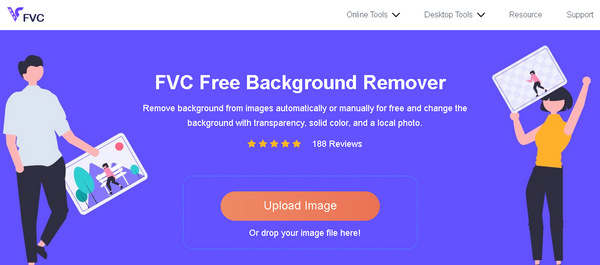
Langkah 1. Mula-mula, pergi ke laman web rasmi mereka dan klik Upload Image.
Langkah 2. Tunggu prosesnya selesai. Selepas itu, anda boleh mengedit imej dengan memperincikan tepi dan menggerakkan subjek.
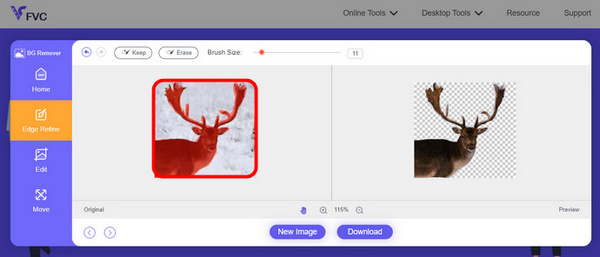
Langkah 3. Untuk menyimpan hasilnya, klik butang Download.
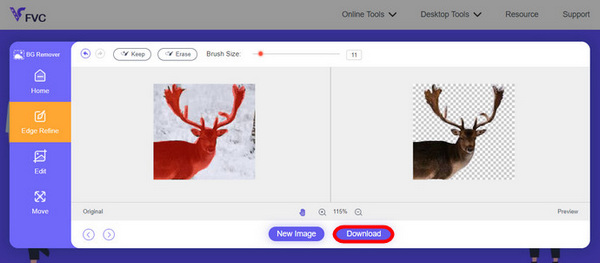
FVC Image Background Remover memang alat pilihan utama untuk memotong imej. Selain percuma, alat ini juga sangat mesra pengguna untuk menambah latar belakang pada imej. Lihat, anda hanya perlu mengikuti beberapa langkah mudah, dan anda boleh membuang latar belakang foto anda dengan begitu mudah.
Kaedah 2: Menggunakan Ciri iPhone iOS 16
iPhone iOS 16 membawa beberapa ciri dan kemas kini baharu. Salah satunya ialah gambar yang dipotong. Ciri potongan imej ini membolehkan pengguna mengasingkan subjek foto dan membuat potongan foto terus pada iPhone mereka.

Langkah 1. Buka foto dalam apl Photos anda.
Langkah 2. Tekan lama pada subjek dalam foto, dan garis luar putih berkilau akan muncul.
Langkah 3. Kini, salin dan tampal imej ke dalam nota, aplikasi pemesejan, dan mesej anda. Anda juga boleh terus menghantar melalui AirDrop ke peranti iPhone yang lain.
Ciri potongan foto ini hanya tersedia dalam iOS 16 dan lebih baharu pada iPhone XS, iPhone XR dan lebih baharu.
Bahagian 3. Soalan Lazim tentang Memotong Imej dalam Photoshop
Bagaimana untuk memotong seseorang daripada gambar dan meletakkannya dalam gambar lain dalam Photoshop?
Untuk memotong seseorang daripada satu gambar dalam Photoshop dan meletakkannya ke dalam gambar yang lain, ikut langkah berikut:
1. Gunakan alat Lasso atau Pen untuk melukis garisan mengelilingi orang itu dengan teliti.
2. Klik kanan dan pilih Layer via Copy untuk menyalin kawasan yang dipilih.
3. Buka imej destinasi, cipta lapisan (layer) baharu dan tampal lapisan yang disalin ke atasnya.
4. Laraskan saiz dan kedudukan mengikut keperluan, dan perincikan tepi untuk hasil yang kelihatan sebati.
Bagaimanakah anda memotong sesuatu dalam Photoshop dan menjadikannya telus?
Untuk memotong sesuatu dalam Photoshop dan menjadikannya telus:
1. Gunakan alat Pen atau Magic Wand untuk memilih objek.
2. Tekan Delete untuk membuang kawasan yang dipilih.
3. Simpan imej dalam format PNG.
4. Pastikan kawasan yang dipadam kelihatan seperti corak papan dam, menandakan bahawa ia telus.
Bagaimana anda menolak bentuk dalam Photoshop?
Untuk menolak (subtract) bentuk dalam Photoshop:
1. Cipta dua bentuk menggunakan alat Shape atau mana-mana alat pemilihan.
2. Pastikan kedua-dua bentuk berada pada lapisan berasingan.
3. Pilih lapisan bahagian atas, pergi ke Path Operations dalam toolbar, dan pilih Subtract Front Shape.
4. Bentuk bahagian atas akan ditolak daripada bentuk bahagian bawah, menghasilkan bentuk baharu dengan kawasan yang telah ditolak.
Bolehkah saya memotong objek kompleks dengan butiran halus dalam Photoshop?
Ya, Photoshop menawarkan alat lanjutan seperti alat Pen untuk pemilihan objek rumit yang tepat. Zum masuk untuk ketepatan, buat titik penambat di sekeliling objek dan perhalusi laluan untuk potongan terperinci.
Apakah perbezaan antara Lapisan melalui Potong dan Lapisan melalui Salin apabila memotong imej dalam Photoshop?
Lapisan melalui Potong mengalih keluar kawasan yang dipilih dan meletakkannya pada lapisan baharu. Manakala, Layer via Copy menduplikasi kawasan yang dipilih ke lapisan baharu, meninggalkan yang asal utuh. Pilih berdasarkan sama ada anda ingin mengekalkan yang asal atau tidak semasa proses pemotongan.
Kesimpulannya
Mudah, bukan? Kini setelah anda tahu cara memotong imej dalam Photoshop, tingkatkan lagi kemahiran itu dan terokai ciri lain dalam Photoshop. Selain itu, anda boleh cuba kaedah lain untuk memotong imej secara dalam talian dengan menggunakan FVC Online Background Remover atau melalui peranti iPhone anda. Memotong imej kini lebih mudah berbanding sebelum ini, jadi jangan lepaskan peluang ini dan serlahkan kreativiti anda dengan mengikuti panduan ini.
-
 Cara Mengalih Keluar Tera Air daripada Foto dalam Photoshop [Langkah]
 Photoshop adalah salah satu alat penyuntingan yang popular. Dapatkan tutorial percuma di sini menggunakan Photoshop untuk mengalih keluar tera air daripada foto. Juga, temui cara alternatif.
-
 Cara Memangkas dalam Photoshop: Panduan Pemula [2025]
 Ketahui cara memangkas imej dalam Photoshop dengan panduan yang mudah diikuti ini. Selain itu, ketahui cara memilih kawasan, melaraskan nisbah bidang dan banyak lagi untuk pemangkasan foto.
-
 Cara Menukar Warna dalam Photoshop | Panduan Komprehensif 2025
 Ingin meningkatkan kreativiti anda ke peringkat seterusnya dengan mempelajari cara menukar warna latar belakang dalam Photoshop? Artikel ini mempunyai semua yang anda perlu tahu. Baca sekarang!
