


 Video Converter Ultimate
 Perakam Skrin
 Pembaikan Video
Amalan Luar Biasa yang Bercakap tentang Cara Menukar M4V kepada MOV
Sebagai sambungan fail MPEG-4, M4V adalah serupa dengan MP4. Filem atau video stor iTunes Apple boleh dikodkan dengan aplikasi ini. Perbezaan utama antara M4V dan MP4 ialah M4V dilindungi dan hanya boleh dimainkan pada komputer yang mempunyai lesen iTunes. Tetapi bagaimana jika anda perlu menukarnya kepada MOV untuk menontonnya pada pemain video anda? Apa yang perlu anda lakukan? Berikut ialah pilihan terbaik dan terhangat yang patut anda lihat untuk menukar M4V ke MOV.

Bahagian 1. Gambaran Keseluruhan M4V dan MOV
Apple mencipta format video M4V, yang digunakan untuk mengedarkan video melalui iTunes dalam format asalnya. Selain kemungkinan menyertakan perlindungan DRM Apple, ia hampir sama dengan video MP4. iTunes menyimpan bahan video seperti siri TV, filem dan video muzik, yang dilindungi dengan baik dengan format video ini. Fail M4V juga membenarkan penciptaan maklumat bab. Selain iTunes dan pemain Apple QuickTime, kebanyakan pemain video boleh memainkan fail M4V yang tidak dilindungi DRM. Video Studio Pro juga boleh membuka fail M4V, yang menyediakan keupayaan penyuntingan jarak jauh yang luas.
Walau bagaimanapun, MOV ialah format video QuickTime yang dibangunkan oleh Apple dan digunakan dalam rangka kerja QuickTime pada Mac OS X. Platform Windows juga menyokong keupayaan bekas multimedia ini untuk menyimpan beberapa trek, setiap satunya mengandungi sejenis data tertentu (audio, video, sarikata). Program penyuntingan video boleh mendapat manfaat yang besar daripada pemisahan data media daripada ofset media, rujukan data abstrak dan senarai suntingan trek. Adalah amalan biasa untuk mengedarkan filem dan video melalui internet dalam format bekas MOV.
Bahagian 2. Bagaimana Menukar M4V kepada MOV Luar Talian
Dalam mencari penukar terbaik yang boleh anda gunakan secara luar talian, perisian ini ialah apa yang anda perlukan. Video Converter Ultimate ialah perisian terbaik dan paling disyorkan yang boleh anda gunakan untuk menukar format seperti M4V ke MOV. Ia tersedia untuk kedua‑dua Windows dan Mac. Selain itu, ia boleh dimuat turun secara percuma. Ia adalah penukar terpantas yang boleh anda bayangkan kerana ia boleh menukar saiz fail video yang besar yang tidak dapat ditangani oleh perisian dan penukar dalam talian yang lain. Ia juga menyokong pelbagai format, termasuk format video yang paling tidak biasa yang hanya boleh anda lihat pada perisian ini. Dengan kualiti output yang sangat baik dan banyak lagi alat tersedia untuk menambah baik video anda, semua orang patut menggunakannya. Tanpa melengahkan masa, berikut ialah prosedur yang perlu anda pertimbangkan:
Langkah 1. Untuk bermula, klik sahaja ikon Muat Turun Percuma di sebelah kanan untuk memulakan muat turun. Setelah muat turun selesai, anda boleh memilih untuk memuat turun perisian sama ada pada Windows atau Mac. Mula‑mula, anda mesti memasang perisian pada desktop komputer anda dan kemudian klik Mula Sekarang untuk mula menggunakannya.
Muat Turun PercumaUntuk Windows 7 atau lebih baharuMuat Turun Selamat
Muat Turun PercumaUntuk MacOS 10.7 atau lebih baharuMuat Turun Selamat
Langkah 2. Buka perisian yang baru anda muat turun. Apabila anda membuka perisian buat kali pertama, satu tetingkap dengan antara muka Converter akan dipaparkan. Masukkan fail video anda di sini dan mulakan proses penukaran.
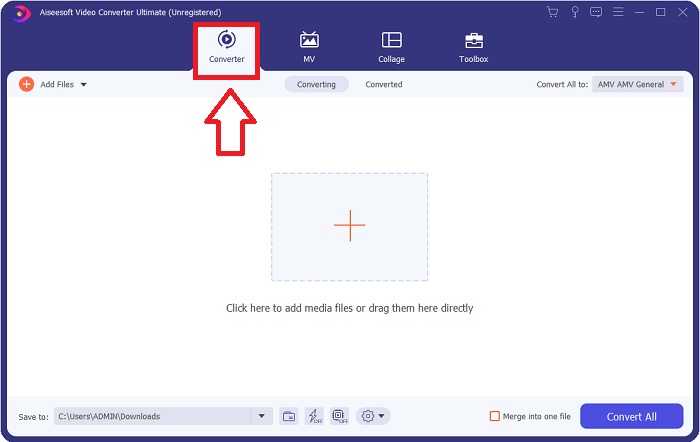
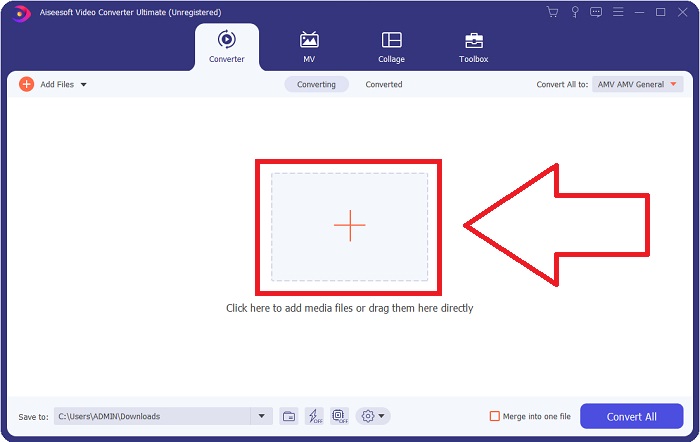
Langkah 3. Mulakan proses penukaran dengan mengimport fail anda ke dalam penukar. Fail video yang ingin anda tukar boleh diseret dan dijatuhkan ke ikon +.
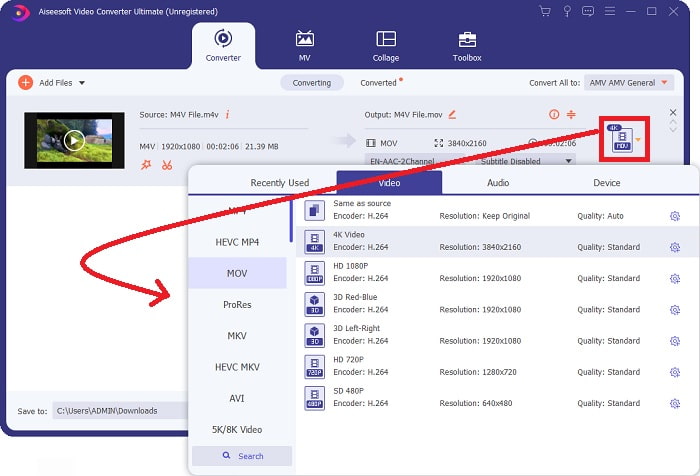
Langkah 4: Menu pilihan akan muncul di bahagian atas kanan skrin; klik pada satu format video daripada senarai untuk memilihnya. Pilih format MOV daripada pilihan jatuh turun. Setelah anda memilih fail MOV, terdapat pelbagai pilihan kualiti video. Tetapi jika output video pilihan anda tidak tersenarai, anda boleh mengubah tetapan kualiti untuk memenuhi keperluan anda. Ikon gear membolehkan anda menukar resolusi paparan, kadar bingkai dan kualiti audio. Klik butang Cipta Baharu untuk menyimpan perubahan anda.
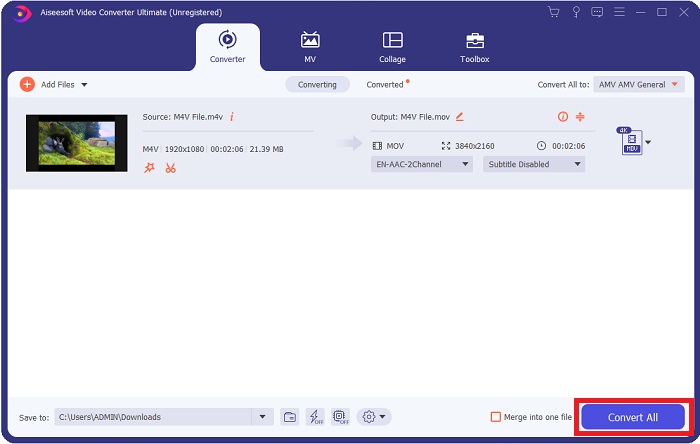
Langkah 5. Untuk mula memindahkan video ke komputer anda, pilih Tukar Semua apabila anda selesai mengedit video dan ia sudah sedia untuk ditukar.
Bahagian 3. Cara Lain untuk Menukar M4V kepada MOV Dalam Talian
Kaedah 1. Gunakan Penukar Video Percuma
Gunakan versi dalam talian Video Converter Ultimate ini jika anda tidak mempunyai masa untuk memuat turunnya. Di internet, FVC Free Video Converter Online ialah aplikasi web terbaik untuk menukar dengan cepat dan mudah antara pelbagai jenis format video. Ia disyorkan untuk pengguna baharu kerana ia tiada sekatan pada format fail yang boleh disokongnya, tidak seperti penukar dalam talian yang lain. Ikuti langkah‑langkah ini untuk mengetahui lebih lanjut tentang alat berasaskan web ini.
Langkah 1. Dengan mengklik pautan ini, anda akan diarahkan ke laman utama FVC Free Video Converter Online.
Langkah 2. Untuk mendapatkan pelancar untuk komputer anda, klik pilihan Tambah Fail untuk Tukar di sebelah kanan jika ini kali pertama anda menggunakannya. Apabila ia telah dimuat turun untuk kali kedua, ia akan dilancarkan secara automatik. Setelah fail dimuat turun untuk kali kedua, cari ia dalam folder anda dan klik Buka untuk membukanya.
Muat turun Versi Desktop untuk menukar fail secara kelompok.
Langkah 3. Memilih format MOV daripada menu Video di bawah dan mengkliknya akan memulakan proses penukaran bahkan sebelum ia bermula.
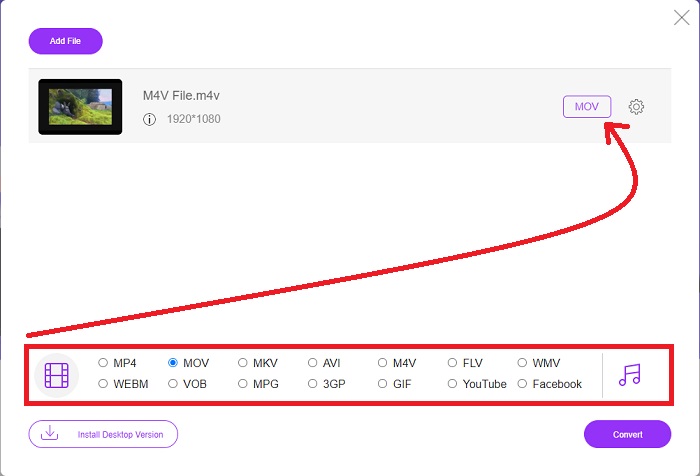
Langkah 4. Klik Tukar untuk memulakan proses menukar satu format kepada format yang lain selepas anda memilih format yang hendak ditukar.
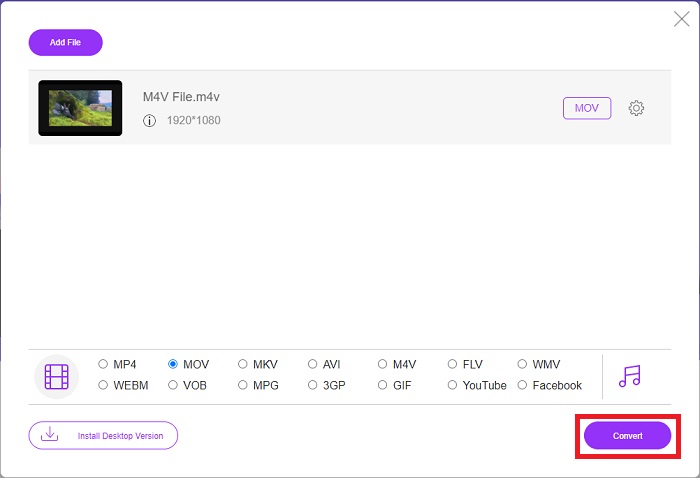
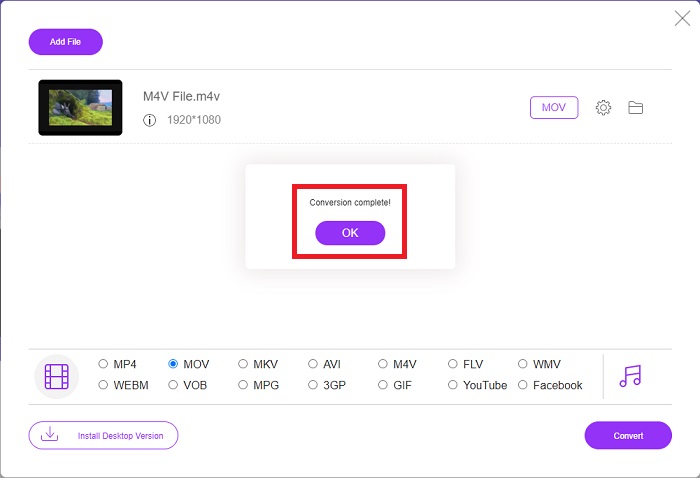
Langkah 5. Hanya akan mengambil beberapa minit untuk fail yang telah ditukar muncul dalam satu folder fail, yang kemudian boleh anda buka untuk mula menontonnya.
Kaedah 2. Gunakan ConvertFiles
ConvertFiles ialah penukar fail dalam talian yang berkuasa yang boleh menukar antara pelbagai format fail. Dokumen, foto, pembentangan, arkib, audio dan fail video dalam lebih daripada 200 format disokong. Berikut ialah langkah yang disediakan yang anda perlukan untuk belajar tentang alat dalam talian ini.
Langkah 1. Cari ConvertFiles pada mana‑mana pelayar web, kemudian klik laman web utamanya. Selepas anda mengkliknya, anda akan dibawa ke antara muka laman web tersebut. Klik Browse untuk mencari fail daripada cakera tempatan anda yang perlu anda tukar.
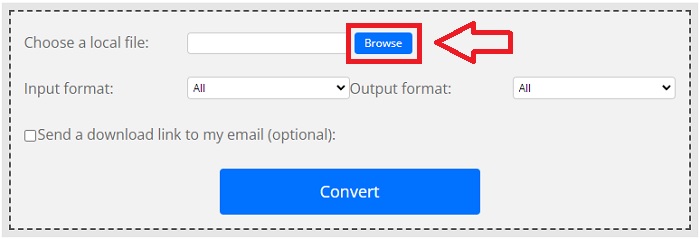
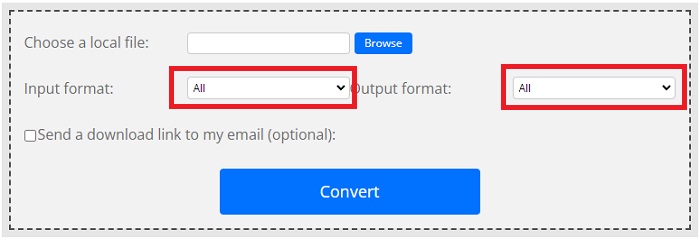
Langkah 2. Tetapkan format input dan output bagi fail video.
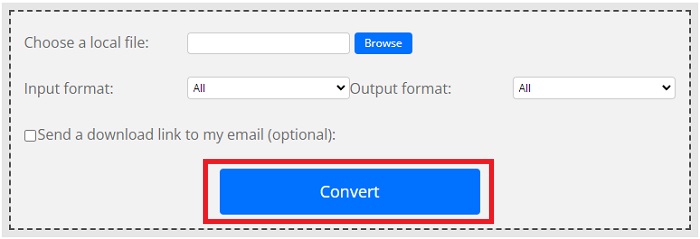
Langkah 3. Untuk menukar fail anda, klik Tukar dan tunggu proses selesai, kemudian klik Muat Turun.
M4V lwn MOV
M4V dibangunkan oleh Apple, yang juga menggunakan MPEG 4. Fail M4V sering digunakan untuk menyimpan video yang dimuat turun daripada gedung Apple iTunes, seperti video muzik, episod TV, dll. Anda mungkin mendapati beberapa fail M4V dilindungi salinan kerana ia menggunakan Perlindungan hak cipta DRM FairPlay Apple.
Format MOV boleh digunakan untuk menyimpan filem, rancangan TV, klip video pendek atau filem rumah. Ia sebenarnya disimpan dalam Format Fail QuickTime (QTFF), yang telah diperkenalkan oleh Apple pada tahun 1991. Fail MOV sering digunakan apabila orang ingin menyimpan video dengan kualiti yang tinggi.
Bahagian 4. Soalan Lazim tentang Penukaran M4V ke MOV
Mana yang lebih baik, MP4 atau MOV?
Fail dalam format MP4 selalunya lebih dimampatkan dan lebih kecil saiznya, tetapi fail dalam format MOV biasanya lebih tinggi kualitinya tetapi lebih besar saiz failnya. Fail MOV lebih digemari untuk penyuntingan video pada Mac kerana ia terutamanya ditujukan untuk QuickTime berbanding format video lain. Teruskan mempelajari lebih banyak perincian tentang MP4 vs MOV.
Mengapa fail MOV begitu besar?
QuickTime ialah codec boleh sunting yang sedang digunakan oleh iMovie untuk menukar daripada media sumber. Data yang digunakan oleh kamera dimampatkan dengan sangat tinggi, menjadikannya tidak sesuai untuk pemprosesan pasca‑produksi dalam kebanyakan kes. Kadar data yang jauh lebih tinggi dan ruang storan yang lebih besar diperlukan oleh format dan codec yang digunakan. Klik di sini untuk belajar cara memampatkan fail MOV.
MOV digunakan untuk apa?
Dalam kes sambungan fail MOV, ia merujuk kepada fail Apple QuickTime Movie yang telah diletakkan dalam fail bekas Format Fail QuickTime (QTFF) (fail bekas). Fail MOV boleh memasukkan audio, video dan teks dalam fail yang sama dengan menggunakan trek yang berbeza, atau trek boleh menghala ke data yang disimpan dalam fail lain yang tidak disertakan dalam fail MOV.
Kesimpulannya
Secara keseluruhan, walaupun semua alat web dalam talian yang diperkenalkan di atas, masalah sambungan ialah salah satu faktor utama yang boleh menyebabkan proses penukaran video terganggu. Itulah sebabnya menggunakan perisian yang boleh dimuat turun secara percuma seperti Video Converter Ultimate adalah yang paling disyorkan untuk anda pertimbangkan. Terdapat banyak alat hebat lain yang dimiliki penukar ini selain menukar fail video anda dengan cara yang sangat pantas. Selain itu, ia menyokong pelbagai format video, jadi anda tidak perlu risau untuk menukar fail yang tidak biasa supaya anda boleh menikmati video ini sebaik mungkin dengan output yang cemerlang.
-
 6 Cara Percuma Menukar M4V ke MP4
 Catatan ini adalah panduan terperinci untuk menukar M4V ke MP4 untuk mana-mana pemain. Anda boleh menukar M4V menjadi MP4, bahkan fail M4V yang dilindungi, sehingga anda dapat memutar video M4V tanpa had.
-
 Penukar M4V ke MP3 - 4 Kaedah Terbaik untuk Mengekstrak MP3 dari Fail M4V
 Apabila anda ingin mengekstrak audio MP3 dari video M4V dengan mudah, anda dapat mengetahui lebih lanjut mengenai 4 penukar M4V ke MP3 terbaik untuk mendapatkan fail audio yang diinginkan dari artikel tersebut.
-
 [Panduan] Cara Menukar Video M4V ke GIF Animasi pada Windows / Mac
 Sekiranya anda ingin membuat fail GIF animasi dari video M4V kegemaran anda, anda dapat mempelajari 2 cara mudah dan efisien untuk menukar video M4V ke GIF dengan tetapan yang disesuaikan.

