


 Video Converter Ultimate
 Perakam Skrin
 Pembaikan Video
 Muat Turun Selamat
Cara Menukar Video MOV ke Format FLV di Desktop dan Dalam Talian
MOV ialah kedua-dua sambungan fail dan format video. Fail dengan sambungan MOV ialah fail video Apple QuickTime. Ia berfungsi dengan baik pada iOS dan Mac. Selain itu, Windows 10 juga termasuk codec yang sepadan. Namun begitu, ia tidak direka untuk pengedaran dalam talian. Oleh itu, anda perlu menukar MOV kepada FLV sebelum memuat naik ke YouTube atau laman web lain. Artikel ini akan berkongsi dengan anda dua cara terbaik yang berkaitan.

Bahagian 1: Cara Menukar MOV ke FLV pada PC / Mac
Anda boleh membuka hampir semua fail MOV dalam QuickTime, tetapi ia tidak dapat menukar MOV kepada format FLV. Jadi, anda memerlukan penukar video, seperti FVC Free FLV Converter. Walaupun ia percuma, anda boleh mendapatkan banyak fungsi berguna yang biasanya hanya terdapat dalam perisian profesional.
Ciri-ciri Utama Penukar MOV ke FLV Percuma Terbaik
- 1. Tukar fail MOV tanpa had ke format FLV dalam kumpulan.
- 2. Lindungi kualiti video dan audio semasa menukar.
- 3. Menawarkan pelbagai ciri bonus seperti menyesuaikan resolusi.
Muat Turun PercumaUntuk Windows 7 atau lebih baharuMuat Turun Selamat
Muat Turun PercumaUntuk MacOS 10.7 atau lebih baharuMuat Turun Selamat
Tidak perlu dikatakan, ini adalah pilihan terbaik untuk menukar fail MOV anda ke FLV di desktop secara percuma.
Bagaimana Menukar MOV ke FLV dalam Batch
Langkah 1: Tambahkan fail MOV
Lancarkan penukar MOV ke FLV terbaik sebaik sahaja anda memasangnya pada komputer. Anda boleh memuat turun perisian ini secara percuma dari laman web rasmi. Klik butang Add File(s) pada antara muka utama untuk membuka fail MOV yang ingin anda tukar ke dalam perisian. Kemudian video akan dipaparkan dalam panel pustaka. Anda boleh pratonton dan edit video di sini.

Langkah 2: Tetapkan format output
Untuk menukar format keluaran, klik dan kembangkan pilihan Output format di bahagian bawah. Pergi ke tab General Video, tatal ke bawah dan pilih FLV atau format berkaitan. Anda juga boleh menukar resolusi dan parameter lain dalam dialog profil. Klik ikon Gear dan dialog profil akan muncul.

Langkah 3: Tukarkan MOV ke FLV
Klik butang Open Folder di sebelah kotak Output folder dan pilih direktori tertentu untuk menyimpan hasilnya. Akhir sekali, klik butang Convert dan penukar MOV ke FLV akan melakukan selebihnya. Beberapa minit kemudian, anda akan menemui fail FLV di lokasi yang anda tetapkan.

Bahagian 2: Cara Terbaik untuk Menukar MOV ke FLV Dalam Talian
Kini, kita mempunyai lebih banyak cara berbanding sebelum ini untuk menyunting dan menukar fail video. FVC Free Online Video Converter, sebagai contoh, ialah penukar MOV ke FLV dalam talian berasaskan web. Ia membolehkan anda memproses beberapa fail MOV secara percuma tanpa pendaftaran. Selain itu, ia tidak mempunyai had saiz fail, tera air, dan sebagainya. Jika anda hanya perlu menukar MOV kepada FLV sekali-sekala, ikut langkah di bawah.
Langkah 1: Layari https://www.free-videoconverter.net/free-online-video-converter/ dalam pelayar anda. Ia menyokong Chrome, Firefox dan pelayar lain. Klik butang Add Files to Convert untuk memuat turun pelancar.
Muat turun Versi Desktop untuk menukar fail secara kelompok.
Langkah 2: Seterusnya, klik butang Add File sebaik sahaja pelancar muncul. Muat naik fail MOV yang anda ingin tukar daripada pemacu keras anda. Pilih FLV dalam bahagian format di bahagian bawah pelancar.
Petua: Jika anda perlu menukar resolusi, klik ikon Settings untuk membuka dialog tetapan dan lakukannya dengan mudah.
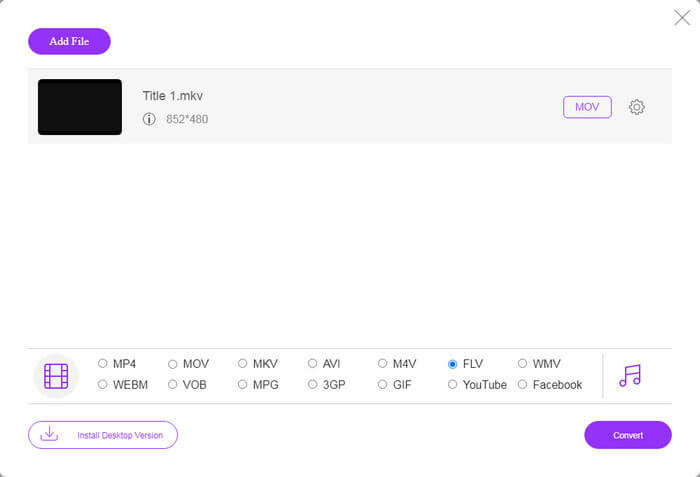
Langkah 3: Tekan butang Convert untuk mula menukar MOV kepada FLV secara dalam talian. Ia hanya mengambil sedikit masa untuk menyiapkan tugas ini, menurut kajian kami. Masa sebenar bergantung pada sambungan internet anda. Kemudian muat turun fail FLV ke komputer anda.
Mungkin anda juga berminat:
Bagaimana Menukar MOV kepada MP4
MOV lwn FLV
Format MOV boleh digunakan untuk menyimpan filem, rancangan TV, klip video pendek atau filem rumah. Ia sebenarnya disimpan dalam Format Fail QuickTime (QTFF), yang telah diperkenalkan oleh Apple pada tahun 1991. Fail MOV sering digunakan apabila orang ingin menyimpan video dengan kualiti yang tinggi.
Adobe Flash Player menggunakan FLV untuk menyampaikan kandungan video seperti filem dan rancangan TV. Pada masa kini, Adobe tidak lagi membangunkan pemain dan mengesyorkan pengguna menyahpasangnya atas sebab keselamatan. Walau bagaimanapun, anda masih boleh menggunakan format FLV pada banyak program bukan Adobe/Macromedia.
Bahagian 3: Soalan Lazim mengenai Menukar MOV ke FLV
Bagaimana cara menukar MOV ke FLV di Mac?
Tidak ada cara untuk menukar MOV ke FLV pada Mac tanpa penukar video pihak ketiga. Walau bagaimanapun, terdapat banyak penukar MOV ke FLV untuk Mac. Anda juga boleh menggunakan aplikasi web untuk menghasilkan fail FLV dari MOV.
Bolehkah VLC menukar MOV ke FLV?
Ya, VLC dapat menukar MOV ke FLV pada Windows, Mac, Linux. Kelebihan terbesar VLC adalah percuma. Kelemahannya adalah aliran kerja yang rumit. Sebenarnya, ciri penukaran tersembunyi di bar menu dengan mendalam.
Mana yang lebih baik, MOV atau FLV?
Jawapannya bergantung pada tujuan anda. Untuk bermain atau mengedit pada iOS atau Mac, MOV lebih baik daripada format lain. Walau bagaimanapun, FLV dapat menghasilkan saiz fail yang kecil dan berfungsi dengan baik di internet.
Kesimpulannya
Panduan ini telah membincangkan cara terbaik untuk menukar fail video MOV anda ke format FLV. Nasib baik, sekurang-kurangnya ada dua cara untuk melakukan pekerjaan itu. Pertama, anda boleh menukar MOV ke FLV dengan aplikasi penukar video web. Sekiranya anda memerlukan ciri yang lebih maju, FVC Free FLV Converter dapat memenuhi keperluan anda. Lebih-lebih lagi, ia adalah percuma untuk digunakan di komputer. Lebih banyak masalah? Sila hubungi kami dengan meninggalkan mesej anda di bawah catatan ini.
-
 2 Cara termudah untuk menukar fail WMV ke FLV pada PC / Mac
 Bagaimana anda boleh menukar WMV ke FLV? Pertama, anda perlu membaca cadangan kami dan mencari kaedah kegemaran anda, dan kemudian ikuti panduan kami untuk melakukan tugas dengan cepat.
-
 4 Kaedah Yang Disahkan untuk Menukar TS ke FLV di Desktop / Dalam Talian
 Anda tidak boleh membuka TS di komputer atau telefon bimbit anda secara lalai. Satu-satunya cara untuk menonton fail video adalah menukar TS ke FLV atau format lain dengan panduan konkrit kami.
-
 3 Penyelesaian untuk Menukar MTS ke FLV Percuma & Dalam Talian
 Ingin menukar MTS ke FLV? Berikut adalah 3 perisian penukar MTS ke FLV percuma yang boleh anda cuba menukar MTS ke FLV pada Mac OS X dan Windows 10/8/7.

