


 Video Converter Ultimate
 Perakam Skrin
 Pembaikan Video
Alat Cemerlang yang Menyelesaikan Soalan tentang Cara Menukar MPEG kepada MOV
Sebagai piawaian pemampatan fail video dan audio, ia juga mengendalikan penghantaran fail-fail ini dengan cara yang lebih cekap. Moving Picture Experts Group (MPEG) ialah nama yang diberikan kepada kumpulan pakar yang menetapkan piawaian MPEG. Setiap penyesuaian ini mempunyai spesifikasi dan kegunaan tersendiri dalam industri, menjadikannya sukar untuk mengetahui yang mana satu harus dipilih. Bahagian ini akan memberikan gambaran awal tentang kandungan artikel ini. Kebanyakan topik membincangkan cara untuk menukar MPEG kepada MOV serta beberapa butiran dan maklumat berkaitannya. Teruskan membaca sementara kami menghuraikan perbezaan dan perbandingan antara kedua-dua format video ini.
Bahagian 1. MPEG VS. MOV – Satu Pengenalan
MPEG ialah jenis fail video yang sudah ketinggalan zaman yang memampatkan data video menggunakan pemampatan MPEG-1 atau MPEG-2. Video internet dan pengedaran DVD ialah dua kegunaan biasa bagi teknologi ini. Hakikat bahawa ia tidak menyediakan pemampatan tanpa hilang (lossless) dan sebahagian fleksibiliti yang ditawarkan oleh format lain menjadikannya format yang kurang sesuai untuk penyuntingan video. Oleh sebab MPEG telah lama menjadi piawaian, ia disokong dengan baik oleh pelayar web dan pemain video utama serta membenarkan penstriman. Ia merupakan pilihan yang sangat baik untuk pengedaran video akhir kepada pengguna melalui Internet dan DVD.
Walau bagaimanapun, video dalam format MOV biasanya dikaitkan dengan pemain multimedia QuickTime. Apple ialah syarikat yang mencipta sambungan video ini. Ia memampatkan video dan audio dengan menggunakan algoritma khas. Walaupun ia produk Apple, ia serasi dengan kedua-dua sistem pengendalian MAC dan Windows. Setelah anda mengetahui tentang kedua-dua format video ini, bahagian seterusnya akan membincangkan semua perisian dan alatan dalam talian terbaik yang boleh anda gunakan untuk menukar MPEG kepada MOV dan sebaliknya.
Bahagian 2. Bagaimana untuk Menukar MPEG kepada MOV pada Mac
Jika anda sedang mencari perisian yang sesuai digunakan pada Mac untuk menukar MPEG kepada MOV, artikel ini mengesyorkan Video Converter Ultimate. Perisian ini boleh dimuat turun secara percuma dan tersedia pada Windows dan Mac. Ia merupakan perisian yang boleh digunakan oleh pelbagai jenis pengguna kerana mempunyai alat yang sangat mudah diakses serta antara muka yang mesra pengguna.
Selain daripada perisian lain dan alatan dalam talian yang boleh menukar, perisian ini mempunyai penukar yang menyokong pelbagai format video dan boleh menukar fail dalam masa kurang daripada satu minit. Kecuali ciri penukarnya yang luar biasa, perisian ini menawarkan alat pilihan yang berbeza untuk meningkatkan lagi video anda. Cukup dengan butiran deskriptif tentang perisian, mari kita selami dengan prosedur yang perlu anda ikuti:
Langkah 1: Klik kanan pada ikon Free Download yang disediakan di bawah untuk memulakan proses muat turun. Komputer dengan sistem pengendalian Windows dan Mac kedua-duanya disokong oleh perisian ini. Setelah muat turun selesai, anda boleh memasangnya dan mula menggunakan perisian dengan mengklik butang Start Now.
Muat Turun PercumaUntuk Windows 7 atau lebih baharuMuat Turun Selamat
Muat Turun PercumaUntuk MacOS 10.7 atau lebih baharuMuat Turun Selamat
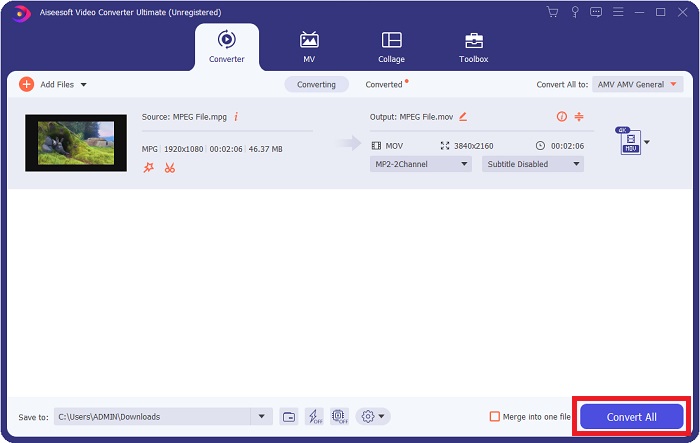
Langkah 2: Setelah anda memuat turun perisian, buka ia. Tetingkap akan muncul apabila perisian dilancarkan buat kali pertama. Mulakan proses penukaran dengan memasukkan fail video anda di sini.
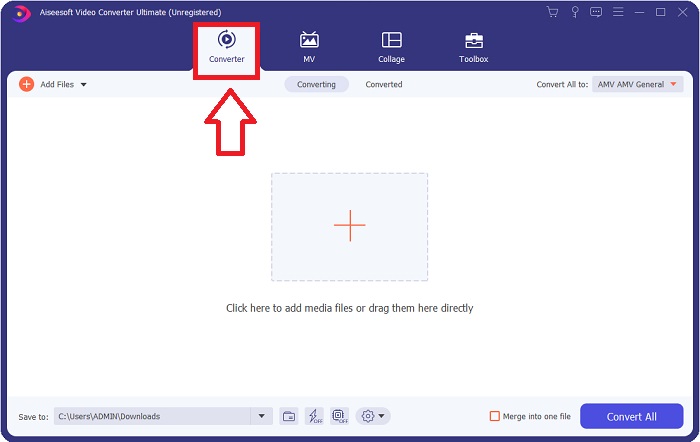
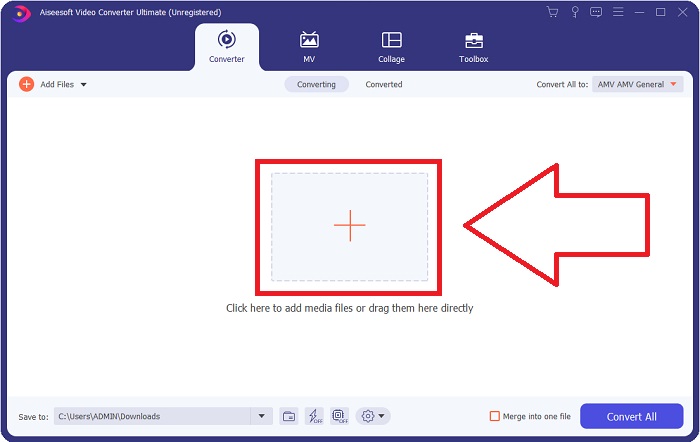
Langkah 3: Mulakan proses penukaran dengan memuat naik fail yang ingin anda tukar ke dalam penukar. Untuk berbuat demikian, seret video tersebut atau anda boleh mengklik simbol +.
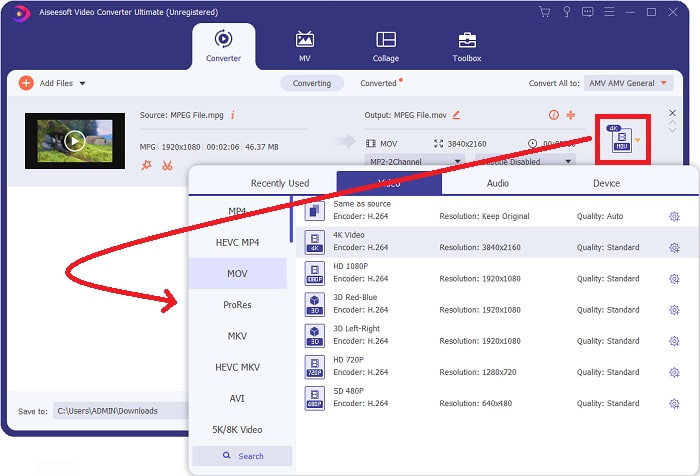
Langkah 4: Di penjuru kanan sebelah atas skrin terdapat menu pilihan, di mana anda boleh memilih format video. Pada menu juntai bawah Convert All anda kini boleh memilih MOV sebagai format video. Bergantung pada fail MOV yang anda pilih, anda boleh memilih daripada pelbagai tetapan kualiti video. Namun begitu, anda juga boleh mengubah tetapan kualiti jika keluaran video pilihan anda tidak disediakan. Adalah mungkin untuk mengubah kadar bingkai paparan dan kualiti audio dengan mengklik ikon gear. Untuk menyimpan perubahan anda, gunakan butang Create New.
Langkah 5: Setelah anda selesai menyunting video dan ia sedia untuk ditukar, klik Convert All untuk memulakan proses penukaran.
Bahagian 3. Penukar Dalam Talian Cemerlang yang Membantu Menukar MPEG kepada MOV
Kaedah 1. Gunakan Penukar Video Percuma Dalam Talian
FVC Free Video Converter Online ialah penukar multimedia yang boleh digunakan secara percuma dan menyokong pelbagai format. Jika anda mempunyai video definisi tinggi, anda boleh menukarnya dengan mudah kepada format seperti MP4, FLV dan WMV tanpa kehilangan kualiti. Jika anda mempunyai banyak video atau audio yang ingin anda tukar, anda boleh melakukannya tanpa kehilangan kualiti. Aplikasi penukar video percuma ini popular untuk penukaran dan penyuntingan, memberikan pengguna pelbagai pilihan untuk memperhalusi video mereka. Mari bersedia dan pelajari semua langkah yang diperlukan:
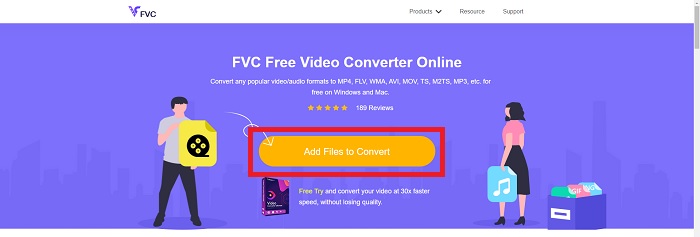
Langkah 1: Pautan ini akan membawa anda ke halaman utama laman web penukar FVC.
Langkah 2: Untuk pertama kali, klik pada Add Files to convert di sebelah kanan anda untuk mendapatkan pelancar bagi komputer anda. Pada muat turun kali kedua, ia akan bermula secara automatik. Dalam folder anda, cari fail tersebut dan klik Open untuk memulakan semula proses muat turun.
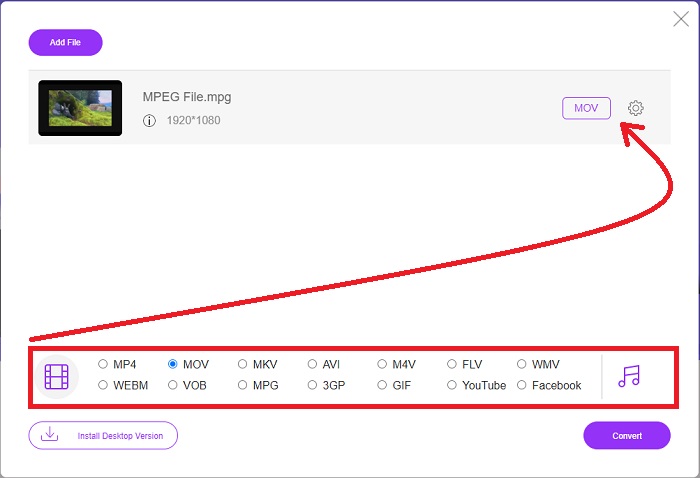
Langkah 3: Untuk mula menyediakan proses penukaran sebelum ia benar-benar bermula, pilih format daripada pilihan juntai bawah di bawah dan klik padanya.
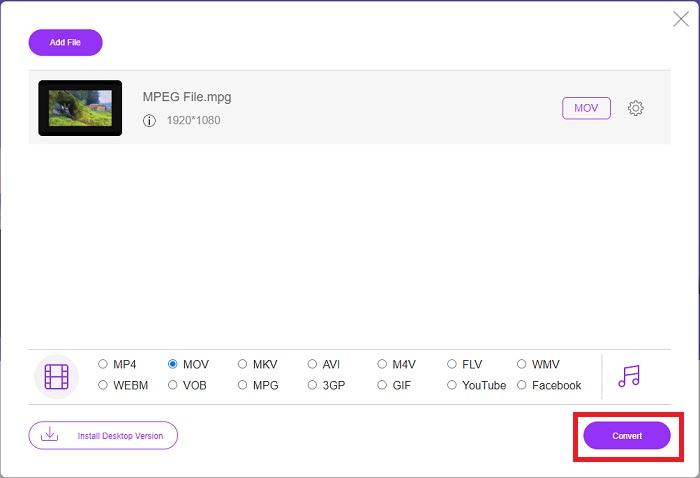
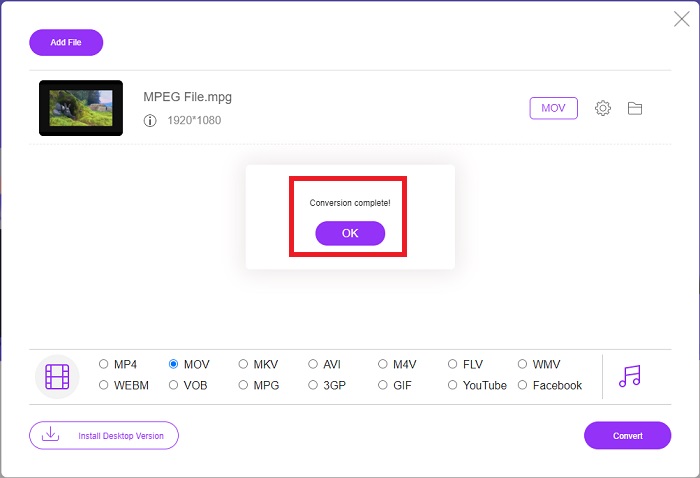
Langkah 4: Setelah anda memilih format MOV untuk ditukar, klik Convert untuk memulakan proses penukaran.
Langkah 5: Beberapa minit kemudian, anda akan melihat satu folder dengan fail yang telah ditukar, yang kemudian boleh anda buka dan mula tontoni.
Kaedah 2. Gunakan CloudConvert
CloudConvert ialah penukar fail yang berfungsi secara dalam talian. Hampir apa-apa jenis fail muzik atau video boleh dimainkan pada sistem kami. Menukar fail tidak pernah semudah dengan CloudConvert. Hampir apa-apa jenis fail muzik atau video boleh dimainkan pada sistem kami. Anda juga boleh menggunakan alat web kami tanpa perlu memasang sebarang perisian pada komputer anda. Dengan semua yang telah dinyatakan, berikut ialah langkah-langkah yang perlu anda ketahui:
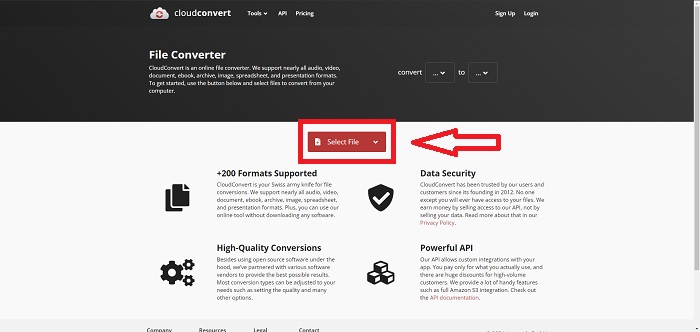
Langkah 1: Pada antara muka utama, anda sudah boleh menetapkan format video bagi fail video anda dan format video yang anda mahu tukar. Klik Select File untuk memuat naik fail dari komputer anda.
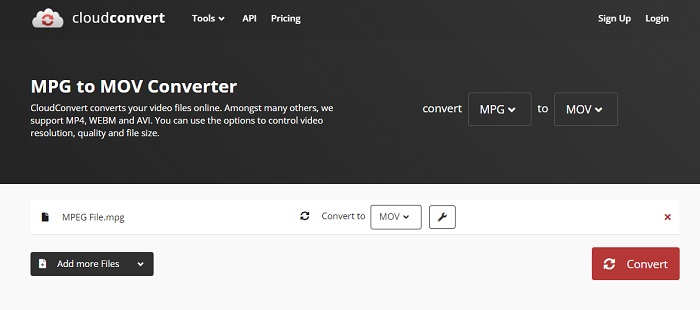
Langkah 2: Anda boleh memilih jenis format video yang ingin anda tukar dengan mengklik elipsis di sebelah butang Convert.
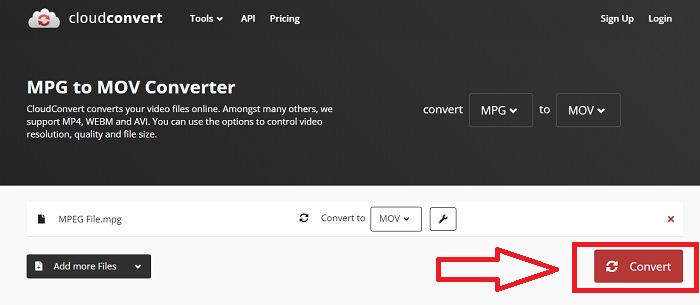
Langkah 3: Setelah semua pelarasan dibuat, untuk memulakan proses penukaran, klik butang Convert.
Bahagian 4. Carta Perbandingan: MPEG dan MOV
| Sambungan fail | MOV | MPEG |
| Jenis fail | Filem Apple QuickTime | Filem MPEG |
| Dibangunkan Oleh | epal | T/A |
| Kelebihan | Filem berkualiti tinggi dan | Salah satu daripada beberapa format |
| Multimedia boleh dimampatkan dengan lebih berkesan dengan bantuan beberapa codec. | Diiktiraf oleh hampir semua pemain DVD; membolehkan pemampatan yang lebih baik. | |
| Keburukan | Walaupun fakta bahawa banyak pemain video percuma boleh memainkannya, ia masih mempunyai masalah kerana ia adalah format bekas yang mengandungi pelbagai codec. | Secara umum, format MPEG mempunyai bilangan aplikasi dan pembangun yang lebih rendah kerana ia adalah standard yang lebih ketat. |
Bahagian 5. Soalan Lazim tentang Menukar MPEG kepada MOV
Bagaimanakah cara mengecilkan fail MOV?
Menggunakan VideoConverter, anda hanya perlu mencari fail MOV yang anda ingin edit dan klik kanan untuk memilih Properties dari menu konteks. Kemudian pilih Umum, kemudian teruskan dengan Lanjutan daripada menu lungsur. Untuk menjimatkan ruang storan, pilih kotak semak di sebelah Mampatkan kandungan daripada menu lungsur. Mengklik OK akan menyebabkan fail disimpan dalam saiz yang lebih kecil daripada saiz asalnya.
Bagaimana untuk memampatkan fail MOV?
Fail MOV boleh dimampatkan dan diarkibkan pada Windows dengan memilihnya dan menekan serta menahan butang kanan tetikus sehingga tetingkap timbul muncul, kemudian memilih Send to daripada menu yang tertera. Folder mampat (zipped) hendaklah dipilih sebagai destinasi daripada menu juntai bawah. Atau anda boleh menggunakan pemampat video untuk memampatkan fail MOV anda.
Adakah MPG dan MPEG sama?
Sambungan fail MPEG-1 dan MPEG-2 juga digunakan untuk merujuk kepada fail MPG. Sebagai cara untuk mengekalkan data audio dan video dalam penyegerakan, fail MPG daripada kedua-dua jenis bertindak sebagai fail kontena untuk data ini. Oleh kerana keserasiannya dengan pelbagai aplikasi, MPEG-2 telah menjadi pilihan popular untuk memampatkan fail.
Kesimpulannya
Untuk menjumlahkan semua perkara yang telah kita bincangkan, adalah sukar untuk menggunakan format video yang tidak dikenali dalam memainkannya pada beberapa pemain media, itulah sebabnya perisian yang luar biasa yang boleh anda harapkan adalah yang anda perlukan. Video Converter Ultimate ialah perkara yang paling disyorkan oleh artikel ini, terutamanya dalam proses penukaran dan banyak lagi dengan alatannya yang berbeza dan berguna yang boleh menjadikan anda seorang editor profesional.
-
 Cara Menukar Fail MPEG ke MP4 secara percuma di Windows, Mac, Online
 Baca dan dapatkan 3 cara percuma untuk menukar fail MPEG ke fail MP4 di komputer anda. Anda boleh menggunakan penukar video dalam talian dan desktop untuk mengubah format MPEG ke MP4 dengan mudah.
-
 [2021] Alat Terbaik dan Cara Mudah tentang Cara Menukar MPEG kepada MP3
 Artikel ini terutamanya bercakap tentang cara anda boleh menukar video MPEG anda pada MP3 dengan menggunakan alat yang paling boleh dipercayai dalam senarai.
-
 Cara Menukar AVI ke MOV dengan Langkah dan Alat Mudah
 Adakah anda ingin tahu cara menukar AVI kepada MOV yang boleh dimainkan? Anda mesti mengikuti artikel ini untuk mengetahui cara melakukannya dan petua untuk memperoleh penukaran yang berjaya.
