


 Video Converter Ultimate
 Perakam Skrin
 Pembaikan Video
Proses Penukaran Fail WebM ke MOV: Kaedah Tanpa Kerumitan Yang Perlu Anda Ketahui
Apabila bercakap tentang pengeluaran dan penstriman, bukan setiap format video serasi dengan setiap platform digital. Apabila cuba memasukkan, menghasilkan, memuat naik atau memuat turun fail yang berkaitan, ini mungkin menyebabkan masalah besar. Apple, sebagai contoh, tidak menggunakan penyemak imbas tradisional yang telah kita kembangkan pada zaman dahulu – ia mempunyai platform sendiri yang dipanggil Safari. Itulah sebabnya format video yang hanya disokong oleh Google Chrome, Mozilla Firefox, Opera dan Microsoft Edge tidak sentiasa boleh diakses oleh pengguna Mac dari segi pelayar.
Salah satunya ialah video WebM, iaitu format yang menyediakan pemampatan video terbuka untuk HTML5. Jika anda pengguna Mac, anda memerlukan pemain media pihak ketiga untuk menontonnya. Namun, format fail MOV ialah apa yang anda perlukan jika anda mahu memainkan video tanpa sebarang kesukaran kerana ia merupakan pembangunan sendiri Apple untuk Apple QuickTime Player. Jadi, apa yang anda mahu ialah menukar WebM kepada MOV pada Mac anda dan dalam artikel ini kami menyediakan cara terbaik untuk anda melakukannya.

Bahagian 1. Gambaran Keseluruhan: WebM dan MOV
Jika anda telah terdedah kepada penggunaan video dan penstriman untuk beberapa lama sekarang, anda pasti telah menonton banyak video dalam format yang berbeza menggunakan platform yang berbeza. Anda mungkin pernah tertanya-tanya apakah pelanjutan fail ini mewakili atau bagaimana ia berbeza antara satu sama lain. Sudah tentu anda telah cuba memainkan video tertentu pada penyemak imbas anda tetapi ia tidak akan berbuat demikian, mengatakan ia tidak disokong. WebM contohnya hanya disokong oleh beberapa penyemak imbas moden seperti Chrome, Firefox dan edge kerana ia biasanya dibenamkan dalam halaman web menggunakan HTML5
Bahagian 2. Penukar Terbaik yang Membantu Menukar WebM kepada MOV
Menukar fail video tidaklah sesukar yang anda sangkakan. Walaupun terdapat banyak perisian dan program yang boleh membantu anda, masih ada satu daripadanya yang dapat menyelesaikan tugas dengan cepat dan mudah. FVC Video Converter Ultimate ialah perisian yang boleh dimuat turun secara percuma dan menjimatkan masa anda daripada perlu mencari di internet untuk penukar video terbaik dalam talian. Kami memang berhasrat untuk membawakan yang terbaik untuk anda. Anda tidak perlu risau tentang format video yang ingin anda tukar kerana perisian ini menyokong pelbagai format dan bukan itu sahaja, ia juga menyediakan banyak pilihan untuk anda menyunting video semasa proses penukaran. Jadi, berikut ialah langkah‑langkah yang perlu anda ikuti untuk menggunakan perisian ini:
Langkah 1: Sebelum proses penukaran, anda perlu memuat turun perisian ini terlebih dahulu dan anda boleh melakukannya dengan mengklik butang Free Download. Anda boleh memilih sama ada untuk Windows atau Mac. Dalam kes ini, pilih For Mac OS. Tunggu fail .exe selesai dimuat turun dan buka fail tersebut sebaik sahaja selesai untuk memulakan pemasangan.
Langkah 2: Setelah perisian selesai dipasang, lancarkannya dan satu antara muka akan dipaparkan. Secara automatik sebaik sahaja perisian dilancarkan, anda akan berada pada tab Converter. Jika tidak, klik padanya.
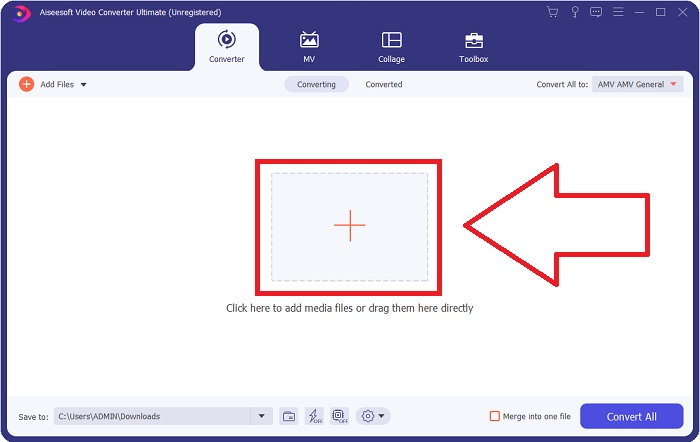
Langkah 3: Akan terdapat butang + di tengah antara muka untuk anda klik bagi mengimport fail video yang ingin anda tukar. Anda juga boleh seret dan lepas video anda dengan mudah.
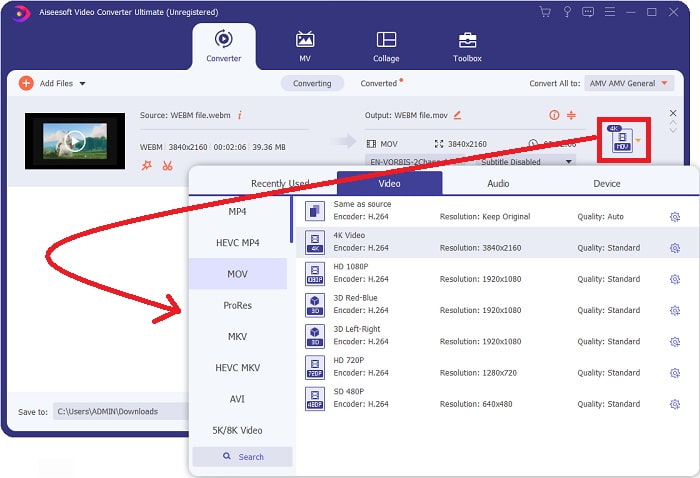
Langkah 4: Satu antara muka lain akan muncul sebaik sahaja video anda berjaya diimport. Dari situ, anda boleh melihat format semasa video anda di bahagian paling kanan. Terdapat anak panah jatuh‑bawah di sebelahnya, klik padanya dan pelbagai pilihan akan muncul. Anda boleh memilih mana‑mana format yang anda mahu untuk video yang hendak ditukar tetapi dalam kes ini, pilih MOV. Terdapat pilihan seperti resolusi dan kualiti audio. Untuk lebih banyak pilihan, klik ikon gear di sebelah kualiti atau resolusi yang anda pilih dan anda boleh mengedit video anda dengan lebih lanjut mengikut keperluan anda. Untuk menyimpan perubahan yang dibuat, klik Create New.
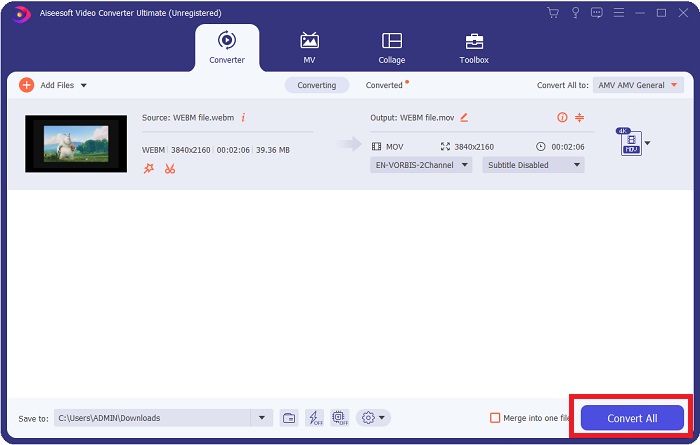
Langkah 5: Setelah anda selesai dan berpuas hati dengan perubahan tersebut, anda boleh mencari butang Convert All di penjuru kanan bawah antara muka dan klik padanya untuk mengeksport video yang telah ditukar.
Bahagian 3. Petua Bonus: Penukar Dalam Talian Lain yang Menukar WebM kepada MOV
Kaedah 1: Gunakan Free Convert
Jika anda tidak mahu memuat turun perisian lagi dan teruskan proses penukaran, kami boleh menunjukkan kepada anda alternatif untuk yang ini. Ini dilakukan semata-mata dalam talian sementara ia masih menawarkan anda ciri yang anda perlukan untuk keperluan penyuntingan anda. Jika anda mahukan kaedah tanpa kerumitan, alat web ini adalah salah satu cara yang perlu dilakukan.
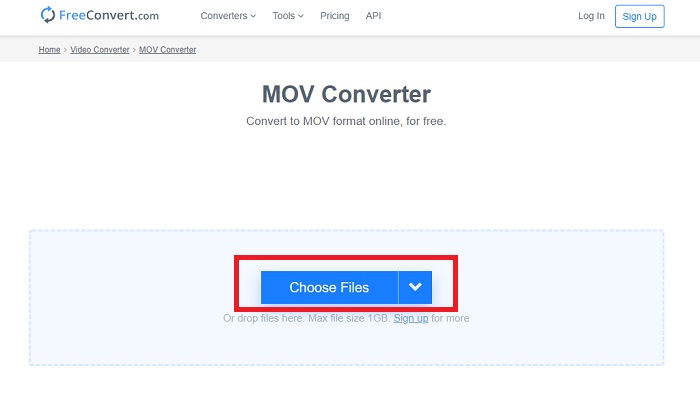
Langkah 1: Pergi ke laman tersebut dan anda akan melihat satu antara muka di mana butang Choose Files berada di tengah halaman. Klik padanya untuk mengimport fail video yang ingin anda tukar.
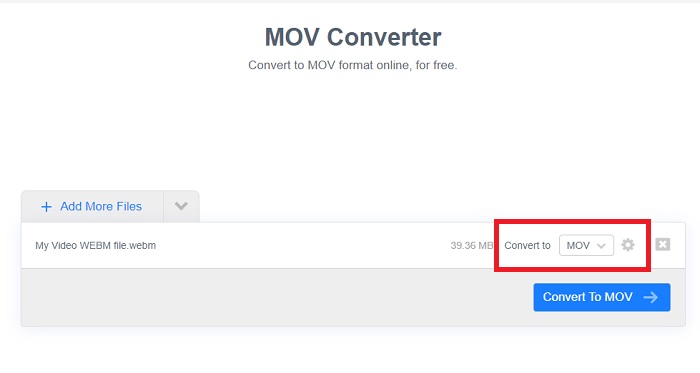
Langkah 2: Sama seperti dalam perisian itu sendiri, anda boleh melihat format semasa video anda di sebelah kanan dan di sebelahnya terdapat anak panah jatuh‑bawah. Klik padanya dan pilih daripada format yang anda mahu video anda ditukar. Untuk lebih banyak pilihan, klik ikon gear untuk mengedit video anda dengan lebih lanjut. Klik butang Apply Settings untuk mengekalkan perubahan yang telah anda buat.
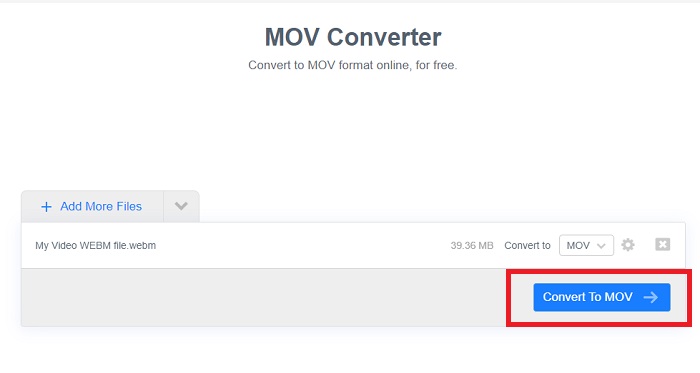
Langkah 3: Jika anda telah selesai dengan semua perubahan, anda boleh memulakan penukaran dengan mengklik butang Convert to MOV di bawah dan tunggu sehingga selesai. Kemudian, anda boleh mengeksport video yang telah ditukar dengan mengklik Download MOV.
Kaedah 2: Gunakan Cloud Convert
Alat web ini menawarkan beberapa lagi pilihan untuk anda semasa anda menukar fail WebM anda kepada MOV dalam talian. Anda bukan sahaja boleh mengedit resolusi atau kualiti audio tetapi juga fps, sari kata dan banyak lagi. Ikuti langkah mudah ini untuk menggunakan penukar dalam talian ini:
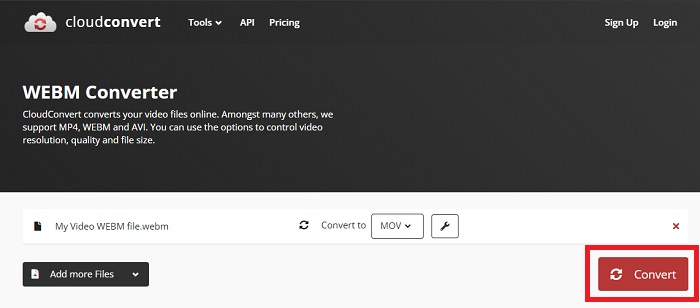
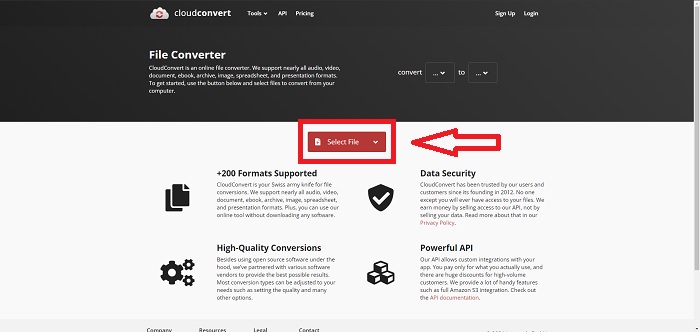
Langkah 1: Mula‑mula anda perlu mengimport fail video yang ingin anda tukar dengan mengklik butang Select File di tengah halaman. Jika anda mahu menukar beberapa fail serentak, klik Add more Files.
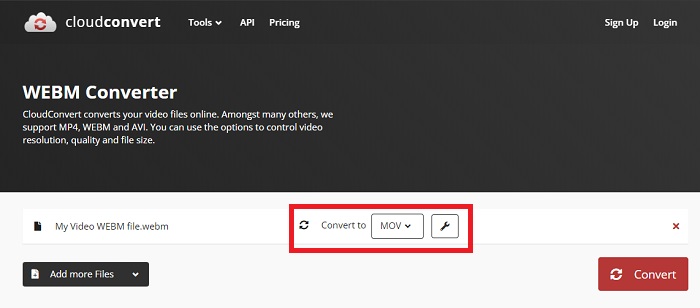
Langkah 2: Di sebelah fail, anda boleh memilih format video dengan mengklik anak panah jatuh‑bawah. Selain itu, klik ikon sepana untuk lebih banyak pilihan. Dari situ, anda boleh mengedit aspek tertentu video dan audionya. Kemudian, klik OK untuk menyimpan perubahan.
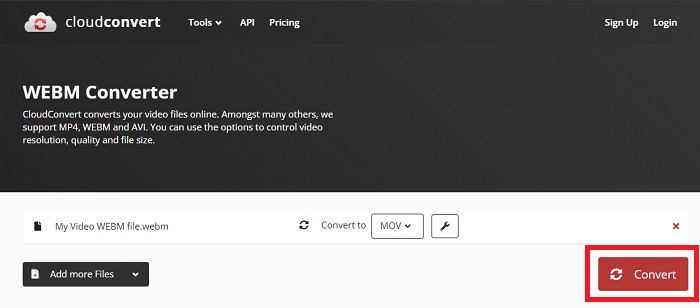
Langkah 3: Setelah anda selesai dengan semua suntingan, klik butang Convert yang diserlahkan dengan warna merah dan tunggu sehingga selesai. Akhir sekali, klik Download yang diserlahkan dengan warna hijau untuk mengeksport video yang telah ditukar sepenuhnya.
Kaedah 3: Gunakan ZamZar Convert
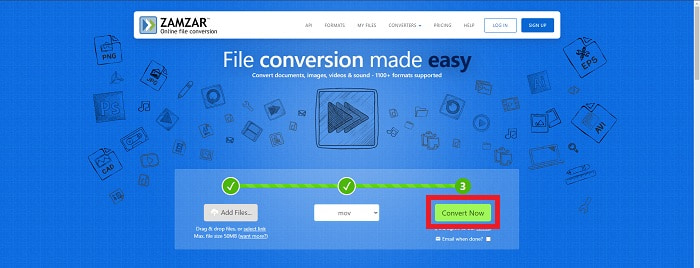
Alat web ini menawarkan lebih sedikit pilihan untuk video anda kerana ia hanya menukar format video dan audio. Walau bagaimanapun, ia menyelesaikan kerja lebih cepat daripada kaedah lain yang disebutkan. Untuk menggunakan penukar dalam talian ini, ikut langkah yang disediakan:
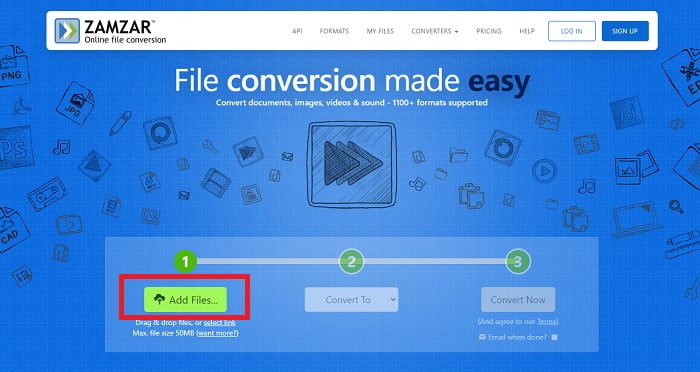
Langkah 1: Di tengah halaman, hanya ada tiga butang untuk diklik bagi menukar video anda. Mula‑mula, klik Add files untuk mengimport fail video anda.
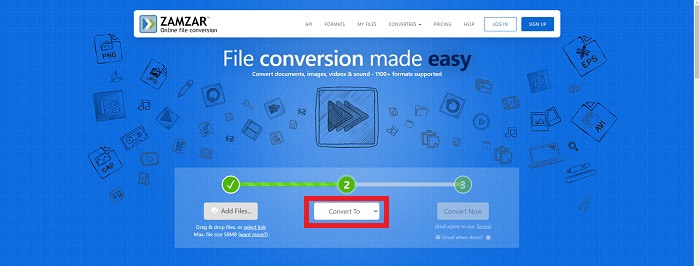
Langkah 2: Untuk butang kedua, anda boleh memilih format video dan audio yang anda mahu untuk video anda. Dalam kes ini, pilih format MOV.
Langkah 3: Akhir sekali, klik butang ketiga dan terakhir, Convert Now, untuk memulakan proses penukaran dan tunggu sehingga selesai. Setelah selesai, klik Download untuk mengeksport video anda ke desktop.
Bahagian 4. Soalan Lazim tentang Menukar WebM kepada MOV
Apakah sebenarnya format WebM?
WebM ialah format fail media terbuka khusus web yang merangkumi strim video yang dimampatkan dengan codec video VP8 atau VP9, strim audio yang dimampatkan dengan codec audio Vorbis atau Opus dan teks WebVTT. Struktur fail WebM adalah berdasarkan bekas media Matroska. Kebanyakan pelayar web menerima fail WebM kerana ia kadangkala digunakan pada tapak web HTML5 untuk memainkan filem dalam talian. Contohnya, YouTube menggunakan format fail Video WebM untuk semua video di halaman mereka, daripada 360p hingga kualiti lain yang sangat tinggi. Wikimedia dan Skype adalah sama.
Apakah pemain media yang saya perlukan untuk memainkan video WebM sekiranya saya tidak mahu menukarnya kepada MOV?
Terdapat alternatif jika anda tidak mahu melalui semua proses penukaran untuk memainkan video WebM anda. Anda boleh menggunakan aplikasi pihak ketiga atau apa yang kita panggil sebagai rentas platform. Antara beberapa pemain media pihak ketiga ini ialah VLC, KM Player, Media Player Classic, Winamp, jetAudio Basic, Moovidia, Persian dan XBMC yang boleh anda muat turun di laman masing‑masing untuk memainkan fail WebM anda.
Adakah MOV berkualiti tinggi atau rendah?
Main balik video agak berkualiti tinggi dengan fail MOV. MOV amat berguna kerana ia boleh memuatkan media campuran seperti imej, video dan animasi 360 darjah. Ia juga mengandungi semua maklumat video dan audio. Ini menjadikan penyuntingan fail lebih mudah.
Kesimpulannya
Memang terdapat banyak alat yang boleh anda gunakan untuk menukar video anda daripada satu format ke format lain sama ada melalui penggunaan perisian atau melalui alat web yang boleh anda temui dalam talian. Walau bagaimanapun, mereka masih berjalan seiring dari segi pilihan atau kemudahan yang mereka tawarkan. Ada yang hanya menyiapkan kerja dan ada yang menyediakan pelbagai pilihan untuk anda pilih. Artikel ini memfokuskan pada perkara ini untuk membantu anda mengetahui tentang mana satu yang harus anda gunakan bergantung pada keperluan anda. Itulah sebabnya kami paling mengesyorkan Video Converter Ultimate kerana ia menawarkan semua pilihan tambahan yang anda mungkin tidak tahu bila anda memerlukannya. Adalah lebih baik untuk mempunyai perisian ini di sisi anda sepanjang masa untuk menjimatkan semua masalah mencari penukar dalam talian setiap kali anda memerlukannya.
-
 Cara Mengubah GIF ke Format WebM tanpa Kehilangan Kualiti Fail
 Tukarkan Gif anda ke format video WebM untuk mempunyai tag video HTML5. Bergantung pada alat ini di bawah untuk mengetahui mana yang terbaik untuk pekerjaan.
-
 3 Cara Menukar WebM kepada MP3 tanpa Kehilangan Kualiti Bunyi
 Menghadapi masalah kerana fail WebM tidak boleh digunakan untuk memainkan audio yang anda simpan? Kemudian baca artikel ini semasa kami menyediakan bantuan yang berkesan dengan menukar WebM kepada MP3.
-
 3 Perisian Menakjubkan Digunakan untuk Menukar Fail WebM ke dalam Format AVI
 Tidak mempunyai idea bagaimana untuk menukar WebM kepada AVI? Kemudian mari kita mula membaca artikel ini. Semasa kami menentukan semua butiran pada WebM dan tiga penukar yang boleh anda gunakan untuk menukar.
