


 Video Converter Ultimate
 Perakam Skrin
 Pembaikan Video
 Muat Turun Selamat
Bagaimana untuk Menukar MP3 kepada Nada Dering pada iPhone dengan Mudah
Adakah anda rasa nada dering lalai pada iPhone anda kurang digemari dan berharap salah satu fail MP3 anda boleh dijadikan nada dering iPhone? Bagaimana jika kami beritahu bahawa anda sebenarnya boleh menukar MP3 kepada nada dering pada iPhone?
Dalam artikel ini, pelajari 3 cara berbeza untuk menjadikan fail muzik MP3 anda pada iPhone anda menjadi nada dering. Menukarnya agak sukar, tetapi dengan alat dan kaedah yang betul, mari jadikan ini semudah dan mudah untuk anda. Apa tunggu lagi Jom terjun!

Bahagian 1. Tukar MP3 kepada Nada Dering untuk iPhone pada Mac/Windows
Salah satu cara paling mudah dan pantas untuk menukar MP3 kepada nada dering pada iPhone ialah dengan menggunakan Video Converter Ultimate pilihan FVC melalui komputer Windows atau macOS anda. Alat penukar serba‑guna ini menyokong sehingga 300 format berbeza, termasuk format M4R, menjadikannya alat yang boleh dipercayai untuk menukar fail muzik MP3 kepada nada dering iPhone. Selain itu, penukar ini sehingga 120 kali lebih pantas berbanding alat penukar lain, menjadikan proses penukaran cepat dan tanpa kerumitan.
Berikut cara menggunakan Video Converter Ultimate pilihan FVC untuk menukar MP3 anda kepada nada dering:
Langkah 1. Mula‑mula, muat turun dan pasang alat ini pada komputer anda, sama ada Windows atau Mac.
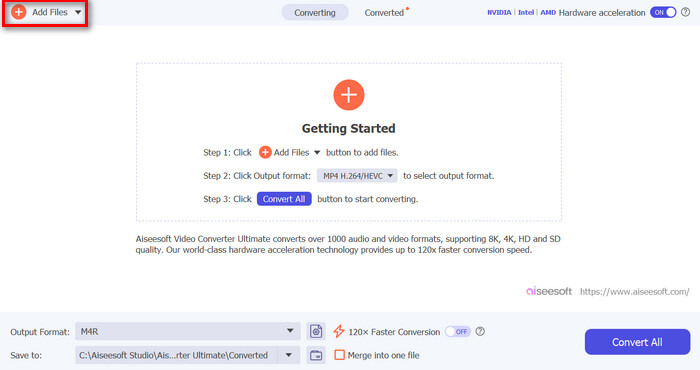
Langkah 2. Lancarkan alat tersebut, dan apabila anda berada pada antara muka utamanya, klik butang Add Files. Ini membolehkan anda mengimport fail MP3 yang ingin anda tukar menjadi nada dering iPhone.
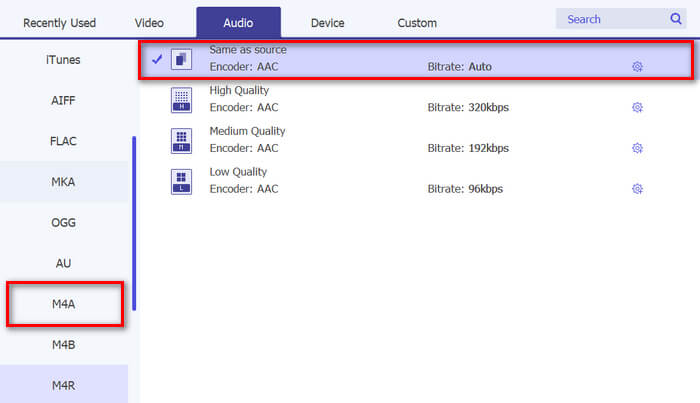
Langkah 3. Seterusnya, pergi ke Output format, dan daripada senarai pelbagai format audio, pilih M4R. M4R ialah format fail untuk nada dering iPhone.
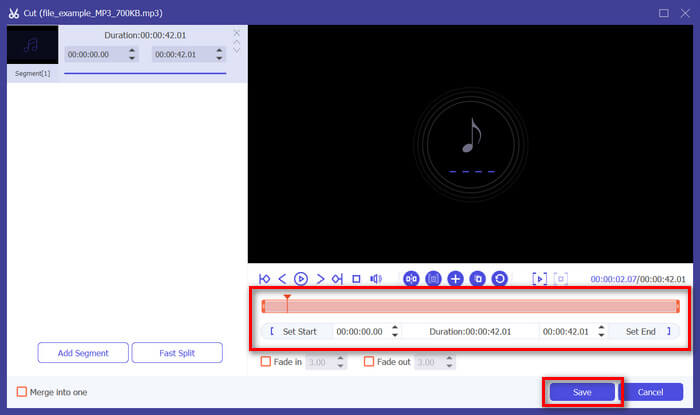
Langkah 4. Selepas itu, pastikan fail MP3 anda hanya sepanjang 30 saat. Jika melebihi tempoh tersebut, pergi ke butang Cut dan laraskan panjang fail anda dengan menggerakkan palang pada garis masa atau tetapkan sendiri masa tamat fail kepada 30 saat.
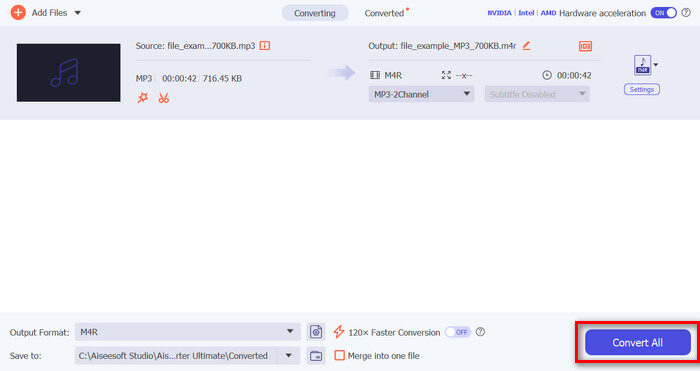
Langkah 5. Sekarang klik butang Convert All untuk mula menukar fail MP3 anda kepada nada dering iPhone. Fail yang telah ditukar akan disimpan terus ke folder pada komputer anda.
Itu cepat, kan? Sungguh luar biasa cara alat Video Converter Ultimate yang dipilih FVC ini menjadikan penukaran MP3 kepada nada dering iPhone mudah dan pantas. Jadi, jika anda sedang mencari alat penukar yang boleh menjimatkan masa anda, cuba alat ini sekarang.
Bahagian 2. Tukar MP3 kepada Nada Dering pada iPhone
Jika anda lebih suka kaedah terus tanpa menggunakan komputer, GarageBand menawarkan penyelesaian yang mudah untuk menukar MP3 kepada nada dering terus pada iPhone anda. Alat ini ialah apl penciptaan muzik berkuasa yang diprapasang pada kebanyakan iPhone. Alat ini bukan sahaja mesra pengguna tetapi juga menyediakan pelbagai ciri untuk menyesuaikan fail audio anda dengan berkesan.
Berikut cara menggunakan GarageBand untuk menukar MP3 anda kepada nada dering:
Langkah 1. Mula‑mula, lancarkan aplikasi GarageBand pada iPhone anda. Jika anda belum memasang aplikasi tersebut, pergi ke App Store dan pasangkannya.
Langkah 2. Ketik ikon Project dan kemudian ikon Loop berhampiran penjuru kanan atas.
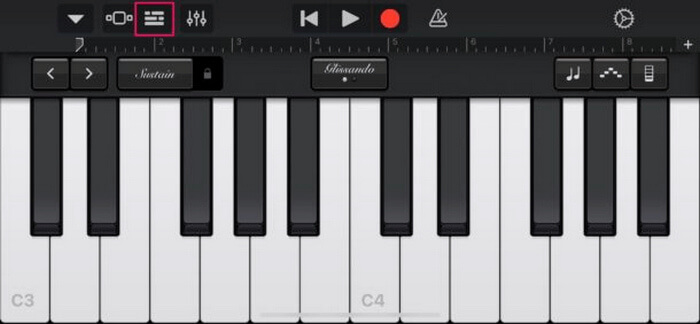
Langkah 3. Sekarang, ketik Music atau Files untuk memilih fail MP3 dan tekan lama padanya untuk mengimportnya ke GarageBand.
Langkah 4. Selepas itu, ketik pada trek dan seret kedua‑dua hujungnya untuk memotong audio. Pastikan nada dering kurang daripada 30 saat.
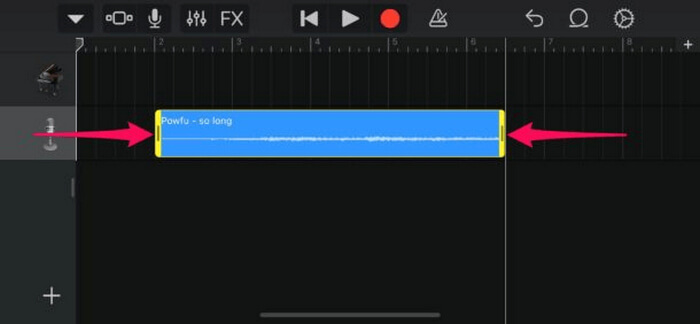
Langkah 5. Anda akan melihat Anak Panah Ke Bawah di penjuru kiri atas. Ketik padanya, kemudian pilih My Songs untuk menyimpan klip tersebut.
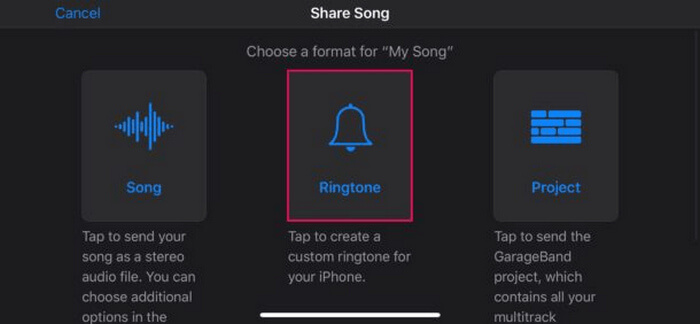
Langkah 6. Cari klip yang anda hasilkan, tekan lama padanya, ketik Share, dan pilih pilihan Ringtone. Jangan lupa menamakan nada dering tersebut dan ketik Export.
Langkah 7. Untuk menggunakan fail MP3 yang telah ditukar sebagai nada dering pada iPhone anda, ketik Use Sound As untuk menetapkan nada dering sebagai nada lalai mesej teks atau untuk kenalan tertentu. Atau, pergi ke Settings, Sounds & Haptics, dan Ringtone untuk menukar nada dering pada iPhone anda.
Jika anda lebih suka menukar fail MP3 terus kepada nada dering pada iPhone anda, kaedah ini amat sesuai untuk anda. Walau bagaimanapun, pengguna baharu memerlukan sedikit masa untuk mempelajari perkara ini, kerana ia mengandungi ciri kompleks yang mungkin mengatasi mereka pada mulanya.
Bahagian 3. Tukar MP3 kepada Nada Dering iPhone [Dalam Talian& Percuma]
Sementara itu, jika anda lebih menggemari kaedah percuma dan dalam talian untuk menukar MP3 kepada nada dering iPhone, FVC Free Audio Converter ialah pilihan yang sesuai. Dengan alat ini, anda boleh menukar sebarang format fail audio dengan mudah, khususnya MP3 kepada M4R, kerana ia menyokong format audio MP3, AAC, AC3, WMA, WAV, AIFF, FLAC, MKA, M4A, M4B dan M4R. Selain itu, alat ini sangat sesuai untuk mereka yang memerlukan penukar audio semasa bergerak kerana antara mukanya yang sangat intuitif dan ringkas.
Berikut cara menggunakan FVC Free Audio Converter untuk menukar MP3 anda kepada nada dering:
Langkah 1. Klik butang Add Files untuk mengimport fail MP3 yang ingin anda tukar kepada nada dering.
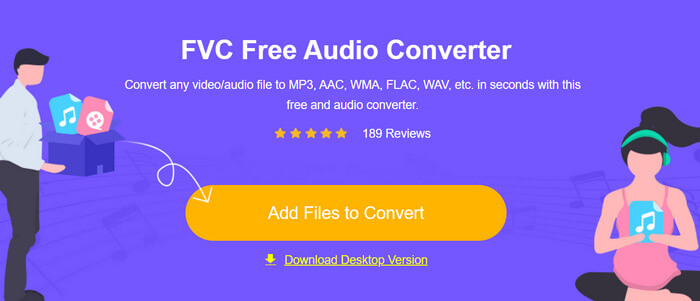
Langkah 2. Pilih M4R sebagai format output audio anda.
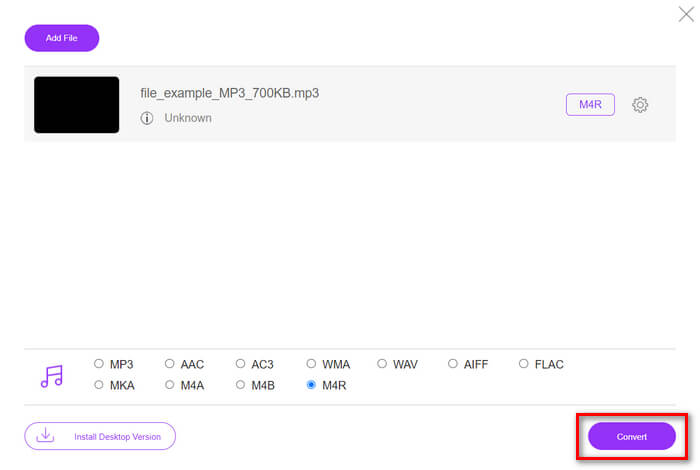
Langkah 3. Akhir sekali, untuk memproses penukaran fail MP3 anda kepada nada dering, klik butang Convert. Fail yang telah ditukar akan disimpan terus ke komputer anda.
Jika anda sedang mencari kaedah alternatif yang percuma dan dalam talian untuk menukar nada dering MP3 kepada M4R pada iPhone, FVC Free Audio Converter ialah penyelesaian yang tepat. Antara mukanya yang intuitif memudahkan proses penukaran, dan ia menyokong pelbagai format audio, memastikan keserasian dengan jenis fail yang berbeza.
Bahagian 4. Bagaimana untuk Memindahkan Nada Dering Ditukar ke iPhone daripada Komputer
Sekarang setelah anda akhirnya menukar fail MP3 anda kepada nada dering pada komputer anda, cara terpantas untuk memindahkannya ke iPhone anda adalah dengan menggunakan iTunes.
Berikut cara memindahkan nada dering yang telah ditukar ke iPhone menggunakan iTunes:
Langkah 1. Buka iTunes pada komputer anda dan sambungkan iPhone anda dengan kabel USB.
Langkah 2. Seret fail nada dering yang telah ditukar ke dalam pustaka iTunes. Pastikan ia muncul di bawah bahagian Tones.
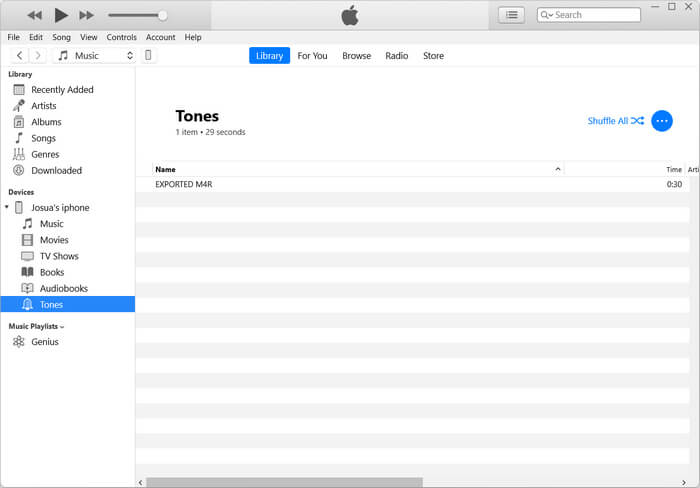
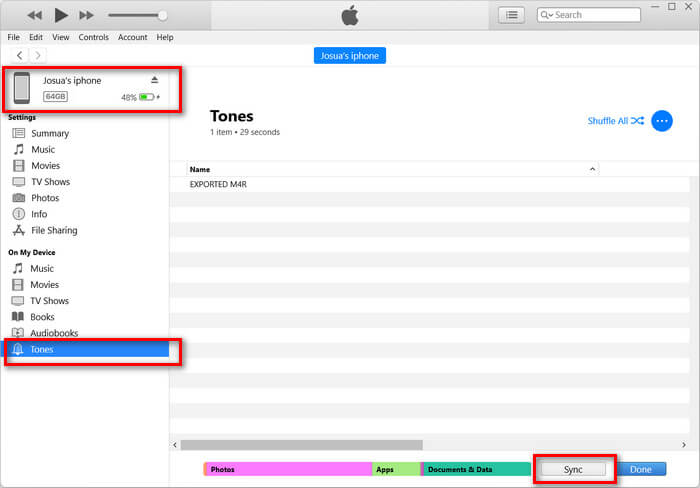
Langkah 3. Pilih ikon iPhone anda dalam iTunes, pergi ke tab Tones, dan tandakan Sync Tones. Kemudian, pilih fail nada dering yang anda telah import dan klik Apply untuk menyelaraskannya.
Langkah 4. Sekarang, pada iPhone anda, pergi ke Settings, pilih Sounds & Haptics, ketik Ringtone, dan pilih nada dering baharu anda.
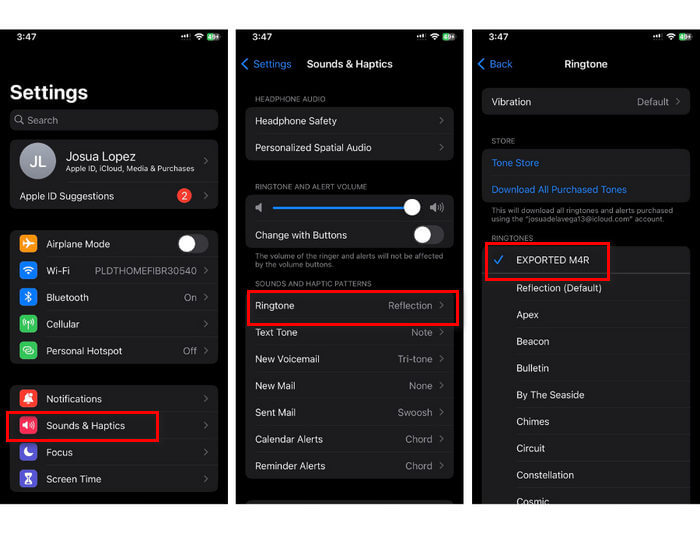
Itulah anda mempunyainya. Anda kini boleh memindahkan dan menggunakan MP3 yang ditukar kepada nada dering dengan mudah pada iPhone anda, memberikan peranti anda sentuhan peribadi dengan bunyi kegemaran anda.
Bahagian 5. Soalan Lazim tentang Menukar MP3 kepada Nada Dering
Apakah tapak nada dering percuma terbaik?
Banyak tapak web menawarkan nada dering percuma, tetapi beberapa yang popular dan boleh dipercayai termasuk Zedge, Mobile9 dan Tones7. Tapak ini menyediakan pelbagai jenis nada dering yang boleh anda muat turun dan gunakan pada telefon anda.
Apakah format MP3 ke nada dering iPhone?
Format nada dering iPhone ialah M4R. Apabila menukar fail MP3 untuk digunakan sebagai nada dering pada iPhone, ia mesti disimpan dalam format M4R.
Bagaimana untuk menambah MP3 ke nada dering iPhone?
Untuk menambah MP3 pada nada dering iPhone anda, anda mesti menukar fail MP3 kepada M4R terlebih dahulu menggunakan alat penukar seperti Video Converter Ultimate yang dipilih oleh FVC. Sebaik sahaja anda telah menukar fail MP3, gunakan iTunes untuk memindahkannya ke iPhone anda dan gunakannya sebagai nada dering baharu anda.
Kesimpulannya
Kini anda boleh menggunakan fail MP3 kegemaran anda dan mencipta nada dering untuk iPhone anda. Hanya pilih alat penukar yang paling sesuai dengan keperluan anda. Setiap satunya menawarkan cara yang mudah untuk menukar MP3 kepada nada dering pada iPhone. Jadi, apa tunggu lagi? Mulakan penciptaan nada dering unik anda sekarang dan jadikan iPhone anda benar‑benar milik anda!
-
 MOV VS MP4 - Mana Yang Anda Pilih?
 MOV VS MP4, yang manakah lebih baik? Catatan ini memberitahu perbezaan antara MP4 dan MOV, sehingga anda dapat memperoleh pilihan yang lebih baik untuk digunakan untuk fail video anda.
-
 FLAC lwn. MP3: Format Fail Audio Mana Yang Berkuasa
 Siaran ini akan membandingkan perbezaan utama antara FLAC berbanding MP3. Itu termasuk kualiti bunyi, saiz fail, keserasian dan banyak lagi.
-
 Cara Menukar MP3 kepada M4A untuk Kualiti Bunyi yang Dipertingkatkan
 Tingkatkan kualiti fail muzik anda dengan menukar MP3 kepada M4A menggunakan petua dan kiat pakar kami. Panduan kami menawarkan arahan langkah demi langkah dan perisian yang disyorkan.
