


 Video Converter Ultimate
 Perakam Skrin
 Pembaikan Video
 Muat Turun Selamat
Cara Menukar MP3 ke MP4 dengan Gambar pada Windows 10 dan Mac
MP3 adalah format audio standard yang dikembangkan oleh Moving Picture Experts Group. Ia menggunakan standardisasi MPEG-1 dan MPEG-2. MP3 dianggap sebagai format audio yang paling biasa di laman web dan pemain multimedia. Nah, MP4 adalah format video yang paling popular di kalangan pengguna dari semua peringkat umur.
Banyak kali, anda mungkin mahu menambah gambar yang sepadan pada fail MP3 sebagai latar belakang. Di sini terdapat 3 penyelesaian percuma dan pantas untuk menukar MP3 kepada MP4 pada Windows dan Mac. Selepas itu, anda boleh memuat naik dan berkongsi video yang telah ditukar ke YouTube atau Facebook.
Bahagian 1. Cara Menukar MP3 ke MP4 Secara Percuma
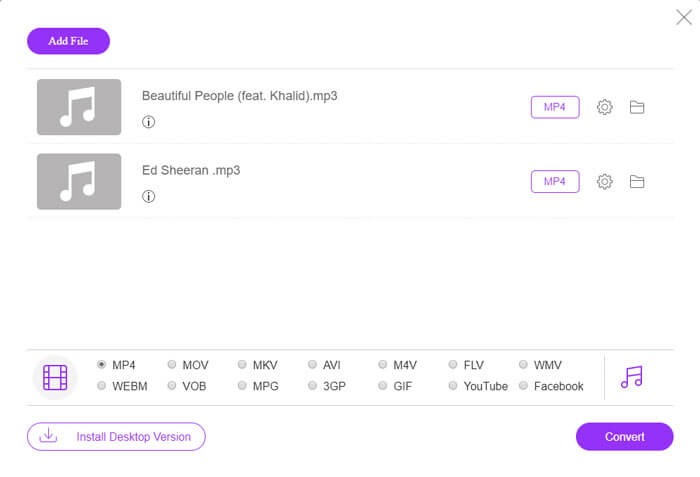
FVC Penukar Video Dalam Talian Percuma boleh menukar sebarang fail audio atau video kepada MP4, MOV, MKV, AVI, M4V, FLV, WMV, WEBM, VOB dan lain-lain secara percuma pada Windows dan Mac. Ia juga membolehkan anda menukar MP3 ke MP4 secara pukal dengan memuat naik berbilang fail MP3. Alat dalam talian percuma ini turut menyokong pelarasan pengekod video, kadar bingkai, resolusi, kadar bit, pengekod audio dan saluran. Ia akan menjadi pilihan terbaik anda jika anda tidak mahu memasang perisian pihak ketiga.
Langkah 1. Klik butang Tambah Fail untuk Ditukar untuk memuat turun pelancar. Dalam tetingkap timbul, pilih dan muat naik fail MP3 anda. Anda boleh memuat naik lebih daripada satu fail MP3.
Langkah 2. Pilih MP4 di bahagian bawah penukar MP3 dalam talian ini. Anda boleh klik ikon gear untuk menetapkan tetapan video dan audio.
Langkah 3. Selepas semua keutamaan ditetapkan, klik butang Tukar dan pilih folder keluaran. Kemudian penukaran MP3 ke MP4 akan bermula secara automatik.
Setelah penukaran berjaya, folder output akan muncul sekaligus sehingga anda dapat melihat atau berkongsi fail yang ditukar mengikut kehendak anda. Perisian percuma ini menjadikan fail MP4 dengan latar belakang hitam.
Bahagian 2. Cara Membuat MP3 menjadi MP4 dengan VLC
VLC Media Player adalah pemain multimedia sumber terbuka dan bebas yang memainkan semua fail multimedia seperti DVD, VCD, pelbagai fail video dan audio. Ia juga merupakan penukar MP3 ke MP4 percuma untuk pengguna Windows, Mac, Linux, Android, dan juga iOS. Di sini kami akan menunjukkan kepada anda cara menukar MP3 ke MP4 menggunakan VLC Media Player.
Langkah 1. Buka VLC pada komputer anda. Klik Media, kemudian klik Buka Fail dan import fail MP3 anda.
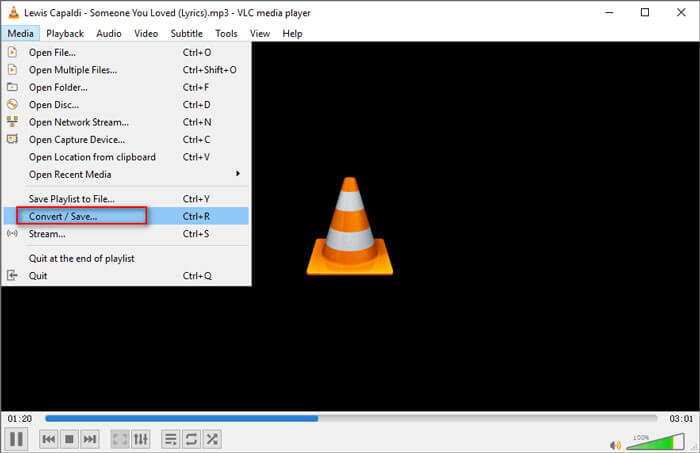
Langkah 2. Klik Media, kemudian klik Tukar/Simpan. Dalam tetingkap timbul, pilih Tukar di bawah butang tarik turun Tukar/Simpan.
Langkah 3. Klik butang tarik turun di sebelah Profil, dan pilih Video - H.264 + MP3 (MP4) sebagai format keluaran.
Langkah 4. Klik butang Semak Imbas untuk memilih folder keluaran. Kemudian klik butang Mula untuk mula menukar MP3 ke MP4 dengan latar belakang hitam secara percuma. (Bagaimana menukar MP4 ke MP3?)
Bahagian 3. Cara Profesional untuk Menukar MP3 ke MP4 dengan Gambar
Kaedah di atas menghasilkan latar belakang hitam pada fail MP3 anda selepas penukaran. Jika anda mahu menambah muka depan pada fail MP4 yang telah ditukar, anda boleh menggunakan penukar MP3 ke MP4 profesional. FVC Penukar MP3 ke MP4 Percuma menyediakan cara yang lebih profesional untuk menukar muzik MP3 anda kepada MP4 dengan gambar berwarna-warni.

Penukar MP3 ke MP4 percuma
113,435+ Muat turun- Tukar fail muzik MP3 ke MP4, AVI, MOV, MKV, WMV dan banyak lagi.
- Sediakan tema berwarna untuk fail MP3 anda, sesuaikan pembukaan dan akhir.
- Pratonton fail MP4 yang ditukar sebelum menukar dengan pemain terbina dalam.
- Support batch menukar MP3 ke fail MP4 dengan kualiti video yang tinggi.
Muat Turun PercumaUntuk Windows 7 atau lebih baharuMuat Turun Selamat
Muat Turun PercumaUntuk MacOS 10.7 atau lebih baharuMuat Turun Selamat
Langkah 1. Tambahkan fail MP3
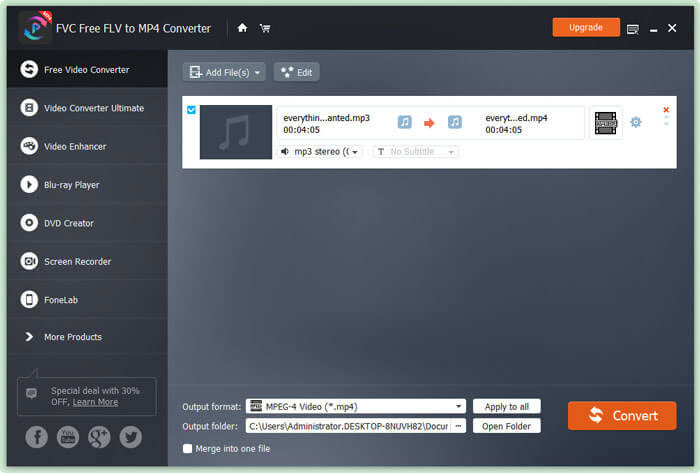
Muat turun percuma, pasang dan lancarkan penukar MP3 ke MP4 ini pada komputer Windows anda. Klik butang Tambah Fail untuk mengimport fail MP3 ke dalam penukar ini. Penukar MP3 ke MP4 percuma ini dilengkapi dengan fungsi penukaran pukal yang membolehkan anda menukar satu atau lebih fail MP3 pada satu masa.
Langkah 2. Pilih tema
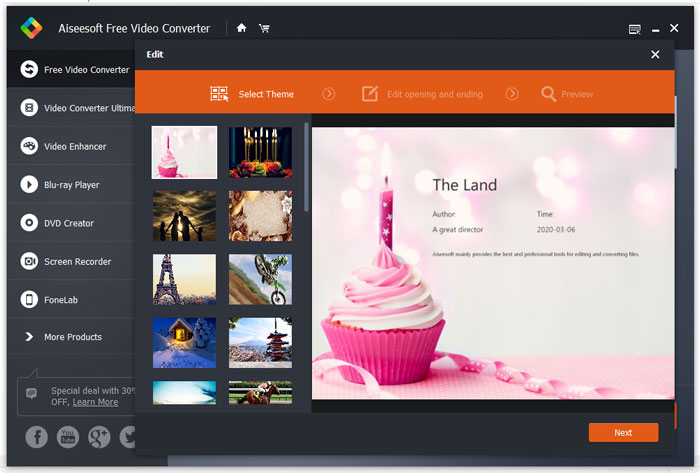
Pilih fail MP3 anda dan klik butang Edit untuk menambah tema. Terdapat beberapa jenis tema berbeza untuk anda pilih. Kemudian klik butang Seterusnya untuk mengedit pembukaan dan penutup video.
Langkah 3. Tukarkan MP3 ke MP4
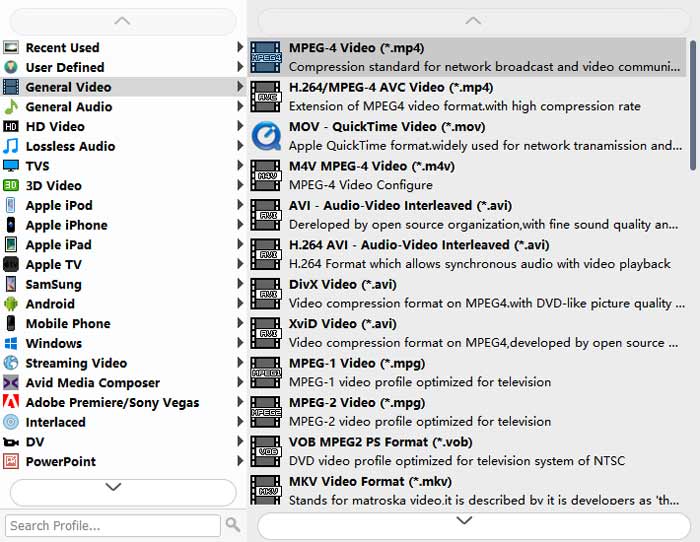
Pilih MP4 sebagai format sasaran anda daripada senarai tarik turun Format keluaran. Kemudian klik butang Tukar untuk mula menukar MP3 ke MP4 dengan gambar secara percuma.
Dengan penggunaan teknologi pecutan terkini, ia membolehkan anda menukar MP3 ke MP4 pada kelajuan penukaran yang sangat pantas. Selain itu, ia menjamin tiada kehilangan kualiti semasa penukaran audio. (Cari lebih banyak pemain MP4)
Bahagian 4. Soalan Lazim Menukar MP3 ke MP4
Bolehkah saya mengeksport dari iTunes ke MP3?
Ya. Buka iTunes dan pergi ke Edit ›Keutamaan. Di tab Umum, cari dan klik Tetapan Import. Kemudian pilih MP3 Encoder di butang drop-down di sebelah Import Using, dan klik OK untuk menyimpan perubahan. Sorot muzik yang ingin anda ubah, dan pergi ke Fail ›Tukar› Buat Versi MP3. Kemudian muzik iTunes akan ditukar menjadi MP3.
Adakah lagu iTunes MP3 atau MP4?
Tidak satu pun dari mereka. Muzik yang anda beli dari iTunes adalah format AAC (m4a). Anda boleh menukar format AAC ke MP3 untuk dimainkan pada peranti lain.
Bolehkah saya menukar MP3 ke MP4 dengan Audacity?
Ya. Audacity sendiri tidak menyokong pengeksportan MP4 dari MP3. Walau bagaimanapun, anda boleh memasang perpustakaan FFmpeg pilihan untuk mengeksport lebih banyak format audio seperti AC3, MP4, M4A, WMA, AMR.
Bolehkah HandBrake mengeksport MP4 dari MP3?
Tidak. HandBrake adalah transkoder video sumber terbuka yang menukar ke dan dari banyak format audio dan video. Malangnya, ia tidak menyokong penukaran audio sahaja, seperti penukaran MP3 ke MP4.
Kesimpulannya
Kami terutamanya memperkenalkan 3 cara percuma untuk menukar MP3 ke MP4 dengan imej pada Windows dan Mac. FVC Penukar Video Dalam Talian Percuma ialah cara yang paling mudah untuk menukar fail muzik MP3 kepada MP4. Jika anda mempunyai sebarang cadangan yang lebih baik, sila tinggalkan komen kepada kami.
-
 MOV VS MP4 - Mana Yang Lebih Baik
 MOV VS MP4, yang manakah lebih baik? Catatan ini memberitahu perbezaan antara MP4 dan MOV, sehingga anda dapat memperoleh pilihan yang lebih baik untuk digunakan untuk fail video anda.
-
 Cara Menukar MOV ke MP4 tanpa Kehilangan Kualiti
 Ingin menukar fail MOV (Apple QuickTime Movie) ke MP4? Catatan ini berkongsi 4 kaedah percuma untuk menukar fail video MOV anda ke format MP4 pada Windows 10/8/7 / XP dan Mac OS X.
-
 4 Kaedah Teratas untuk Menukar WMA ke MP3
 Adakah mungkin untuk menukar WMA ke MP3 dengan Windows Media Player? Bagaimana menukar WMA ke MP3 percuma? Catatan ini berkongsi 4 kaedah mudah untuk membantu anda membuat penukaran audio dari WMA ke MP3 di Mac, PC Windows dan dalam talian.
