


 Video Converter Ultimate
 Perakam Skrin
 Pembaikan Video
 Muat Turun Selamat
Tukar JPG kepada MP4 pada Windows/Mac Tanpa Kehilangan Kualitinya
JPG ialah format imej yang paling biasa, dan kami menggunakannya untuk pelbagai tujuan, daripada berkongsi foto dalam talian kepada menyimpan syot kilat digital pada peranti kami. Dengan keserasian yang meluas dan saiz fail yang agak kecil, JPG telah menjadi pilihan utama untuk menangkap dan memelihara kenangan visual dalam kehidupan seharian.
Namun pada masa kini, menghasilkan video daripada gambar sudah menjadi satu trend. Ia juga satu lagi cara menyimpan kenangan dengan lebih kreatif dan penuh perasaan. Anda boleh menambah audio, transisi, atau hanya membuat video tayangan slaid MP4 ringkas dengan muzik kegemaran anda sebagai latar. Jadi, jika anda berminat dan merancang untuk menukar JPG kepada MP4, teruskan membaca artikel ini dan pelajari cara menukarkannya dengan 4 kaedah berbeza tanpa menjejaskan kualitinya. Lepaskan segala kreativiti yang tersimpan dalam diri anda hari ini!

Bahagian 1: Cara Terbaik untuk Menukar JPG kepada MP4 pada Windows/ Mac [Terbaik untuk Pemula]
Cara terbaik untuk menukar JPG kepada MP4 adalah dengan menggunakan FVC Video Converter Ultimate. Alat ini mempunyai satu ciri khas yang dipanggil MV, yang membolehkan pengguna menghasilkan video MP4 berkualiti baik daripada foto JPG mereka. Ia disertakan dengan tema pratetap yang boleh anda gunakan secara bebas serta pelbagai efek dan penapis. Selain itu, anda boleh memutar dan memotong (crop) fail JPG dengan mudah sebelum mengeksportnya ke MP4. Bahagian paling menarik tentang alat ini ialah anda boleh mengimport audio sendiri, mempersonalkannya dengan tera air (watermark), dan banyak lagi. Akhir sekali, alat ini tidak memeningkan untuk digunakan kerana ia mempunyai antaramuka yang sangat intuitif dan mesra pengguna. Untuk melakukannya, ikut langkah di bawah:
Langkah 1. Mula-mula, anda perlu mendapatkan perisian ini sama ada pada Windows atau Mac, kemudian muat turun dan pasangkannya.
Muat Turun PercumaUntuk Windows 7 atau lebih baharuMuat Turun Selamat
Muat Turun PercumaUntuk MacOS 10.7 atau lebih baharuMuat Turun Selamat
Langkah 2. Selepas itu, buka alat tersebut, dan antara 4 tab di bahagian atas, klik MV.

Langkah 3. Apabila anda berada di antaramuka utama MV, klik butang Add File untuk menambah fail JPG yang ingin anda tukar kepada MP4.

Langkah 4. Untuk menambah, menyunting dan memotong (trim) video MP4 anda, klik butang di bahagian atas butang Add File. Anda juga boleh memilih tema pratetap dengan mengklik tab Theme di atas.

Langkah 5. Sementara itu, untuk memotong (crop) dan memutar imej, menambah penapis dan efek, serta menambah tera air bagi menjadikannya lebih peribadi, hanya klik ikon Edit di bawah, dan ia akan membawa anda ke tetingkap lain.

Langkah 6. Jika semuanya telah ditetapkan, klik butang Export, di mana anda boleh menukar format kepada MP4 dan menukar kadar bingkai, resolusi dan kualiti. Anda juga boleh menentukan dalam folder mana anda mahu simpan fail JPG ke MP4 yang telah ditukar. Akhir sekali, untuk menyimpan fail anda, klik butang Start Export.

FVC Video Converter Ultimate memudahkan menukar JPG kepada MP4 dengan antara muka mesra pengguna, ciri yang boleh disesuaikan, tema pra-tetap, alatan penyuntingan, output berkualiti tinggi dan keserasian dengan sistem pengendalian Windows dan Mac. Ia sememangnya cara terbaik untuk menjadikan foto yang membosankan bertukar menjadi video yang menyeronokkan dan kreatif.
Bahagian 2: Tukar JPG kepada MP4 pada Windows 11/10 Dengan Foto Alat Lalai
Pada Windows 10 dan 11, Clipchamp kini disepadukan dengan aplikasi Photos, yang membolehkan pengguna menukar fail JPG kepada MP4. Penyepaduan ini memudahkan penyuntingan yang kemudiannya boleh disimpan ke MP4. Jadi, untuk membimbing anda dengan ini, ikuti proses langkah demi langkah di bawah:
Langkah 1. Pada Start Menu, klik pada Photos.
Langkah 2. Dalam Photos, pergi ke Folders pada tab kiri. Anda akan diminta untuk menambah folder atau anda boleh terus memilih foto daripada Pictures yang anda mahu tukar kepada MP4.
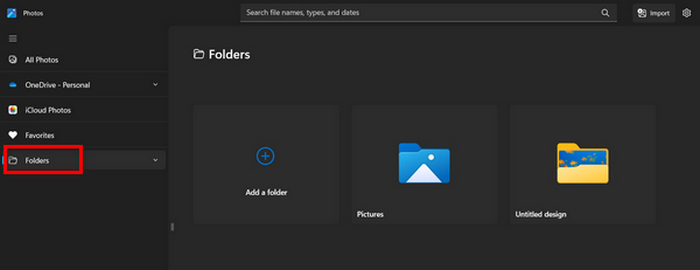
Langkah 3. Selepas memilih gambar JPG yang ingin anda tukar, klik ikon Create a video.
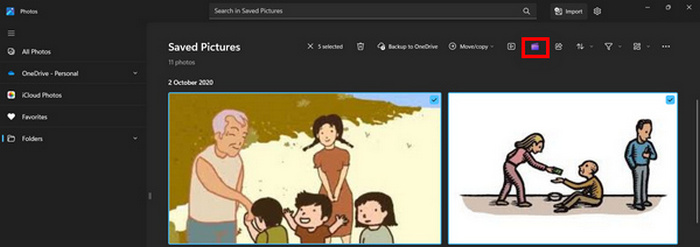
Langkah 4. Pada Window baharu, anda akan ditanya sama ada mahu menambah fail media ke video ini. Klik Yes to Add Video.

Langkah 5. Kini, seret media yang telah diimport ke garis masa (timeline). Anda boleh menggunakan pilihan penyuntingan pada tab kiri, di mana anda boleh menambah teks, memilih templat dan sebagainya. Pada tab Right, anda boleh menambah audio, efek, penapis dan lain-lain. Setelah siap, klik butang Export, dan fail MP4 akan disimpan terus ke komputer anda.
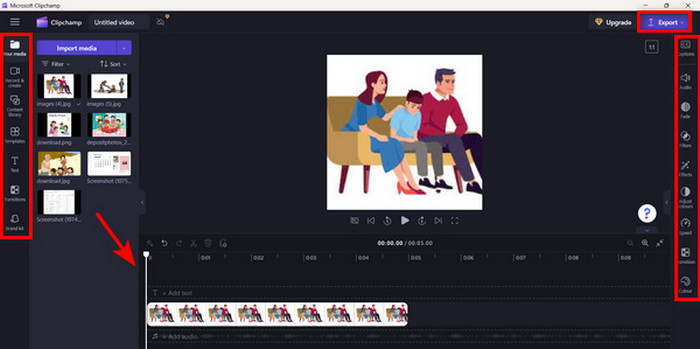
Jika anda pengguna Windows, kaedah ini menjadikan penukaran JPG kepada MP4 dengan cepat. Walau bagaimanapun, kaedah ini mungkin lebih mudah berbanding dengan alat lain. Selain itu, anda tidak boleh mengeksport peleraian video 2K/4K menggunakan versi percumanya dan tidak mempunyai akses kepada kesan dan penapis lain yang baik berbanding alat penukaran lain.
Bahagian 3: Tukar JPG kepada MP4 pada Mac Dengan iMovie
Jika anda pengguna Mac, terdapat penyelesaian yang berguna untuk menukar JPG kepada MP4 untuk anda. Mac mempunyai aplikasi terbina dalam yang dipanggil iMovie. Ini adalah aplikasi penyuntingan video yang menawarkan pengeditan asas untuk penggunanya, tetapi selain daripada ini, ini juga boleh digunakan untuk menukar fail JPG kepada MP4. Mereka hanya perlu mengimport imej mereka, menambah beberapa kesan dan penapis kemudian menyimpannya sebagai MP4.
Langkah 1. Pada Mac anda, lancarkan aplikasi iMovie dan klik Create New.
Langkah 2. Selepas itu, tambah fail JPG anda ke aplikasi dengan mengklik butang Import Media pada antaramuka utama.
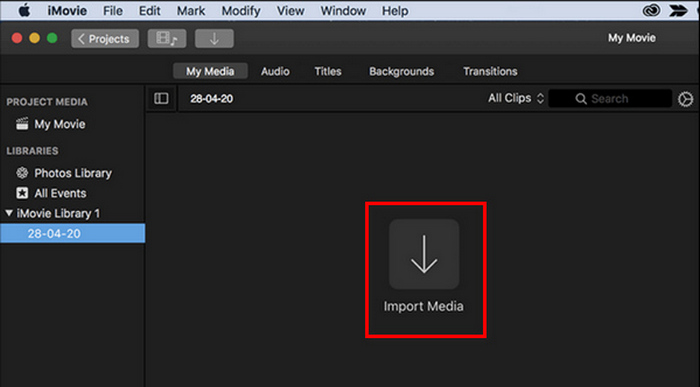
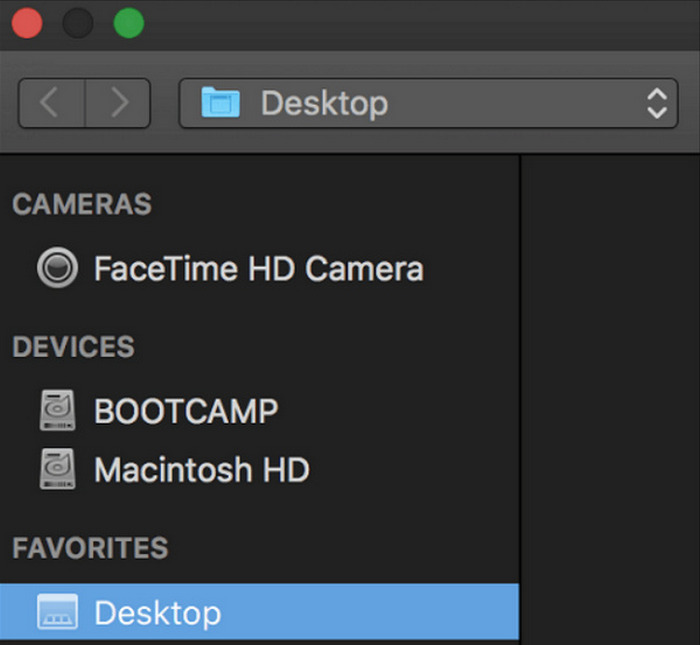
Langkah 3. Sekarang, cari fail JPG yang ingin anda tukar kepada MP4.
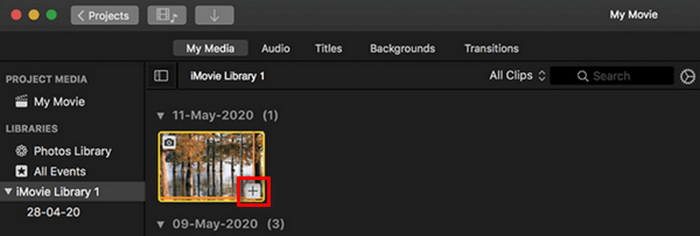
Langkah 4. Setelah JPG anda muncul pada antaramuka aplikasi, anda boleh memilihnya dan anda akan nampak ikon Plus. Klik padanya untuk membolehkan anda menambah foto ke garis masa (timeline).
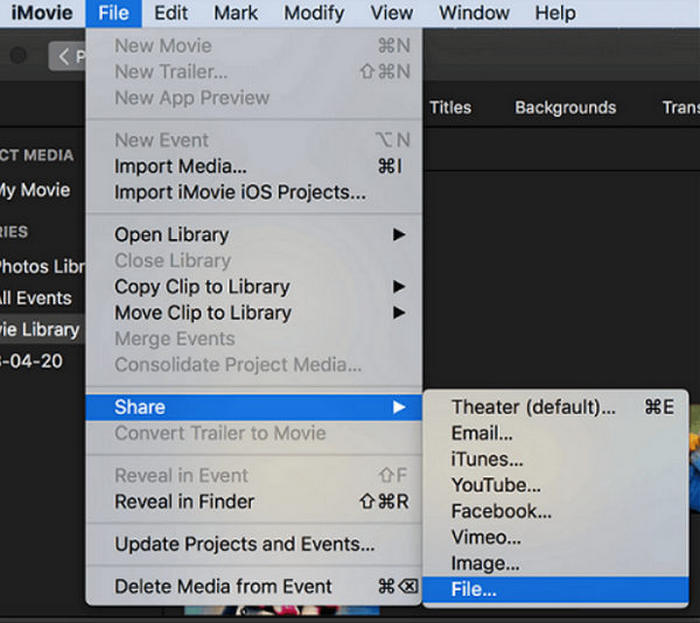
Langkah 5. Selepas menambah fail JPG ke garis masa, anda boleh menyeret bucu klip untuk memanjangkan durasi fail MP4 akhir anda. Kemudian, klik menu File di bahagian atas, pilih Share, dan pilih File untuk mengeksport fail anda.
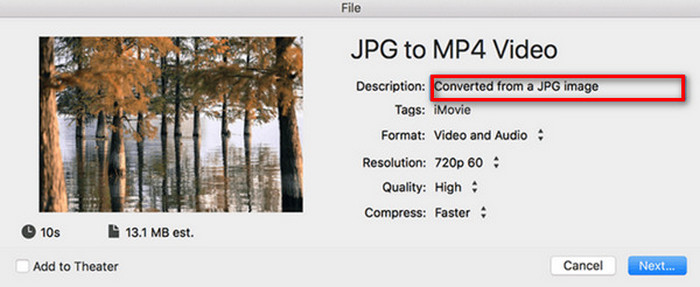
Langkah 6. Akhir sekali, namakan fail MP4 anda di bahagian atas, isi medan metadata lain untuk fail video anda, dan klik Next. Pilih lokasi yang dikehendaki untuk menyimpan fail MP4 yang ingin anda tukar. Setelah anda memilih lokasi, proses penukaran akan bermula.
iMovie menawarkan pengguna Mac cara yang mudah untuk menukar fail JPG kepada MP4 dengan antaramuka mesra pengguna dan alat penyuntingan terbina dalam. Namun, ia mungkin tidak mempunyai ciri lanjutan berbanding alat penukar lain, sekali gus mengehadkan pilihan penyesuaian dan efek. Walaupun sesuai untuk suntingan asas, pengguna kini semakin kompetitif dan kreatif, mencari alat yang benar-benar dapat memenuhi keperluan dan jangkaan semua orang. Selain itu, alat ini tidak berfungsi pada Windows. Jika anda menyukai iMovie, cari alat iMovie untuk Windows di sini.
Bahagian 4: Tukar JPG kepada MP4 Dalam Talian
Sekarang, jika anda sedang mencari cara lain untuk menukar JPG kepada MP4, maka menukarnya dalam talian mungkin sesuai untuk anda. Salah satu penukar dalam talian terbaik untuk ini ialah Online Convert.com. Anda boleh menjalankan alat ini daripada pelayar yang berbeza pada komputer anda, dan ia boleh digunakan dengan mudah kerana antara muka penggunanya yang intuitif.
Langkah 1. Pada pelayar anda, cari laman Online Convert.com.
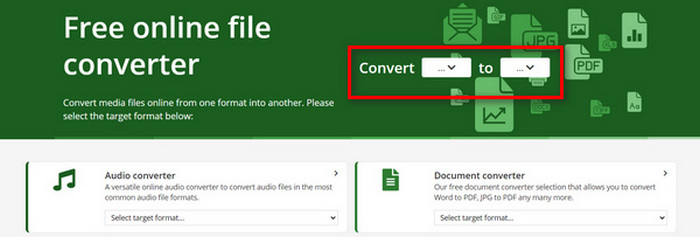
Langkah 2. Setelah anda berada di laman mereka, pilih format yang bersesuaian. Oleh kerana anda akan menukar JPG kepada MP4, pilih JPG daripada butang jatuh bawah Convert dan MP4 daripada butang jatuh bawah To.
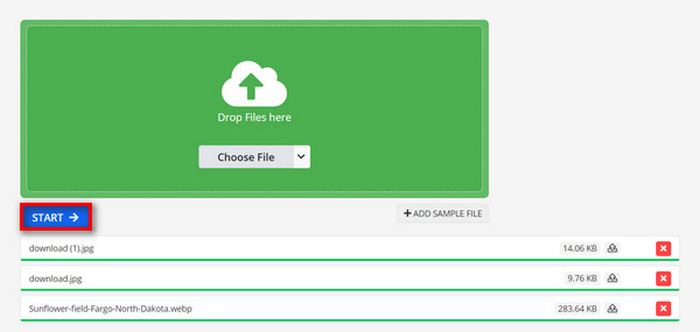
Langkah 3. Selepas itu, muat naik fail JPG yang ingin anda tukar dengan mengklik butang jatuh bawah Choose File, di mana anda boleh mengimport fail daripada Peranti, Dropbox, Google Drive, malah daripada URL.

Langkah 4. Seterusnya, selepas memuat naik fail JPG yang ingin anda tukar kepada MP4, klik butang Start.
Langkah 5. Akhir sekali, muat turun fail MP4 anda dengan mengklik butang Download.
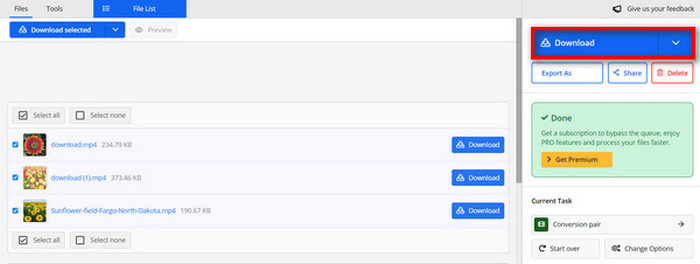
Output yang ditukar daripada alat ini adalah hasil daripada tetapan video yang telah ditetapkan yang pengguna laraskan secara manual sebelum menukar fail. Walaupun ini dengan mudah menukar JPG kepada MP4, anda tidak boleh mempertingkatkan video yang ditukar secara langsung berdasarkan gaya kreatif anda.
Bahagian 5: Soalan Lazim tentang Menukar JPG kepada MP4
Adakah JPEG sama dengan JPG?
JPEG dan JPG pada asasnya ialah format imej digital yang sama, dengan kedua-dua sambungan fail merujuk kepada format JPEG yang diwujudkan oleh Joint Photographic Experts Group atau JPEG. Ketahui di sini cara menukar JPEG kepada JPG.
Bilakah saya perlu menukar JPG kepada MP4?
Anda harus menukar JPG kepada MP4 apabila anda ingin membuat persembahan visual atau berkongsi satu siri imej sebagai video, seperti membuat tayangan slaid, album foto digital atau slaid video. Selain itu, jika anda ingin menjadi kreatif dengan cara anda mahu fail JPG anda dilihat, maka menukarnya kepada MP4 ialah cara terbaik untuk menambah peralihan, muzik, tindanan teks dan elemen multimedia lain.
Bagaimanakah saya menggabungkan JPG dan MP4?
Satu-satunya cara untuk menggabungkan JPG dan MP4 adalah dengan menggunakan alat penyuntingan video. Dengan pendekatan ini, anda mempunyai kawalan penuh ke atas susunan, pemasaan dan penyesuaian kedua-dua imej dan video yang anda ingin gabungkan.
Kesimpulannya
Sekarang giliran anda! Menukar JPG kepada MP4 ialah satu lagi cara untuk menyimpan kenangan secara kreatif. Jadi, jika anda mempunyai fail JPG dan mahu menukarnya, ikuti semua kaedah yang dibentangkan dalam artikel ini dan pilih yang paling sesuai untuk anda. Mulakan hari ini dan saksikan keajaibannya!
-
 5 Tutorial Terkemuka untuk Menukar PNG kepada JPG Dengan Pantas
 Jika anda perlu menukar fail PNG anda kepada format JPG, anda boleh mempelajari cara terbaik di sini. Anda juga akan mempelajari perbezaan antara format fail PNG dan JPG.
-
 Kaedah Mudah Cara Menukar SVG kepada Format JPG
 Mencari cara terbaik untuk menukar SVG kepada JPG? Siaran ini akan memberikan beberapa tutorial yang pasti anda boleh cuba. Anda juga akan menemui penukar SVG ke JPG untuk anda.
-
 Kaedah Berguna tentang Cara Menukar TIFF kepada JPG/PNG Dengan Mudah
 Jangan ketinggalan cara terbaik ini untuk menukar TIF kepada format JPG/PNG. Siaran ini akan memberikan maklumat yang diperlukan yang perlu anda ketahui. Ia termasuk perbezaan mereka.
