


 Video Converter Ultimate
 Perakam Skrin
 Pembaikan Video
 Muat Turun Selamat
3 Kaedah Cekap untuk Menukar MP4 ke AMV pada Windows dan Mac anda dengan Kemudahan
Apabila anda ingin mengirim beberapa video MP4 yang besar ke telefon pintar anda, seperti filem besar, mungkin ruang penyimpanan tidak mencukupi. Untuk menukar fail MP4 ke AMV, anda boleh menggunakan algoritma pemampatan lanjutan untuk mendapatkan video yang jauh lebih kecil. Sama ada anda perlu menukar video dalam talian, atau mengubah dan mengedit video dengan ukuran tertentu, anda boleh mengetahui lebih lanjut mengenai 3 penukar MP4 ke AMV paling berkesan dari artikel tersebut.

Bahagian 1: Cara Menukar MP4 ke AMV Dalam Talian
Jika anda hanya perlu menukar fail MP4 ringkas kepada AMV dengan mudah, FVC Free Online Video Converter ialah penukar video dalam talian serbaguna yang serasi dengan MP4, AMV, AVI dan banyak lagi format lain. Ia juga membolehkan anda melaras tetapan video dan audio, malah menukar fail tanpa tera air atau sekatan lain.
- 1. Tukarkan MP4 ke AMV, AVI, MKV dan banyak lagi video lain dengan kualiti asal.
- 2. Tweak kadar bingkai, kualiti video, codec video, kualiti audio dan banyak lagi.
- 3. Sediakan antara muka pengguna yang mudah untuk menukar fail AMV dalam 3 langkah sahaja.
- 4. Ini adalah kaedah yang selamat dan stabil untuk menukar fail tanpa tanda air.
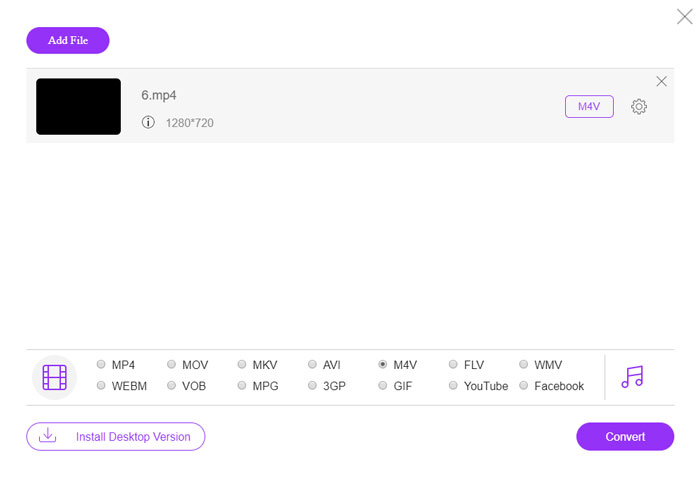
Langkah 1. Pergi ke penukar MP4 ke AMV dalam talian pada mana‑mana pelayar, anda boleh klik butang Add File to Convert untuk memasang penukar video kali pertama. Anda juga boleh memuatkan fail MP4 ke dalam program.

Langkah 2. Pilih AMV sebagai format keluaran dari bahagian bawah. Sudah tentu, anda juga boleh melaras tetapan video dan audio, seperti pengekod video, resolusi video, bitrate video, kadar bingkai dan sebagainya untuk mendapatkan video yang diingini.

Langkah 3. Selepas itu, anda boleh klik butang Convert untuk mula menukar MP4 kepada AMV. Ia hanya mengambil beberapa saat untuk mendapatkan fail yang diingini, dan kemudian anda boleh memindahkan video tersebut ke telefon pintar anda.
Bahagian 2: Cara Menukar MP4 ke AMV dengan Pemain Media VLC
VLC Media Player adalah salah satu penukar MP4 ke AMV yang paling popular. Ia juga menyediakan beberapa ciri penukaran dan penyuntingan video asas. Selain itu, anda juga boleh melihat video AMV output selepas penukaran. Lihat sahaja proses terperinci seperti di bawah.
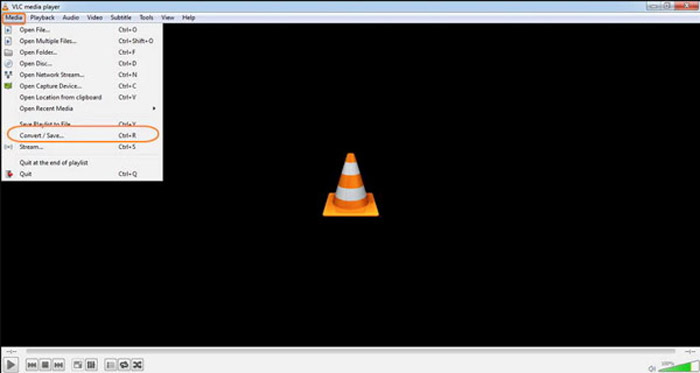
Langkah 1. Buka VLC Media Player pada komputer anda, pergi ke menu Media dan pilih pilihan Convert/Save. Klik pilihan Add di sebelah kanan senarai File Selection pada tab File dan semak lalu fail MP4.
Langkah 2. Klik butang Convert/Save untuk meneruskan. Pergi ke tetingkap Convert, anda boleh memilih AMV sebagai format keluaran. Klik butang Edit Selected Profile untuk melaras tetapan video dan audio.
Langkah 3. Klik pilihan Browse dan pilih lokasi serta nama fail untuk fail keluaran. Selepas itu, anda boleh klik butang Start untuk menukar fail MP4 kepada AMV pada komputer anda.
Bahagian 3: Kaedah Terbaik untuk Menukar MP4 ke AMV dengan Kemudahan
FVC Video Converter Ultimate ialah penukar MP4 ke AMV semua‑dalam‑satu untuk Windows dan Mac. Ia bukan sahaja menukar format video, tetapi juga membolehkan anda melaras pelbagai parameter video dan audio, menambah sari kata/trek audio, dan malah menyunting fail video yang telah ditukar dengan mudah.
- 1. Tukarkan MP4 ke AMV dan lebih banyak format video lain dengan kualiti asal.
- 2. Tweak kadar bingkai, kualiti video, kadar bit, codec video dan lain-lain.
- 3. Sediakan pelbagai ciri penyuntingan video untuk memutar, klip, menyesuaikan penapis, dll.
- 4. Pecutan perkakasan canggih untuk menukar video dengan kelajuan 70x lebih pantas.
Muat Turun PercumaUntuk Windows 7 atau lebih baharuMuat Turun Selamat
Muat Turun PercumaUntuk MacOS 10.7 atau lebih baharuMuat Turun Selamat
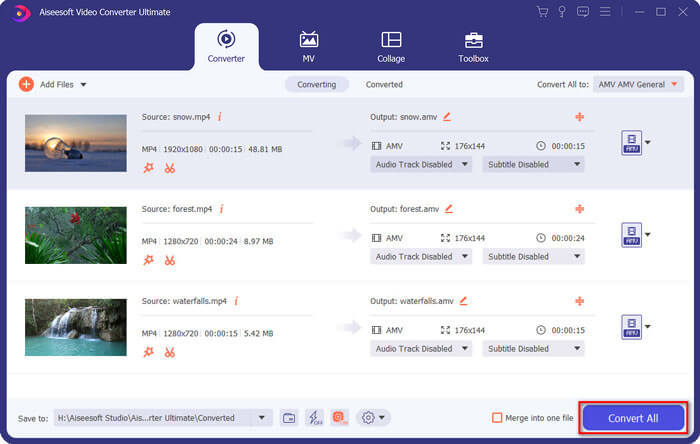
Langkah 1. Muat turun dan pasang penukar MP4 ke AMV, lancarkan program pada komputer anda. Pilih butang Convert dan klik pilihan Add File untuk memuatkan fail MP4, atau seret terus berbilang fail MP4 ke dalam program ini.

Langkah 2. Klik pada ikon format di bahagian kanan fail video dan pilih AMV sebagai format keluaran. Anda juga boleh klik ikon Gear untuk melaras tetapan video dan audio, atau malah menyunting video/melaras penapis dengan mudah.

Langkah 3. Setelah anda berpuas hati dengan AMV keluaran, seperti saiz video, anda boleh klik butang Convert All untuk memulakan penukaran MP4 ke AMV. Selepas itu, anda boleh memindahkan fail AMV ke peranti lain.
Bahagian 4: Soalan Lazim mengenai Menukar MP4 ke Fail AMV
1. Apakah Format Fail AMV?
Fail AMV dikenali sebagai fail Video Muzik Anime. Ia biasanya digunakan oleh alat permainan media mudah alih dari dan di China. Format video AMV ditampilkan untuk resolusi rendah, yang mempunyai resolusi video antara 94x64 dan 160x120. Apabila anda menukar MP4 ke AMV, anda boleh menghantar lebih banyak video ke telefon pintar anda dengan mudah.
2. Bagaimana Memainkan Fail AMV pada Telefon Pintar dan Komputer?
Apabila anda menukar fail MP4 ke AMV, bagaimana memainkan fail video di telefon pintar atau komputer anda? Sebenarnya, anda boleh menggunakan AMV sebagai varian format AVI, yang dapat digunakan pada kebanyakan pemain media. Sekiranya anda perlu memainkan semula fail AMV pada peranti iOS anda, anda boleh menggunakan Pemain Media VLC atau pemain media lain.
3. Apakah Perbezaan antara AMV dan MP4?
MP4 adalah salah satu format video yang paling kerap digunakan yang boleh digunakan untuk perkhidmatan dan peranti penstriman dalam talian. AMV adalah varian Motion JPEG, dengan jadual kuantisasi tetap dan tidak berubah. Apabila anda menukar MP4 ke AMV, anda dapat memampatkan video dan menjimatkan lebih banyak ruang simpanan, terutama untuk memindahkan video ke peranti.
Kesimpulannya
Apakah pilihan terbaik untuk menukar MP4 ke AMV? Cukup ketahui lebih banyak maklumat mengenai kaedah terbaik dari artikel. Sekiranya anda perlu menukar dan memampatkan video dalam talian tanpa perisian tambahan, FVC Free Online Video Converter adalah penyelesaian utama yang boleh anda pertimbangkan.
-
 AVI VS MP4 - Mana Yang Lebih Baik (Kualiti / Mampatan / Saiz Fail…)
 Mana format video, AVI atau MP4 yang lebih baik? Sekiranya anda ingin mendapatkan perbandingan terperinci, anda boleh menyemak artikel AVI VS MP4 ini. Anda boleh mengetahui perbezaan dan persamaan antara AVI dan MP4 dalam banyak aspek.
-
 Perisian Pemain 10 MP4 Teratas untuk Windows dan Mac (Percuma & Berbayar)
 Baca dan dapatkan pemain MP4 terbaik anda dari cadangan 10 perisian pemain video MP4 terbaru. Anda boleh memainkan fail video MP4 pada Windows dan Mac dengan lancar tanpa ketinggalan.
-
 Cara Menukar MP4 ke WMV untuk Mac / Windows
 Catatan ini berkongsi cara menukar video MP4 ke format WMV pada Mac atau Windows. Kami juga akan menawarkan beberapa pilihan, termasuk perisian desktop dan penukar dalam talian berasaskan web. Bersedia untuk mengetahui alat penukaran MP4 ke WMV terbaik?
