


 Video Converter Ultimate
 Perakam Skrin
 Pembaikan Video
 Muat Turun Selamat
Video MP4 tidak Ditayangkan dalam Premiere Pro: Sebab dan Penyelesaian untuk Belajar
Premiere Pro is a great professional tool for editing videos. However, sometimes, it acts up, causing playback problems that interrupt your work. It is also frustrating when you are trying to edit smoothly, and the video keeps lagging or glitching, or worse, not showing up. It is a common issue that many users of Adobe Premiere Pro face. Thankfully, there are ways to tackle this problem. By identifying the specific issue as to why MP4 video is not showing in Premiere Pro and following the steps outlined in this guide, you can get back to edit and playback without headaches. So, let's dive in and cut to this chase!
Bahagian 1. Mengapa Video MP4 Tidak Muncul dalam Premiere Pro
Bagi mereka yang mengalami ralat dalam Premiere Pro ketika menayangkan video MP4, di sini kami telah mengumpulkan beberapa sebab mengapa ini berlaku.
Software Version:
Ia mungkin versi Premiere Pro yang anda gunakan. Dalam erti kata lain, anda mungkin menggunakan perisian lapuk yang tidak mempunyai sokongan untuk format atau ciri fail MP4 tertentu.
Hardware Limitations:
Ia juga mungkin perkakasan sistem yang anda miliki. Peranti anda mungkin tidak memenuhi keperluan untuk menyahkod dan memaparkan fail MP4 dalam Premiere Pro dengan betul.
File Location:
Seterusnya ialah lokasi fail. Fail MP4 anda mungkin terdapat dalam direktori yang tidak boleh diakses oleh Premiere Pro kerana tetapan kebenaran atau isu laluan fail.
Corrupted File:
Satu lagi faktor mengapa video MP4 tidak dipaparkan dalam Premiere Pro adalah kerana fail tersebut mungkin rosak. Ini boleh menghalang Premiere Pro daripada membacanya dengan betul.
Codec Incompatibility:
If the MP4 file is not corrupted, then maybe it may be encoded with a codec that Premiere Pro does not support.
Incorrect Import Settings:
Anda juga mungkin ingin mempertimbangkan untuk menyemak tetapan import. Tetapan import atau metadata yang salah yang dikaitkan dengan fail MP4 boleh menyebabkan fail itu tidak dipaparkan dalam Premiere Pro.
Cache Corruption:
Sudah tentu, sama seperti program lain, cache media dalam Premiere Pro mungkin rosak. Jika ya, ini menyebabkan masalah dengan mengimport atau memaparkan fail MP4.
Part 2. Methods to Fix the Issue of Premiere Pro Not Showing MP4 Videos
Convert MP4 to a Compatible Format:
Jika fail MP4 anda adalah sebab utama isu ini, maka pertimbangkan untuk menukarnya kepada format video lain. Walau bagaimanapun, kami amat mengesyorkan anda menggunakan alat penukar video yang berkuasa yang pasti akan menghasilkan output video yang sangat baik untuk penggunaan Premiere Pro.
Bonus: Use FVC Video Converter Ultimate for Video Conversion
Video Converter Ultimate, recommended by FVC, is available for both Windows and Mac, making it accessible to everyone. It comes with a user-friendly interface while boasting an incredibly advanced ultrafast hardware acceleration technology that speeds up the conversion up to 120 times faster. Furthermore, it is not just limited to converting MP4; it supports over 1000 other formats that you can choose from as your output format.
Di luar penukaran format yang mudah, ia menawarkan pelbagai alat penyuntingan yang berkuasa dalam Kotak Alatnya. Alat ini, didorong oleh kecerdasan buatan, memastikan peningkatan lancar dan pengeditan video anda tanpa sebarang kerumitan! Sekarang, mari kita mendalami proses penukaran video pukal yang ditampilkan menggunakan langkah-langkah yang digariskan di bawah.
Muat Turun PercumaUntuk Windows 7 atau lebih baharuMuat Turun Selamat
Muat Turun PercumaUntuk MacOS 10.7 atau lebih baharuMuat Turun Selamat
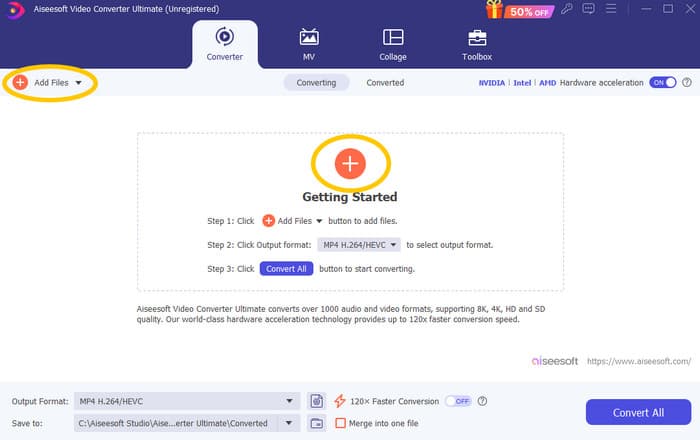
Step 1. Let’s say you already installed the software on your computer. You can now launch it and click the Add button to import files. You can also use the Add Files tab or drag files from your folder.
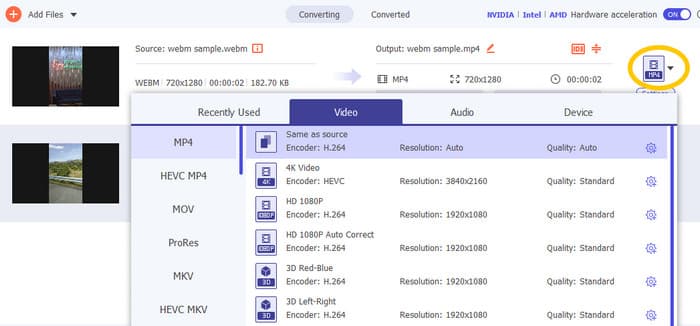
Step 2. Next, click the drop-down arrow from the output format section and choose your desired format from the Video menu. Click your chosen encoder to apply.
Step 3. When all is good, click the Convert All button to start the conversion.

Repair Corrupt MP4 Files:
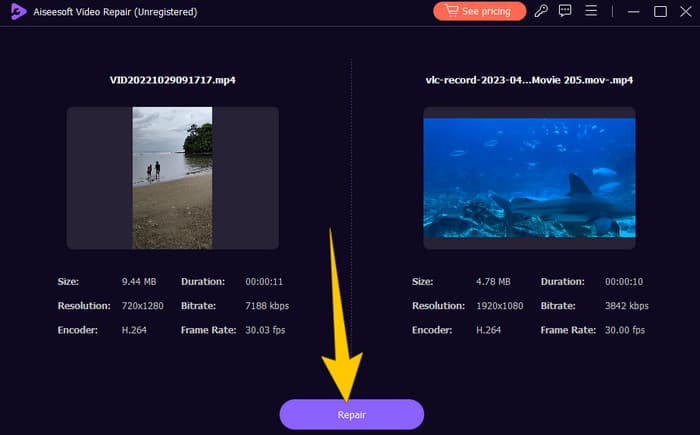
If the MP4 video is not showing in Premiere Pro, it might be corrupted. Thus, you may use a dedicated video repair tool such as Video Repair to address any corruption issues. You can quickly repair and play a messed-up file without any hassle. It boasts a perfect success rate, and it's so easy to use with just a few clicks. Moreover, the software works by copying the good parts from a sample video to patch up the broken ones to ensure smooth playback. Plus, it supports fixing MP4 and many other various formats while keeping your information safe. Here is how to fix your corrupted MP4 file.
Step 1. Get the video repair tool on your computer and open it to begin.
Muat Turun PercumaUntuk Windows 7 atau lebih baharuMuat Turun Selamat
Muat Turun PercumaUntuk MacOS 10.7 atau lebih baharuMuat Turun Selamat
Step 2. On the main interface, click the red Plus button to upload the corrupted MP4 video. Then, click the blue one to upload the sample video.
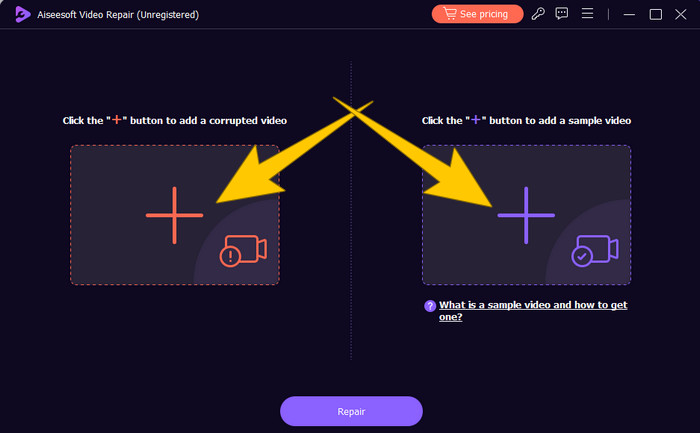
Step 3. After the importation of the files, it’s time to fix it. To do so, click the Repair button.
Restart Computer and Reset Premiere Pro:
Pertimbangkan untuk menetapkan semula Premiere Pro dan mulakan semula komputer anda untuk menyegarkan semula sumber sistem. Dengan melakukan ini, anda juga boleh menetapkan semula pilihan kepada tetapan lalai, yang kadangkala boleh menyelesaikan isu keserasian.
Clear Cache Files:
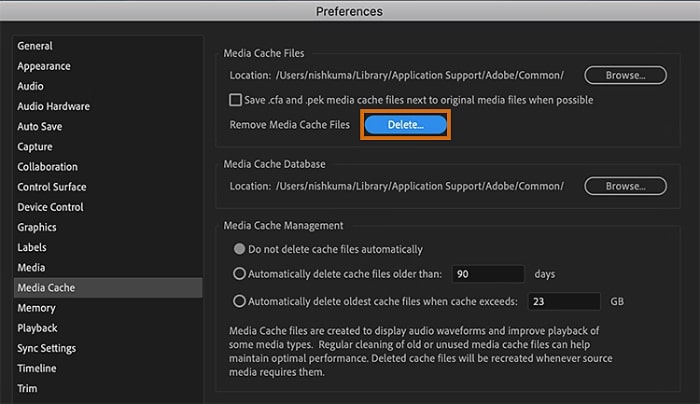
Membersihkan fail cache Premiere Pro anda sentiasa disyorkan. Jadi, padamkan fail cache untuk mengosongkan sebarang data yang rosak atau lapuk yang mungkin menyebabkan isu tersebut. Anda hanya perlu menavigasi ke Edit> Keutamaan> Cache Media> Padam.
Change Settings in Premiere Pro:
Akhir sekali, semak tetapan Premiere Pro anda dan pastikan ia sepadan dengan spesifikasi fail MP4 anda. Ini termasuk kadar bingkai, resolusi dan codec. Ya, apabila anda melaraskan tetapan ini agar sepadan dengan fail MP4 anda, isu keserasian kadangkala boleh diselesaikan.
Part 3. FAQs about Premiere Pro and the Issue of MP4 Not Showing
Apakah yang perlu saya lakukan jika fail MP4 saya mempunyai codec yang tidak serasi, mengakibatkan tidak dipaparkan dalam Premiere Pro?
If your MP4 files have an incompatible codec, you can use an HD video converter like Video Converter Ultimate to convert them to a compatible format.
Mengapa fail MP4 saya tidak dipaparkan dalam Premiere Pro?
Fail MP4 mungkin tidak dipaparkan dalam Premiere Pro atas pelbagai sebab. Seperti codec yang tidak serasi, isu dengan tetapan Premiere Pro dan kerosakan fail.
Bolehkah saya menyelesaikan masalah fail MP4 yang tidak dipaparkan dalam Premiere Pro?
Yes, you can troubleshoot the issue by checking the codec of the MP4 files. This ensures that the MP4 files match Premiere Pro's supported codecs. Also, you can try to repair any corrupt MP4 files and adjust Premiere Pro settings if necessary.
Conclusion
This post contains the reasons why MP4 video files are not showing in Premiere Pro. Also, the fixations are given so you can get an idea of how to solve the problem at hand. Most often, it is the video file that makes the problem show. Thus, you must ensure that it is in good condition every time you open it on your Premiere Pro.
-
 Fast & Easy Ways on How to Sync Audio and Video in Adobe Premiere Pro
 Ingin tahu cara menyegerakkan audio dan video dalam Premiere Pro? Kemudian artikel ini akan sesuai dengan keperluan anda. Sambil kita mencuba sendiri dengan langkah yang sebenar dan mudah.
-
 How to Speed up Video in Premiere Pro and with Its Alternatives
 Adakah anda ingin tahu cara menggunakan perdana pro untuk mempercepatkan video? Kemudian anda berada di artikel yang betul kerana kami menyediakan langkah-langkah dan alternatif lain yang berpatutan.
-
 Instagram Not Playing Videos? Here’s How You Can Fix Them
 Perihalan Meta:Adakah anda memuat naik video Instagram, dan ia tidak dimainkan? Jangan risau kerana artikel ini akan memberikan anda cerapan dan pembetulan pantas untuk isu ini. Baca sekarang!
