


 Video Converter Ultimate
 Perakam Skrin
 Pembaikan Video
 Muat Turun Selamat
3 Kaedah Terbaik untuk Menukar PNG kepada MP4 [Penyelesaian Pantas]
Hari ini, orang ramai semakin ketagih menukar foto mereka kepada video dengan efek, teks, transisi dan penapis. Walaupun PNG ialah format imej yang hebat untuk foto, kita boleh menjadi lebih kreatif dengannya dengan menukarkannya kepada MP4. Ia mungkin kedengaran pelik bagi sesetengah orang, tetapi ada yang menukar fail ini untuk menghasilkan sebuah filem pendek atau video yang menyeronokkan. Jadi, jika anda sedang mencari alat penukar yang boleh menukar PNG ke MP4, anda berada di tempat yang tepat.
Oleh itu, kami telah menyediakan 3 alat yang boleh anda pertimbangkan untuk menukar imej kepada format video dengan mudah. Kenali setiap daripada mereka dan pelajari cara menggunakannya sekarang!

Bahagian 1: Tukar PNG kepada MP4 Dengan Kualiti Terbaik pada Desktop
Salah satu cara terbaik untuk menukar PNG ke MP4 adalah dengan menggunakan FVC Video Converter Ultimate. Alat penukar ini bukan sekadar penukar biasa kerana ia disepadukan dengan pelbagai ciri seperti MV yang membolehkan anda menukar fail PNG kepada video MP4. Ia hadir dengan pelbagai tema pratetap yang boleh anda gunakan secara percuma. Anda juga boleh menambah muzik latar, menambah penapis dan efek, dan menjadikannya lebih peribadi dengan meletakkan tera air pada video. Selain itu, anda boleh memutar, memotong, dan mengerat imej dengan mudah mengikut pilihan dan visi kreatif anda. Jadi, jika anda benar‑benar cenderung kepada sisi kreatif dan mahu menukar imej anda kepada fail MP4 yang dinamik, ini akan menjadi alat penukar yang sempurna untuk anda.
Langkah 1. Mula‑mula, pada Windows atau Mac anda, muat turun perisian ini dan pasangkannya.
Muat Turun PercumaUntuk Windows 7 atau lebih baharuMuat Turun Selamat
Muat Turun PercumaUntuk MacOS 10.7 atau lebih baharuMuat Turun Selamat
Langkah 2. Selepas itu, buka alat tersebut dan klik pada tab MV.

Langkah 3. Sekarang, tambah fail PNG yang anda mahu tukar kepada MP4 dengan mengklik butang Add File.

Langkah 4. Setelah anda mengimport fail PNG ke dalam pembuat MV, anda boleh menambah, menyunting dan mengeratnya menjadi sebuah video. Hanya klik butang di bahagian atas butang Add File. Anda juga boleh memilih tema pratetap dengan mengklik tab Theme di atas.

Langkah 5. Sementara itu, untuk menambah penapis dan efek serta memotong dan memutar imej, hanya klik ikon Edit di bawah. Anda juga boleh mempersonalisasikan video MP4 anda dengan menambah tera air.

Langkah 6. Jika semuanya telah siap, klik butang Export untuk menyimpan video MP4. Sebelum mengeksport, ingat untuk menentukan folder tempat anda mahu menyimpan fail output, dan pastikan format output ditetapkan kepada MP4.

Anda juga boleh mengubah suai kadar bingkai, resolusi dan kualiti output video.
Langkah 7. Akhir sekali, anda boleh mengakses video yang telah dieksport dalam folder yang anda pilih.
Apabila anda menukar PNG kepada MP4 menggunakan FVC Video Converter Ultimate, anda benar-benar boleh menjamin hasil output yang berkualiti. Antara muka intuitifnya menjadikan penukaran mudah diproses dan ciri penyuntingannya boleh meningkatkan penampilan visual output video anda. Selain itu, anda boleh memilih resolusi video pilihan anda sehingga 4K untuk memastikan keserasian dengan peranti anda dan pelbagai pemain media.
Bahagian 2: Tukar PNG kepada MP4 Dengan FFmpeg
Satu lagi kaedah yang boleh anda gunakan untuk menukar PNG ke MP4 ialah dengan menggunakan FFmpeg. Alat ini percuma dan sumber terbuka serta menyediakan rangkaian perpustakaan dan program yang menyeluruh untuk mengurus pelbagai fail dan strim multimedia. Dengan FFmpeg, anda boleh menukar jujukan imej JPG kepada fail video MP4 dengan lancar melalui fungsi baris perintahnya. Anda hanya perlu menggunakan arahan atau kod yang ditampal pada terminal atau command prompt, dan ia akan memproses penukaran dan mencipta output yang sepadan.
Langkah 1. Muat turun dan pasang FFmpeg pada komputer anda.
Langkah 2. Buka Terminal atau Command prompt anda.
Langkah 3. Navigasi ke direktori yang mengandungi jujukan imej anda.
Langkah 4. Gunakan arahan berikut untuk mencipta video. Andaikan nama fail imej ialah happy: ffmpeg -framerate 1 -i happy%d.png -c:v libx264 -r 30 output.mp4

Langkah 5. Jika mahu, anda boleh menentukan nombor permulaan untuk jujukan imej anda dengan menggunakan pilihan -start_number. Contohnya, jika jujukan imej anda bermula daripada happy3.png, anda perlu menambah -start_number 3 pada arahan.
Langkah 6. Tekan Enter untuk melaksanakan arahan. FFmpeg akan mula memproses imej dan mencipta video.
Langkah 7. Setelah proses selesai, anda boleh mengakses video dalam direktori yang telah anda tetapkan.
Walaupun alat ini nampaknya mempunyai proses dan hasil penukaran yang menjanjikan, kelemahannya ialah kerumitan antara mukanya, yang menyukarkan pengguna untuk menavigasi proses menukar PNG kepada MP4.
Kelebihan
- Percuma dan sumber terbuka.
- Antara muka baris perintah yang berkuasa.
Keburukan
- Keluk pembelajaran yang curam untuk pemula.
- Kekurangan antara muka pengguna grafik.
Bahagian 3: Tukar PNG kepada MP4 Dalam Talian
Kaedah lain untuk menukar PNG ke MP4 ialah dengan menggunakan alat penukar. Dengan penukar dalam talian, anda boleh menjamin keserasian dengan pelbagai peranti kerana ia hanya memerlukan pelayar dan sambungan internet. Salah satu alat penukar dalam talian terbaik yang kami boleh cadangkan ialah FlexClip. Ini ialah alat dalam talian yang serba boleh yang membolehkan anda menukar imej PNG kepada video MP4. Anda hanya perlu mengimport fail PNG anda, dan selebihnya anda akan berurusan dengan antara muka yang mudah diikuti untuk menukarkannya kepada fail video apabila dieksport.
Langkah 1. Mula‑mula, pergi ke tab Media dan klik Browse untuk mengimport fail PNG anda.
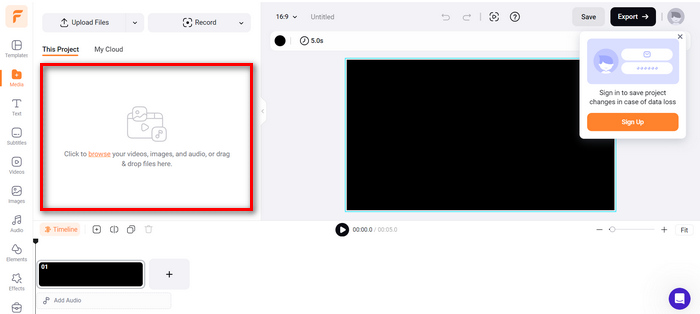
Langkah 2. Selepas itu, seret fail PNG ke garis masa supaya anda boleh memotong dan menambah transisi pada output. Selain itu, dengan pergi ke tab kiri antara muka perisian, anda boleh menambah baik lagi kualiti visual video anda dengan menambah teks, sarikata, audio, elemen dan efek.
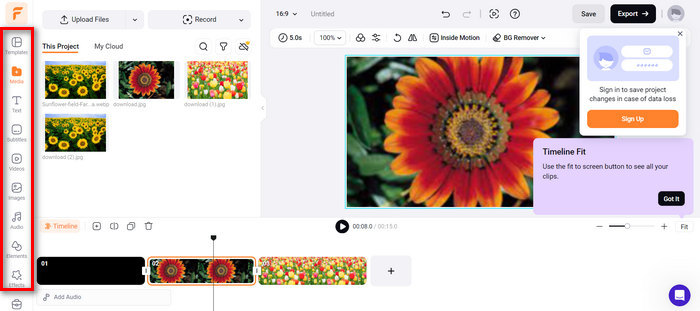
Langkah 3. Sekarang, anda boleh memuat turun MP4 anda dengan mengklik butang Export, tetapi ingat untuk memilih resolusi video, kadar bingkai, dan kualiti yang anda inginkan terlebih dahulu.
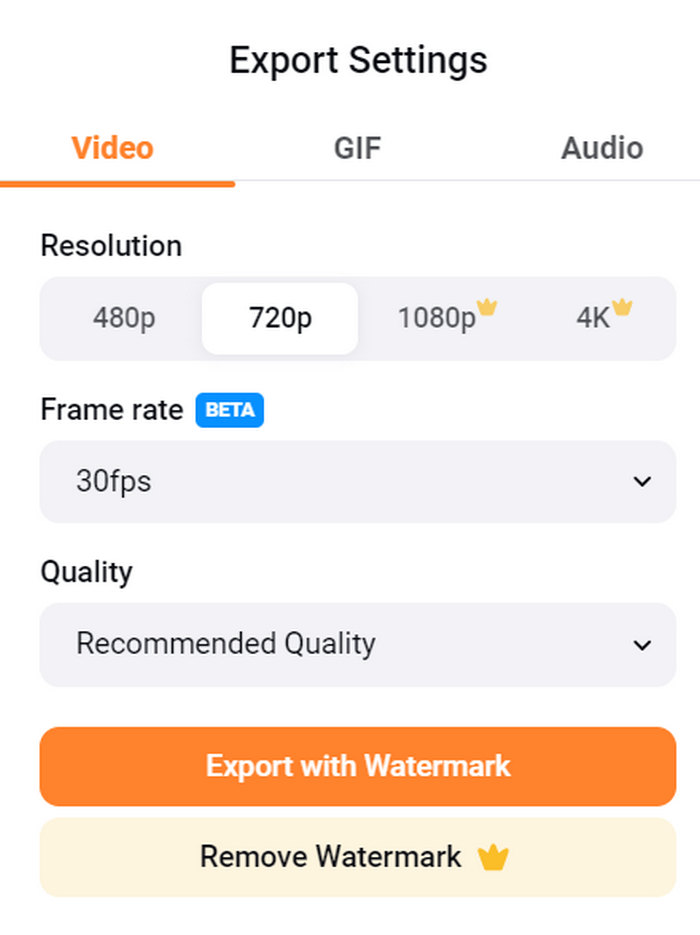
Dengan FlexClip, anda boleh menukar PNG kepada MP4 dalam talian dengan mudah tanpa perlu risau tentang penggunaan storan pada peranti anda. Walau bagaimanapun, jika anda menggunakan versi percumanya, anda tidak boleh menikmati semua cirinya, yang akan menghalang anda daripada mengubah suai output pilihan anda.
Kelebihan
- Antara muka yang mudah digunakan.
- Ciri penyuntingan serba boleh.
- Pilihan output yang boleh disesuaikan.
- Proses penukaran pantas.
Keburukan
- Memerlukan sambungan internet.
- Ciri terhad dalam versi percuma.
- Video yang dieksport mempunyai tera air.
Bahagian 4: Soalan Lazim tentang Menukar PNG kepada MP4
Mengapa saya mahu menukar PNG kepada MP4?
Menukar PNG kepada MP4 membolehkan pengguna mengubah imej statik menjadi video dinamik, yang boleh berguna untuk mencipta tayangan slaid, animasi, atau menambah elemen audio. Format MP4 juga sangat meluas digunakan dan serasi dengan pelbagai peranti dan platform. Oleh itu, menukar PNG ke MP4 menjadikannya lebih sesuai untuk dikongsi dan distrim.
Apakah kaedah terbaik untuk menukar PNG kepada MP4?
Kaedah terbaik bergantung pada pilihan dan keperluan pengguna. Jika mereka lebih suka perisian desktop dengan ciri penyuntingan lanjutan, mereka boleh menggunakan alatan seperti FVC Video Converter Ultimate. Jika mereka mahukan penyelesaian sumber terbuka dengan antara muka baris arahan, FFmpeg ialah pilihan yang baik. Jika mereka lebih suka penyelesaian dalam talian dengan mudah, FlexClip disyorkan.
Bagaimanakah PNG dan MP4 berbeza antara satu sama lain?
PNG atau Grafik Rangkaian Mudah Alih ialah format fail yang biasa digunakan untuk imej pegun dengan pemampatan tanpa kehilangan, sesuai untuk grafik dan imej dengan ketelusan. Sebaliknya, MP4 atau MPEG-4 ialah format fail video yang terkenal dengan keupayaan pemampatannya, menyimpan kedua-dua data video dan audio.
Kesimpulannya
Menukar PNG ke MP4 bukan sekadar soal penukaran. Ia berkaitan dengan kreativiti dan minat. Bayangkan menukar imej statik dan tidak bergerak kepada video yang dinamik. Ia memerlukan banyak kreativiti dan, sudah tentu, alat penukar yang sempurna juga. Jadi, jangan lepaskan peluang ini dan cubalah salah satu kaedah ini hari ini!
-
 Cara berskala penuh untuk Menukar JPG kepada PNG Dalam Talian dan Luar Talian
 Mencari kaedah yang berguna untuk menukar format fail JPG kepada PNG? Tiang panduan ini mempunyai jawapan yang anda perlukan. Untuk mengetahui kaedah ini, baca artikel.
-
 5 Tutorial Terkemuka untuk Menukar PNG kepada JPG Dengan Pantas
 Jika anda perlu menukar fail PNG anda kepada format JPG, anda boleh mempelajari cara terbaik di sini. Anda juga akan mempelajari perbezaan antara format fail PNG dan JPG.
-
 Tutorial Langkah demi Langkah tentang Cara Menukar ICO kepada PNG
 Klik catatan panduan ini untuk mengetahui kaedah paling mudah untuk menukar ICO kepada PNG. Mari temui penukar ICO ke PNG untuk prosedur dalam talian dan luar talian.
