


 Video Converter Ultimate
 Perakam Skrin
 Pembaikan Video
 Muat Turun Selamat
Cara Menukar QuickTime ke MP4 pada Windows / Mac / Online / iOS / Android
Dalam kebanyakan kes, format fail QuickTime merujuk kepada MOV. QuickTime menyimpan video sebagai format MOV secara lalai. Walau bagaimanapun, fail QuickTime MOV tidak serasi dengan semua pemain media. Berbanding dengan MOV, MP4 adalah pilihan yang lebih baik. Anda boleh mendapatkan kandungan video yang sama dengan saiz fail yang lebih kecil dan keserasian yang lebih baik. Itulah sebabnya banyak orang menukar QuickTime ke format MP4. Kemudian timbul persoalan, bagaimana menukar video QuickTime ke MP4 di komputer anda? Inilah 3 penyelesaian yang boleh anda gunakan.

Bahagian 1: Cara Menukar QuickTime ke MP4 Online secara Percuma
FVC Free Online Video Converter ialah penukar video ke MP4 percuma untuk pengguna Windows dan Mac. Anda boleh menukar QuickTime MOV dan fail lain kepada MP4 dalam talian secara percuma. Berbeza dengan penukar video dalam talian biasa, tiada had maksimum saiz fail. Anda boleh menukar berkelompok fail MOV besar kepada MP4 tanpa kehilangan kualiti. Tiada tera air akan ditambah pada fail keluaran anda. Jadi, anda boleh mengeksport filem QuickTime ke MP4 dalam talian dengan bebas.
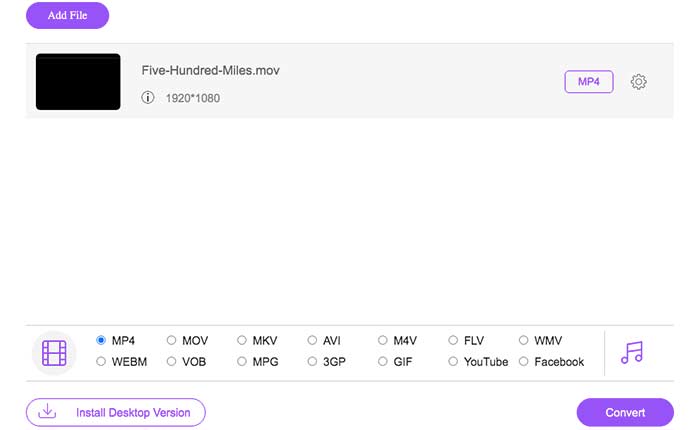
Langkah 1: Buka laman rasmi FVC Free Online Video Converter. Klik pilihan Add Files to Convert. Kali pertama anda menukar video ke MP4 dalam talian, anda perlu memuat turun pelancar FVC.
Langkah 2: Semak imbas dan import video QuickTime anda dalam tetingkap yang muncul.
Langkah 3: MP4 ialah format video keluaran lalai. Jika tidak, anda boleh menukar format keluaran kepada MP4 secara manual di bahagian bawah.
Langkah 4: Klik Convert untuk menukar QuickTime kepada MP4 secara percuma dalam talian.
Bahagian 2: Cara Menukar QuickTime MOV ke MP4 pada Windows
Jika anda mahu menukar video MOV kepada MP4 dengan cepat pada PC, anda boleh menukar sambungan fail. QuickTime MOV ialah format fail bekas video MPEG-4, manakala MP4 juga ialah format fail video MPEG-4. MP4 ialah subset daripada format QuickTime MOV. Oleh itu, anda boleh menukar MOV kepada MP4 pada Windows dengan menukar sambungan secara terus.
Langkah 1: Buka folder yang mengandungi fail MOV anda.
Langkah 2: Pastikan sambungan fail boleh dilihat. Dalam erti kata lain, anda perlu nampak sambungan fail .mov. Jika tidak, anda perlu memaparkan sambungan nama fail secara manual.
Langkah 3: Pilih Rename daripada menu klik kanan.
Langkah 4: Tukar sambungan fail daripada .mov kepada .mp4.
Langkah 5: Tekan kekunci Enter pada papan kekunci anda. Kemudian anda boleh menukar video QuickTime kepada MP4 pada Windows.
Bahagian 3: Cara Menukar Filem QuickTime ke MP4 pada Mac
Bagi pengguna Mac, anda boleh menggunakan iMovie sebagai penukar MOV ke MP4 percuma anda. iMovie tersedia untuk peranti macOS dan iOS. Anda boleh menukar dan mengedit fail QuickTime MOV pada komputer Mac anda dengan mudah. Bahagian ini akan menunjukkan cara menukar QuickTime ke MP4 pada Mac.
Langkah 1: Muat turun, pasang dan buka iMovie pada Mac. Pilih New Movie daripada menu lungsur turun File.
Langkah 2: Klik Import Media untuk menambah filem QuickTime ke dalam iMovie.
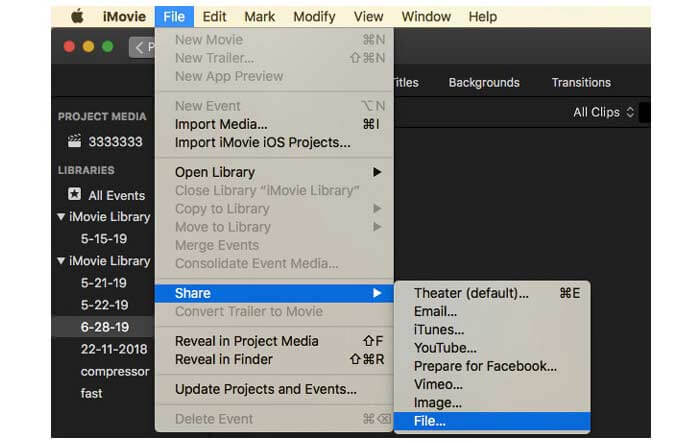
Langkah 3: Pilih video QuickTime MOV yang telah diimport. Kemudian pilih Share daripada senarai lungsur turun File. Pilih File daripada submenu tersebut.
Langkah 4: Laraskan tetapan video keluaran bagi destinasi, resolusi, kualiti dan lain-lain. Klik Next untuk diteruskan.
Langkah 5: Tetapkan nama fail dan folder keluaran. Akhir sekali, klik Save untuk menukar QuickTime kepada MP4 pada Mac dengan iMovie.
Bahagian 4: Cara Menukar Video dari MOV ke MP4 dengan VLC
VLC adalah penukar, sumber dan editor video sumber terbuka dan bebas untuk pelbagai platform. Kedua-dua pengguna mudah alih dan desktop dapat menukar fail MOV ke MP4 secara percuma menggunakan VLC. Oleh itu, anda boleh menukar QuickTime ke MP4 pada iPhone dan Android dengan VLC juga. VLC percuma dan selamat dimuat turun. Anda boleh melayari laman rasminya untuk mendapatkan pakej muat turun yang bersih.
Langkah 1: Jalankan VLC. Pilih Convert/Save daripada senarai Media.
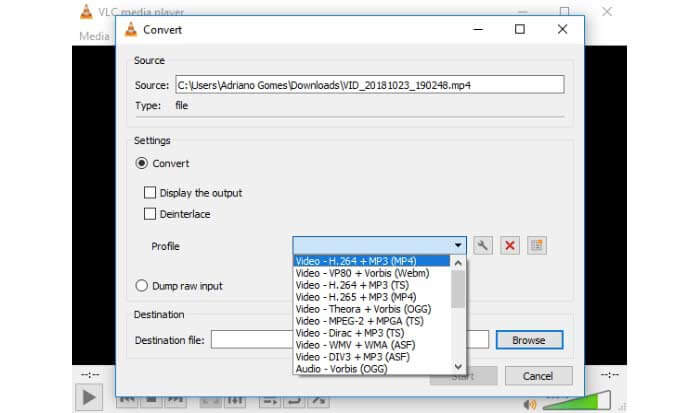
Langkah 2: Dalam tetingkap Open Media, klik Add untuk mengimport video QuickTime MOV. Kemudian klik Convert/Save untuk diteruskan.
Langkah 3: Kembangkan senarai Profile. Pilih Video – H.264 + MP3 (MP4).
Langkah 4: Klik Start untuk mula menukar QuickTime kepada MP4 dengan VLC.
Bahagian 5: Soalan Lazim Menukar QuickTime ke MP4
Bolehkah anda menukar MOV ke MP4 dengan QuickTime?
Tidak. Anda boleh membuka video MOV dengan QuickTime Player. Tetapi tidak disokong untuk menukar video MOV ke MP4 dengan menggunakan QuickTime.
Adakah QuickTime Pro tersedia?
Ya. Versi terbaru adalah QuickTime Player 7. Apple tidak lagi menawarkan peningkatan QuickTime Pro. Anda masih boleh menggunakan QuickTime Player Pro pada komputer Windows atau Mac anda. Tetapi Apple memberikan sokongan kepada QuickTime.
Program apa yang boleh membuka video MOV?
Anda boleh memainkan fail MOV dengan QuickTime Player, iTunes, VLC, Windows Media Player, Adobe Flash dan banyak lagi.
Dengan menggunakan penukar video dalam talian dan luar talian di atas, anda boleh menukar QuickTime kepada MOV secara percuma pada telefon dan komputer anda. Anda boleh menggunakan penukar MOV ke MP4 dalam talian, menukar sambungan fail, iMovie dan VLC untuk menukar format video daripada QuickTime MOV kepada MP4. Jika anda mahu menukar berkelompok QuickTime kepada fail MP4 tanpa aplikasi pihak ketiga, FVC Free Online Video Converter boleh menjadi pilihan pertama anda. Ia 100% selamat dan percuma digunakan. Anda boleh menukar berkelompok video QuickTime kepada MP4 dan format lain dengan kualiti tinggi.
-
 MOV VS MP4 - Mana Yang Lebih Baik
 MOV VS MP4, yang manakah lebih baik? Catatan ini memberitahu perbezaan antara MP4 dan MOV, sehingga anda dapat memperoleh pilihan yang lebih baik untuk digunakan untuk fail video anda.
-
 4 Kaedah Percuma Teratas untuk Menukar MTS ke MOV
 Tidak dapat memainkan fail MTS di komputer atau telefon iPhone / Android anda? Apakah fail MTS dan bagaimana memainkannya? Apakah Penukar Video MTS terbaik? Catatan ini berkongsi 4 cara mudah dan percuma untuk membantu anda menukar MTS ke MOV untuk main semula yang lebih baik.
-
 6 Cara Mudah untuk Menukar TS ke AVI / MKV / MOV / WMV pada Windows / Mac
 Ingin menukar fail TS ke AVI / MKV / MOV / WMV dengan cepat? Artikel ini menunjukkan penukar video dalam talian dan luar talian dengan panduan lengkap. Mungkin anda boleh mendapatkan penukar TS percuma terbaik di sini.
