


 Video Converter Ultimate
 Perakam Skrin
 Pembaikan Video
 Muat Turun Selamat
3 Cara Memainkan Fail MKV di Windows Media Player
Tak dapat buka fail MKV dalam Windows Media Player?
MKV ialah sejenis format video yang popular. Anda mungkin mempunyai banyak filem, rancangan TV atau video berkualiti tinggi lain yang disimpan dalam MKV. Namun begitu, sebagai pengguna Windows, pemain video lalai iaitu Windows Media Player tidak menyokong pemisahan (membuka) bekas MKV secara asli. Sekarang kita kembali kepada soalan, bagaimana untuk memainkan fail MKV dalam Windows Media Center?

Walaupun anda menaik taraf Windows Media Player ke versi terbaru, tidak ada jaminan bahawa anda tidak akan menghadapi masalah bermain MKV. Oleh itu, entri ini ingin berkongsi 3 cara berkesan untuk membantu anda memainkan fail MKV pada PC Windows anda.
Bahagian 1. Cara Membuka Fail MKV di Windows Media Player
Windows Media Player tidak dapat memainkan fail MKV terutamanya disebabkan ketidakpadanan codec. Anda perlu tahu bahawa MKV sebenarnya ialah bekas media untuk strim video, strim audio, sari kata dan banyak lagi. Anda perlu memberikan WMP splitter yang betul untuk MKV, serta codec dan penapis untuk fail video dan audio. Bahagian ini akan membimbing anda memainkan fail MKV dalam Windows Media Player.
Langkah 1. Buka Windows Media Player dan buka fail MKV dengannya. Di sini anda juga boleh klik kanan pada fail MKV dan pilih buka dengan WMP.
Langkah 2. Sekarang anda akan melihat mesej ralat yang menyatakan bahawa Windows Media Player cannot play the file. Klik pilihan Web Help dalam kotak dialog.
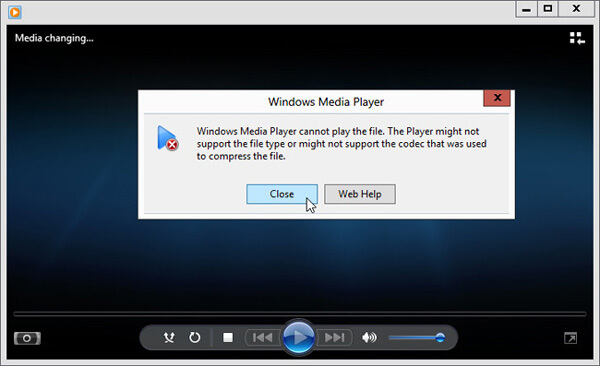
Langkah 3. Klik pautan codec di bawah Codec is Missing. Salin dan tampal pautan tersebut pada pelayar anda. Ini akan membimbing anda mendapatkan codec MKV Windows Media Player yang betul. Selepas memuat turun, anda perlu ikut arahan untuk melengkapkan proses set arahan MKV Windows Media Player.
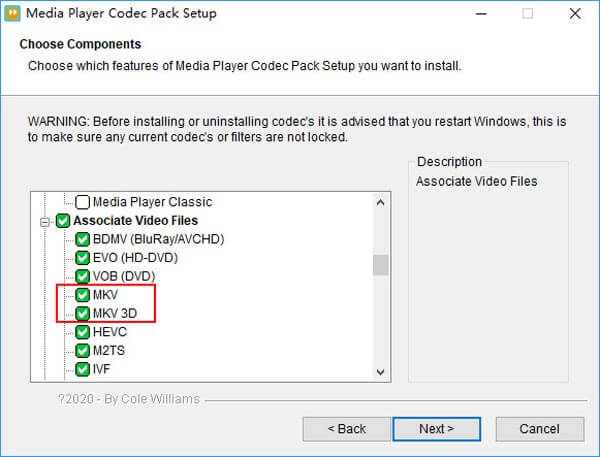
Langkah 4. Mulakan semula Windows Media Player dan kemudian cuba mainkan sekali lagi fail MKV anda.

Bahagian 2. Cara Lebih Baik untuk Memainkan Fail MKV dalam Windows Media Player Alternatif
Dengan codec MKV yang betul, anda boleh membuka fail MKV dengan mudah di Windows Media Player. Walau bagaimanapun, banyak pengguna melaporkan bahawa masih terdapat beberapa masalah main balik yang lain semasa bermain MKV dengan WMP. Sekiranya demikian, anda boleh memilih alternatif Windows Media Player untuk membantu anda memainkan fail MKV.
FVC Free MKV Player ialah alat alternatif yang hebat kepada Windows Media Player. Ia secara asli menyokong sebarang format video dan audio yang kerap digunakan, seperti MKV, MOV, MP4, FLV, AVI, RMVB, MPEG, AAC, MP3, M4A, WMA dan banyak lagi. Anda boleh bergantung padanya untuk menonton filem MKV dengan kualiti tinggi.

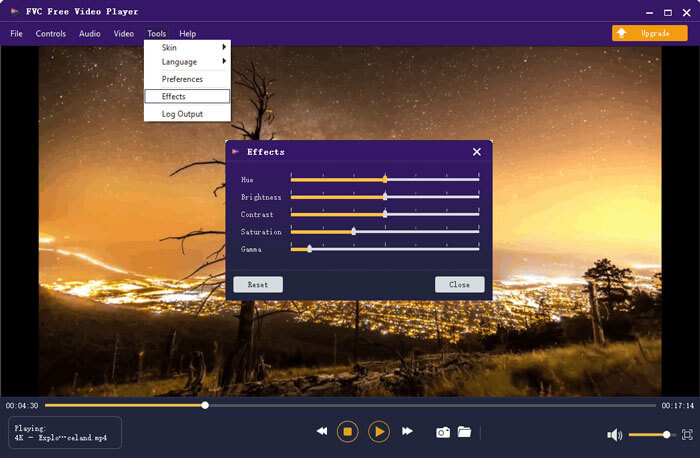
Langkah 1. Buka pelayar anda dan pergi ke laman pemain MKV percuma ini. Klik butang Play Now untuk memasang fail pelancar bersaiz kecil bagi main balik MKV. Selepas itu, tetingkap utama main balik MKV akan muncul pada skrin.

Langkah 2. Klik butang Open File untuk semak imbas dan import fail MKV anda ke dalamnya. Selepas itu, video akan dimainkan secara automatik. Dengan penggunaan teknologi pengekodan video lanjutan, ia boleh memainkan fail MKV dengan lancar dan berkualiti tinggi. Selain itu, ia menyokong DTS-HD dan Dolby TrueHD.

Anda diberi semua kawalan main balik MKV. Selain operasi asas seperti main, jeda, mundur, maju, sesuaikan kelantangan dan banyak lagi, ini juga membolehkan anda menyesuaikan kesan, menukar trek audio dan sari kata, dan tetapan lain yang disesuaikan.
Bahagian 3. Tukar MKV untuk Main semula pada Windows Media Player
Untuk memainkan fail MKV dalam Windows Media Player, anda juga boleh memilih untuk menukar MKV kepada format video yang disokong seperti MP4. Di sini kami perkenalkan Free Online Video Converter untuk membantu anda menukar MKV kepada MP4 tanpa kehilangan kualiti.
Langkah 1. Pergi ke halaman penukar MKV ke MP4 dalam talian percuma ini melalui pelayar anda. Ia serasi dengan mana-mana pelayar web popular termasuk Chrome, IE, Safari dan Firefox.
Langkah 2. Apabila anda sampai di sana, klik butang Add File to Convert. Dalam langkah ini, anda perlu memasang pelancar kecil untuk penukaran MKV. Selepas itu, tetingkap timbul akan muncul pada skrin untuk anda memilih fail MKV anda.
Langkah 3. Anda boleh melihat banyak format video popular seperti MP4, MOV, AVI, MKV, FLV dan lain-lain disenaraikan di sana. Pastikan format keluaran ialah MP4 dan kemudian klik butang Convert.
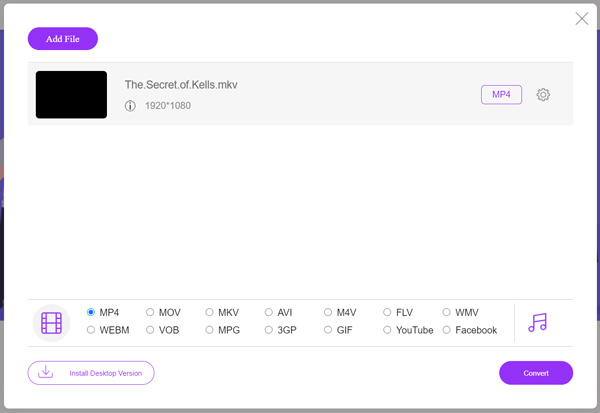
Selepas penukaran MKV ke MP4, anda boleh memainkannya dengan Windows Media Player anda. Tiada sebarang kehilangan kualiti imej atau bunyi semasa penukaran.
Bahagian 4. Soalan Lazim Memainkan MKV di Windows Media Player
Soalan 1. Bagaimana cara mengubah format video pada Windows Media Player?
Buka Windows Media Player dan muatkan fail video yang ingin anda tukar. Klik anak panah kecil di bawah tab Rip di menu atas. Pilih Lagi Pilihan dan kemudian klik menu lungsur yang berlabel Format. Di sini anda boleh memilih format output yang sesuai dan memulakan penukaran.
Soalan 2. Apakah format video Windows Media Player?
Format fail lalai Windows Media Player adalah WMV, Windows Media Video dan WMA, Windows Media Audio. Ia juga menyokong Format Sistem Lanjutan dan format senarai main berdasarkan XML sendiri, Senarai Main Windows.
Soalan 3. Bolehkah Windows 10 memainkan fail MKV?
Tidak. Windows Media Player 12 dalam Windows 10 yang terpasang tidak dapat memainkan fail MKV. Anda perlu memasang codec MKV untuk mendapatkan main semula.
Kesimpulannya
Apabila Windows Media Player tidak dapat memahami codec MKV, ia hanya memaparkan ralat. Untuk memainkan fail MKV dalam Windows Media Player, anda perlu memasang codec yang betul. Selain itu, anda boleh mendapatkan pemain pihak ketiga atau menukar format MKV untuk main balik. Jika anda masih mempunyai sebarang soalan tentang cara untuk buka fail MKV dalam Windows Media Player, jangan teragak-agak untuk tinggalkan mesej kepada kami.
-
 8 Pemain MKV Teratas untuk Memainkan Fail MKV dengan Subtitle Yang Diinginkan
 Apabila anda ingin memainkan video MKV dengan sari kata yang dikehendaki, anda boleh mengetahui lebih lanjut mengenai 8 pemain fail MKV teratas untuk PC / Mac dan memilih yang dikehendaki mengikut kehendak anda.
-
 MKV ke MOV - Cara Menukar MKV ke MOV
 Bagaimana cara menukar MKV ke MOV di Mac? Bolehkah iMovie membaca MKV? Apakah maksud format MOV? Catatan ini memberitahu 2 cara mudah untuk membantu anda menukar MKV ke MOV dengan penukar video dalam talian dan profesional percuma.
-
 Pemain AC3 - Ulasan 10 Pemain AC3 Percuma Terbaik pada tahun 2021
 Apakah pemain AC3 terbaik? Bolehkah MX Player membuka AC3? Catatan ini membuat senarai 10 pemain AC3 percuma untuk peranti Mac, PC Windows, iOS dan Android.
