


 Video Converter Ultimate
 Perakam Skrin
 Pembaikan Video
 Muat Turun Selamat
2 Cara Mudah Memainkan Fail MKV di iPad
Bolehkah saya memainkan fail MKV pada iPad?
Anda tidak boleh memainkan MKV secara terus pada iPad, sama ada anda menggunakan iPad Pro, iPad Air, iPad mini atau iPad 2/4/6/8. MKV ialah sejenis format bekas multimedia yang popular. Tetapi ia tidak disokong oleh semua produk Apple termasuk iPad, iPhone, iPod dan Mac. Jadi bagaimana untuk memainkan MKV pada iPad?

Anda boleh menggunakan ap pihak ketiga untuk memainkan fail MKV pada iPad. Selain itu, anda boleh memilih untuk menukar MKV kepada format yang disokong iPad seperti MP4 atau MOV. Di dalam artikel ini, kami akan berkongsi 2 cara berkesan untuk membantu anda memainkan fail MKV pada iPad Pro, Air, mini dan model lain.
Bahagian 1. Cara Memainkan Fail MKV secara Langsung di iPad dengan VLC
Seperti yang dinyatakan di atas, anda tidak dibenarkan memainkan fail MKV secara terus pada iPad Pro, Air, mini atau iPad 8/6/4/2. Tetapi terdapat beberapa aplikasi pemain MKV pihak ketiga yang ditawarkan di App Store yang boleh membantu anda memainkan MKV pada iPad, iPhone atau iPod touch. Anda boleh bergantung pada pemain media popular, VLC untuk memainkan sebarang video termasuk fail MKV pada peranti iOS anda.
VLC Media Player ialah alat main balik fail media yang sangat popular yang menyokong hampir semua format video yang biasa digunakan termasuk MKV, MOV, MP4, AVI, FLV dan banyak lagi. Ia membolehkan anda memainkan fail media pada komputer Windows, Mac dan Linux. Selain itu, VLC menyediakan aplikasi iOS yang membolehkan anda memainkan fail MKV pada iPad dan iPhone.
Langkah 1. Pergi ke App Store pada iPad anda dan cari VLC. Hasil carian pertama akan ialah VLC for Mobile. Ketik padanya dan kemudian ketik Get untuk memasangnya secara percuma pada iPad anda. Aplikasi VLC ini serasi dengan iPad, iPhone, iPod touch dan Apple TV.
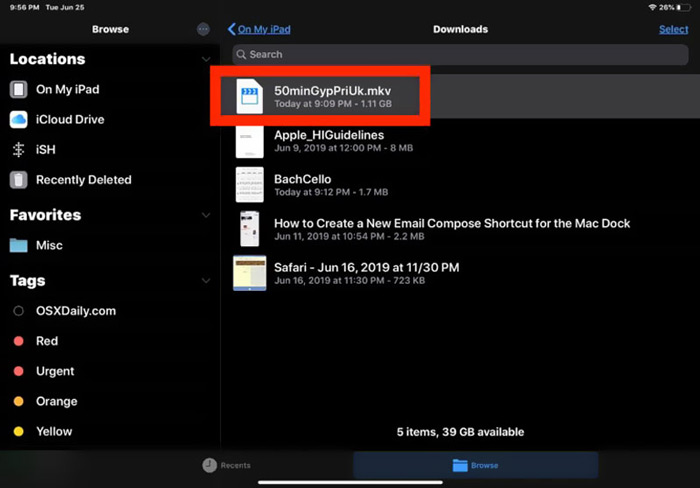
Langkah 2. Ketik ikon VLC untuk membukanya. Kini anda boleh segerakkan fail MKV anda melalui iTunes, perkongsian Wi-Fi atau perkhidmatan awan. Selepas itu, anda boleh melihatnya dalam Video. Di sini anda juga boleh menyemak fail MKV anda dalam aplikasi Files. Pilih fail MKV yang anda mahu mainkan pada iPad dan kemudian ketik butang Share.
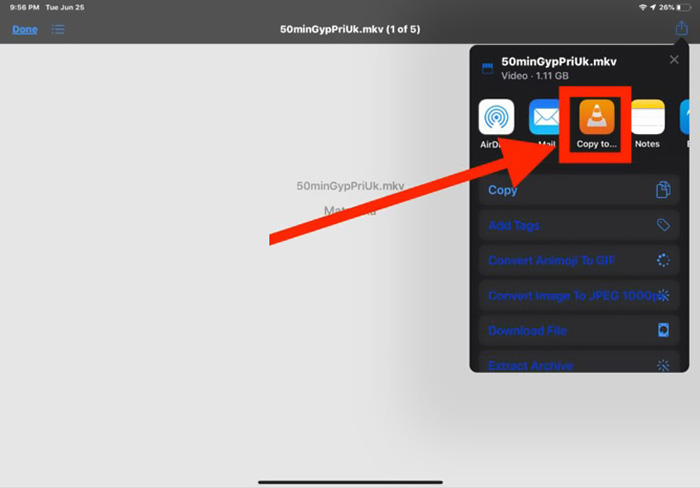
Langkah 3. Pilih pilihan Open in VLC atau Copy to VLC daripada senarai juntai bawah. Kemudian anda boleh memainkan MKV pada iPad dengan aplikasi VLC ini.
Selain fail MKV, anda juga boleh bergantung pada VLC untuk memainkan fail media lain dengan mudah. Sudah tentu terdapat beberapa pemain MKV lain seperti KMPlayer dan banyak lagi yang boleh membantu anda menonton fail MKV pada iPad.
Bahagian 2. Cara Menukar MKV ke MP4 untuk Main semula di iPad
Apabila anda mahu memainkan fail MKV pada iPad, anda juga boleh memilih untuk menukar MKV kepada format video yang disokong iPad seperti MP4 atau MOV. Untuk melakukannya, anda boleh bergantung pada perisian penukar MKV profesional, Free Online Video Converter.
Penukar MKV ke iPad ini sangat menyokong format video dan audio yang sering digunakan. Ia membolehkan anda menukar format yang disokong MKV ke iPad termasuk MOV dan MP4 tanpa kehilangan kualiti. Panduan berikut akan menunjukkan cara menggunakannya untuk menukar MKV ke iPad.
Langkah 1. Buka pelayar anda seperti Chrome, IE, Firefox atau Safari, dan pergi ke laman Free Online Video Converter ini. Apabila anda sampai ke sana, klik Add Files to Convert dan kemudian butang download untuk memasang dengan cepat FVC Launcher bersaiz kecil bagi penukaran MKV.

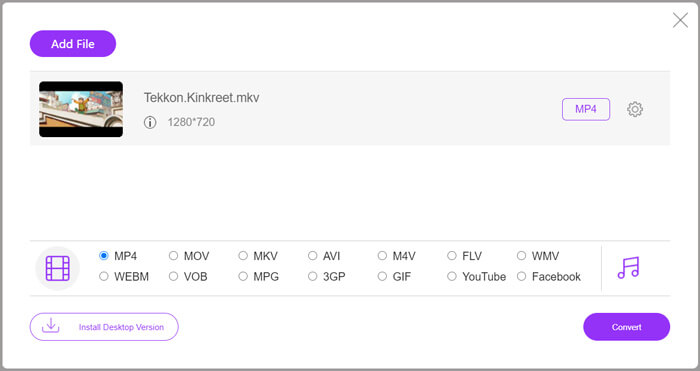
Langkah 2. Akan muncul tetingkap timbul Open File pada skrin untuk anda melayari dan mengimport fail MKV anda. Kemudian anda akan dibawa ke tetingkap penukaran utama. Anda boleh melihat banyak format video popular seperti MP4, MKV, MOV, AVI, FLV, WMV, VOB, WEBM dan banyak lagi disenaraikan di sana. Di sini anda perlu memilih MP4 atau MOV sebagai format keluaran.
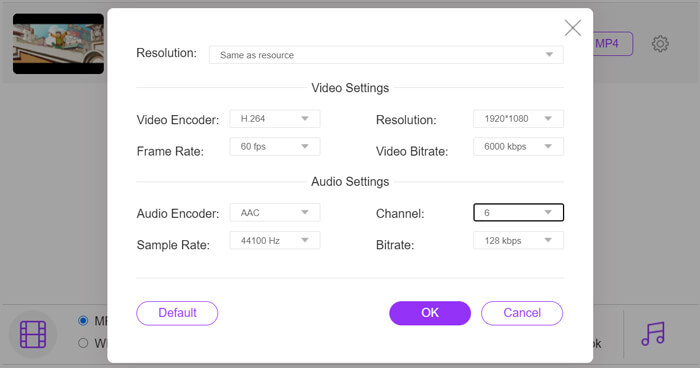
Langkah 3. Sebelum menukar, anda boleh klik ikon Settings di sebelah format keluaran untuk menyesuaikan pelbagai tetapan video dan audio. Di sini anda dibenarkan melaraskan resolusi video, pengekod, kadar bingkai, bitrate, saluran audio, kadar sampel dan banyak lagi. Klik butang OK untuk menyimpan perubahan anda.
Langkah 4. Selepas semua operasi ini, anda boleh klik butang Convert untuk mula menukar MKV kepada MP4. Fail keluaran akan mengekalkan kualiti imej dan bunyi asal sepenuhnya. Kemudian anda boleh memindahkannya ke iPad untuk dimainkan.
Bahagian 3. Soalan Lazim Memainkan Fail MKV pada iPad
Soalan 1. Bolehkah iMovie mengedit fail MKV?
Tidak. Seperti yang kami sebutkan di atas, semua peranti Apple dan perisian yang berkaitan tidak dapat mendukung format MKV. Sebagai editor lalai untuk iPad, iPhone dan Mac, iMovie tidak dapat membuka dan mengedit fail MKV.
Soalan 2. Bolehkah VLC menukar MKV ke MP4?
Ya. VLC Media Player mempunyai keupayaan untuk menukar fail MKV. Anda boleh membuka VLC, klik menu Media dan gunakan ciri Convert / Save. Di tetingkap Buka Media, anda boleh mengklik butang Tambah untuk memuatkan fail MKV anda. Klik butang Convert dan kemudian pilih MP4 sebagai format sasaran. Selepas itu, anda boleh memilih folder tujuan yang sesuai dan menamakan semula fail output. Kemudian anda boleh mengklik butang Mula untuk membuat penukaran video dari MKV ke MP4 dengan VLC.
Soalan 3. Bolehkah Windows 10 memainkan fail MKV?
Anda tidak boleh bergantung pada pemain lalai, Windows Media Player untuk memainkan fail MKV pada PC Windows 10. Apabila anda ingin membuka fail MKV, anda harus bergantung pada beberapa pemain media pihak ketiga seperti VLC, PotPlayer dan banyak lagi.
Kesimpulannya
Selepas membaca artikel ini, anda boleh mendapatkan 2 petua berguna untuk memainkan fail MKV pada iPad. Sama ada anda mahu menonton MKV terus pada iPad, atau menukar MKV kepada format yang disokong iPad, anda boleh mencari alat yang sesuai. Untuk lebih banyak soalan tentang memainkan MKV pada iPad, anda boleh tinggalkan mesej kepada kami.
-
 M2TS ke iPad - Cara Percuma untuk Memainkan Fail Video M2TS di iPad Anda
 Baca dan dapatkan kaedah terbaik untuk menukar M2TS ke iPad. Berikut adalah penukar fail M2TS dalam talian dan luar talian untuk main balik iPad M2TS. Cukup baca dan pilih penyelesaian yang anda suka.
-
 MKV ke MOV - Cara Menukar MKV ke MOV
 Bagaimana cara menukar MKV ke MOV di Mac? Bolehkah iMovie membaca MKV? Apakah maksud format MOV? Catatan ini memberitahu 2 cara mudah untuk membantu anda menukar MKV ke MOV dengan penukar video dalam talian dan profesional percuma.
-
 Tutorial - 4 Cara Percuma untuk Menggabungkan Video di iPhone menjadi Yang Baru
 Baca dan dapatkan 4 cara mudah untuk menggabungkan video di iPhone. Semua model iPhone dan versi iOS disokong. Anda boleh menggabungkan 2 dan lebih banyak video di iPhone menjadi video baru dengan cepat.
