


 Video Converter Ultimate
 Perakam Skrin
 Pembaikan Video
 Muat Turun Selamat
Cara Bermain MP4 di Windows Media Player pada Komputer Windows 10
Kadang-kadang fail MP4 tidak dimainkan di Windows Media Player, tetapi boleh dimainkan pada pemain lain seperti VLC Media Player atau KM Player. Oleh kerana MP4 adalah format video paling popular yang serasi dengan semua pemain media dan peranti multimedia. Anda mungkin menyimpan banyak fail video dalam format MP4. Agak menjengkelkan sekiranya fail MP4 gagal dimainkan di Windows Media Player. Jadi bagaimana memainkan fail MP4 di Windows 10? Tidak perlu risau. Berikut adalah semua penyelesaian untuk memperbaiki Windows Media Player yang tidak memainkan fail MP4.

Bahagian 1. Mengapa Windows Media Player Tidak Memainkan MP4
Menurut Microsoft, tidak semua versi Windows Media Player menyokong format fail MP4. Windows Media Player 7, Windows Media Player untuk Windows XP, Windows Media Player 9 Series, Windows Media Player 10/11 tidak menyokong format fail MP4.
Sekiranya Windows Media Player tidak dapat memainkan klip video MP4, mungkin video MP4 rosak atau rosak. Dalam kes ini, anda boleh mencuba memainkan fail MP4 yang tidak dapat dimainkan di pemain media lain.
Sebab lain bahawa Windows Media Player tidak memainkan MP4 adalah kerana fail MP4 tidak mempunyai pek codec yang sesuai untuknya.
Bahagian 2. Mainkan MP4 dengan Alternatif Terbaik untuk Windows Media Player
Jika video MP4 masih tidak dapat dimainkan, anda boleh beralih kepada pemain media seperti FVC Free Video Player. Ia ialah pemain video dalam talian percuma yang memainkan semua fail multimedia popular seperti MP4, MKV, FLV, MOV, AVI, 3GP, MP3, FLAC, AAC dan sebagainya pada Windows dan Mac. Berdasarkan teknologi HTML 5, anda boleh memainkan sebarang fail video, sama ada daripada komputer tempatan atau yang telah dimuat turun.
Langkah 1. Layari laman web rasmi FVC Free Video Player (https://www.free-videoconverter.net/free-video-player/). Klik butang Play Now untuk memuat turun dan memasang pelancar.

Langkah 2. Klik butang Open File untuk memuatkan fail MP4 yang anda ingin mainkan. Anda juga boleh klik menu File dan pilih Open File untuk menambah fail MP4.

Sebaik sahaja video MP4 dimuat naik, ia akan dimainkan secara automatik pada komputer Windows anda. Jika anda mahu menyunting kesan video, anda boleh klik Tools dan pilih pilihan Effects dan anda boleh melaraskan rona, kecerahan, kontras, ketepuan dan gama untuk menambah baik video anda.

Bahagian 3. Tukar MP4 untuk Main di Windows Media Player
Jika Windows Media Player tidak dapat memainkan fail MP4, satu cara mudah ialah menukar fail MP4 kepada format lain yang disokong oleh Windows Media Player. Anda boleh menggunakan alat penukar video seperti FVC Video Converter Ultimate untuk menukar MP4 kepada format fail lalai untuk Windows Media Player seperti WMV, ASF atau WMA.
Muat Turun PercumaUntuk Windows 7 atau lebih baharuMuat Turun Selamat
Muat Turun PercumaUntuk MacOS 10.7 atau lebih baharuMuat Turun Selamat
Langkah 1. Muat turun, pasang dan lancarkan Video Converter Ultimate secara percuma pada komputer Windows anda. Klik butang Add Files untuk menambah fail MP4 yang anda ingin mainkan.

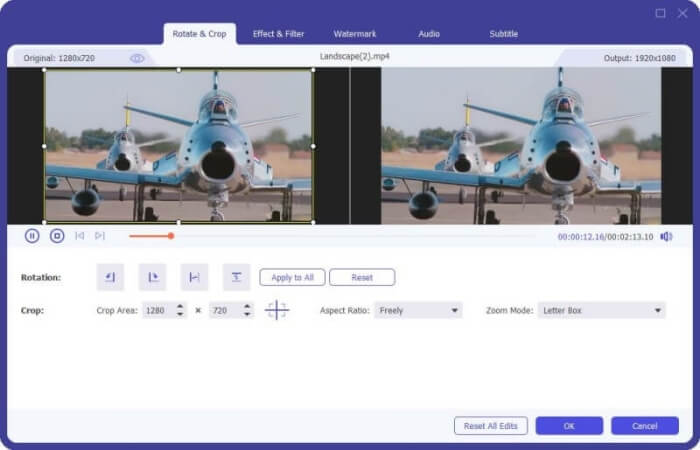
Langkah 2. Jika anda mahu menambah beberapa kesan pada fail MP4 anda, anda boleh klik ikon Edit untuk memasuki antara muka penyuntingan. Di sini anda boleh menambah kesan, menggunakan penapis, memutar atau memotong fail MP4, menambah tera air, melaraskan trek audio dan sarikata.
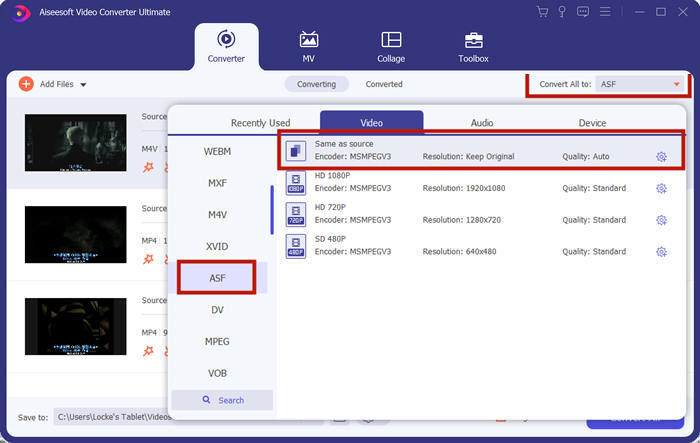
Langkah 3. Kemudian klik anak panah jatuh turun di sebelah Convert All to, pergi ke tab Video dan pilih ASF atau WMV sebagai format keluaran.
Langkah 4. Akhir sekali, tetapkan folder keluaran tempat fail MP4 yang telah ditukar akan disimpan. Klik butang Convert All untuk menukar fail MP4. Selepas penukaran, anda boleh memainkan fail MP4 yang telah ditukar dalam Windows Media Player.

Bahagian 4. Petua Umum untuk Memainkan MP4 di Windows Media Player
Untuk memainkan MP4 pada Windows 10, anda boleh pergi ke folder tempat fail MP4 disimpan. Klik kanan pada fail MP4 yang anda ingin mainkan, pilih Open with dan pilih Windows Media Player. Walaupun caranya mudah, kadangkala anda masih gagal membuka fail MP4 dalam Windows Media Player. Untuk menyelesaikan masalah ini, anda boleh cuba petua berikut.
1. Mainkan MP4 dengan pemain media yang lain
Jika fail MP4 anda tidak dimainkan dalam Windows Media Player, anda boleh cuba pemain media lain untuk membuka fail MP4 tersebut. Terdapat banyak pemain media seperti FVC Free Video Player, VLC Media Player, KM Player, Real Player, GOM Player, BS Player, DivX Player dan banyak lagi.
2. Pasang codec yang betul untuk Windows Media Player
Terdapat codec yang hilang jika Windows Media Player tidak memainkan fail MP4. Untuk menyelesaikan masalah, anda perlu memasang codec yang betul untuk Windows Media Player.
Langkah 1. Buka Windows Media Player. Klik menu Organize dan pilih Options.
Langkah 2. Beralih ke tab Privacy dan tandakan pilihan Download usage rights automatically when I play or sync a file.
Langkah 3. Untuk memainkan fail MP4, anda boleh klik butang OK untuk menyimpan perubahan.
3. Jalankan Penyelesai Masalah pada Windows
Sekiranya MP4 gagal dimainkan di Windows Media Player, anda boleh menggunakan alat Penyelesai Masalah untuk menyelesaikan masalah di Windows 10. Ikuti langkah-langkah untuk menyelesaikan masalah.
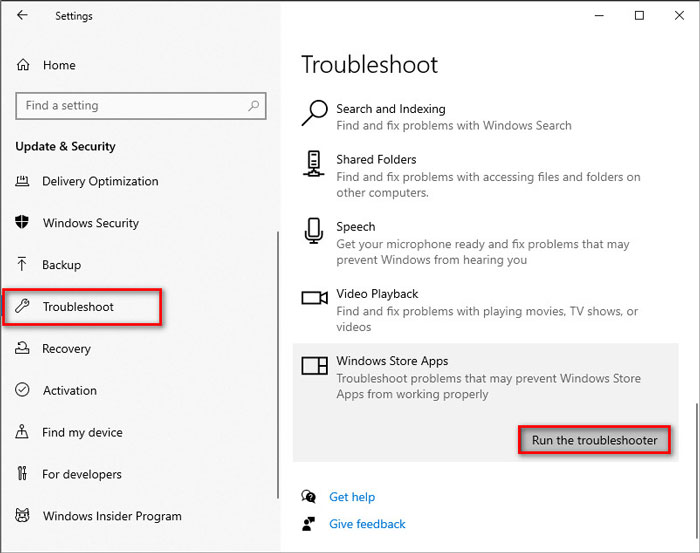
Langkah 1. Pada komputer Windows 10 anda, buka Settings dan pilih Update & Security.
Langkah 2. Pergi ke bahagian Troubleshoot, dan klik Windows Store Apps.
Langkah 3. Klik butang Run the troubleshooter untuk menyelesaikan masalah main balik Windows Media Player.
Bahagian 5. Soalan Lazim Memainkan MP4 di Windows Media Player
Apakah format video lalai Windows Media Player?
Format fail lalai Windows Media Player adalah WMV (Windows Media Video) dan WMA (Windows Media Audio). Ia juga menyokong ASF (Format Sistem Lanjutan) dan format senarai main berdasarkan XML sendiri, Senarai Main Windows.
Apakah Pemain MP4 yang terbaik?
Terdapat banyak pemain MP4 popular di pasaran, termasuk FVC Free Video Player, VLC Media Player, KM Player, QuickTime Player, RealPlayer, Media Player Classic, GOM Player, PotPlayer dan banyak lagi.
Bolehkah saya memainkan MKV di Windows Media Player?
Windows Media Player 12 terbina dalam Windows 10 tidak menyokong main balik MKV. Anda perlu memasang codec yang sesuai untuk main balik.
Kesimpulannya
MP4 adalah format multimedia digital yang paling popular yang biasanya digunakan untuk menyimpan video dan audio. Mengecewakan sekiranya fail MP4 gagal dimainkan di Windows Media Player. Harap anda dapat memainkan fail MP4 anda dengan lancar di Windows 10 dengan semua petua dan penyelesaian kami. Anda boleh mencuba pemain video lain seperti Pemain Video Percuma FVC untuk memainkan fail MP4 anda.
-
 Cara Memainkan Fail MP4 di Google Drive
 MP4 tidak bermain di Google Drive saya? Bagaimana cara memainkan fail MP4 di Google Drive? Catatan ini memberitahu 3 cara untuk memainkan video MP4 di Google Drive.
-
 Mainkan Fail MP4 di Chromebook 2021
 Bolehkah anda memainkan video di Chromebook? Bagaimana cara memainkan fail MP4 dari USB di Chromebook? Catatan ini berkongsi 3 cara untuk memainkan MP4 di Chromebook.
-
 Cara Bermain DVD pada Windows Media Player pada tahun 2021
 Mengapa DVD saya tidak dimainkan pada Windows Media Player? Bagaimana cara memainkan DVD pada pemain media Windows 7? Catatan ini berkongsi 3 cara untuk memainkan DVD dengan atau tanpa WMP.
