


 Video Converter Ultimate
 Perakam Skrin
 Pembaikan Video
 Muat Turun Selamat
Cara Membetulkan Bunyi pada iPhone Tidak Berfungsi [3 Cara Mudah]
Pernahkah anda cuba pelbagai cara untuk memulihkan semula bunyi dalam video iPhone anda, tetapi audio masih juga tidak berfungsi? Sebenarnya, bukan tiada jalan penyelesaian untuk masalah bunyi video pada iPhone anda. Cuma cara yang anda guna sebelum ini mungkin tidak tepat. Oleh itu, dalam artikel ini, kami akan melihat 3 cara paling mudah untuk membetulkan masalah iPhone saya tiada bunyi pada video. Kami faham masalah ini sangat menjengkelkan dan mengecewakan. Jadi, jika anda sedang mengalaminya dan tidak sabar mahu menyelesaikan isu bunyi pada video iPhone anda, bacalah artikel ini, fahami mengapa audio tidak dimainkan pada video anda, dan selesaikan masalah mengikut puncanya.

Bahagian 1. Mengapa iPhone Saya Tiada Bunyi pada Video
Mengapa iPhone saya tidak mempunyai bunyi pada video adalah persoalan dan masalah yang dihadapi oleh ramai orang. Nah, terdapat pelbagai sebab mengapa ini berlaku, tetapi adakah anda benar-benar faham mengapa ini biasanya berlaku? Berikut ialah sebab iPhone tidak mempunyai bunyi semasa memainkan video:
Video iPhone Tiada Bunyi dalam Foto
Foto ialah aplikasi pengurusan dan penyuntingan foto yang terkenal dibuat oleh Apple. Di situlah pengguna boleh menyimpan foto dan video mereka, melihat dan mengeditnya, dan banyak lagi! Walaupun Foto ialah platform yang mempunyai reputasi baik untuk melihat dan memainkan video, dalam beberapa keadaan memainkan video pada aplikasi ini tidak mempunyai bunyi. Berikut ialah beberapa punca mengapa video iPhone tidak mempunyai bunyi dalam Foto:
• Kelantangan mungkin dibisukan atau terlalu rendah. Pastikan volum iPhone dinaikkan dan suis dering tidak ditetapkan kepada mod senyap.
• Fail video mungkin rosak, menyebabkan trek audio tidak berfungsi atau langsung tidak dimainkan.
• Mungkin terdapat isu perisian atau pepijat dalam apl Photos yang menghalang bunyi daripada dimainkan.
• Apl Photos mungkin sukar membaca codec audio video, terutamanya jika format tersebut tidak disokong sepenuhnya.
• iPhone mungkin disambungkan kepada peranti Bluetooth, seperti set kepala atau pembesar suara yang tidak sedang digunakan, menyebabkan bunyi dialihkan ke peranti tersebut.
Video iPhone Tiada Bunyi dalam Roll Kamera
Apabila merakam terus pada iPhone anda, anda boleh pratonton video anda dengan memainkannya daripada gulungan kamera anda. Walau bagaimanapun, sesetengah pengguna iPhone tidak mengalami bunyi apabila memainkan video mereka dari gulungan kamera mereka, menyebabkan mereka berasa jengkel dan bingung mengapa video mereka tidak mempunyai bunyi. Berikut ialah beberapa sebab bunyi pada iPhone tidak berfungsi apabila dimainkan dalam gulungan Kamera:
• Mikrofon mungkin telah tersekat atau tidak berfungsi semasa rakaman, mengakibatkan tiada audio dirakam.
• Jika iPhone anda berada dalam mod Jangan Ganggu (Do Not Disturb), ia mungkin menghalang bunyi daripada dimainkan apabila video dipratonton dalam Camera Roll.
• iPhone mungkin berada dalam mod senyap, yang boleh menyebabkan video dimainkan tanpa bunyi.
iPhone Tiada Bunyi Memainkan Video dalam IG
Memainkan video di Instagram kadangkala boleh menimbulkan masalah. Sesetengah mengalami ketidakupayaan untuk memainkan video; terdapat beberapa keadaan di mana hanya bunyi yang tidak dimainkan apabila video dimainkan di IG. Sekarang, untuk lebih memahami mengapa ini berlaku, berikut ialah sebab mengapa iPhone tidak mempunyai bunyi memainkan video dalam IG:
• Instagram mungkin membisukan video secara lalai, dan pengguna perlu mengetik ikon pembesar suara untuk mengaktifkan bunyi.
• Volum di dalam apl Instagram mungkin direndahkan atau dibisukan, berasingan daripada volum sistem iPhone.
• Mungkin terdapat gangguan sementara atau pepijat dalam apl Instagram yang memerlukan apl itu dimulakan semula atau dikemas kini.
• Sambungan rangkaian yang lemah atau tidak stabil mungkin menyebabkan video dimuat dengan tidak betul, lalu tiada bunyi keluar.
• iPhone mungkin ditetapkan kepada mod senyap atau bergetar, yang boleh menjejaskan keluaran bunyi dalam apl Instagram.
Bahagian 2. Penyelesaian untuk Membetulkan Tiada Bunyi pada iPhone Tidak Berfungsi
Sekarang setelah anda memahami beberapa sebab mengapa iPhone anda tidak mempunyai bunyi pada video, tiba masanya untuk mengetahui cara menyelesaikan masalah ini.
Kaedah 1: Menggunakan Pembaikan Video FVC
Apabila iPhone anda tiada bunyi pada video kerana anda memainkan video yang rosak, penyelesaian terbaik untuk masalah ini adalah dengan menggunakan alat FVC Video Repair. Kita semua tahu apabila video rosak, ia bukan sahaja menjejaskan kebolehtontonan video, malah memberi kesan kepada audio, hingga menyebabkan masalah seperti tiada bunyi. Kerosakan pada fail video boleh mengganggu penyegerakan antara trek audio dan video atau malah memadam dan mengganggu trek audio sepenuhnya, lalu menyebabkan video dimainkan dalam keadaan senyap. Sehubungan itu, alat FVC Video Repair direka untuk menangani masalah ini dengan memulihkan integriti visual video dan audio yang mengiringinya, memastikan pengalaman tontonan yang lancar dan penuh bunyi.
Langkah 1. Mula-mula, layari laman web rasmi mereka. Kemudian, Muat Turun alat tersebut dan Pasang pada peranti anda.
Muat Turun PercumaUntuk Windows 7 atau versi lebih baharuMuat Turun Selamat
Muat Turun PercumaUntuk MacOS 10.7 atau versi lebih baharuMuat Turun Selamat
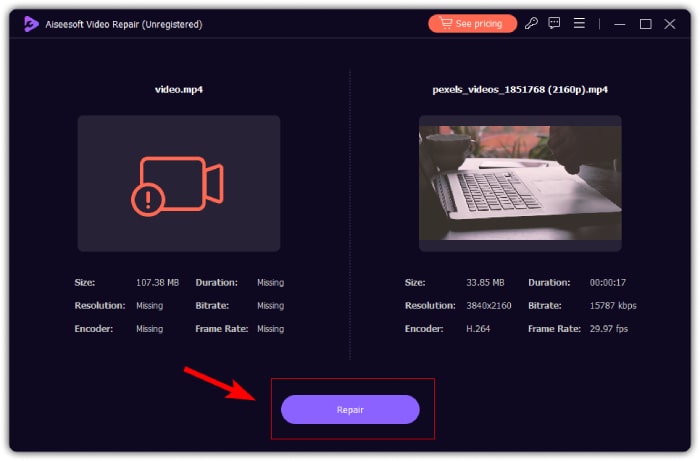
Langkah 2. Seterusnya, tambahkan video yang rosak dengan mengklik butang Tambah Merah (Red Plus), sama seperti anda mengklik butang Tambah Biru (Blue Plus) untuk menambah video sampel. Selepas itu, klik butang Repair untuk mula membaiki masalah audio.
Langkah 3. Akhir sekali, klik butang Preview untuk pratonton video yang telah dibaiki dan semak sama ada audio telah dipulihkan. Apabila proses pembaikan berjaya, anda boleh menyimpannya dengan mengklik butang Save.
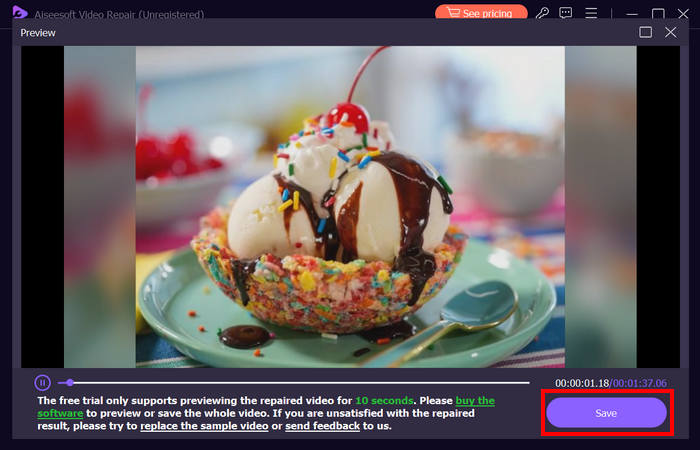
Pembaikan Video FVC benar-benar boleh membetulkan iPhone tiada bunyi pada masalah video. Dengan algoritma AI terkini dan pengesanan automatik maklumat penting dan membetulkannya secara langsung, ia boleh memulihkan bunyi video pada iPhone anda dengan berkesan.
Kaedah 2: Menggunakan FVC Picked Video Converter Ultimate
Sementara itu, jika masalah anda disebabkan trek audio yang hilang, iaitu komponen audio video anda sama ada hilang, rosak, atau tidak dikodkan dengan betul, anda boleh menggunakan Video Converter Ultimate pilihan FVC. Alat ini boleh membantu anda membetulkan trek audio yang hilang dengan menukar video anda kepada format yang serasi. Untuk membetulkan masalah iPhone tidak memainkan bunyi akibat trek audio yang hilang, ikuti langkah di bawah:
Langkah 1. Jika anda belum memasang alat ini pada komputer, muat turun dan pasang dahulu pada peranti komputer anda.
Muat Turun PercumaUntuk Windows 7 atau lebih baharuMuat Turun Selamat
Muat Turun PercumaUntuk MacOS 10.7 atau lebih baharuMuat Turun Selamat
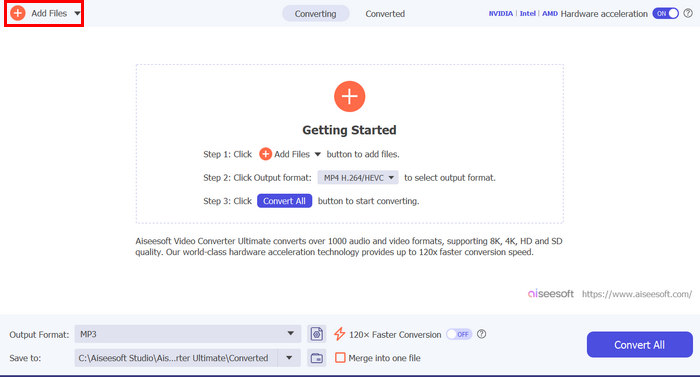
Langkah 2. Seterusnya, tambahkan video yang bunyinya tidak dimainkan pada iPhone anda dengan mengklik butang Add Files.
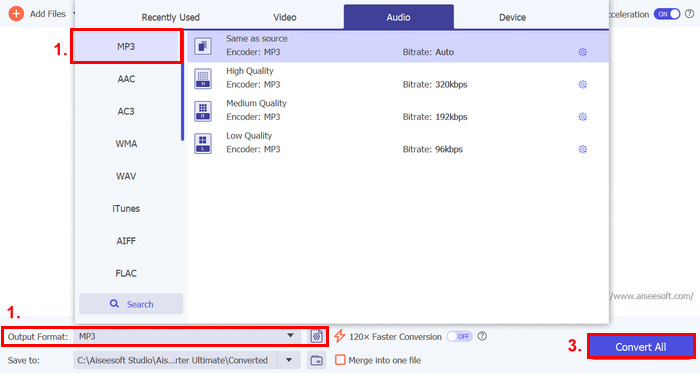
Langkah 3. Sekarang, klik pada Output Format, pilih MP3, dan pilih daripada menu format audio yang anda mahu untuk video anda. Akhir sekali, klik butang Convert All untuk menyimpan fail anda.
Alat Video Converter Ultimate pilihan FVC berciri penuh ini benar-benar merupakan alat pergi ke untuk sebarang masalah berkaitan video dan audio. Tanpa mengira masalah, sama ada fail yang rosak, codec yang salah atau format yang tidak disokong, alat ini benar-benar boleh membantu.
Kaedah 3: Mulakan semula iPhone
Jika iPhone anda mengalami beberapa isu sistem yang menjejaskan audio semasa memainkan video, anda boleh mulakan semula iPhone anda. Dengan cara ini, anda boleh memuat semula sistem pengendalian peranti, yang boleh menghapuskan gangguan sementara atau pepijat yang mungkin menyebabkan masalah bunyi. Begini cara anda hanya boleh memulakan semula iPhone anda untuk membetulkan iPhone tiada bunyi pada masalah video:
Untuk iPhone X dan lebih baharu
Langkah 1. Untuk menghidupkan semula iPhone anda, tekan dan tahan butang sisi dan salah satu butang volum sehingga penggelongsor kuasa (power-off slider) muncul pada skrin.
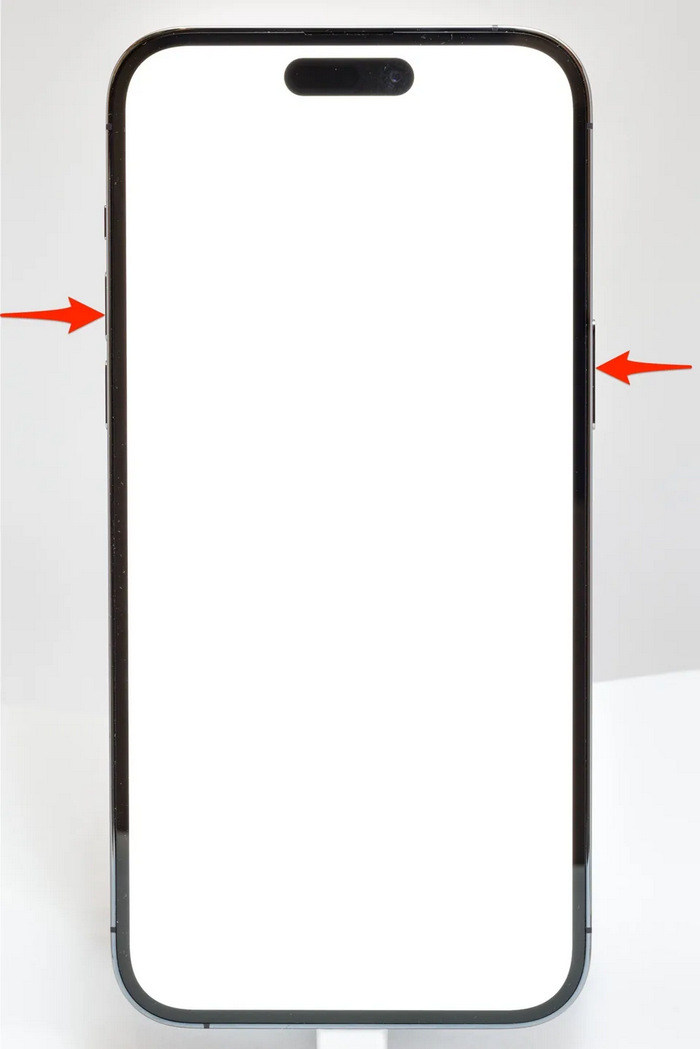
Langkah 2. Luncurkan penggelongsor tersebut supaya iPhone anda dimatikan.
Langkah 3. Sekarang, untuk menghidupkannya semula, tekan butang sisi.
Untuk iPhone 6, 7, 8 dan SE
Langkah 1. Mula-mula, anda perlu menekan dan menahan butang sisi.
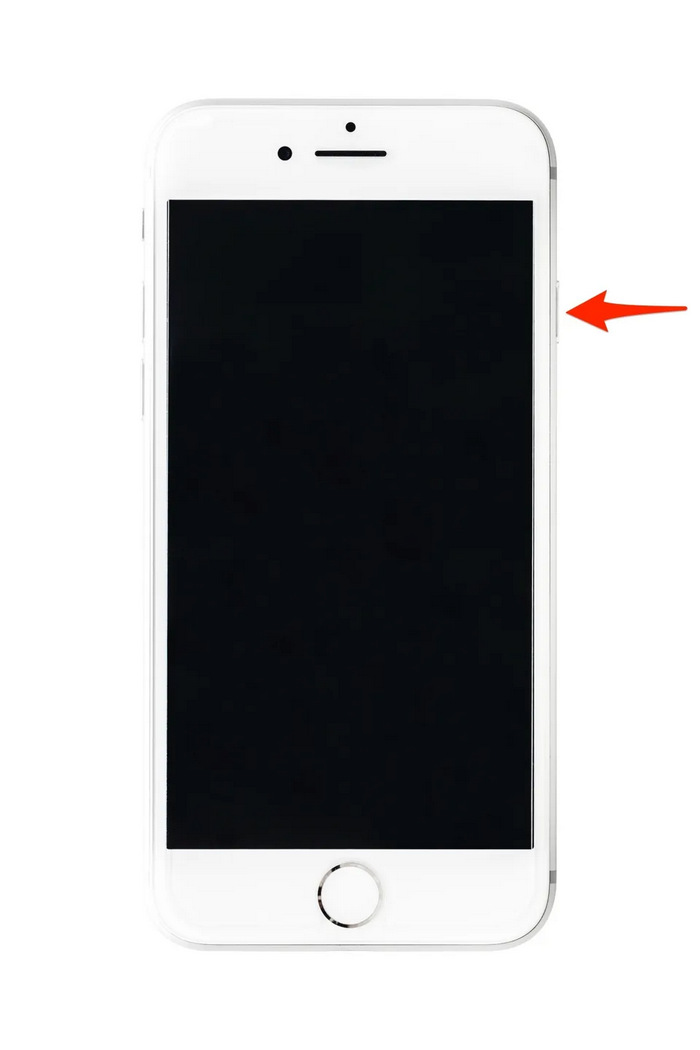
Langkah 2. Tunggu sehingga penggelongsor kuasa muncul dan luncurkan penggelongsor untuk mematikan peranti.
Langkah 3. Sekarang, untuk menghidupkannya semula, tekan butang sisi.
Kaedah ini mudah dilakukan dan tidak memerlukan anda menggunakan sebarang alat pihak ketiga. Walau bagaimanapun, ini adalah penyelesaian yang sangat asas dan biasa, dan mereka tidak menjamin pembaikan penuh untuk iphone ini tidak mempunyai bunyi pada masalah video.
Bahagian 3. Soalan Lazim tentang Pembaikan Stellar untuk Video
iPhone manakah yang menyokong bunyi Dolby Vision atau DTS?
iPhone daripada siri iPhone 12 dan lebih baharu menyokong Dolby Vision, yang meningkatkan kualiti video dengan warna dan kontras yang lebih baik. Walau bagaimanapun, iPhone tidak menyokong bunyi DTS secara langsung, kerana ia menggunakan teknologi audio lain seperti Dolby Atmos.
Bolehkah anda bermain FLAC auan dio pada iPhone?
Ya, anda boleh memainkan audio FLAC pada iPhone anda, tetapi anda memerlukan apl pihak ketiga seperti VLC atau pemain audio khusus, kerana apl Muzik terbina dalam iPhone tidak menyokong FLAC secara asli.
Adakah video akan memainkan bunyi dalam mod senyap pada iPhone?
Tidak, video tidak akan memainkan bunyi jika iPhone anda berada dalam mod senyap. Untuk mendengar bunyi, anda perlu mematikan mod senyap dengan membalikkan suis pada sisi iPhone anda.
Kesimpulannya
Punca masalah iPhone tiada bunyi pada video adalah berbeza-beza, begitu juga dengan penyelesaiannya. Kini setelah anda tahu cara membetulkannya, semoga anda tidak berputus asa jika suatu masa nanti anda mengalaminya lagi. Buat masa ini, jika anda menghadapi masalah yang sama, anda boleh cuba mana-mana kaedah yang dihuraikan dalam artikel ini.
-
 2 Kaedah Teratas untuk Menukar FLV ke Video iPhone secara Percuma
 Panduan konkrit ini berkongsi dua cara mudah untuk membantu anda mempelajari cara menukar fail FLV ke video iPhone atau banyak format lain tanpa membayar sesen pun.
-
 [Diselesaikan] Cara Membetulkan Video Tidak Dimainkan pada iPhone dengan Langkah Terperinci
 Video tempatan di galeri tidak dapat dimainkan di iPhone anda melalui pemain video lalai? Video YouTube dalam talian yang tidak dimainkan di iPhone selalu berlaku? Berikut adalah 5 penyelesaian untuk membantu anda dalam artikel ini.
-
 Panduan Konkrit untuk Memuat Naik Video FLV Anda ke YouTube
 Muat naik FLV ke YouTube tetapi gagal? Anda boleh menyelesaikan masalah ini dengan sendiri dan menukar FLV ke codec yang disokong oleh YouTube mengikut panduan langkah demi langkah kami.
