


 Video Converter Ultimate
 Perakam Skrin
 Pembaikan Video
 Muat Turun Selamat
VLC Rip DVD: Cara Mudah Menukar DVD Menggunakan VLC [2024]
Sudah tentu, menonton filem pada pemain DVD pernah menjadi sebahagian daripada hidup anda? Beritahu kami, di manakah anda menonton kartun atau filem pertama anda semasa anda masih kecil? Rasa nostalgia kan? Hari ini, dengan Netflix mengatasi semua platform penstriman media, menonton filem tidak pernah menjadi lebih mudah dan lebih mudah diakses berbanding sebelum ini. Dengan ini, banyak cakera kini terlepas pandang, menunggu untuk busuk dari masa ke masa.
Sekarang, jika anda sedang mencari cara untuk menyimpan koleksi anda, satu‑satunya cara yang boleh anda lakukan ialah merakam (rip) setiap satunya dengan bantuan VLC. VLC ialah pemain multimedia percuma yang membolehkan pengguna memainkan, menukar dan membaiki pelbagai jenis video. Selain itu, alat ini boleh merakam DVD, iaitu mengekstrak kandungan media daripadanya. Sehubungan dengan itu, dalam artikel ini, kami telah menyediakan panduan yang boleh membantu anda merakam DVD menggunakan VLC. Di samping itu, satu alternatif kepada VLC menanti di penghujung artikel yang mungkin menawarkan fungsi yang lebih mudah dan lebih hebat. Jadi, apa yang anda tunggu? Tatal ke bawah sekarang dan selami artikel ini.

Bahagian 1. Rip DVD pada VLC
VLC ialah aplikasi perisian pemain media yang tersedia untuk pengguna Windows, macOS dan Linux. Alat ini terkenal dengan ciri facetnya, membolehkan pengguna bukan sahaja memainkan pelbagai video melaluinya, tetapi juga untuk merobek DVD menjadikannya lebih mudah diakses dan dimainkan merentas peranti yang berbeza. Apa yang dilakukan oleh alat ini ialah ia mengekstrak kandungan daripada cakera dan kemudian menukarnya menjadi fail video digital yang boleh disimpan atau dikongsi dengan mudah.
Harga: 100% percuma
Berikut ialah panduan langkah demi langkah tentang cara merakam DVD menggunakan VLC:
Langkah 1: Mula-mula, anda perlu memuat turun dan memasang VLC pada peranti anda. Selepas itu, masukkan cakera.
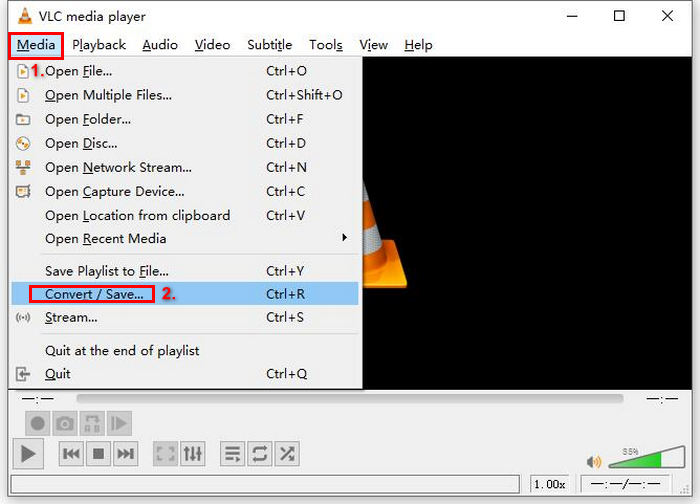
Langkah 2: Seterusnya, pergi ke tab Media dan pilih pilihan Convert/ Save daripada senarai.
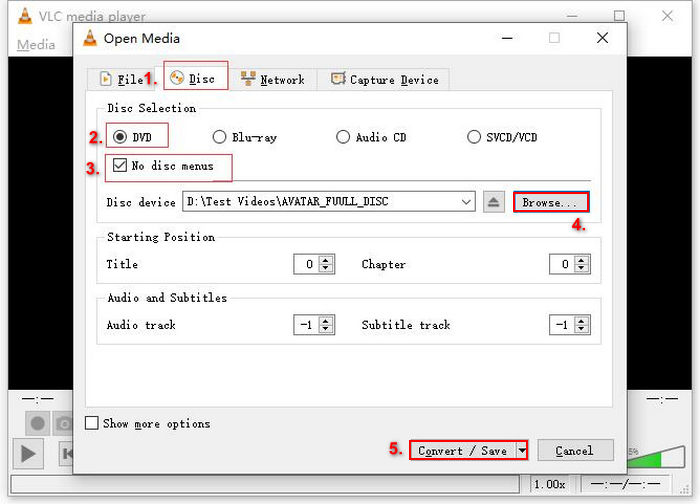
Langkah 3: Selepas itu, klik Disc daripada tab bahagian atas, aktifkan pilihan DVD, dan pilih DVD yang anda ingin rakam di bawah Disc device.
Langkah 4: Sekarang, klik butang Convert/ Save dan tetapkan format keluaran kepada MKV dengan mengklik menu juntai bawah profil di bahagian bawah.
Langkah 5: Selepas itu, dalam bahagian Destination di bawah, klik Browse, pilih folder dan berikan nama pada fail keluaran.
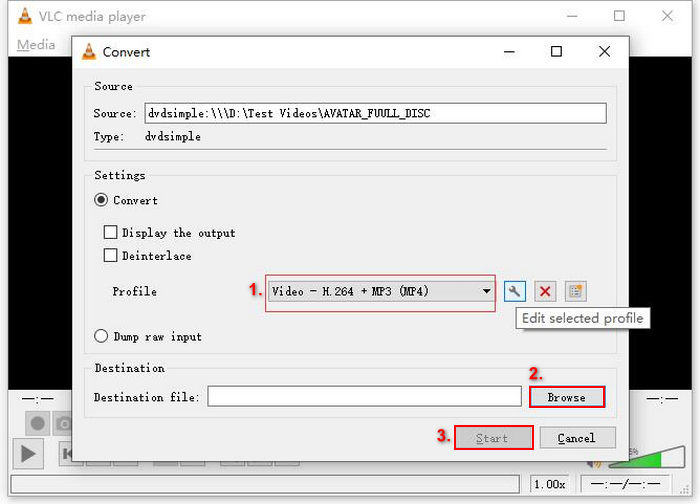
Langkah 6: Apabila semuanya telah ditetapkan, klik butang Start untuk merakam DVD dengan VLC.
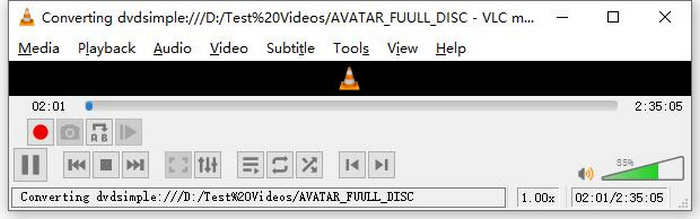
Nota: Anda boleh melihat bar kemajuan Converting di bahagian bawah. Hanya tunggu sehingga VLC selesai merakam.
Komen:
Apa yang kami gemari tentang VLC Media Player ialah ia benar-benar boleh dipercayai dan serba boleh, terutamanya untuk pengguna yang mencari pilihan percuma untuk merobek DVD. Walau bagaimanapun, walaupun ciri ini, antara mukanya boleh menjadi sedikit teknikal untuk pemula, dan prosesnya mungkin kelihatan panjang berbanding perisian ripper DVD yang lebih khusus dan berdedikasi. Selain itu, ia mungkin bergelut dengan beberapa cakera yang dilindungi salinan, mengehadkan keberkesanannya dalam kes tersebut. Namun begitu, masih disyorkan untuk merobek DVD pada VLC.
Bahagian 2. Alternatif VLC DVD Ripper
Jika anda sedang mencari alat alternatif untuk menyalin DVD selain VLC, AnyMP4 DVD Ripper adalah yang sesuai untuk anda. Alternatif penyalin DVD VLC ini ialah alat berciri lengkap yang menyokong beberapa format output video yang digunakan secara meluas, termasuk MP4, MOV, AVI, MKV dan banyak lagi. Dengan ini, anda boleh menukar DVD kepada format digital dengan mudah untuk dimainkan pada pelbagai peranti tanpa kehilangan kualiti. Keupayaannya dalam menyalin DVD adalah luar biasa, menyokong penukaran sebarang DVD, seperti DVD buatan sendiri, komersial, senaman dan 99 tajuk.
Muat Turun PercumaUntuk Windows 7 atau versi lebih baharuMuat Turun Selamat
Muat Turun PercumaUntuk MacOS 10.7 atau versi lebih baharuMuat Turun Selamat
Langkah-langkah untuk menyalin DVD menggunakan AnyMP4 DVD Ripper:
Langkah 1: Mula-mula, anda perlu memuat turun dan memasang alat tersebut pada peranti anda. Jangan lupa untuk memasukkan DVD ke dalam pemacu DVD pada komputer anda dan tunggu beberapa minit sehingga ia dikesan.
Muat Turun PercumaUntuk Windows 7 atau versi lebih baharuMuat Turun Selamat
Muat Turun PercumaUntuk MacOS 10.7 atau versi lebih baharuMuat Turun Selamat
Langkah 2: Sekarang, lancarkan alat tersebut dan klik "Load DVD" untuk memuatkan cakera.
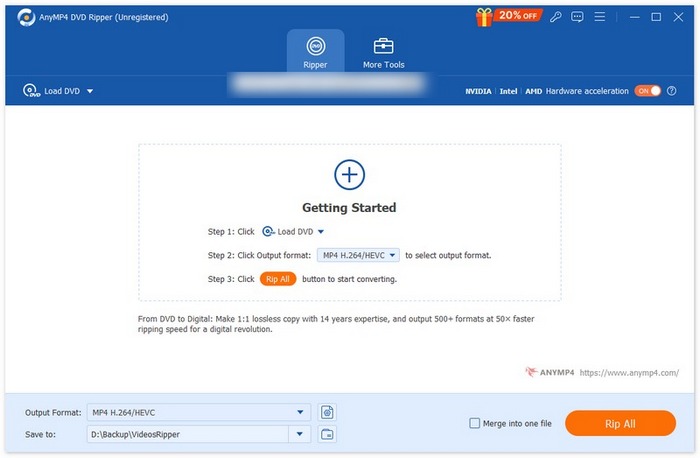
Langkah 3: Selepas itu, klik pada "Output Format" di bawah dan pilih format video yang anda inginkan daripada tab "Video". Dengan proses ini, anda boleh menukar DVD anda kepada format fail video yang lebih mudah diakses dan disokong oleh pelbagai peranti. Setelah selesai, hanya klik butang "Rip All" untuk mula merakam DVD anda.

Lebih mudah, bukan? AnyMP4 DVD Ripper sememangnya alternatif yang hebat kepada ripper DVD VLC. Daripada antara muka, proses ripping dan ciri-ciri lain yang diperlukan, alat ini merupakan pengubah keadaan dan jauh lebih baik daripada cara VLC menyalin DVD.
Bahagian 3. Soalan Lazim tentang Ripping DVD pada VLC
Apakah format terbaik untuk merobek DVD?
Format terbaik untuk merobek DVD bergantung pada peranti pengguna. Walau bagaimanapun, MP4 ialah format video yang meluas dan biasa digunakan. Jadi, apabila merobek DVD, format paling selamat yang boleh anda pilih ialah MP4.
Bolehkah saya merobek DVD pada Windows 7?
ya. Anda boleh merobek DVD pada Windows 7 menggunakan VLC Media Player. VLC menyokong pelbagai sistem pengendalian, termasuk Windows 7. Apabila ia datang untuk merobek DVD pada VLC, ikuti sahaja proses yang sama seperti yang anda lakukan pada versi Windows yang lain. Tetapi pastikan pemacu DVD anda berfungsi dan VLC adalah terkini untuk mengelakkan masalah keserasian.
Berapa lama masa yang diambil untuk merobek DVD?
Masa yang diambil untuk merakam DVD berbeza-beza bergantung pada beberapa faktor. Anda perlu mempertimbangkan saiz DVD, kelajuan pemacu DVD anda dan tetapan yang anda pilih untuk rakaman, contohnya resolusi, format dan sebagainya. Namun secara umumnya, merakam DVD standard boleh mengambil masa antara 20 minit hingga lebih satu jam. Rakaman berkualiti lebih tinggi dan saiz fail yang lebih besar biasanya mengambil masa yang lebih lama untuk diproses. Jika anda ingin mengetahui kelajuan main balik VLC, semak di sini.
Bolehkah saya merobek DVD yang dilindungi salinan dengan VLC?
Tidak. Sukar bagi mana-mana perisian untuk merobek DVD yang dilindungi salinan disebabkan oleh penyulitan dan perlindungan pengurusan hak digital.
Kesimpulannya
Sekarang setelah anda tahu cara merakam DVD menggunakan VLC, tidak ada lagi sebab untuk anda menyimpan semua DVD anda selama-lamanya. Hanya ikut panduan ini, dan anda boleh menukar semua cakera anda kepada fail digital yang boleh anda mainkan di mana-mana dan pada mana-mana peranti yang anda mahu. Sementara itu, jika VLC tidak berfungsi pada pihak anda, anda boleh cuba AnyMP4 DVD Ripper sebagai alternatif. Adakah anda teruja dengannya? Jom kita selami dan mula merakam.
-
 Cara Menstrim Filem DVD dari PC / Mac ke TV melalui Chromecast
 Tidak tahu cara menonton filem DVD di TV melalui Chromecast? Artikel ini menunjukkan cara paling mudah untuk menghantar filem DVD anda dari PC ke TV melalui Chromecast.
-
 Pemain DVD Android - Cara Memainkan Video DVD di Android Mobiles
 Bagaimana cara memainkan fail DVD di telefon bimbit Android? Adakah terdapat pemain DVD Android? Dalam artikel ini, anda akan belajar mengenai 3 cara untuk memainkan video DVD di telefon bimbit Android dengan atau tanpa pemacu luaran.
-
 3 Alternatif Terbaik untuk Pemain DVDFab untuk Memainkan Video DVD di PC
 Adakah Pemain DVDFab layak dibeli? Bolehkah ia memainkan video 4K? Bagaimana dengan versi berbayarnya? Artikel ini akan memperkenalkan ciri-cirinya secara terperinci dan terdapat 3 alternatif terbaik untuk Pemain DVDFab untuk anda pilih.
