


 Video Converter Ultimate
 Perakam Skrin
 Pembaikan Video
 Muat Turun Selamat
Bar Permainan Tidak Dapat Dirakam? Inilah Sebabnya dan Cara Memperbaikinya Dengan Cepat
Anda sedang berada di tengah saat genting yang epik dalam Valorant, atau mungkin anda baru sahaja jumpa gangguan (glitch) paling gila dalam Minecraft yang anda perlu tunjuk kepada rakan-rakan. Anda tekan Windows + Alt + R, menunggu pemasa rakaman kecil muncul di penjuru skrin anda, tetapi… tiada apa berlaku. Langsung tiada. Atau lebih teruk, anda dapat pop timbul yang menjengkelkan bertulis, Rakaman tidak berfungsi.
Jika bar permainan anda tidak dapat merakam skrin pada Windows 10 atau 11, jangan panik. Biasanya ia hanya pepijat pelik Windows atau tetapan yang dimatikan semasa kemas kini. Dalam panduan ini, kami akan terangkan puncanya dan berkongsi langkah tepat untuk mengembalikan tetapan saya berfungsi semula.

Bahagian 1. Penyelesaian Pantas untuk Bar Permainan Tidak Akan Dirakam
Sebelum kita mendalami topik yang lebih lanjut, seperti Editor Pendaftaran, mari kita mulakan dengan perkara asas. Anda akan terkejut betapa kerapnya penyelesaian paling mudah adalah yang kita terlepas pandang.
Penyelesaian 1: Pastikan Bar Permainan Sebenarnya Diaktifkan
Ia mungkin kedengaran mengarut, tetapi kemas kini Windows kadangkala boleh menetapkan semula pilihan anda.
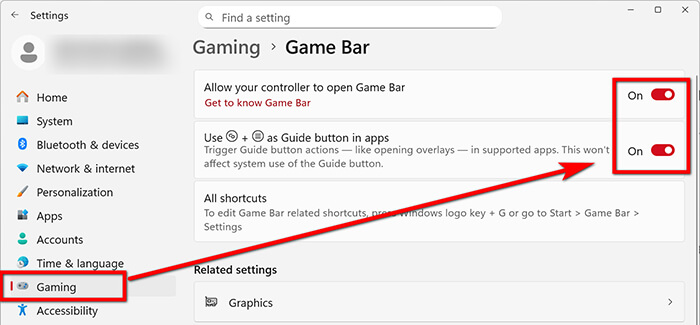
1. Buka Tetapan anda (klik ikon gear dalam menu Mula).
2. Pergi ke Permainan (Gaming).
3. Di bawah tab Xbox Game Bar, pastikan togol untuk Enable Xbox Game Bar for things like recording game clips, chatting with friends, and receiving game invites ditetapkan kepada On.
4. Jika ia sudah dihidupkan, cuba matikan dan hidupkan semula. Ia adalah helah klasik untuk mematikan dan menghidupkannya, dan sejujurnya, ia berfungsi lebih daripada yang sepatutnya.
Dengan penyelesaian ini, anda boleh menyelesaikan isu tersebut dengan mudah, dan merakam permainan di PC.
Penyelesaian 2: Semak Kebenaran Anda
Jika masalah Windows Game Bar tidak merakam berterusan, Windows mungkin menyekat aplikasi daripada mengakses perkakasan anda.
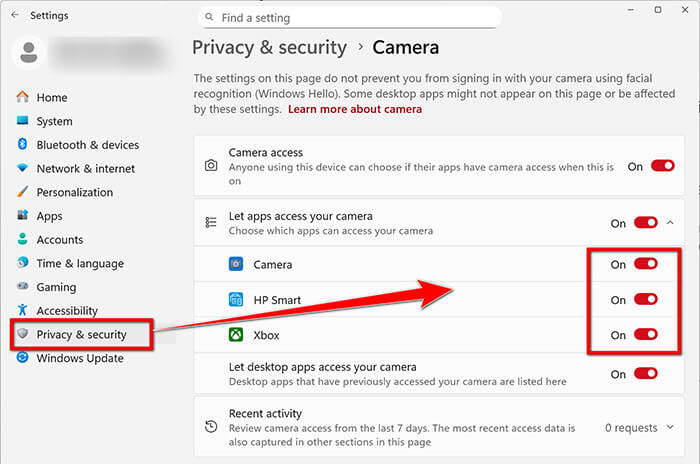
1. Pergi ke Settings > Privacy (Atau Privacy & security pada Windows 11).
2. Skrol ke bawah di bar sisi kiri ke Background apps.
3. Pastikan apl dibenarkan berjalan di latar belakang, dan Xbox Game Bar diaktifkan secara khusus.
4. Juga, semak tetapan privasi Kamera dan Mikrofon. Jika anda perasan mikrofon Xbox Game Bar tidak berfungsi, inilah puncanya selalunya. Pastikan pilihan yang membenarkan aplikasi desktop mengakses mikrofon anda dihidupkan.
Penyelesaian 3: Sahkan Pintasan Anda Tidak Berkonflik
Saya pernah menghabiskan masa dua puluh minit tertanya-tanya mengapa Bar Permainan saya tidak merakam, hanya untuk menyedari bahawa saya telah memetakan semula pintasan Rakam dalam Steam ke kekunci yang sama seperti Bar Permainan.
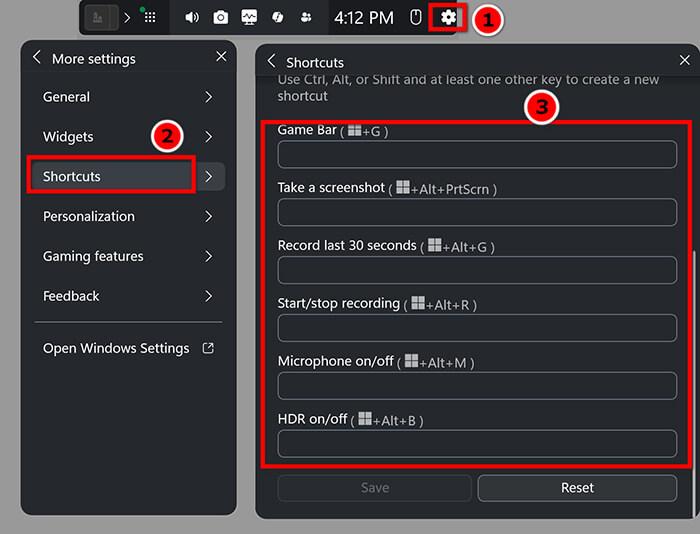
1. Buka Game Bar (Windows + G).
2. Klik Settings (ikon gear) pada lapisan Game Bar.
3. Pergi ke Shortcuts.
4. Semak sama ada pintasan Start/stop recording benar-benar Win + Alt + R. Jika anda telah menukarnya secara tidak sengaja, itulah masalahnya!
Penyelesaian 4: Semak Ruang Storan Anda
Jika cakera keras anda hampir penuh (garis merah), Windows hanya akan enggan memulakan rakaman baharu.
Pergi ke folder Videos > Captures anda. Jika anda ada 50GB rakaman kekalahan League of Legends lama yang memakan ruang, padamkan semuanya! Game Bar memerlukan ruang kosong sebagai buffer untuk menyimpan fail baharu anda.
Bahagian 2. Lebih Banyak Pembetulan Lanjutan untuk Bar Permainan Tidak Akan Merakam
Baiklah, perkara mudah itu tidak berjaya. Sekarang kita akan beralih kepada bidang Pemain Profesional. Jika rakaman anda tidak berfungsi dan ralat Bar Permainan masih menghantui anda, kita perlu mengkajinya lebih lanjut.
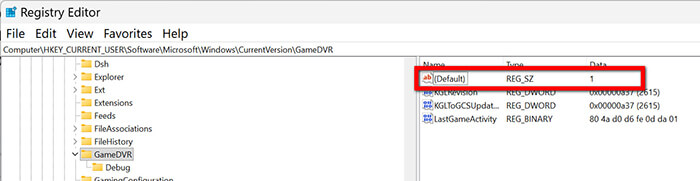
Penyelesaian 5: Dayakan GameDVR melalui Editor Pendaftaran
Kadangkala Game DVR (enjin di sebalik rakaman) dinyahdayakan pada peringkat sistem.
Penafian: Berhati-hati dalam Registry! Mengubah perkara yang salah boleh mendatangkan masalah. Ikuti langkah ini dengan tepat:
1. Tekan Win + R, taip regedit, dan tekan Enter.
2. Navigasi ke: HKEY_CURRENT_USERSoftwareMicrosoftWindowsCurrentVersionGameDVR.
3. Cari kekunci bernama AppCaptureEnabled. Klik dua kali dan tetapkan Value data kepada 1.
4. Kemudian pergi ke: HKEY_LOCAL_MACHINESOFTWAREPoliciesMicrosoftWindowsGameDVR. (Jika anda tidak nampak folder GameDVR, anda boleh abaikan langkah ini.) Jika anda nampak AllowGameDVR, tetapkan nilainya kepada 1.
5. Mulakan semula komputer anda. Ini memaksa Windows untuk mengakui ciri rakaman.
Penyelesaian 6: Kemas kini Pemacu Grafik Anda
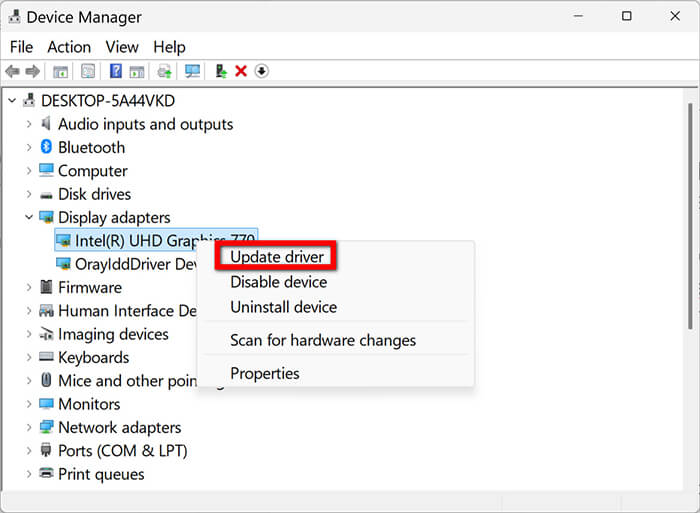
Jika pemacu kad grafik (GPU) anda sudah ketinggalan zaman, Bar Permainan mungkin tidak dapat menyambung ke permainan anda untuk merakamnya.
1. Klik kanan butang Start dan pilih Device Manager daripada menu.
2. Kembangkan Display adapters.
3. Klik kanan GPU anda (NVIDIA, AMD, atau Intel) dan pilih Update driver.
4. Lebih baik lagi, muat turun GeForce Experience atau AMD Software untuk mendapatkan pemacu Game Ready terkini. Ini sering membetulkan isu Game Bar tidak merakam kerana ia mengoptimumkan cara OS berinteraksi dengan perkakasan anda.
Penyelesaian 7: Membaiki atau Menetapkan Semula Aplikasi Bar Permainan
Jika aplikasi itu sendiri rosak, Windows mempunyai alat pembaikan kendiri terbina dalam yang boleh membantu menyelesaikan masalah tersebut.
1. Pergi ke Settings > Apps > Apps & features.
2. Cari Xbox Game Bar.
3. Klik padanya dan pilih Advanced options.
4. Skrol ke bawah dan klik Repair. Ini tidak akan memadam data anda.
5. Jika itu tidak berkesan, kembali semula dan klik Reset. Ini akan mengosongkan cache apl dan biasanya menyelesaikan sebarang pepijat Xbox Game Bar recording not working.
Semasa anda melaraskan tetapan ini, sila periksa audio anda. Aduan biasa ialah mikrofon Xbox Game Bar tidak berfungsi. Dalam menu pilihan Lanjutan yang sama untuk Game Bar, pastikan input lalai anda ditetapkan kepada alat dengar sebenar anda, bukan mikrofon webcam rawak yang mungkin telah dipasang tanpa pengetahuan anda.
Bahagian 3. Cuba Perakam Alternatif untuk Bar Permainan
Dengar, saya sukakan kemudahan Game Bar, tetapi biarlah kita jujur: kadangkala Windows memang degil. Jika anda telah mencuba segala-galanya dan Game Bar anda tidak dapat dirakam, atau jika anda bosan dengan kadar bit yang rendah dan ciri yang terhad, sudah tiba masanya untuk menggunakan apa yang digunakan oleh profesional.
Setiap kali Game Bar saya bermasalah, saya beralih kepada FVC Screen Recorder. Ia adalah alat yang sangat berkuasa yang pada asasnya melakukan semua perkara yang Game Bar mahu lakukan. Sama ada anda perlu merakam perlawanan berisiko tinggi atau video tutorial ringkas, perisian ini sangat boleh dipercayai. Ia tidak menyebabkan permainan anda lengah, menyokong rakaman 4K, dan yang paling penting, ia mempunyai alat Game Recorder berasingan untuk merakam video permainan bersama kamera. Ia adalah alat “set-and-forget” yang mengendalikan bunyi sistem, audio mikrofon dan lapisan kamera web serentak, menjadikannya sandaran yang sempurna apabila Windows Game Bar gagal merakam dan merosakkan hari anda.
Perisian perakam permainan ini mudah digunakan pada komputer Windows 11/10 atau Mac anda.
Langkah 1. Muat turun perisian ini secara percuma dengan mengklik butang di bawah untuk memasangnya pada komputer Windows atau Mac anda.
Muat Turun PercumaUntuk Windows 7 atau lebih baharuMuat Turun Selamat
Muat Turun PercumaUntuk MacOS 10.7 atau lebih baharuMuat Turun Selamat
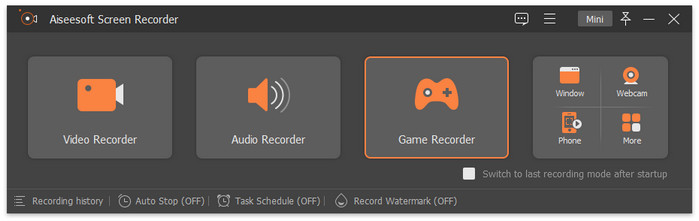
Langkah 2. Pada antara muka utama, pilih pilihan Game Recorder.
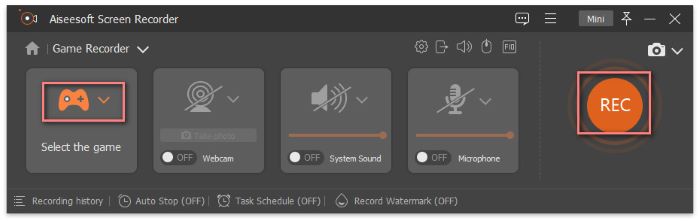
Langkah 3. Pilih permainan daripada senarai juntai bawah. Togol System Sound kepada ON untuk menangkap muzik permainan, dan Microphone kepada ON jika anda mahu merakam ulasan anda (sangat berguna untuk mengatasi rasa kecewa apabila mikrofon Xbox Game Bar tidak berfungsi!).
Apabila anda sudah bersedia, cuma klik butang REC berwarna jingga yang besar itu.
Apabila anda selesai, klik Stop. Anda boleh memotong (trim) video di situ juga sebelum menyimpannya ke PC anda. Selepas menggunakan FVC Screen Recorder selama beberapa minggu, saya dapati ia jauh lebih stabil berbanding alat natif Windows. Apa yang paling saya suka ialah keupayaan untuk melukis pada skrin secara masa nyata, sangat membantu untuk tutorial. Ciri Task Schedule juga sangat berguna jika anda mahu merakam siaran langsung (live stream) ketika anda tiada. Kekurangannya? Versi percuma mempunyai had rakaman, jadi jika anda merancang untuk menghasilkan siri Let’s Play selama 10 jam, akhirnya anda akan mahu menaik taraf kepada versi Pro perakam permainan. Tetapi untuk merakam klip dan perlawanan 10 minit, ia memang sempurna.
| Ciri | Bar Permainan Xbox | Perakam Skrin FVC |
| Kemudahan penggunaan | Sangat Tinggi (Terbina dalam) | Tinggi (Antara Muka Mudah) |
| Impak Sistem | rendah | Sangat Rendah (Dioptimumkan) |
| Kebolehpercayaan | Terjejas atau Terlepas (Glitchy) | Sangat Boleh Dipercayai |
| Sokongan Mikrofon | Asas (Sering Tersalah) | Lanjutan (Pembatalan Bunyi) |
| Kualiti Rakaman | Sehingga 1080p | Sehingga 4K / Tanpa Kehilangan |
| Alat Penyuntingan | Tiada | Lukisan & Pemangkasan Masa Nyata |
| Penyesuaian | Terhad | Tinggi (Kekunci pintas, Format, dll.) |
Bahagian 4. Soalan Lazim
Mengapa Bar Permainan saya tidak merakam, walaupun ia sedang dihidupkan?
Ini sering berlaku apabila permainan berjalan dalam mod Dilindungi atau apabila anda berada dalam mod Skrin Penuh dan Bar Permainan tidak berfungsi dengan betul. Cuba tukar permainan kepada mod Jendela Tanpa Sempadan.
Bagaimanakah saya menyelesaikan masalah mikrofon Xbox Game Bar yang tidak berfungsi?
Periksa Panel Kawalan Bunyi anda. Kadangkala, Bar Permainan cuba menggunakan Kabel Audio Maya atau peranti input yang salah. Tetapkan mikrofon utama anda sebagai Peranti Komunikasi Lalai dalam Windows.
Adakah terdapat jalan pintas untuk merakam skrin pada Windows 10/11?
Ya! Tekan kekunci lalai ialah Windows + Alt + R. Jika itu tidak berjaya, gunakan Windows + G untuk membuka menu dan klik ikon bulatan.
Kesimpulannya
Menangani ralat Game Bar tidak boleh merakam ibarat cuba bermain permainan dengan ping 500ms; ia menjengkelkan, mengganggu, dan membuatkan anda rasa mahu berhenti. Namun, dengan mengikuti langkah di atas, bermula dengan pemeriksaan kebenaran yang mudah dan beralih ke pembetulan Registry, anda biasanya boleh mengembalikan semuanya seperti biasa.
Jika anda seorang pelajar seperti saya atau hanya seseorang yang ingin berkongsi sorotan permainan mereka tanpa pening, saya sangat mengesyorkan mempunyai pelan sandaran. Xbox Game Bar memang hebat apabila ia berfungsi, tetapi mempunyai Perakam Skrin FVC pada desktop anda memastikan bahawa walaupun Windows mempunyai momen, permainan legenda anda masih dirakam dalam definisi tinggi.
-
 Cara Merakam Permainan dengan Steam [Panduan Muktamad] 2025
 Mencari panduan untuk membantu anda merakam permainan dengan Steam dengan mudah? Teruskan membaca artikel ini dan berpandukan empat kaedah, termasuk alat alternatif.
-
 Panduan Penuh tentang Cara Merakam Permainan dengan NVIDIA ShadowPlay
 Adakah anda tahu cara merakam permainan dengan NVIDIA? Adakah ia mudah digunakan? Berikut ialah panduan terperinci untuk membantu anda beroperasi!
-
 [Ulasan Penuh] Perakam Permainan FBX: Adakah Ia Benar-benar Berbaloi untuk Dicuba?
 Jika anda ingin menggunakan Perakam Permainan FBX tetapi tidak tahu di mana hendak bermula, artikel ini merangkumi semua yang anda perlu ketahui, termasuk alternatif terbaiknya.
