


 Video Converter Ultimate
 Perakam Skrin
 Pembaikan Video
Cara Terbaik untuk Merakam Audio pada iPhone melalui Apl dan Penukar yang Tersedia
Dengan telefon pintar di dalam poket, kita hampir boleh melakukan apa sahaja. Gajet kecil ini dibina sebagai generasi baharu komputer yang boleh dibawa dengan mudah ke seluruh dunia tanpa perlu pemasangan yang rumit. Disebabkan itu, kini kita mempunyai keupayaan untuk membuat rakaman audio pada telefon tanpa perlu menyediakan banyak peralatan. Contohnya, anda boleh merakam podcast anda sendiri pada iPhone, tetapi musuh terbesar kita ialah kualiti rakaman yang buruk. Jadi, dalam senarai ini kami mempersembahkan pelbagai cara untuk merakam audio pada iPhone tanpa perlu menyediakan banyak peralatan dan tanpa menjejaskan kualiti bunyi rakaman.

Bahagian 1. Cara Merakam Audio Luaran pada iPhone dengan 2 Aplikasi Terbaik
Ketahui cara menggunakan alat ini yang tersedia pada peranti Apple atau App store. Apl dalam senarai ini diketahui digunakan oleh ramai pengguna di seluruh dunia. Terutama jika mereka ingin merakam sendiri atau merakam beberapa melalui audio. Jadi tanpa sebarang kelewatan lagi, izinkan kami memperkenalkan kepada anda 2 perakam audio teratas yang boleh anda gunakan.
1. Memo Suara
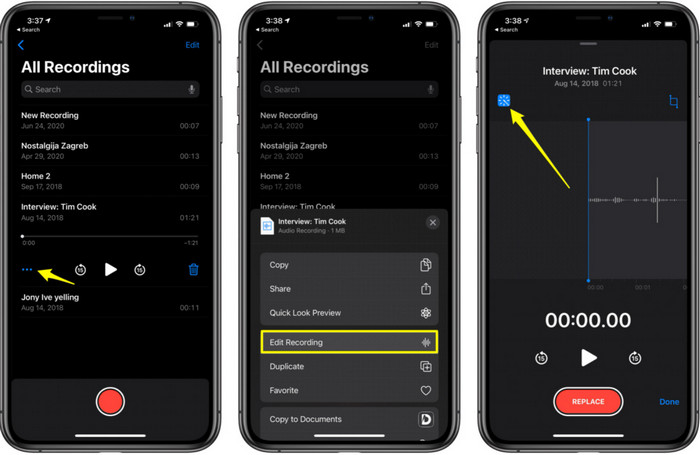
Voice Memos ialah cara terbaik untuk merakam audio pada iPhone tanpa memuat turun apa-apa dan ia percuma. Anda juga boleh melakukan suntingan asas pada rakaman anda di sini. Namun, fungsi penyuntingan yang tersedia terhad kepada memotong (trim) dan menambah fail audio lain. Jadi, jika anda mahu meningkatkan lagi rakaman anda, anda tidak boleh melakukannya di sini kerana tiada fungsi seperti itu. Tetapi rakaman asas seperti mencatat nota, diari audio, kuliah dan sebagainya boleh dilakukan dengan bantuan Voice Memos.
Kelebihan
- Alat terbina dalam pada iPhone untuk melakukan rakaman audio secara luaran.
- Pengeditan asas tersedia seperti pemangkasan dan penggabungan.
Keburukan
- Ia tidak mempunyai penggalak audio untuk menjadikan rakaman anda lebih baik.
- Tidak boleh merakam secara dalaman.
2. GarageBand
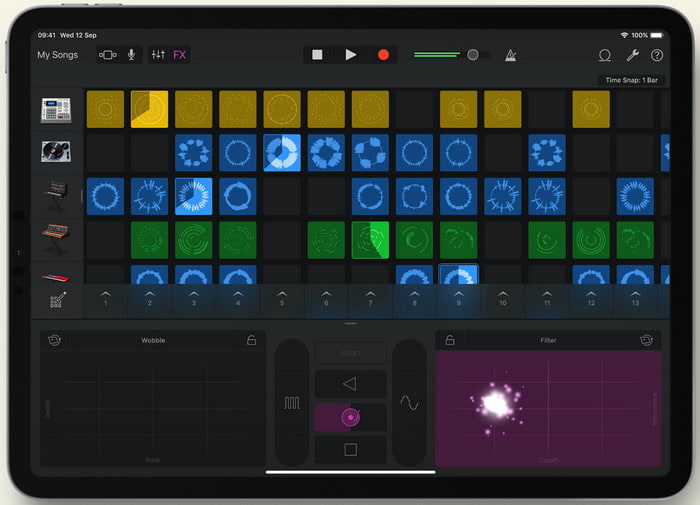
Mahukah anda menghasilkan rakaman muzik? Jika ya, cubalah gunakan Garageband. Oleh sebab alat ini menyediakan banyak fungsi yang boleh anda mainkan, ia jauh lebih rumit berbanding Voice Memos kerana aplikasi ini memang ditujukan untuk produksi muzik. Jadi, mempelajari cara merakam suara pada iPhone dengan Garageband akan mengambil banyak masa anda. Namun, jika anda bertekad untuk belajar, anda boleh memuat turun alat ini secara percuma dan saiz failnya ialah 1.7GB termasuk fungsi berat yang anda perlukan untuk merakam muzik.
Kelebihan
- Ia adalah aplikasi terbaik untuk digunakan sebagai pengeluaran muzik mudah alih yang boleh merakam audio secara dalaman.
Keburukan
- Bukan pilihan terbaik untuk pemula kerana antara muka aplikasi yang rumit.
- Saiz fail boleh mencapai lebih daripada 1.7GB.
Bahagian 2. Bagaimana untuk Menghidupkan Rakaman Skrin iPhone kepada Format Audio
Oleh kerana iPhone tidak menyokong rakaman audio dalaman sahaja, anda boleh lakukan rakaman skrin terlebih dahulu dan menukarnya kepada audio kemudian. Dengan bantuan Video Converter Ultimate yang hebat ini, anda boleh memilih daripada lebih 200 format yang tersedia dalam alat ini dan memotong bahagian audio yang tidak diperlukan dengan sangat mudah. Bukan itu sahaja, anda juga boleh menguatkan audio di sini untuk menjadikannya lebih jelas dan lebih sedap didengar. Tidak seperti menggunakan Voice Memos, jika anda menggunakan alat ini dan menukarnya, anda boleh melakukan pelbagai perkara menarik untuk menjadikan hasilnya yang terbaik. Tanpa melengahkan masa, mari mulakan proses menukar rakaman skrin anda kepada format audio dengan mengikuti langkah-langkah di bawah.
Langkah-langkah Menukar Rakaman Skrin kepada Format Audio dengan Video Converter Ultimate
Langkah 1. Tekan butang muat turun percuma untuk memuat turun perisian ke PC atau Mac anda. Selepas proses muat turun selesai, pasang dan tetapkannya kemudian klik selesai (finish) untuk melancarkannya.
Muat Turun PercumaUntuk Windows 7 atau lebih baharuMuat Turun Selamat
Muat Turun PercumaUntuk MacOS 10.7 atau lebih baharuMuat Turun Selamat
Langkah 2. Tambahkan fail yang anda rakam pada iPhone dengan mengklik butang Add Files di bahagian kiri atas antara muka alat. Kemudian cari fail tersebut dalam folder, ia akan muncul dan klik open.
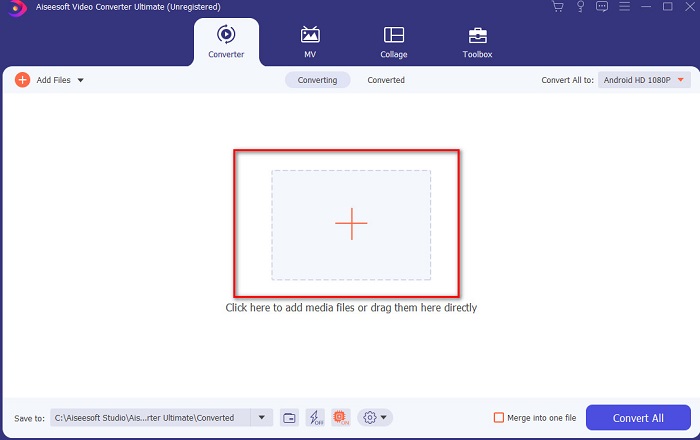
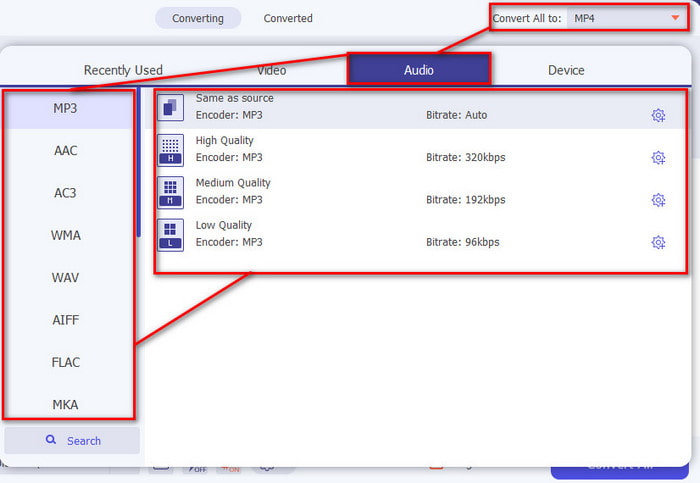
Langkah 3. Klik pilihan drop-down di sebelah Convert All to dan pilih format akhir yang anda mahukan daripada senarai kategori Audio untuk meneruskan. Selain itu, anda juga boleh menyunting fail rakaman jika anda klik butang wand pada antara muka utama. Selepas menyunting, klik OK untuk menyimpan perubahan yang telah anda buat.
Langkah 4. Jika anda sudah bersedia untuk memulakan proses penukaran, klik butang Convert All dan tunggu kurang daripada satu saat.
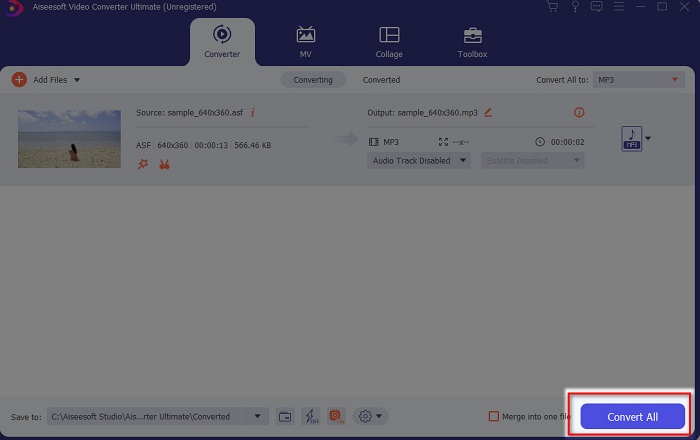
Langkah 5. Satu folder fail akan dipaparkan selepas proses penukaran selesai, klik fail tersebut dan dengarkannya, kemudian anda boleh memindah dan menyimpannya ke iPhone anda.
Kelebihan
- Alat fenomenal terbaik yang digunakan untuk menukar rakaman skrin anda kepada format audio.
- Ciri penyuntingan lanjutan tersedia di sini untuk menjadikan rakaman anda lebih baik.
- Berbilang kelompok penukaran boleh dilakukan di sini.
Keburukan
- Tidak dapat melakukan rakaman skrin atau audio di sini kerana ia tidak disokong.
- Ia dibayar tetapi ia tidak mahal.
Bahagian 3. Soalan Lazim tentang Merakam Audio pada iPhone
Apakah format audio terbaik untuk melakukan rakaman audio?
Format ideal yang anda mahu gunakan jika anda ingin merakam audio dengan kualiti tertinggi ialah format FLAC. Walaupun alat di atas tidak menyediakan fungsi menukar format kepada FLAC, jadi anda tidak boleh membuat rakaman FLAC dengannya. Namun, jika anda klik pautan ini, anda akan mempelajari banyak perkara tentang perakam FLAC terbaik untuk merakam audio pada tahap kualiti tertinggi.
Berapa lama saya boleh merakam pada iPhone saya?
Nah, anda boleh merakam selagi anda mempunyai ruang yang mencukupi. Pada asasnya, dianggarkan setiap 1GB anda boleh menyimpan sekurang-kurangnya 100 minit rakaman audio. Jadi, jika anda ingin merakam perbincangan atau kuliah yang panjang, adalah sesuai untuk mengosongkan sedikit ruang sebelum anda mula merakam.
Bolehkah saya melakukan rakaman audio melalui VLC?
Sudah tentu boleh! Anda boleh membuat rakaman audio jika anda menggunakan VLC sama ada pada PC atau Mac. Untuk mengetahui cara melakukan rakaman pada VLC, anda perlu klik pautan ini.
Kesimpulannya
Sebagai penutup, kami telah memperkenalkan banyak cara yang boleh anda pilih untuk menjadikan rakaman anda lebih baik dan berkesan. Semua ini adalah antara yang terbaik dalam bidang rakaman kerana kami telah mencubanya terlebih dahulu sebelum menulis artikel ini. Namun tiada penyunting yang lebih mudah digunakan dan menyediakan fungsi penguat audio yang hebat selain Video Converter Ultimate. Jadi, jika anda mahu menjadikan rakaman anda lebih daripada sekadar baik, cubalah sunting dan tukarkannya dengan alat ini.
Muat Turun PercumaUntuk Windows 7 atau lebih baharuMuat Turun Selamat
Muat Turun PercumaUntuk MacOS 10.7 atau lebih baharuMuat Turun Selamat
-
 7 Perakam AAC Terbaik untuk Windows dan Mac [2021]
 Ketahui apa itu AAC dan perakam AAC yang paling tinggi yang boleh anda gunakan secara percuma dan boleh dimuat turun pada komputer Mac dan Windows.
-
 Panduan Spot-On: Apakah Perakam M4A Terbaik untuk Windows & Mac
 M4A adalah kontena fail ACA dan ALAC dikodkan untuk pemampatan lossy. Senarai di bawah adalah alat perakam M4A yang mungkin anda gunakan. Baca yang berikut dengan teliti.
-
 Perakam OGG Paling Berguna 2021 [Percuma & Dalam Talian]
 Tulisan ini membincangkan tentang alat Rakaman OGG terbaik yang membantu anda melakukan rakaman audio OGG. Untuk menambah maklumat yang lebih terperinci untuk pengguna teruskan membacanya
