


 Video Converter Ultimate
 Perakam Skrin
 Pembaikan Video
 Muat Turun Selamat
5 Perakam WebM Terbaik untuk Merakam Video WebM dalam Kualiti Tinggi
Sambungan fail WEBM biasanya digunakan oleh pelayar web. Kebanyakannya ialah pelayar moden seperti Google Chrome, Opera, Firefox, Safari dan Edge. Lazimnya pelayar-pelayar ini digunakan pada laman web HTML5 yang menyokong penstriman video secara langsung. Antara contoh terbaik ialah YouTube, Twitch dan platform media lain. Format ini menyokong resolusi video daripada 360p sehingga resolusi tertinggi. Jika kita bandingkan format ini, ia merupakan format termampat yang serupa dengan MKV, MOV dan MP4. Perbezaannya terletak pada kandungan fail dalam format tersebut. Kedua-dua Windows dan Mac boleh memainkan fail khusus ini asalkan pemain media mempunyai codec dan pemalam (plug-in) yang betul. Sementara itu, jika anda sedang mencari cara yang lebih baik untuk merakam atau mendapatkan fail WebM, lihat senarai perakam WebM terbaik di bawah.

Bahagian 1. Perakam WebM Terbaik: Perakam Skrin FVC
Dapatkan cara termudah untuk mengambil gambar, merakam skrin anda, dan merakam fail video WebM dalam tiga langkah mudah dengan FVC Screen Recorder. Perakam skrin .webm ini untuk Windows dan Mac dapat merakam laman WebM seperti YouTube, panggilan Skype, dan streaming langsung, dan laman web lain menyokong format WebM. Tangkap live streaming Gameplay anda tanpa menjejaskan kualiti video. Selain dapat merakam video, audio, dan mikrofon. Dijamin tidak ada bunyi latar kerana ia merakam bunyi sistem. Oleh itu, rasakan rakaman yang lancar dan ciri penyuntingan yang sangat baik untuk tutorial video anda dengan Rakaman Skrin FVC. Sebaliknya, inilah cara anda menggunakan alat tersebut.
Langkah 1. Muat turun FVC Screen Recorder menggunakan butang muat turun di bawah.
Muat Turun PercumaUntuk Windows 7 atau lebih baharuMuat Turun Selamat
Muat Turun PercumaUntuk MacOS 10.7 atau lebih baharuMuat Turun Selamat
Langkah 2. Pasang dan lancarkan aplikasi selepas mengikuti panduan pemasangan.
Langkah 3. Sebaik sahaja bar terapung muncul, klik Video Recorder.
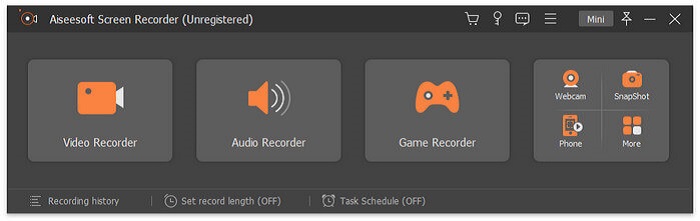
Dari situ satu lagi tetingkap akan muncul. Kali ini klik Custom atau Full Screen. Jika anda memilih custom, laraskan saiz bingkai mengikut saiz yang anda inginkan.
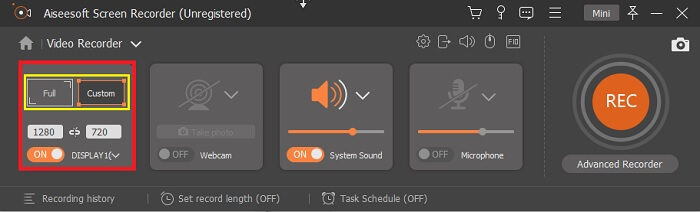
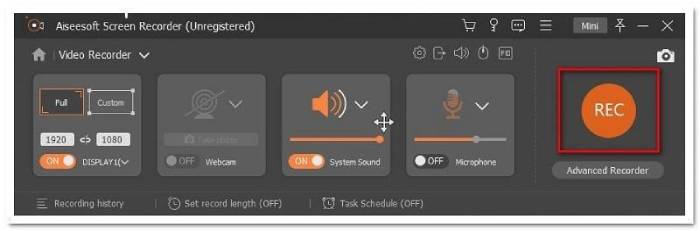
Langkah 4. Untuk mula merakam, klik butang REC dan lakukan sahaja aktiviti seperti biasa.
Anda kemudian boleh memberi penjelasan, menambah anak panah dan menghantar teks rakaman.
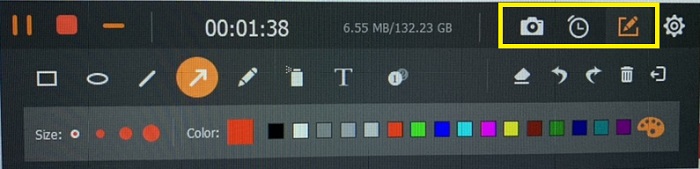
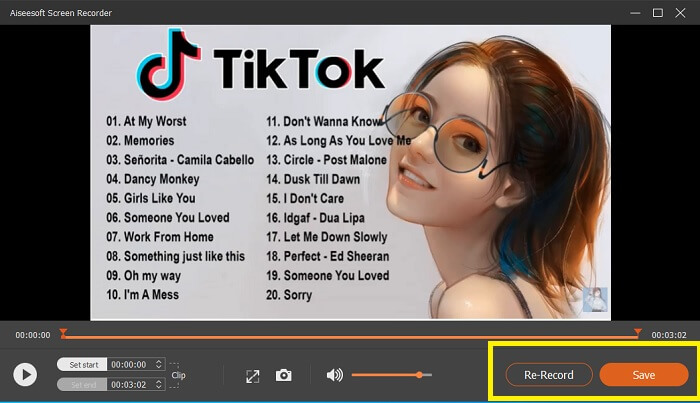
Langkah 5. Kemudian, klik butang petak merah untuk menghentikan rakaman. Satu tetingkap baharu akan dipaparkan yang membolehkan anda memilih sama ada untuk menyimpan atau merakam semula. Untuk menyemak rakaman, lihat senarai di bahagian bawah bar terapung.
Bahagian 2. Perakam WEBM Popular lain untuk Komputer Anda
1. Perakam Skrin Percuma FVC
Ciri Istimewa: Bebas perisian hasad. 100% selamat
Jika alat pertama tidak memuaskan anda, mungkin anda sedang mencari alat yang lebih praktikal. FVC Free Screen Recorder ialah alat yang sesuai jika anda mahu memaksimumkan ciri hebat tanpa mengeluarkan wang. Walaupun alat percuma biasanya diketahui menghasilkan kualiti yang lebih rendah berbanding versi premium, alat ini menaikkan piawaian sedikit lebih tinggi. Ia boleh menghasilkan video berkualiti tinggi dan audio yang jelas walaupun ia percuma. Selain itu, ia mudah digunakan. Ikuti langkah di bawah untuk mengetahui dengan lebih lanjut mengenainya.
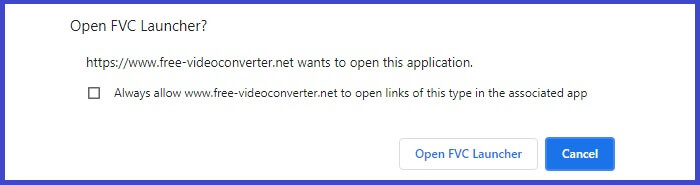
Langkah 1. Lancarkan aplikasi pada PC anda menggunakan pelayar web. Tidak kira pelayar apa yang anda gunakan, alat ini cukup fleksibel untuk diakses dari mana-mana. Klik pautan untuk terus ke laman sesawang rasmi.
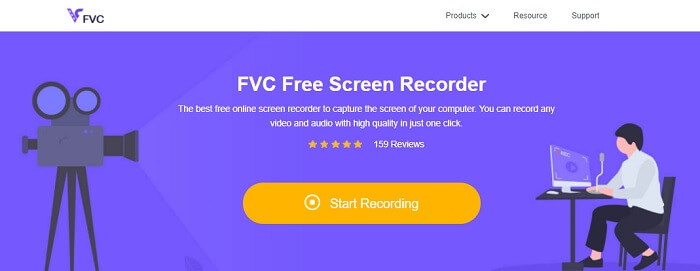
Langkah 2. Lancarkan alat dengan mengklik butang Start Recording.
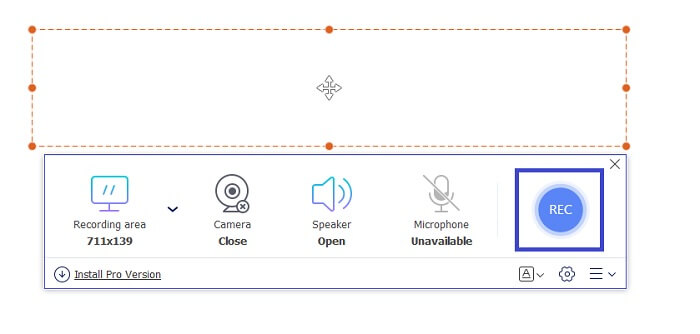
Langkah 3. Selepas melancarkan alat, anda akan melihat bar terapung muncul. Laraskan bingkai untuk mengubah saiz nisbah aspek kemudian mula merakam dengan mengklik butang REC.
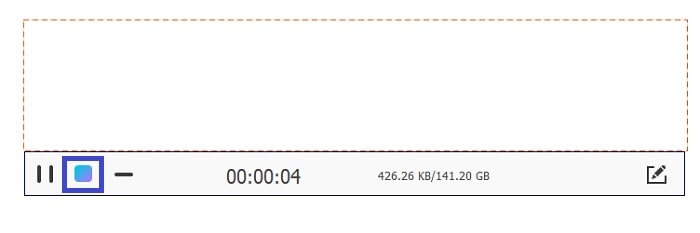
Langkah 4. Sementara itu, untuk menghentikan rakaman klik butang petak seperti yang ditunjukkan dalam gambar di bawah.
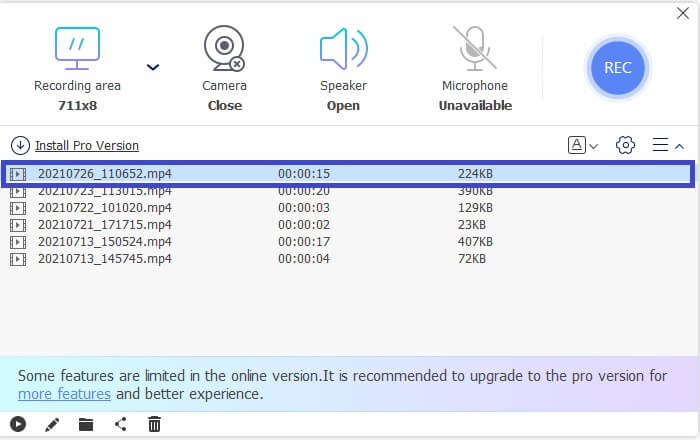
Langkah 5. Untuk melihat fail yang anda rakam, semak senarai di bawah bar alat terapung.
Kelebihan
- 100% selamat dari perisian hasad.
- Fleksibel dalam menyesuaikan nisbah aspek, kadar bit, dan laju bingkai.
- Gambar dalam Gambar disokong.
Keburukan
- Ia tidak menyokong pecutan perkakasan.
2. Ambil kecil
Ciri Istimewa: Menyokong kerjasama atau kerja jarak jauh.
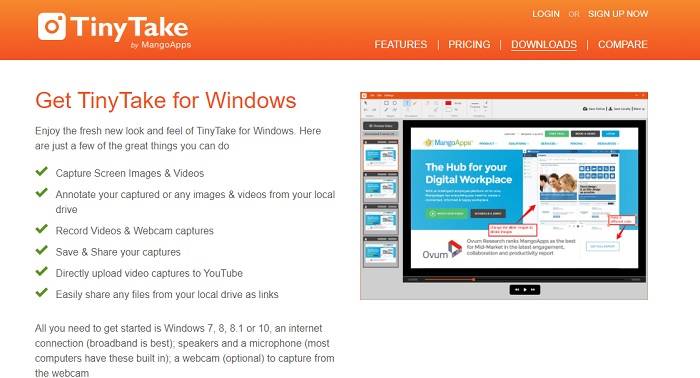
TinyTake adalah alat rakaman video dan tangkapan skrin percuma yang dikembangkan oleh Mango Apps. Tiny Take menawarkan penyelesaian hebat untuk rakaman skrin ringkas atau rakaman pertemuan profesional atau peribadi. Apa yang menjadikan alat ini popular ialah ciri kolaborasi di mana anda dapat bekerja dari jauh, melakukan perkongsian pukal fail, menggunakan ciri anotasi dan penyimpanan jangka panjang, dan Galeri (Dalam Talian).
Kelebihan
- Ia dapat menangkap gambar dan video dari pemacu tempatan anda.
- Kongsi terus di YouTube.
- Beri komen semasa merakam.
Keburukan
- Tiada ciri tetingkap masuk.
3. Screencast-O-Matic
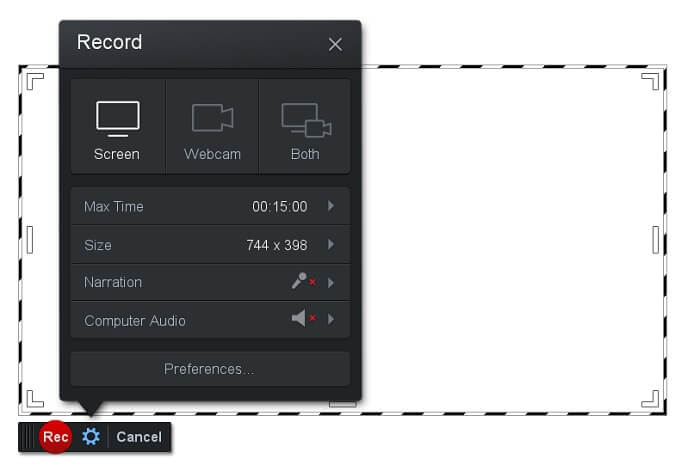
Ciri Istimewa: Alat ini mempunyai antara muka yang mudah digunakan dan dinavigasi. Sangat mudah dan terus terang.
Screencast-O-Matic ialah salah satu perisian yang paling kerap digunakan oleh ramai pengguna. Fungsinya ialah merakam skrin komputer secara percuma selepas pendaftaran. Adalah disyorkan untuk mencipta akaun bagi menggunakan alat percuma ini. Selain itu, pembangun menyertakan ciri di mana anda boleh menyunting video anda secara terus sebelum mengeksportnya. Anda boleh memanfaatkan pustaka stok terbina dalam alat ini untuk mendapatkan inspirasi dan terus menambah baik video anda. Anda juga boleh mengambil tangkapan skrin dan berkongsi semua kandungan melalui akaun media sosial anda.
Kelebihan
- Ia mempunyai ciri Cloud Hosting.
- Muat naik video untuk diedit.
- Kandungan Hos.
Keburukan
- Pendaftaran diperlukan.
4. Screencastify
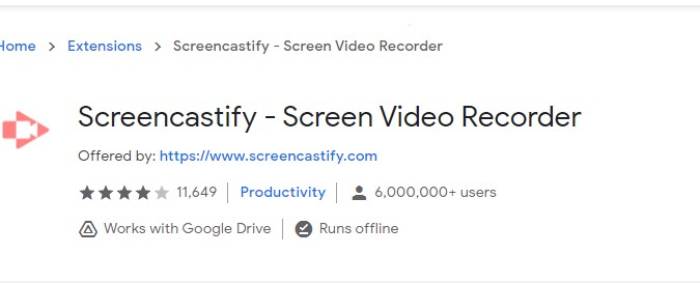
Ciri Istimewa: Sambungan pelayar web
Mari berikan sedikit kepelbagaian dalam senarai. Screencastify adalah alat yang bergantung pada web yang merupakan peluasan kepada Penyemak Imbas Chrome. Ini kebanyakannya digunakan oleh pendidik dan pelajar. Terutama kerana kesederhanaan alat dan keupayaan anotasi yang menjadikan pendidik dan pelajar fokus dalam kelas. Sebilangan besar orang yang belajar melalui Udemy dan laman Pembelajaran seperti itu menggunakan perakam skrin ini. Sekiranya anda melakukan perkara yang sama, anda boleh mempertimbangkan untuk menggunakannya. Sementara itu, berikut adalah maklumat yang lebih terperinci mengenai alat tersebut.
Kelebihan
- Sesuai dengan semua platform media.
- Kandungan Hos.
- Muat naik video untuk diedit.
Keburukan
- Walaupun akses mudah kerana bergantung pada penyemak imbas, ia juga boleh merugikan.
- Ia memerlukan banyak kebenaran untuk menggunakannya.
Bahagian 3. Soalan Lazim mengenai Perakam WebM
Mengapa fail WebM saya tidak dapat dibuka?
Saya faham kekeliruan itu, anda mungkin fikir anda sedang menggunakan pelayar moden tetapi ia masih tidak boleh memainkan video. Adakah anda sudah cuba menyemak sama ada anda menggunakan versi terkini pelayar tersebut? Jika belum, sila kemas kini. Ini adalah salah satu sebab paling biasa mengapa video tidak dapat dimainkan. Tetapi perlu diingat, berikut ialah beberapa versi yang disokong oleh fail WebM: Chrome 6, Firefox 4, dan Internet Explorer 9 ke atas. Atau anda boleh cuba menggunakan pemain WebM untuk membantu anda membukanya.
Mengapa saya tidak dapat memainkan video WebM di Mac saya?
Saya sangat mengesyorkan memuat turun pemain VLC atau VLC untuk pemalam Mac OS X. Ia mesti mempunyai pemproses Intel 64-bit.
Bahagian 4. Carta Perbandingan
| Ciri | Perakam Skrin FVC (Premium) | Perakam Skrin FVC Percuma | TinyTake | ScreenCast-O-matik | ScreenCastify |
| Rakaman audio dan video |  | | | | |
| Ciri Penyuntingan Video | | |  | | |
| Ciri Tetingkap Kunci | | | | | |
| Ciri Anotasi | | | | | |
| WebM Disokong | | | | | |
| Selamat Perisian Perisian | | | | | |
| Nisbah bit dan aspek boleh laras | | | | | |
Kesimpulannya
Semua alat rakaman WebM yang disemak dalam artikel ini boleh dipercayai dan cekap. Anda hanya perlu melihat alat mana yang sesuai dengan keperluan PC dan sistem operasi anda. Sebilangan besar orang akan pergi ke landasan yang selamat dengan menggunakan aplikasi berasaskan web. Tetapi masih menjadi keputusan anda untuk membuat keputusan.
-
 Perakam Audio Ulasan Cinch yang Tidak Berkelayakan dan Alternatif Terbaik
 Perekam Audio Cinch adalah kaedah terbaik untuk memuat turun muzik dari laman streaming. Ketahui lebih lanjut mengenai ulasan yang tidak berat sebelah dan alternatif terbaik dari artikel tersebut.
-
 5 Perakam Tetikus dan Papan Kekunci Terbaik untuk Windows dan Mac
 Berikut adalah lima program perakam tetikus dan papan kekunci terbaik yang dapat menyelamatkan pergerakan tetikus dan klik papan kekunci anda, dan mengulangi acara.
-
 4 Perakam Skrin AVI Percuma untuk Menangkap Video Skrin sebagai Fail AVI
 Untuk merakam skrin dalam fail AVI berkualiti tinggi, artikel itu mengenal pasti dan berkongsi 4 perakam skrin AVI percuma teratas dalam catatan ini. Ketahui lebih banyak maklumat untuk mendapatkan maklumat yang dikehendaki.
