


 Video Converter Ultimate
 Perakam Skrin
 Pembaikan Video
Fahami Cara Mengimport fail AVI ke iMovie pada Mac OS
Seperti yang kita semua tahu, iMovie terkenal untuk kerja penyuntingan video di Mac. Jika anda menggunakan alat ini, anda akan faham mengapa ia antara yang terbaik untuk menyunting. Namun ketika kita membicarakan kehebatan iMovie, ada situasi tertentu di mana anda tidak dapat mengimport video untuk disunting. Ini sangat biasa berlaku apabila anda mengimport format fail AVI. Disebabkan julat codec yang meluas, format AVI menjadi popular dalam kalangan pengguna. Namun begitu, ia sangat mencabar untuk digunakan terutamanya apabila codec tersebut tidak disokong oleh alat yang anda gunakan. Jadi di sinilah anda mula tertanya-tanya bagaimana untuk menukar AVI kepada format iMovie supaya boleh menyunting video kemudian. Dalam senarai di bawah, berikut ialah beberapa alat yang boleh anda gunakan untuk menukar format AVI dan ketahui mengapa anda tidak dapat memuatkan fail video ke dalam iMovie.

Bahagian 1. Mengapa iMovie Gagal Mengimport Format Fail AVI
Walaupun, iMovie hanya berlaku pada Mac, jadi harapkan ia kurang mengutamakan codec dari Windows. Tetapi ada beberapa sebab mengapa anda tidak dapat mengimport video. Di sini dalam senarai, kami akan membincangkan 2 sebab mengapa anda tidak dapat mengimport format lain ke iMovie.
Sebab pertama: iMovie hanya menyokong julat codec yang terhad. Ini mungkin sebab mengapa anda tidak boleh menyunting dalam iMovie kerana isu keserasian codec. Dalam kes format AVI, ia mesti di-encode kepada data MJPEG, jika tidak fail tersebut tidak akan dapat diimport.
Sebab kedua: iMovie atau Mac OS anda tidak dikemas kini. Sebab ini mudah difahami kerana jika perisian atau sistem pengendalian anda tidak dikemas kini, ada kemungkinan ia tidak menyokong format-format terkini.
Ini ialah sebab yang paling biasa mengapa anda tidak boleh menyunting dalam iMovie, tetapi setiap masalah pasti ada penyelesaiannya. Atas sebab itu, berikut ialah beberapa cara untuk membetulkan masalah ini dan anda perlu belajar cara menukar fail AVI kepada format iMovie yang serasi dari segi format dan codec seperti yang dibentangkan.
Bahagian 2. Tukarkan Format Kompatibel AVI ke iMovie dengan Bantuan Penukar AVI Terbaik
1. Penukar Video Dalam Talian Percuma FVC
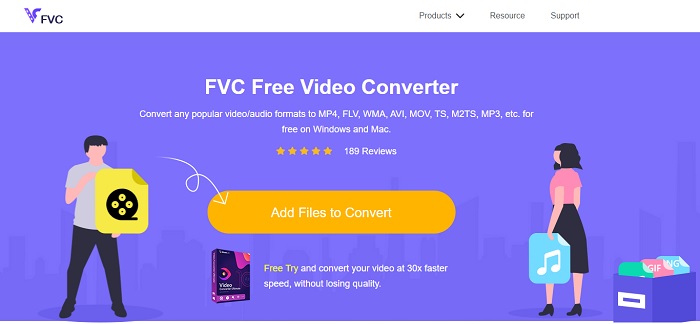
Alat AVI ke iMovie percuma ini boleh melakukan tugas penukaran. Tidak seperti alat di bawah, FVC Free Video Converter boleh diakses secara percuma dan tidak perlu dimuat turun. Selain itu, alat dalam talian ini ialah versi percuma bagi alat di bawah. Seperti yang dinyatakan, ia menyediakan pemampatan yang baik tetapi perbezaan antara kedua-duanya ialah: alat ini tidak mempunyai ciri utama seperti yang disediakan oleh alat premium dan tidak menawarkan banyak pilihan format lain. Walau bagaimanapun, ia masih merupakan alat dalam talian terbaik berbanding penukar lain yang boleh anda harapkan. Jadi, sebelum apa-apa lagi mari teruskan kepada cara alat ini berfungsi dengan mengikuti langkah mudah di bawah.
Langkah 1. Klik pautan ini untuk pergi ke halaman utama alat tersebut.
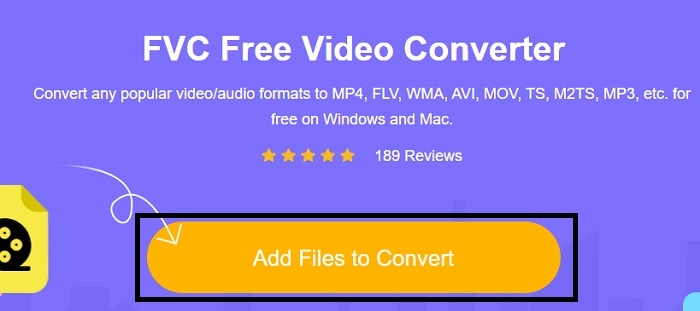
Langkah 2. Tekan Add Files to Convert untuk melancarkan penukar dalam talian.
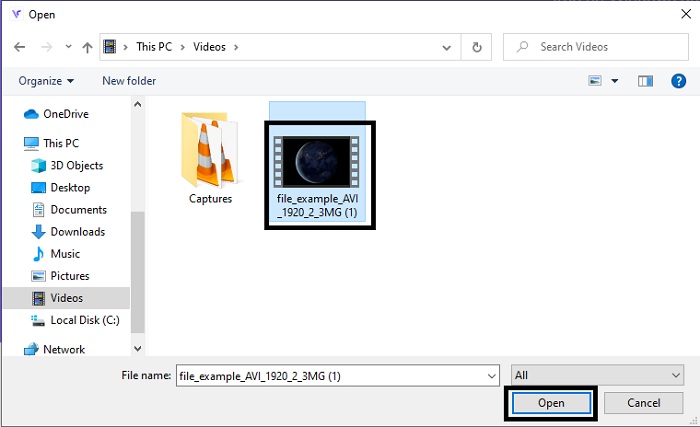
Langkah 3. Seterusnya, pilih fail AVI dan tekan open untuk memasukkannya ke dalam antaramuka.
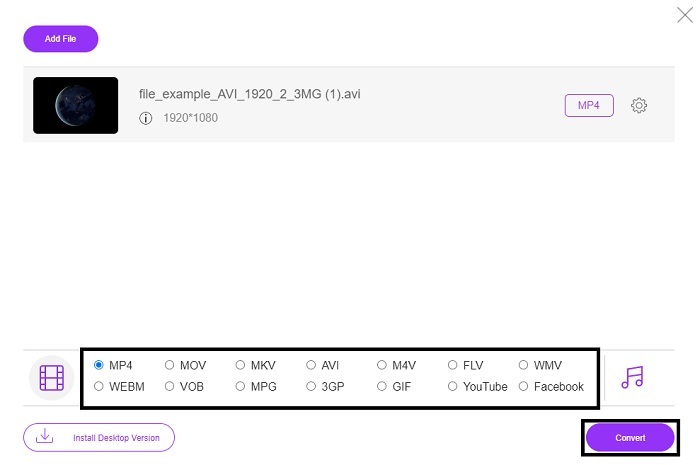
Langkah 4. Pilih format iMovie yang anda inginkan. Selepas memilih, klik Convert untuk memulakan proses.
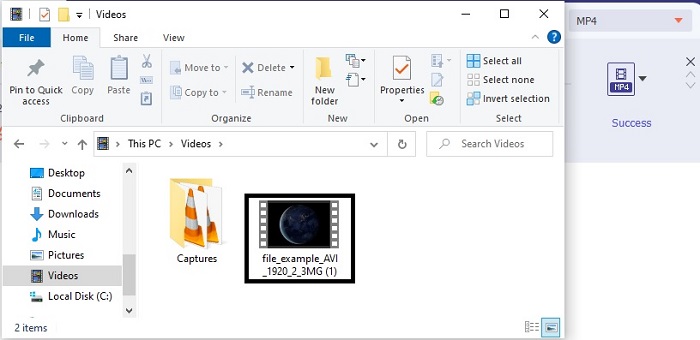
Langkah 5. Pergi ke pengurus fail dan cari fail yang telah siap.
2. FVC Video Converter Ultimate
Seperti yang kami katakan sebelumnya, alat dalam talian tidak memberikan anda fitur penyuntingan dan format lain juga. FVC Video Converter Ultimate dapat digunakan sebagai alternatif untuk iMovie terutama pada penyuntingan juga. Ini memberikan pengguna dan pelanggan kemampuan untuk memanipulasi setiap file media dan meningkatkan, mengedit, atau membuat versi yang lebih baru. Tetapi alat ini perlu dibayar namun tidak mahal sehingga tidak perlu risau kerana setiap sen yang anda akan bayar untuk alat ini masih berbaloi.
Jadi, selepas anda menukar AVI kepada format iMovie nanti anda boleh menambah baiknya sebelum membawanya ke iMovie atau anda juga boleh terus menyunting di sini tanpa membawanya ke iMovie. Jika kita hendak menghuraikan betapa hebatnya alat ini, kita mungkin memerlukan kira-kira dua atau lebih artikel untuk menerangkannya dengan lengkap. Jadi, tanpa berlengah lagi mari kita teruskan perjalanan untuk berjaya menukar AVI kepada format baharu dengan meniru langkah-langkah di bawah.
Langkah 1. Sebelum anda boleh menggunakan alat ini, anda perlu memuat turunnya ke desktop anda. Pilih sistem pengendalian yang sesuai dengan desktop anda. Selepas proses muat turun, ikuti langkah pemasangan seterusnya dan klik finish untuk melancarkan alat tersebut.
Muat Turun PercumaUntuk Windows 7 atau lebih baharuMuat Turun Selamat
Muat Turun PercumaUntuk MacOS 10.7 atau lebih baharuMuat Turun Selamat
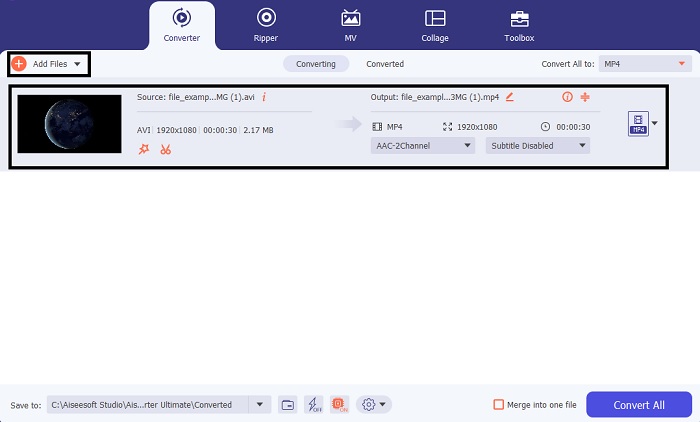
Langkah 2. Untuk memasukkan fail AVI yang hendak ditukar, klik Add Files atau tanda tambah; mana-mana satu pilihan pun tidak mengapa. Pilih fail yang anda ingin tukar dan klik open untuk meneruskan.
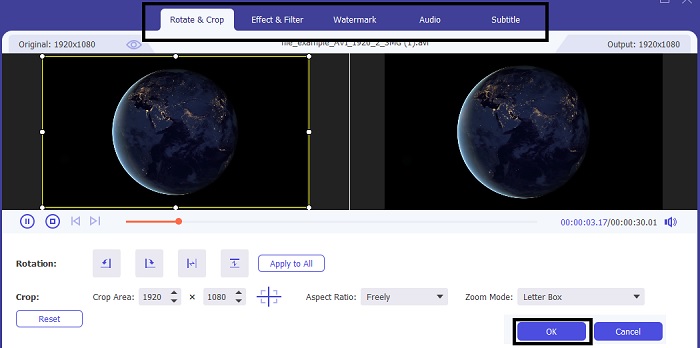
Langkah 3. Pada antaramuka alat FVC, anda akan nampak satu butang berbentuk tongkat sakti, kemudian klik padanya. Satu antaramuka baharu akan muncul pada skrin anda, di mana anda boleh menyunting video supaya menjadi lebih baik. Peringatan, langkah ini hanya bonus jika anda mahu menyunting sebelum menukar. Jadi, kemudian anda mungkin tidak lagi memerlukan iMovie untuk menyunting jika anda mahu. Tekan OK untuk menyimpan.
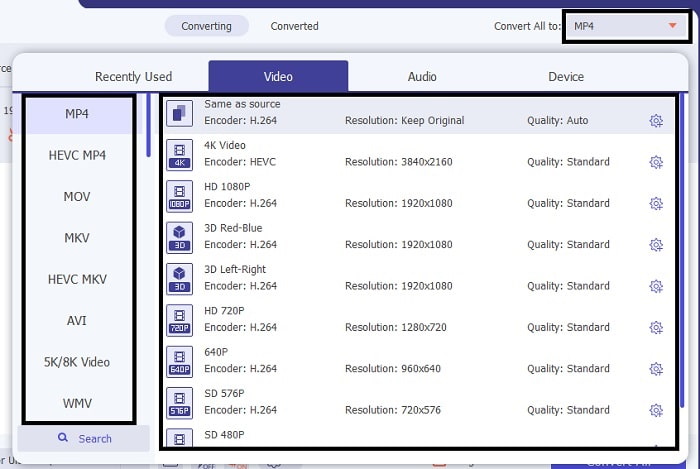
Langkah 4. Selepas semua proses, klik butang drop-down dan pilih format iMovie yang anda mahu. Jika anda sudah memilih format AVI baharu, anda mesti klik Convert All untuk memberikan isyarat kepada alat tersebut supaya memulakan penukaran.
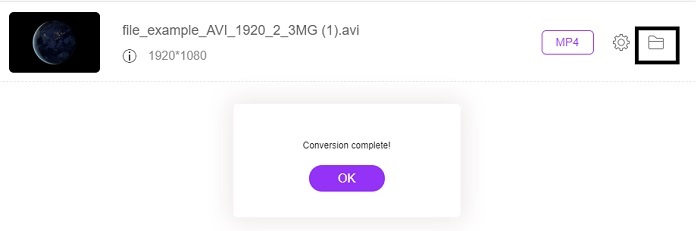
Langkah 5. Proses penukaran hanya mengambil masa beberapa saat, dan selepas selesai, satu folder yang mengandungi format baharu anda akan dipaparkan pada skrin anda. Klik fail tersebut untuk menontonnya dan tahniah, anda kini boleh menyuntingnya dalam iMovie.
Bahagian 3. Soalan Lazim mengenai AVI ke iMovie
Siapakah pencipta iMovie?
iMovie dicipta oleh Apple Inc. untuk menjadi alat penyunting hak milik mereka. Fakta lain mengenai Apple Inc. mereka juga mengembangkan format QuickTime player dan MOV sebagai media player asli mereka dan format untuk pengguna Mac.
Apakah alternatif terbaik untuk format AVI pada Mac?
Kemungkinan besar format tersebut ialah MOV kerana ia memang direka untuk digunakan pada Mac. Adakah anda ingin tahu bagaimana menukar fail AVI kepada format MOV? Maka klik pautan ini untuk mengetahui dengan lebih lanjut tentang penukar AVI ke MOV.
Apakah kelemahan menggunakan format AVI?
Dikatakan di atas bahawa format ini boleh mengandungi codec berbeza yang bagus. Tetapi format AVI tidak dimampatkan sehingga mempunyai video 2 hingga 3 minit menjangkakan ukuran fail yang besar. Walaupun begitu, jika anda ingin mengetahui lebih lanjut mengenai AVI, klik ini untuk mengetahui apa itu AVI.
Kesimpulannya
Dahulu kita buntu dan keliru kerana tidak tahu bagaimana hendak menangani masalah ini. Tetapi kini sudah jelas kepada kita bahawa anda perlu menukar fail AVI untuk menyuntingnya dalam iMovie. Jadi, kini tidak perlu lagi bertanya tentang bagaimana mengimport fail AVI ke dalam iMovie dan menyuntingnya kemudian. Jika anda telah memilih FVC Video Converter Ultimate maka anda wajar diberi tepukan untuk diri sendiri. Kerana anda memilih alat yang memberikan penyelesaian kepada semua masalah penukaran, penggabungan, penambahbaikan, pemampatan, dan lain-lain masalah yang mungkin anda hadapi pada masa hadapan. Buat pilihan yang terbaik untuk anda dan yang terbaik itu ialah FVC Video Converter Ultimate.
-
 Panduan Konkrit untuk Membantu Anda Menukar AVI ke FLV secara Percuma
 Untuk menukar AVI ke FLV, anda memerlukan penukar video yang kuat. Nasib baik, anda dapat mempelajari dua dan panduan langkah demi langkah mereka dari artikel tunggal ini.
-
 Cara Menukar Video AVI ke Fail GIF Animasi pada Windows / Mac
 Ingin memilih segmen AVI yang menarik untuk membuat meme GIF? Artikel ini akan memberitahu anda 2 kaedah terbaik untuk klip video AVI dan menukar AVI menjadi fail GIF animasi secara percuma.
-
 [2 Penyelesaian Terbaik] Cara Memainkan Filem AVI di iPhone / iPad dengan Mudah
 Tidak dapat memainkan filem AVI di iPhone / iPad anda dan tidak mahu memuat turun pemain video pihak ketiga? Anda boleh mempelajari 2 cara yang berkesan untuk menukar video AVI untuk dimainkan di iPhone.
