


 Video Converter Ultimate
 Perakam Skrin
 Pembaikan Video
 Muat Turun Selamat
Prosedur Terperinci untuk Menukar Fail AVI kepada Format M4V
Format kontena multimedia AVI, yang bermaksud Audio Video Interleaved, ialah satu ciri perisian video Windows. Ia membenarkan main balik audio dan video secara serentak yang digabungkan dalam satu fail. Dengan keupayaan uniknya, termasuk kawalan segerak dan paparan masa nyata, AVI dengan cepat menjadi salah satu format video yang. Namun, jika anda mahu memainkan video pada Mac anda, anda mesti menukar AVI kepada M4V kerana M4V ialah format Apple yang boleh dimainkan pada iTunes, Apple QuickTime Player dan peranti iOS. Kadangkala anda mungkin mahu menukar fail .avi pada Mac kepada format universal seperti M4V. Dalam situasi ini, menukar AVI kepada M4V disarankan supaya ia berfungsi dengan betul pada Mac OS. Kami akan menunjukkan kepada anda kaedah terbaik untuk menukar AVI kepada M4V menggunakan aplikasi dalam talian dan luar talian.

Bahagian 1: Pengenalan kepada AVI dan M4V
| AVI | M4V | |
| Nama fail | Interleave Video Audio | Video MPEG-4 |
| Sambungan fail | .avi | .m4v |
| Penerangan | Format fail AVI ialah salah satu bekas multimedia paling popular yang pernah dibuat. Akronim AVI, yang bermaksud video audio interleaved, pada mulanya disediakan kepada orang ramai oleh Microsoft pada tahun 1992 sebagai komponen rangka kerja multimedia mereka, "video untuk Windows." Fail AVI dengan sambungan nama fail.avi boleh mempunyai kandungan video dan audio yang disegerakkan kerana ia adalah format bekas. Oleh itu, pengarang boleh mengedit dan mengekod urutan audio-video atau jujukan video menggunakan standard. | Apple mencipta sambungan fail M4V, yang sangat serupa dengan sambungan fail MP4, untuk kandungan gedung iTunes. Peranti Apple adalah satu-satunya yang boleh memainkan fail M4V. Untuk bermain pada peranti Apple, format video lain seperti MP4 dan MOV boleh ditukar kepada M4V. Perbezaan utama antara format fail M4V dan MP4 ialah format fail sebelum ini menyokong Perlindungan Hak Cipta DRM, yang melarang pelanggaran hak cipta pelanggaran kandungan media. Komputer mesti memberikan kebenaran dengan log masuk ke akaun iTunes untuk membeli fail media untuk memainkan fail M4V yang dilindungi DRM. Walau bagaimanapun, jika fail tidak dilindungi DRM, pengguna hanya boleh menamakan semula sambungan fail M4V kepada MP4 untuk menjadikannya serasi dengan peranti bukan Apple. |
| Dibangunkan oleh | Microsoft | Apple Inc. |
| Program Berkaitan | Pemain Media VLC Pemain Apple QuickTime Adobe Premiere Pro 2020 Pemain Media Windows | Pemain KMP Pemain Media Klasik Pemain Zum \VLC Media Player |
| Kategori Fail | Video | Video |
| Jenis MIME | video/x-video | video/x-m4v |
Bahagian 2: Cara Terbaik untuk Menukar AVI kepada M4V
Anda mahu menukar AVI kepada M4V secara percuma? Anda boleh menggunakan FVC Free Video Converter Online. Alat ini boleh menukar format fail AVI anda kepada M4V dengan mudah. Ia juga menyokong lebih banyak format video seperti FLV, MP4, MOV, WMA dan banyak lagi. Selain itu, jika anda bercadang menukar berbilang fail AVI kepada format fail yang berbeza, anda boleh menggunakan aplikasi ini kerana ia menawarkan proses penukaran kelompok. Anda juga boleh menyunting video anda sebelum menukar, seperti menukar kadar bingkai, resolusi dan kadar bitnya. Di samping itu, FVC Free Video Converter Online boleh menukar fail audio seperti MP3, AAC, AC3, FLAC dan sebagainya.
ciri-ciri
◆ Tukar pelbagai format fail video, seperti M4V, AVI, MP4, MOV, VOB, FLV, WMV, dsb.
◆ Boleh menukar resolusi video, kadar bit dan kadar bingkai.
◆ Tukar fail audio seperti MP3, AAC, AC3, FLAC, dsb.
Ikuti panduan mudah di bawah untuk menukar AVI kepada M4V dengan mudah.
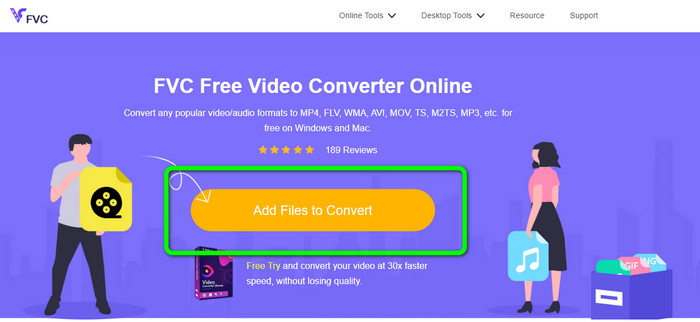
Langkah 1: Mula-mula, buka pelayar anda dan lawati laman web FVC Free Video Converter Online. Tekan butang Tambah Fail untuk Tukar untuk memuat naik fail AVI anda.
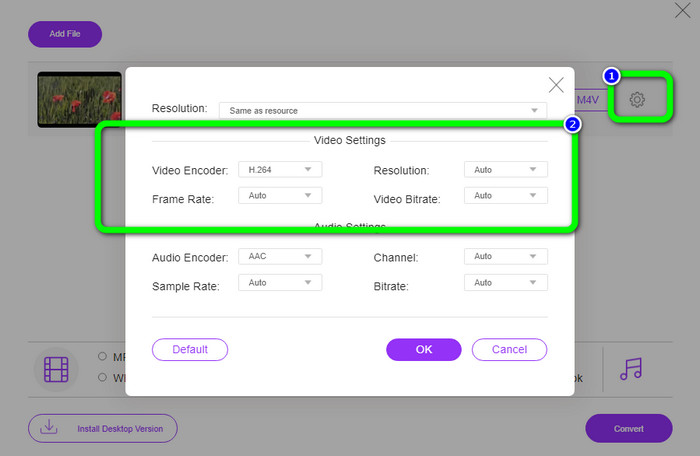
Langkah 2: Jika anda mahu menukar resolusi, kadar bingkai dan kadar bit video anda, klik ikon Tetapan di bahagian kiri antara muka. Jika anda sudah selesai mengubahnya, tekan OK.
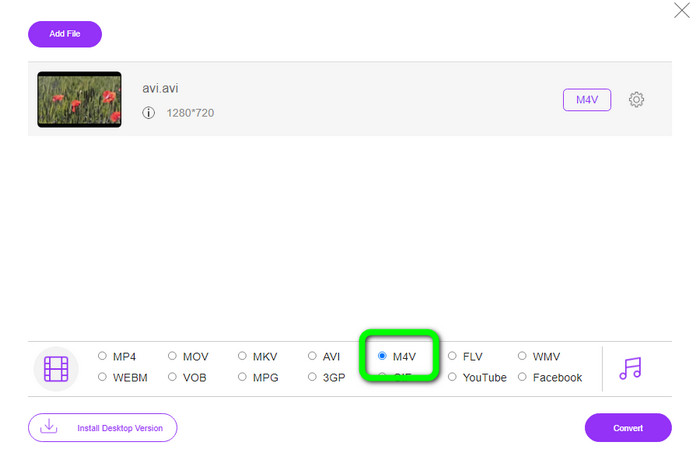
Langkah 3: Kemudian, pada bahagian bawah antara muka, pilih fail M4V sebagai format keluaran anda.
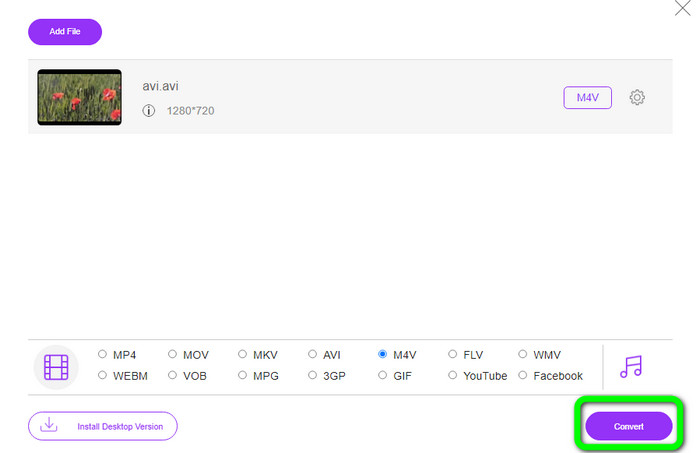
Langkah 4: Akhir sekali, untuk menyimpan fail video anda, klik butang Tukar. Tunggu proses penukaran dan muat turun output akhir anda.
Bahagian 3: Kaedah Mudah untuk Menukar AVI kepada M4V pada Windows dan Mac
Penukar hebat lain yang boleh anda gunakan ialah FVC Video Converter Ultimate. Alat ini boleh menukar AVI kepada M4V pada Windows. Ia boleh menukar fail anda serta-merta kerana ia mempunyai proses penukaran berkelajuan ultra, iaitu 30x lebih pantas. Selain itu, anda boleh menukar berbilang fail sekali gus kerana ia membenarkan penukaran kelompok. Di samping itu, ia mempunyai kaedah asas dengan antara muka intuitif yang sesuai untuk pemula. Tambahan pula, alat luar talian ini bukan sahaja boleh diakses pada Windows. Ia juga tersedia pada Mac. Lebih-lebih lagi, anda juga boleh membuat beberapa perubahan pada video anda semasa menukar. Anda boleh menyunting video anda dengan menambah baik, memotong, menambah penapis dan banyak lagi.
Ciri-ciri
◆ Menukar 100+ fail video, termasuk M4V, MP4, AVI, FLV, MKV, MOV, VOB, WMV dan banyak lagi.
◆ Membuat Kolaj dengan templat dan penapis percuma tersedia.
◆ Menawarkan pembuat Video Muzik.
◆ Sunting video menggunakan penambah video, pemangkas, penanggal tera air, pemampat dan sebagainya.
◆ Tukar format fail imej, seperti BMP, JPG, PNG, dsb.
◆ Mempercepat dan memperlahankan video.
Gunakan panduan terperinci di bawah untuk mengetahui cara menukar AVI kepada M4V pada Windows dan Mac menggunakan FVC Video Converter Ultimate. Kami akan menggunakan versi Windows.
Langkah 1: Muat turun FVC Video Converter Ultimate pada Windows atau Mac anda dengan mengklik butang muat turun.
Muat Turun PercumaUntuk Windows 7 atau lebih baharuMuat Turun Selamat
Muat Turun PercumaUntuk MacOS 10.7 atau lebih baharuMuat Turun Selamat
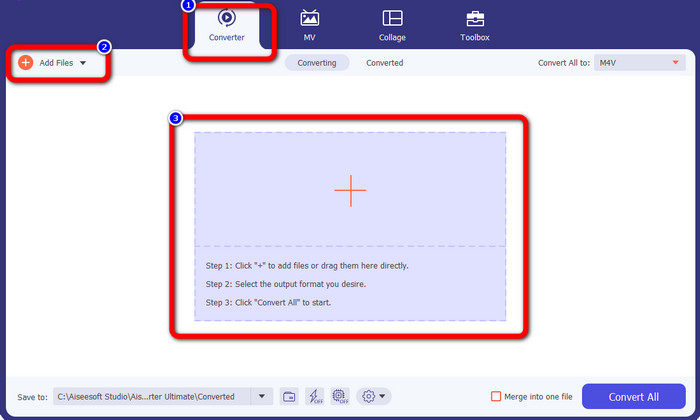
Langkah 2: Pergi ke panel Penukar selepas membuka aplikasi. Kemudian, anda mempunyai tiga pilihan untuk memasukkan fail AVI anda. Pertama, anda boleh klik butang Tambah Fail pada kotak kedua. Pilihan kedua ialah klik tanda Tambah pada kotak ketiga. Dan akhir sekali, lepaskan fail terus ke bahagian tengah.
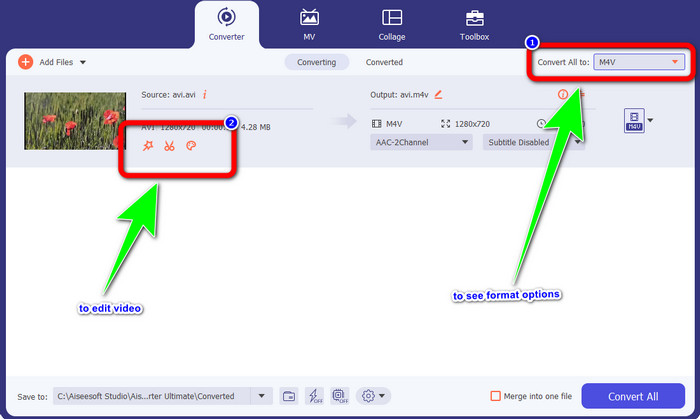
Langkah 3: Selepas menambah fail AVI anda, klik butang Tukar Semua kepada untuk melihat pilihan format, dan pilih format fail M4V. Kemudian, jika anda mahu menyunting video anda, anda boleh pergi ke kotak kedua. Anda boleh menggunakan alat untuk menyunting video anda, seperti menambah penapis, memutar dan memotong video, memotong bahagian dan banyak lagi.
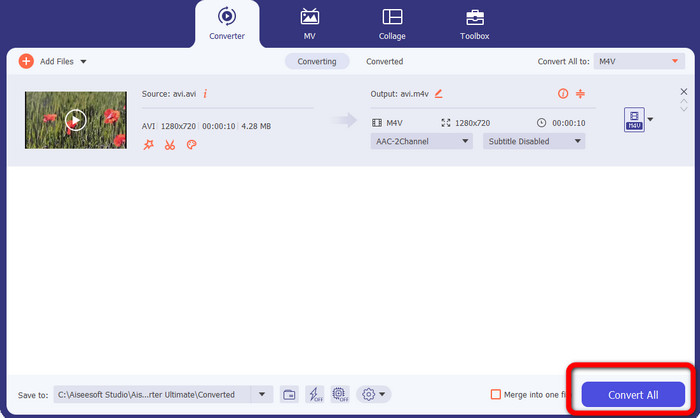
Langkah 4: Untuk langkah terakhir, klik butang Tukar. Tunggu proses penukaran pantas dan simpan video yang telah ditukar.
Bahagian 4: Bagaimana untuk Menukar AVI kepada M4V Menggunakan Handbrake
Handbrake ialah satu lagi penukar untuk menukar AVI kepada M4V secara percuma. Ia boleh menukar beberapa fail seperti WEBM, M4V, MP4, MKV dan sebagainya. Dengan panduan alat ini, anda boleh dengan mudah menukar banyak fail. Namun begitu, Handbrake agak rumit untuk digunakan. Anda perlu mempunyai pengetahuan yang mencukupi tentang penukar ini. Selain itu, proses pemasangannya mengelirukan. Anda mesti melakukan banyak prosedur sebelum menggunakannya, yang memakan masa bagi pengguna.
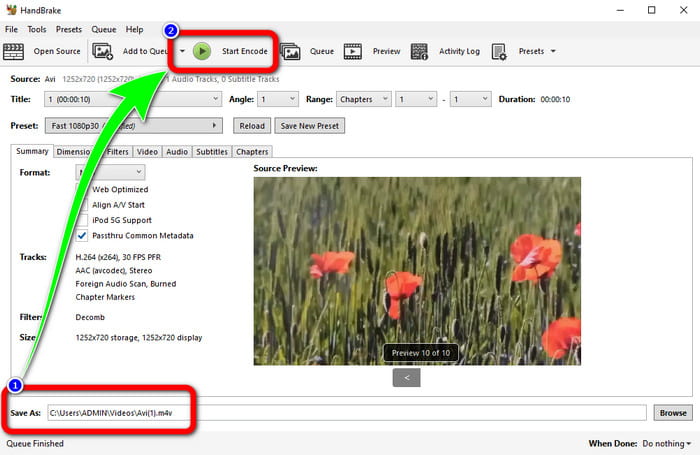
Langkah 1: Muat turun Handbrake pada komputer anda.
Langkah 2: Pilih format fail AVI yang anda mahu tukar.
Langkah 3: Pergi ke format dan pilih M4V. Kemudian mulakan proses penukaran dengan mengklik butang Mula.
Bahagian 5: Soalan Lazim tentang Menukar AVI kepada M4V
1. Bagaimana untuk menukar AVI kepada M4V pada Mac?
Anda boleh menggunakan FVC Video Converter Ultimate. Penukar ini boleh menukar AVI anda kepada M4V dengan mudah menggunakan Mac anda.
2. Seberapa besar fail AVI?
Memandangkan video AVI tidak dimampatkan, ia mengambil lebih banyak ruang cakera keras. Sebagai contoh, satu jam rakaman video 352x288 AVI boleh menggunakan sehingga 33GB (3300 MB) ruang cakera keras.
3. Adakah fail AVI universal?
Ya. Walaupun format AVI telah digantikan oleh format yang lebih moden seperti MP4, MOV atau WMV, individu masih menggunakan AVI kerana betapa mudah alihnya format ini. Hampir mana-mana komputer atau peranti boleh memainkan fail AVI.
Kesimpulannya
Panduan ini menunjukkan kepada anda kaedah terbaik untuk menukar fail AVI kepada M4V menggunakan tiga penukar tersebut. Namun, jika anda mahukan proses penukaran yang sangat pantas, gunakan FVC Video Converter Ultimate. Dan jika anda mahu kaedah yang lebih mudah, gunakan FVC Free Video Converter Online.
-
 5 Pemain M4V Teratas untuk Windows / Mac / Android / iOS yang Anda Perlu Tahu
 Apabila anda tidak dapat memainkan video M4V anda pada QuickTime Player, anda harus mengetahui lebih lanjut daripada 5 pemain M4V yang sangat baik untuk Windows, Mac, Android dan iOS daripada artikel ini
-
 AVI VS MP4 - Perbezaan dan Persamaan antara Format AVI dan MP4
 Manakah format video yang lebih baik, AVI atau MP4? Jika anda ingin mendapatkan perbandingan terperinci, anda boleh menyemak artikel AVI VS MP4 ini. Anda boleh mengetahui perbezaan dan persamaan antara AVI dan MP4 dalam banyak aspek
-
 3 Program Penukar Video Digunakan untuk Menukar iTunes M4V kepada AVI pada Mac
 Tidak mempunyai idea bagaimana untuk menukar MKV kepada format AVI? Semasa kami meneruskan membaca artikel ini, kami akan mengetahui 3 alat yang boleh membantu anda menukar format fail ini
