


 Video Converter Ultimate
 Perakam Skrin
 Pembaikan Video
 Muat Turun Selamat
Tukar kepada GIF dengan Mudah dan Buat Kandungan Menarik Perhatian
Pernahkah anda terfikir untuk menambah sedikit keunikan pada hantaran media sosial atau kandungan laman web anda? GIF animasi ialah cara yang hebat untuk melakukannya! Tetapi bagaimana jika anda tidak mempunyai kemahiran atau perisian untuk mencipta GIF sendiri dari awal? Jangan risau – anda boleh menukar fail atau video sedia ada anda kepada format GIF dengan beberapa langkah mudah sahaja! Dalam era digital ini, kandungan visual adalah yang utama, dan GIF animasi ialah cara popular untuk menambah elemen menarik pada kehadiran dalam talian anda. Jadi mari kita dalami dan kuasai cara menukar WMV ke GIF atau format video lain serta hasilkan kandungan yang menarik perhatian dengan menukar video anda kepada GIF hanya dalam beberapa minit!

Bahagian 1. Tukar Video kepada GIF
1. FVC Video Converter Ultimate
FVC Video Converter Ultimate ialah perisian berkuasa yang boleh membantu anda mencipta GIF animasi yang menakjubkan daripada kandungan video anda. Alat ini menyokong pelbagai format video, seperti SWF, MPEG, M4V, OGV, OGG dan banyak lagi. Selain itu, ia disertakan dengan pembuat GIF yang membolehkan anda membuat GIF daripada video anda. Tambahan lagi, anda juga boleh menggunakan imej pegun anda dan menjadikannya lebih menarik dengan pembuat GIF ini.
Ia juga menawarkan pelbagai ciri lain, seperti penyuntingan video, rakaman skrin dan banyak lagi, menjadikannya alat serba boleh untuk semua keperluan video anda. Sama ada anda seorang pemasar, pencipta kandungan atau pengurus media sosial, FVC Video Converter Ultimate boleh membantu anda mencipta visual yang menarik yang akan menarik perhatian khalayak anda. Lihat cara menukar SWF kepada GIF dan format video lain dengan menyemak langkah di bawah.
Langkah 1. Pasang perisian pada komputer anda
Muat turun dan pasang FVC Free Video Converter pada PC anda untuk mempelajari cara menukar MOV ke GIF. Untuk mendapatkan perisian ini, klik butang Free Download. Pemasangan tersedia untuk kedua‑dua Mac dan Windows.
Langkah 2: Import fail MOV pilihan anda
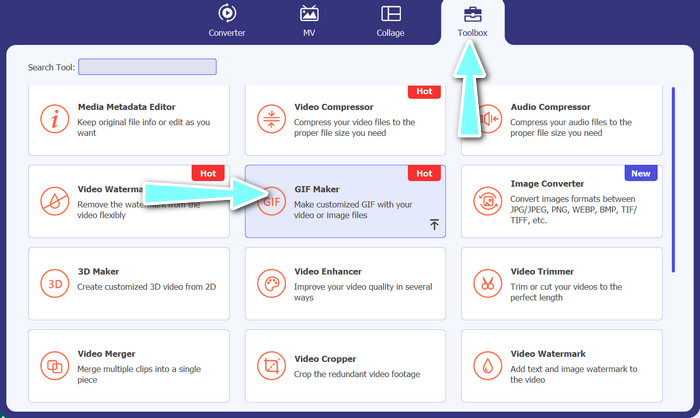
Mulakan aplikasi untuk melihat menu utama. Untuk mengakses GIF Maker, klik butang GIF Maker dalam menu Toolbox. Kemudian anda boleh memilih fail MOV yang dikehendaki dan klik pilihan Video to GIF.
Langkah 3. Ubah suai video
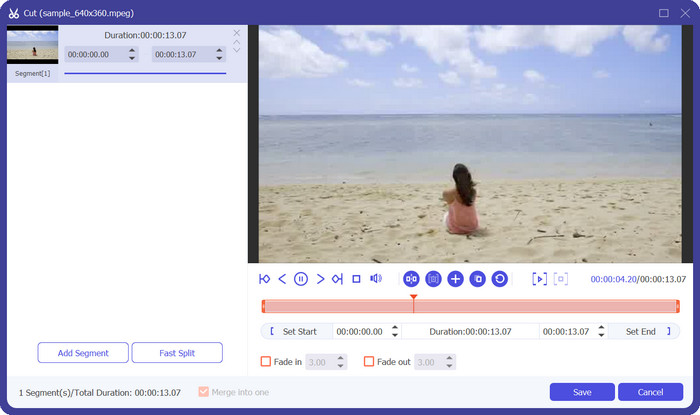
Untuk membuang segmen yang tidak diingini, pilih pilihan Cut. Pilih julat masa yang anda ingin gunakan untuk GIF anda dengan meluncurkan bar atau memasukkan masa mula dan tamat. Seterusnya, laraskan sifat GIF mengikut kesukaan anda. Ini termasuk resolusi, kadar bingkai dan kualiti. Jika anda klik pilihan Edit, anda boleh menyesuaikan GIF dengan teks dan pelekat.
Langkah 4. Menukar fail video kepada GIF
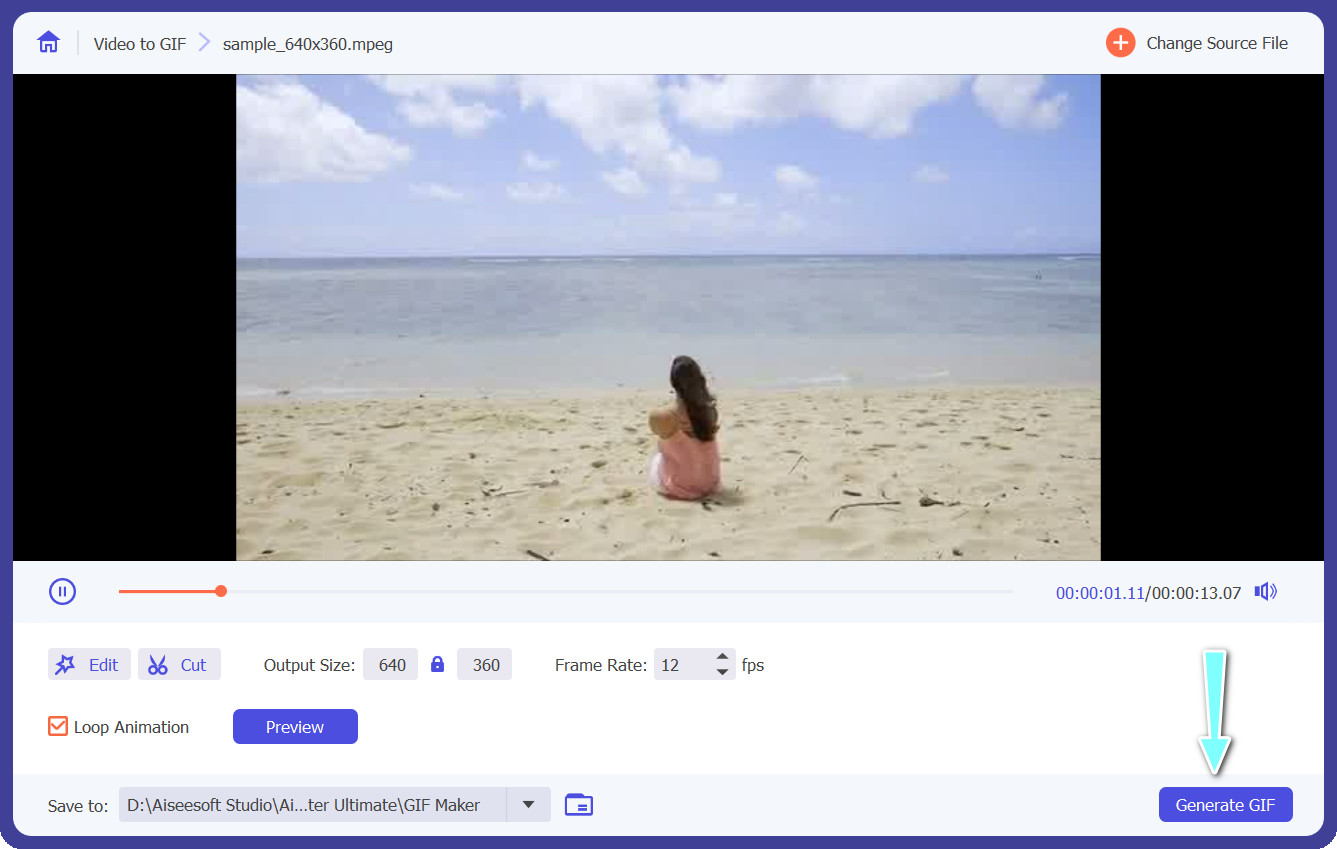
Pastikan GIF kelihatan seperti yang anda mahu dalam pratonton. Untuk menghasilkan GIF, hanya tekan butang Generate GIF. Dalam tetapan output, anda boleh memilih lokasi penyimpanan GIF pada komputer anda.
2. Penukar Video Percuma Dalam Talian
Jika video sudah sedia untuk dieksport, Free Video Converter Online ialah program terbaik yang patut anda gunakan. Ia ialah program dalam talian yang menukar fail terus dari pelayar web anda. Selain itu, ia hadir dengan ciri berguna, termasuk keupayaan menukar fail secara kelompok, mengedit sifat audio atau video, dan banyak lagi. Berikut ialah langkah yang perlu anda pelajari untuk menukar MPEG ke GIF atau format video lain.
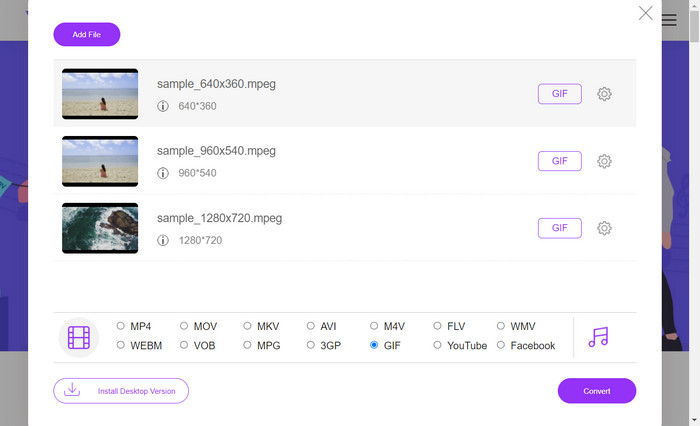
Langkah 1. Mula‑mula, buka pelayar web pilihan anda dan pergi ke laman web Free Video Converter Online untuk memulakan.
Langkah 2. Kedua, pilih fail video yang ingin anda tukar kepada GIF selepas mengklik pilihan Add Files to Convert.
Langkah 3. Ketiga, pilih jenis fail GIF sebagai format output daripada menu video.
Langkah 4. Untuk memulakan proses penukaran, klik butang Convert.
Bahagian 2. Tukar Audio kepada GIF
Sekarang, katakan anda ingin menukar OGG kepada GIF. Malangnya, fail OGG ialah fail audio dan tidak boleh ditukar terus kepada format GIF kerana GIF ialah format fail untuk imej dan animasi. Walau bagaimanapun, katakan anda mempunyai fail video yang mengandungi audio OGG. Dalam kes itu, anda mungkin boleh mengekstrak sebahagian daripada video dan menukarnya kepada GIF menggunakan alat penukar video yang menyokong kedua-dua format. Sebagai alternatif, anda boleh mempertimbangkan untuk menukar audio OGG kepada format video yang serasi seperti MP4, dan kemudian menggunakan alat penukar video yang menyokong penukaran MP4 kepada GIF. Sebaliknya, berikut ialah alat dan langkah yang anda boleh semak untuk menukar fail audio.
1. Video Converter Ultimate
Langkah 1. Dapatkan pemasang rasmi FVC Video Converter Ultimate daripada laman pembangun. Untuk menambah fail audio yang akan ditukar, mulakan program dan klik simbol plus.
Langkah 2. Dengan mengklik menu lungsur Profile dan memilih OGG daripada senarai format yang disokong, anda boleh memilih OGG sebagai format output. Jika anda memilih pilihan Settings, anda juga boleh menukar tetapan output. Kadar bit, kadar pensampelan dan bilangan saluran semuanya boleh dilaraskan sewajarnya.
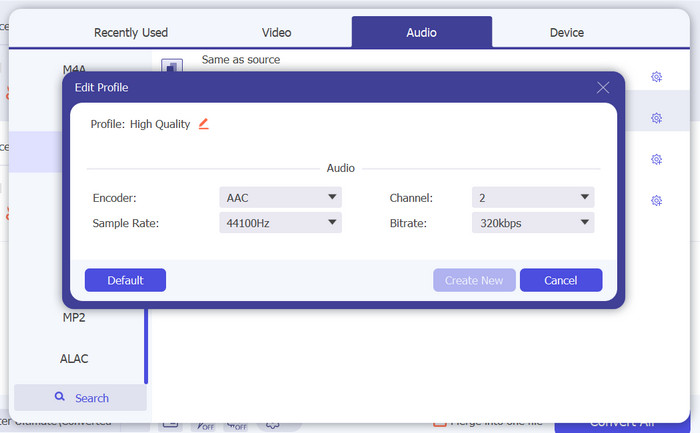
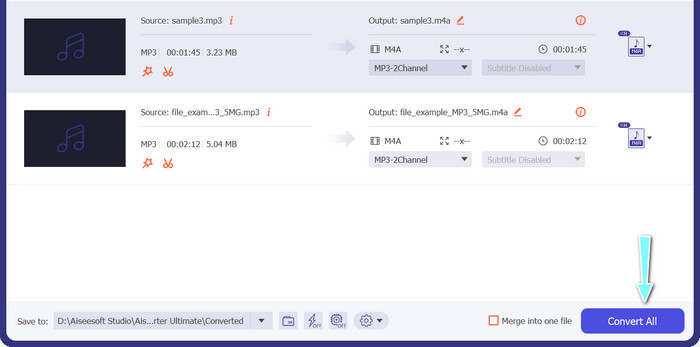
Langkah 3. Apabila anda bersedia untuk memulakan proses penukaran, klik butang Convert All selepas anda melaraskan tetapan mengikut kesukaan anda. Fail audio anda kini akan ditukar kepada format OGG oleh FVC Free Video Converter.
2. Penukar Audio Percuma
Penukar Audio Percuma menerima hampir semua format audio daripada MP3, WMA, FLAC, AAC, dll. Selain itu, jika anda ingin mengedit tetapan output, anda boleh melakukannya menggunakan program ini. Secara keseluruhan, ini adalah cara yang mudah untuk menukar fail audio dalam talian. Berikut adalah garis panduan yang boleh anda rujuk:
Langkah 1. Pergi ke laman web rasmi program dengan menggunakan mana‑mana pelayar pada komputer anda.
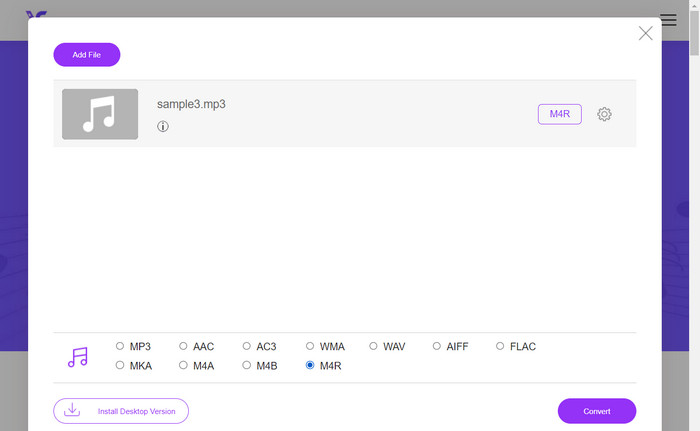
Langkah 2. Tanda butang Add Files to Convert dan pilih fail audio yang ingin anda tukar.
Langkah 3. Seterusnya, pilih format output dengan menanda butang radio yang sepadan dan tekan butang Convert untuk memulakan proses penukaran.
Bahagian 3. Tukar Imej kepada GIF
Free Image Converter Online ialah alat berasaskan web yang membolehkan pengguna menukar imej antara pelbagai format fail dengan mudah. Sama ada anda perlu menukar PNG ke JPEG, BMP ke GIF atau mana‑mana format lain, Free Image Converter Online boleh membantu anda melakukannya dengan cepat dan mudah. Dengan antara muka yang ringkas dan mesra pengguna, ia merupakan pilihan yang baik untuk sesiapa sahaja yang mencari cara yang mudah dan cekap untuk menukar imej mereka antara format yang berbeza. Oleh itu, jika anda sedang mencari alat khusus untuk menukar imej statik anda kepada imej bergerak, pertimbangkan program ini.
Langkah 1. Pergi ke laman web FVC Free Image Converter Online menggunakan pelayar yang anda gemari.
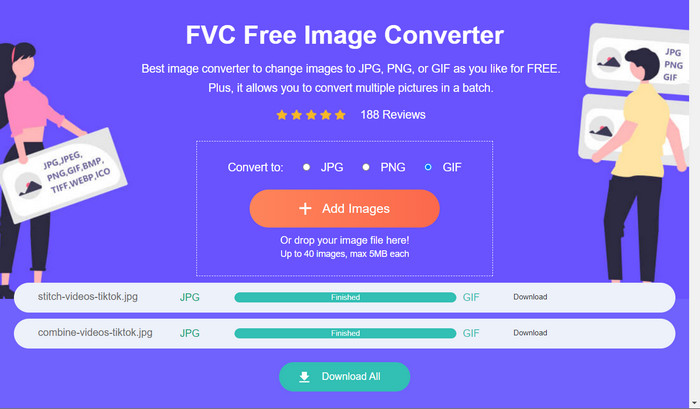
Langkah 2. Pilih format output. Dalam hal ini, pilih butang radio yang sepadan dengan GIF.
Langkah 3. Seterusnya, tekan butang Add Image untuk memuat naik fail imej dari komputer anda. Anda boleh memilih mana‑mana format fail imej.
Langkah 4. Setelah dimuat naik, fail imej akan ditukar secara automatik kepada GIF. Selepas penukaran, anda boleh tekan butang Download All untuk mendapatkan fail output.
Bahagian 4. Soalan Lazim tentang Menukar Fail kepada GIF
Bolehkah saya menukar M4V kepada GIF?
Ya, adalah mungkin untuk menukar format fail M4V kepada GIF dengan menggunakan alat penukar video yang menyokong kedua‑dua format. Sebagai contoh, FVC Video Converter Ultimate ialah perisian berkuasa yang menyokong format video M4V dan mempunyai alat pembuat GIF terbina dalam. Dengan alat ini, anda boleh memilih bahagian video M4V yang ingin anda tukar kepada GIF, menyesuaikan saiz dan kualiti fail output, dan mencipta GIF animasi berkualiti tinggi yang boleh anda gunakan untuk pelbagai tujuan.
Bagaimanakah saya boleh mengoptimumkan kualiti GIF saya?
Untuk mengoptimumkan kualiti GIF anda, anda boleh melaraskan kadar bingkai, peleraian, palet warna dan tetapan mampatan. Adalah penting untuk mencari keseimbangan yang betul antara saiz dan kualiti fail untuk memastikan GIF anda kelihatan baik sambil turut dioptimumkan untuk perkongsian web.
Bolehkah saya mengedit GIF saya selepas ia ditukar?
Ya, anda boleh mengedit GIF anda menggunakan pelbagai alat seperti GIMP atau Adobe Photoshop untuk menambah penapis, teks atau kesan lain. Namun, adalah penting untuk diingat bahawa mengedit GIF boleh menjejaskan kualitinya dan mungkin menghasilkan saiz fail yang lebih besar.
Kesimpulannya
Proses untuk menukar kepada GIF boleh menjadi alat yang berguna untuk menghasilkan animasi, memampatkan fail besar dan mengekalkan kualiti imej atau video ketika berkongsi dalam talian. Terdapat beberapa pilihan perisian untuk menukar kepada GIF serta alat penukar dalam talian.
-
 JPG VS GIF: 3 Cara Mudah untuk Menukar JPG kepada GIF
 Adakah anda ingin tahu perbezaan antara JPG dan GIF? Atau adakah anda ingin menukar JPG kepada format animasi GIF? Kemudian baca artikel ini untuk mendapatkan idea.
-
 Gelung GIF dengan Looper GIF Animasi Terbaik pada Windows & Mac
 Ingin tahu rahsia untuk GIF gelung terbaik? Nak buat satu? Jika ya, anda berada di tempat yang betul. Jadi, pelajari cara membuat gelung dengan gelung terbaik yang tersedia.
-
 Tukar MOV kepada GIF dan Buka Kunci Kuasa Kandungan Animasi
 Tukar video MOV anda kepada GIF animasi dan tingkatkan permainan kandungan dalam talian anda! Penukar MOV ke GIF kami yang mudah digunakan akan membantu anda mencipta grafik yang menarik perhatian.
