


 Video Converter Ultimate
 Perakam Skrin
 Pembaikan Video
 Muat Turun Selamat
Audio Mengecut: Cara Menukar WAV kepada Format OGG untuk Saiz Fail yang Lebih Kecil
Fail audio yang besar boleh menggunakan banyak memori pada komputer atau peranti mudah alih anda semasa anda mengendalikannya. Menukar fail ini daripada format WAV ke OGG dapat mengurangkan saiznya dengan banyak, sekali gus memudahkan pengurusan dan penghantarannya. Dalam artikel ini, kami akan melihat kelebihan menukar fail WAV kepada format OGG dan menunjukkan kepada anda cara melakukannya langkah demi langkah. Kami juga akan membincangkan beberapa program terbaik untuk tujuan ini bagi memastikan anda mendapat kualiti audio yang terbaik. Jadi, sama ada anda seorang pemuzik, podcaster, atau sekadar seseorang yang ingin menyusun rakaman audio anda, artikel ini sesuai untuk anda.

Bahagian 1. Perbandingan OGG lwn WAV
Berikut ialah carta perbandingan yang menggariskan perbezaan antara menukar WAV kepada OGG. Anda boleh menyemaknya untuk rujukan anda.
| WAV | OGG | |
| Saiz fail | Besar | Kecil |
| Pemampatan | Tidak dimampatkan | Termampat |
| Kualiti audio | Kualiti tinggi | Kualiti tinggi |
| Keserasian | Serasi secara meluas | Kurang serasi |
| Sokongan platform | Disokong pada semua platform | Sokongan terhad pada beberapa platform |
| Penyuntingan | Mudah diedit | Sedikit lebih sukar untuk diedit |
Bahagian 2. Cara terbaik untuk Menukar WAV kepada OGG atau OGG kepada WAV
1. FVC Video Converter Ultimate
FVC Video Converter Ultimate ialah perisian penukar video yang berkuasa yang boleh membantu anda menukar fail audio WAV anda kepada format OGG termampat dengan cepat dan mudah. Dengan antara muka yang intuitif dan mesra pengguna, anda boleh dengan mudah memilih fail WAV anda, pilih format OGG, dan mulakan proses penukaran hanya dengan beberapa klik.
Selain itu, FVC Video Converter Ultimate termasuk ciri penyuntingan video lanjutan, membolehkan anda memangkas, memangkas, menambah tera air dan menggunakan pelbagai penapis pada fail audio anda sebelum penukaran. Ciri ini boleh membantu jika anda perlu membuat pelarasan kecil atau meningkatkan kualiti fail audio anda sebelum menukarnya kepada format OGG. Oleh itu, jika anda ingin menukar kumpulan OGG kepada WAV atau sebaliknya, ikuti langkah di bawah:
Langkah 1. Pasang program dan import fail OGG atau WAV
FVC Video Converter boleh dimuat turun dan dipasang daripada laman web rasmi. Lancarkan aplikasi dan pilih butang tanda Tambah untuk mengimport fail audio yang akan ditukar.
Muat Turun PercumaUntuk Windows 7 atau lebih baharuMuat Turun Selamat
Muat Turun PercumaUntuk MacOS 10.7 atau lebih baharuMuat Turun Selamat
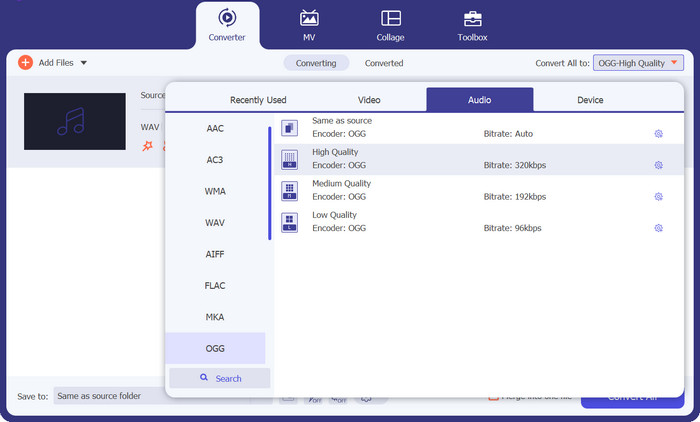
Langkah 2. Pilih OGG sebagai format keluaran
Dengan mengklik menu lungsur Profile dan memilih OGG daripada senarai format yang tersedia, anda boleh memilih OGG sebagai format keluarannya. Anda juga boleh menukar tetapan keluaran dengan memilih butang Settings jika perlu. Ini membolehkan anda menukar parameter seperti kadar bit, kadar pensampelan, dan saluran.
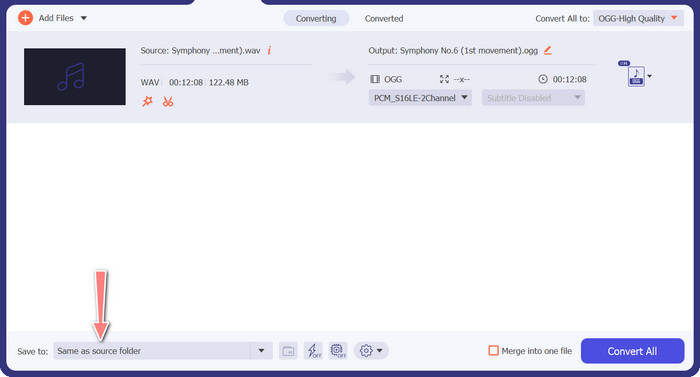
Langkah 3. Masukkan lokasi keluaran
Dengan memilih butang Browse di sebelah medan Output Folder, anda boleh memilih folder keluaran tempat anda ingin menyimpan fail yang telah ditukar.
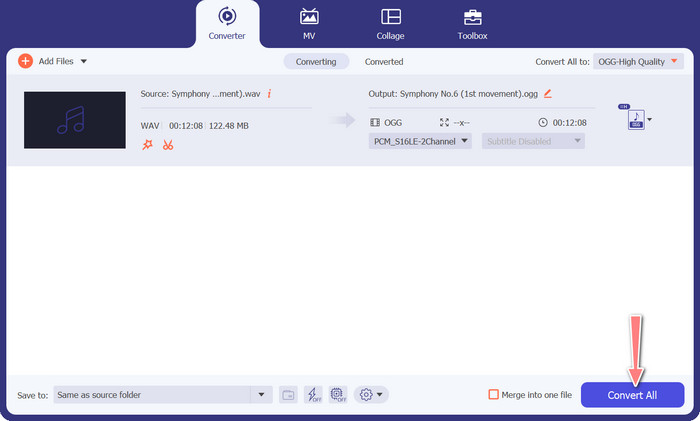
Langkah 4. Penukaran fail WAV ke OGG
Sebaik sahaja anda berpuas hati dengan pilihan anda, klik butang Convert All untuk memulakan penukaran. FVC Free Video Converter akan mula menukar fail WAV anda kepada format OGG. Bar kemajuan menunjukkan sejauh mana proses penukaran telah berjalan, serta anggaran masa yang tinggal.
2. Penukar Audio Percuma Dalam Talian
Free Audio Converter Online ialah alat berkuasa untuk menukar WAV ke OGG secara dalam talian. Pengguna boleh dengan cepat menambah fail WAV atau OGG dan menukarnya kepada format OGG menggunakan antara mukanya yang ringkas. Penukar ini juga membolehkan pengguna mengubah tetapan keluaran, seperti kadar bit dan kadar pensampelan, untuk mencapai kualiti fail OGG yang dikehendaki. Proses penukaran adalah pantas dan mudah, dan pengguna boleh memuat turun fail yang telah diubah suai terus dari laman web tersebut.
Langkah 1. Pergi ke laman web Free Video Converter Online menggunakan pelayar web kegemaran anda.
Langkah 2. Muat naik fail OGG yang ingin anda tukar kepada WAV dengan mengklik butang Add Files to Convert.
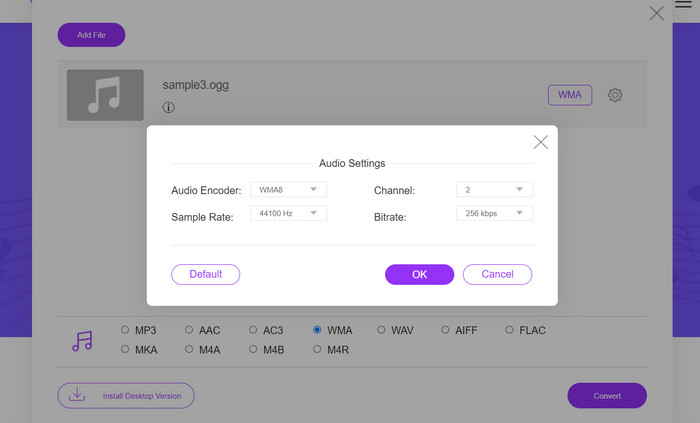
Langkah 3. Pilih OGG sebagai format keluaran daripada senarai format yang disokong dalam menu format Audio. Anda juga boleh menetapkan kadar bit dan kualiti keluaran untuk fail OGG.
Langkah 4. Untuk memulakan proses penukaran, klik butang Convert. Begitulah cara anda menukar OGG kepada WAV secara dalam talian.
Bahagian 2. Tukar OGG kepada WAV atau WAV kepada OGG dengan Audacity
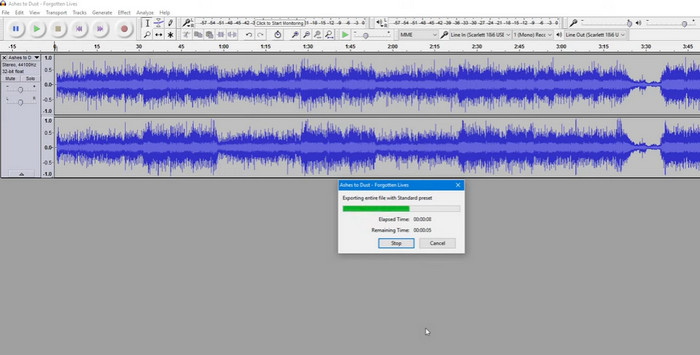
Alat ini ialah perisian penyuntingan audio sumber terbuka yang boleh menukar fail MP3 kepada fail OGG. Audacity menawarkan pelbagai alat pengeditan dan kesan sebagai tambahan kepada penukaran, membolehkan pengguna mengubah suai dan meningkatkan fail audio mereka, menjadikannya alat serba boleh untuk operasi penyuntingan dan penukaran audio.
Tambahan pula, Audacity tersedia untuk Windows, macOS dan Linux, menjadikannya tersedia secara meluas. Audacity ialah alternatif yang baik untuk sesiapa sahaja yang ingin menukar fail WAV kepada format OGG kerana keupayaan canggih dan kemudahan penggunaannya. Semak panduan di bawah untuk mengetahui cara program ini berfungsi.
Langkah 1. Muat turun dan pasang Audacity pada PC anda. Buka Audacity, kemudian buka fail OGG atau WAV yang ingin anda edit. Anda boleh melakukannya dengan memilih File > Open, kemudian cari dan pilih fail WAV pada komputer anda.
Langkah 2. Setelah fail WAV dibuka dalam Audacity, klik File, kemudian Export. Dalam kotak dialog Export Audio, pilih OGG Vorbis Files sebagai jenis fail.
Langkah 3. Anda boleh melaraskan kualiti fail OGG anda dengan menyeret peluncur Quality. Tetapan kualiti yang lebih tinggi akan meningkatkan saiz fail, manakala tetapan kualiti yang lebih rendah akan mengurangkan saiz fail tetapi mungkin menurunkan kualiti lagu.
Kelebihan
- Ia mempunyai keupayaan untuk menukar kumpulan WAV kepada OGG.
- Tukar OGG kepada WAV pada Windows, macOS dan Linux.
Keburukan
- Program ini tidak mempunyai komuniti sokongan khusus.
Bahagian 3. Tukar OGG kepada WAV atau WAV kepada OGG dengan VLC
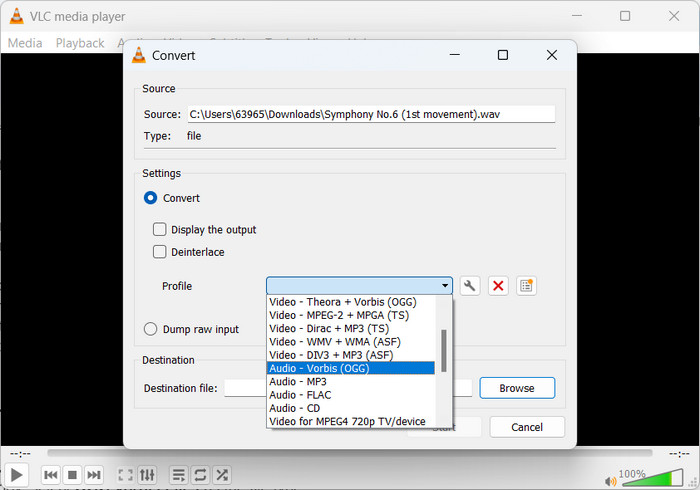
Pemain media VLC ialah alat multimedia berkuasa yang digunakan secara meluas untuk memainkan pelbagai jenis fail media. Ramai pengguna mungkin tidak menyedari bahawa program ini juga berfungsi dengan baik untuk menukar alat OGG kepada WAV untuk Mac. Dengan alat penukar terbina dalamnya, pemain media VLC boleh menukar fail WAV kepada format OGG dengan cepat dan mudah, membolehkan pengguna menikmati muzik kegemaran mereka dalam pelbagai format. Untuk semua keperluan penukaran audio anda, pemain media VLC menawarkan penyelesaian yang mudah dan mesra pengguna sama ada anda ingin menukar satu fail atau sekumpulan fail. Ikuti langkah ini untuk mengetahui cara menukar fail MP3 kepada fail OGG:
Langkah 1. Untuk memainkan video, jalankan VLC dan pilih daripada bar menu pemain. Pilihan Convert / Save akan muncul dalam menu lungsur; pilih pilihan ini.
Langkah 2. Dengan mengklik butang Add, pilih fail WAV yang ingin anda tukar daripada bahagian File Selection. Apabila anda bersedia untuk menukar atau menyimpan fail, klik butang Convert / Save.
Langkah 3. Klik menu lungsur Profile dan pilih Audio - Vorbis (OGG) sebagai profil pilihan anda.
Langkah 4. Klik butang Browse di sebelah kanan bahagian fail Destination untuk menetapkan lokasi dan nama fail baharu bagi fail yang telah ditukar. Penukaran boleh dimulakan dengan mengklik butang Start di bahagian bawah tetingkap.
Kelebihan
- Antara muka mesra pengguna.
- Ia menyokong banyak format video dan audio.
Keburukan
- Kemungkinan kehilangan kualiti audio.
Bacaan Lanjut:
Tukar MP3 kepada OGG dan Nikmati Kualiti Bunyi yang Lebih Hebat
Cara Menukar MP4 ke WAV secara Percuma di Desktop atau Dalam Talian [2023]
Bahagian 4. Soalan Lazim tentang Menukar OGG kepada WAV
Bolehkah saya menukar berbilang fail WAV kepada format OGG sekaligus?
Ya, banyak perisian penukaran audio, termasuk FVC Video Converter Ultimate, menyokong penukaran kelompok yang membolehkan anda menukar kumpulan WAV kepada format OGG secara serentak.
Adakah mungkin untuk menukar fail OGG kembali ke format WAV?
Ya, adalah mungkin untuk menukar fail OGG kembali ke format WAV menggunakan perisian penukaran audio. Walau bagaimanapun, perlu diingat bahawa kualiti audio mungkin terjejas jika fail WAV asal dimampatkan kepada format OGG.
Bolehkah saya menukar fail WAV saya kepada format audio lain selain OGG?
Ya, kebanyakan perisian penukaran audio menyokong pelbagai format audio, termasuk MP3, AAC, FLAC dan banyak lagi.
Kesimpulannya
Menukar format WAV ke OGG boleh menawarkan beberapa faedah, seperti mengurangkan saiz fail dan mengekalkan kualiti audio yang tinggi. Sementara itu, dengan alat penukaran audio yang betul dan sedikit pengetahuan, anda boleh dengan mudah menukar fail audio anda kepada format yang paling sesuai dengan keperluan anda.
-
 Pemain OGG yang sangat baik untuk Windows dan Mac yang Anda Tidak Perlu Lupa
 Apabila anda ingin memainkan audio kegemaran anda dalam format OGG, terutamanya apabila simpanannya lebih sedikit. Anda boleh mengetahui lebih lanjut mengenai 5 pemain OGG Terbaik dari artikel ini.
-
 Ketahui mengenai Cara Menukar MP3 ke Format WAV
 Adakah anda ingin tahu bagaimana untuk menukar MP3 ke WAV? Tentukan alat mana yang menghasilkan penukaran kualiti terbaik yang boleh anda perolehi.
-
 2 Cara Terbaik untuk Mengedit Metadata OGG yang Perlu Anda Cuba secara Percuma
 Perlu mengedit metadata OGG? Nah, anda boleh mengendalikan penyuntingan tag dengan mudah dengan menggunakan perisian yang betul. Jika anda tidak membaca artikel ini adalah satu kemestian.
