


 Video Converter Ultimate
 Perakam Skrin
 Pembaikan Video
4 Kaedah Paling Mudah Cara Mengubah Resolusi Video dengan Langkah Komprehensif
Terdapat banyak sebab mengapa anda perlu menukar resolusi video. Salah satu sebabnya mungkin untuk menjimatkan ruang storan video. Apa pun sebab anda, panduan ini akan mengajar anda empat kaedah untuk mengurangkan atau meningkatkan kualiti video. Tanpa berlengah lagi, mari kita terokai penukar resolusi video yang boleh anda gunakan untuk menukar resolusi video anda.

Bahagian 1. Kaedah Pertama: Alat Desktop Terbaik untuk Mengubah Resolusi Video pada Windows dan macOS
Video Converter Ultimate ialah alat terbaik untuk tugas ini kerana ia boleh membantu anda menukar bukan sahaja format video tetapi juga kualiti video dalam beberapa klik sahaja. Alat ini menyokong proses penukaran sangat pantas untuk memudahkan anda menukar kualiti video kepada resolusi video tertinggi atau standard. Menarik untuk menggunakan perisian ini, bukan? Mahu tahu lebih lanjut? Jika ya, alat ini menyokong kedua‑dua platform desktop. Walaupun ia menyokong Windows dan Mac, ciri yang anda lihat pada Windows turut tersedia pada Mac, dan sebaliknya. Kami tahu alat ini mempunyai sesuatu yang istimewa, jadi kami memasukkannya ke dalam senarai ini. Jadi sekarang, jika anda mahukan panduan langkah demi langkah, anda boleh ikut tutorial bertulis di bawah untuk belajar cara menukar resolusi video dengan berjaya.
Langkah 1. Klik butang yang sesuai untuk memuat turun program ke pemacu anda. Buka fail yang dimuat turun dan ikut proses pemasangan yang akan dipaparkan pada skrin anda. Selepas pemasangan selesai, buka penukar resolusi video dan teruskan ke langkah seterusnya.
Muat Turun PercumaUntuk Windows 7 atau lebih baharuMuat Turun Selamat
Muat Turun PercumaUntuk MacOS 10.7 atau lebih baharuMuat Turun Selamat
Langkah 2. Untuk memasukkan fail video yang anda mahu tukar resolusinya, klik butang Add File. Semak imbas fail dalam folder komputer yang dipaparkan, klik fail tersebut, kemudian tekan Open.
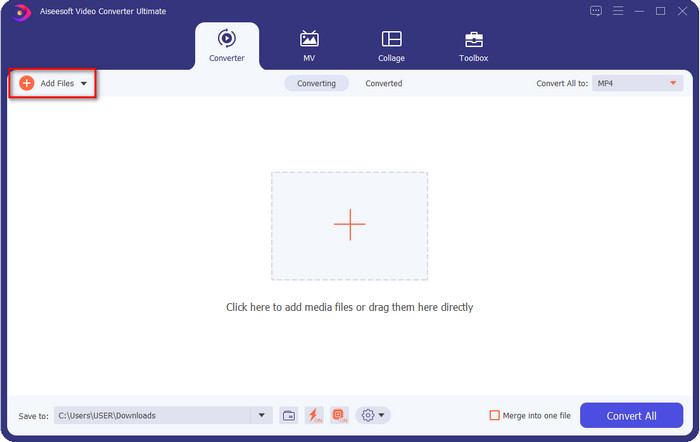
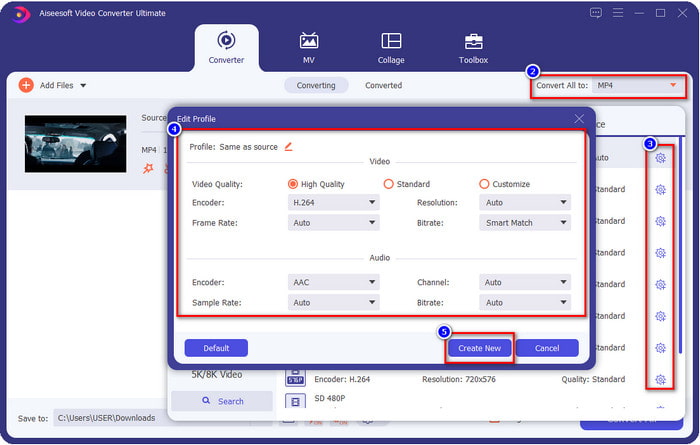
Langkah 3. Lihat pada bahagian atas sebelah kanan dan klik butang drop-down pada antara muka utama. Pilih format video yang anda mahu, MP4, MOV, AVI, MKV, FLV dan lebih 200 format lain tersedia di sini. Selepas anda memilih format, klik butang widget untuk mengedit profil format tersebut. Di sini anda boleh menaikkan atau menurunkan resolusi, menukar pengekod, kualiti, bitrate dan banyak lagi sama ada untuk meningkatkan resolusi video atau tidak. Untuk menyimpan pengubahsuaian, klik Create New.
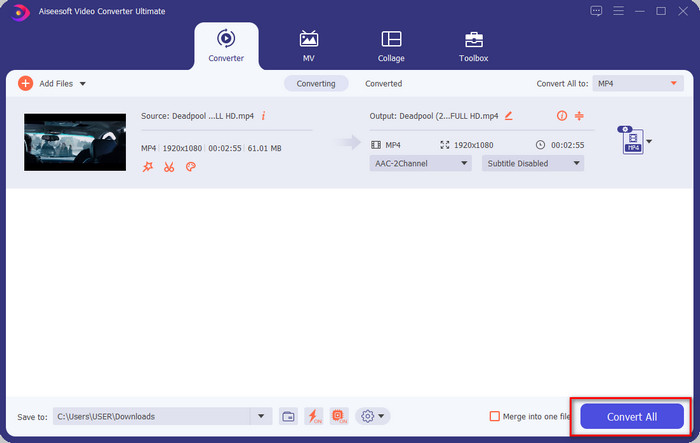
Langkah 4. Akhir sekali, dengan mengklik Convert All, proses penukaran resolusi akan bermula. Dengan itu, anda kini telah menukar resolusi video dengan bantuan Video Converter Ultimate.
Bahagian 2. Kaedah Kedua: Kaedah Mudah dan Percuma untuk Mengubah Resolusi Video Dalam Talian
Mahu menukar resolusi video dalam talian? Jika begitu, anda mesti menggunakan versi dalam talian percuma bagi alat utama ini, iaitu FVC Free Video Converter Online. Alat ini boleh membantu anda menukar resolusi video anda secara percuma. Ia ialah alat dalam talian, jadi ia memerlukan sambungan internet untuk berfungsi. Selain itu, alat ini tidak menyokong semua format video, jadi terdapat had dalam penambahan format video di sini. Sekarang, mari cuba gunakan alat ini untuk menukar resolusi dengan mengikuti langkah di bawah.
Langkah 1. Untuk membuka penukar resolusi video dalam talian, klik pautan ini untuk membuka alat tersebut secara terus.
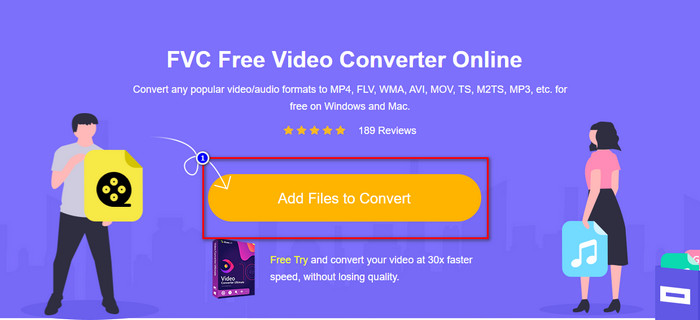
Langkah 2. Tekan Add Files to Convert untuk memuat turun pelancar bagi pengguna kali pertama, kemudian klik sekali lagi selepas anda memuat turun pemasang. Selepas anda mengkliknya, satu folder akan dipaparkan, cari fail video dalam folder tersebut dan klik Open.
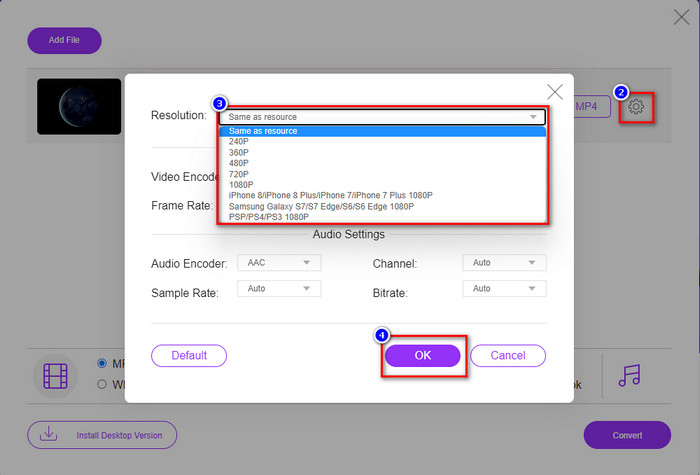
Langkah 3. Klik butang gear untuk membuka tetingkap baharu bagi menukar resolusi video. Di bahagian atas tetingkap baharu itu, klik Resolution, pilih resolusi video yang anda mahu dan klik OK untuk menyimpannya.
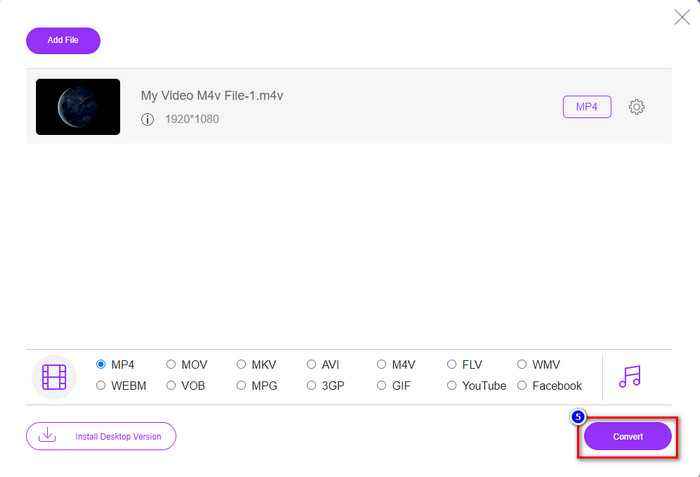
Langkah 4. Pilih format pada senarai yang ditetapkan dan klik Convert untuk mula menukar resolusi.
Berkaitan:
Tambah Sarikata pada Video
Bahagian 3. Kaedah Ketiga: Cara Berasaskan Mudah Alih untuk Menukar Resolusi Video pada iPhone dan Android
Kaedah ini tidak boleh menukar peleraian video anda, tetapi anda boleh mengambil video peleraian yang lebih rendah atau lebih tinggi. Selain itu, mari lihat bagaimana kita boleh menukar peleraian video semasa kita merakam video tersebut.
1. Resolusi Video iPhone Terbina dalam
Jika anda pengguna iOS, anda boleh menukar peleraian video yang anda ambil jika anda mahu. Walau bagaimanapun, anda tidak dapat menjumpainya pada Kamera, jadi jika anda tidak menemuinya, anda boleh mengikuti langkah di bawah untuk mengetahui cara menukar peleraian video pada iPhone sebelum anda merakam video.
Langkah-langkah ini diambil daripada model iPhone X supaya langkah mungkin berbeza sedikit daripada versi lain nama atau fungsi seperti iPhone.
Langkah 1. Buka Settings pada iPhone anda.
Langkah 2. Di bawahnya, cari Camera dan klik.
Langkah 3. Klik Record Video dan pilih resolusi yang anda mahu gunakan semasa merakam video. Kembali ke skrin Utama, pergi ke Camera, dan rakam video dengan resolusi yang telah anda tetapkan dalam tetapan tadi.
2. Resolusi Video Android Terbina dalam
Untuk pengguna Android, anda boleh mengakses terus resolusi video pada Kamera anda. Langkah yang kami sediakan tidak begitu rumit seperti untuk iPhone kerana anda tidak perlu menyediakan tetapan. Jadi sekarang, untuk menukar peleraian video pada Android, ikut arahan di bawah.
Langkah ini diambil daripada Redmi 10, jadi langkah mungkin sedikit berbeza dengan beberapa peranti Android lain seperti nama atau fungsi.
Langkah 1. Pada telefon anda, klik aplikasi Camera untuk membukanya.
Langkah 2. Setelah ia dibuka, pergi ke Video, klik ikon tiga garisan selari, dan pilih resolusi video yang anda mahu.
Langkah 3. Tekan butang merah untuk merakam video dengan resolusi yang telah ditetapkan.
Bahagian 4. Soalan Lazim Mengenai Menukar Resolusi Video
Apakah resolusi video?
Bilangan piksel yang terkandung dalam setiap bingkai ialah apa yang kami panggil peleraian video. Ia juga mengawal butiran yang boleh anda lihat pada satu video, seperti seberapa jelas gambar itu. Selain itu, terdapat pelbagai jenis resolusi video; kami memanggil resolusi yang lebih tinggi bermula dari HD dan ke atas yang menggunakan lebih banyak bingkai berkualiti sesaat. Walaupun peleraian yang lebih rendah bermula dari SD dan lebih rendah, peleraian video ini mendapat lebar jalur yang kurang daripada peleraian yang lebih tinggi, tetapi ia mempunyai bingkai kualiti yang lebih kecil sesaat.
Adakah 1080 adalah resolusi video terbaik?
Ia menghasilkan salah satu pengguna resolusi video yang paling dipilih yang paling kerap dipilih di Youtube dan aplikasi penstriman video lain. Tetapi bukan selalu pilihan terbaik untuk menonton video berkualiti tinggi kerana ia boleh mengambil lebih banyak masa untuk menimbal video daripada 720. Jadi, kali seterusnya anda menonton video dalam talian, kami lebih suka menggunakan 720 daripada 1080 untuk memuatkan video lebih pantas, dan tiada perubahan ketara pada kedua-dua kualiti jika anda mengubahnya.
Adakah mengurangkan resolusi menjejaskan kualiti?
Ya, akan ada perubahan setelah anda menurunkan kualiti video. Sebagai contoh, jika video anda dalam HD, anda menukarnya kepada SD, kualiti akan berubah secara drastik. Jadi, jika anda menukar peleraian video, anda akan melihat perubahan mendadak, tetapi ia masih boleh ditonton walaupun selepas itu.
Kesimpulannya
Akhirnya, kita kini boleh menukar resolusi video mengikut kehendak kita. Walaupun anda boleh menggunakan banyak alatan yang berbeza untuk menukar kualiti video, kami masih mempersembahkan alatan dalam talian, luar talian dan terbina dalam yang paling selamat dan terbaik. Kami berharap artikel ini membantu anda mengubah resolusi; jika anda mempunyai lebih banyak soalan, anda boleh meninggalkan komen di bawah, dan sememangnya kami akan membalas komen anda.
-
 Ulasan Perisian Penukar Video HD 10 Teratas (Percuma & Komersial)
 Baca dan Bandingkan untuk mendapatkan perisian penukar video HD terbaik daripada 10 cadangan. Berikut ialah ulasan terperinci bagi setiap penukar video HD untuk berbilang platform.
-
 Garis Panduan tentang Cara Menukar M4A kepada WAV [PC dan Mac]
 Ketahui lebih lanjut tentang cara menukar M4A kepada WAV dengan langkah terperinci dan alatan berbeza yang boleh anda pilih.
-
 Pilihan Hebat untuk Menukar MKV ke Format AVI
 Kuasai cara menukar video MKV dengan langkah mudah yang disediakan secara eksklusif untuk anda. Adakah anda ingin tahu bagaimana? Kemudian klik pautan ini untuk mengetahui lebih lanjut.
