


 Video Converter Ultimate
 Perakam Skrin
 Pembaikan Video
 Muat Turun Selamat
Dari 50MB hingga 5MB - Cara Memampatkan Fail MP4 dalam Detik
Setelah mengambil beberapa video, anda mungkin mahu memuat naiknya ke kisah Instagram atau berkongsi dengan rakan anda. Walau bagaimanapun, kebanyakan platform media sosial mempunyai had saiz fail untuk muat naik. Oleh itu, apabila anda menghantar video MP4 melalui WhatsApp atau menambahkan lampiran MP4 ke dalam e-mel anda, kadangkala anda menganggapnya terlalu besar untuk dimuat naik.
Oleh itu, untuk menyelesaikan masalah ini, anda perlu memampatkan fail MP4, atau dengan kata lain, membantu video anda “mengurangkan berat”.
Artikel berikut akan membimbing anda untuk mengurangkan saiz video MP4 tanpa menjejaskan kesan paparan.

Bahagian 1. Cara Memampatkan Video MP4 Secara Dalam Talian & Percuma
Jika anda sedang mencari pemampat MP4 dalam talian yang percuma tanpa pendaftaran atau bayaran tersembunyi, anda boleh cuba FVC Free Video Compressor, yang membolehkan anda mengecilkan sebarang video 4K, HD atau SD kepada fail yang lebih kecil tanpa tera air. Dan tidak seperti pemampat percuma yang lain, anda boleh memampatkan seberapa banyak video MP4 yang anda mahu secara percuma tanpa had pada saiz fail atau panjang video.
Lebih-lebih lagi kerana pemampat ini adalah produk berasaskan web, ia berfungsi dengan sempurna pada Windows, Mac dan Linux. Anda dapat menggunakannya dengan mudah dalam talian dengan penyemak imbas, selagi anda bersambung ke Internet.
Untuk menguasai alat pemampatan ini dengan cepat, ikuti langkah-langkah di bawah.
Langkah 1. Layari FVC Free Video Compressor pada pelayar anda dan klik Add Files to Compress untuk menjalankan pelancar. Tetapi jika anda menggunakan alat ini buat pertama kali, sila muat turun pelancar terlebih dahulu.
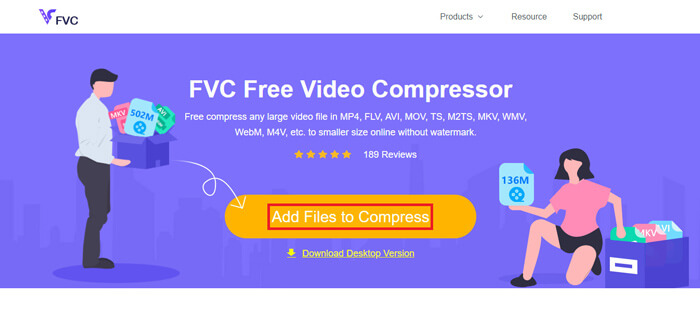
Langkah 2. Selepas pemasangan, sila pilih fail MP4 yang anda ingin mampatkan. Laraskan saiz video, format, resolusi dan bitrate mengikut keperluan anda.
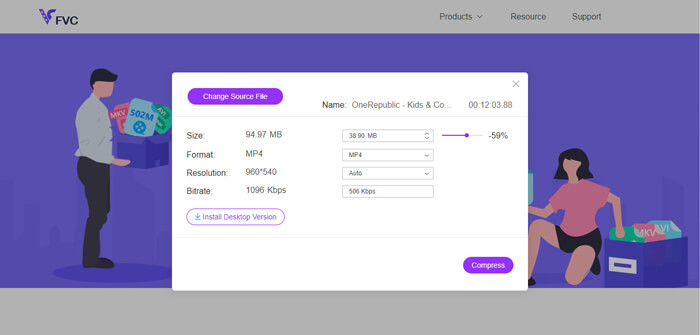
Langkah 3. Klik Compress untuk memulakan proses pemampatan.
Bahagian 2. Cara Memampatkan MP4 Menggunakan Freeware Luar Talian
Sekiranya rangkaian anda tidak stabil, anda lebih baik memilih untuk memampatkan video di luar talian di desktop anda, yang mengelakkan pengaruh status rangkaian.
Video Converter Ultimate ialah perisian semua-dalam-satu percuma untuk memampat, menukar, dan menyunting fail video/audio pada PC anda. Ia menyokong lebih 1,000 format dan akan ada 10 pilihan resolusi output untuk anda pilih. Anda boleh menamakan semula video sebelum pemampatan supaya anda boleh membezakannya dengan mudah daripada fail MP4 yang lain. Versi baharu Video Converter Ultimate mengandungi banyak fungsi penyuntingan yang berguna dan pelbagai ciri hebat, seperti penyunting Metadata, pembuat GIF, pembuat 3D, pengenhak Video dan sebagainya.
Muat Turun PercumaUntuk Windows 7 atau lebih baharuMuat Turun Selamat
Muat Turun PercumaUntuk MacOS 10.7 atau lebih baharuMuat Turun Selamat
Langkah 1. Lancarkan Video Converter Ultimate pada komputer anda.
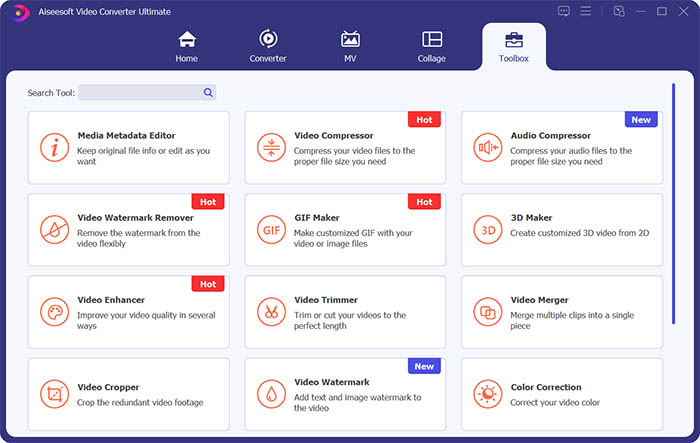
Langkah 2. Klik Toolbox. Cari Video Compressor dalam Toolbox. Klik ikon + untuk menambah video yang hendak dimampatkan.
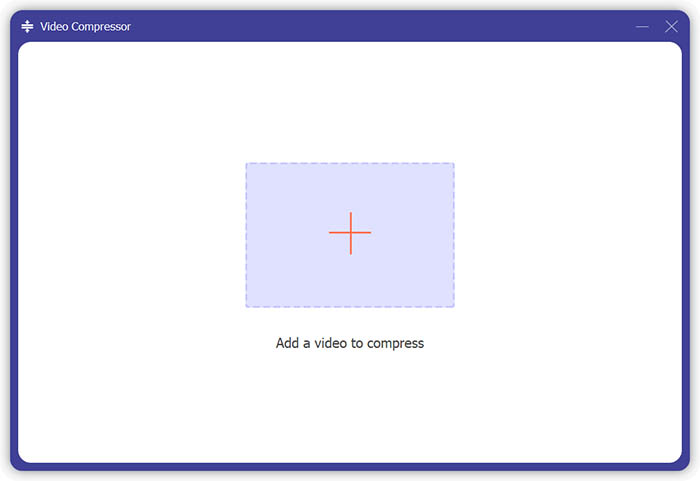
Langkah 3. Anda boleh melaraskan saiz, nama, format, resolusi dan bitrate bagi fail output.
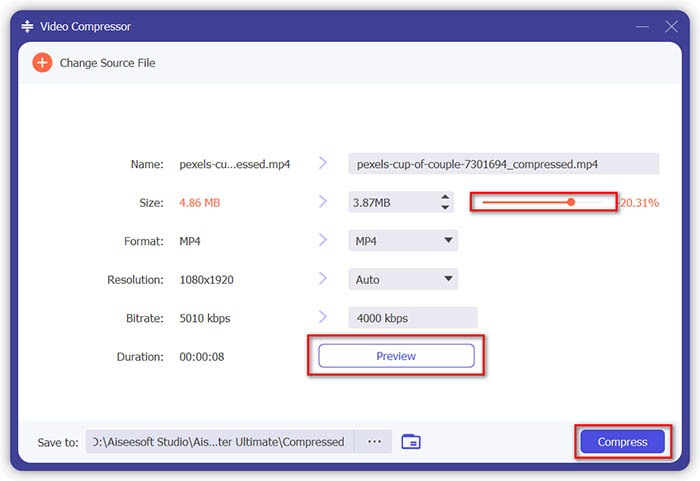
Langkah 4. Klik butang Compress dan tunggu sehingga video MP4 anda siap.
Bahagian 3. Cara Memampatkan Fail MP4 dengan HandBrake
HandBrake juga merupakan alat pemampatan video percuma yang dapat membantu anda meminimumkan ukuran fail MP4.
Langkah 1. Muat turun dan pasang HandBrake pada komputer anda. Kemudian buka dan klik File di sebelah kiri. Pilih fail yang anda ingin mampatkan.
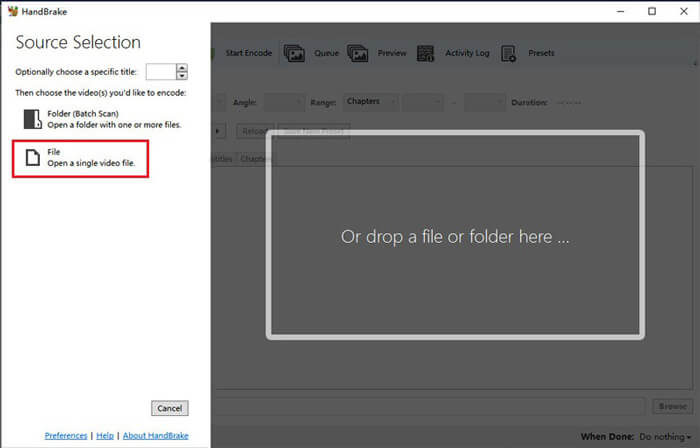
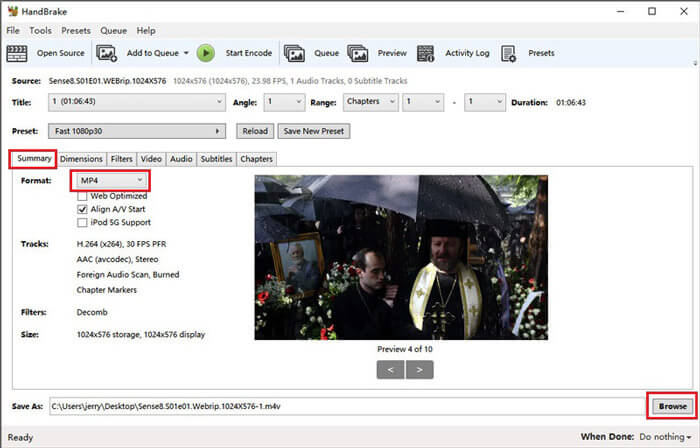
Langkah 2. Tukar lokasi untuk menyimpan video termampat dengan mengklik Browse. Anda juga boleh menamakan semula video tersebut. Kemudian pilih MP4 sebagai format output.
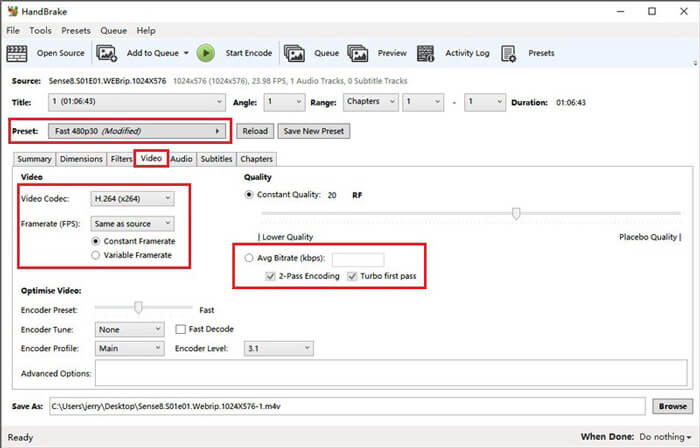
Langkah 3. Untuk Preset di bahagian atas, Fast 480p30 sudah memadai. Pergi ke tab Video dan semak sama ada codec video ialah H.264 (x264). Dan pilih kadar bingkai mengikut video sumber anda. Jika anda tidak tahu bagaimana hendak memilih, hanya pilih Same as source. Tanda Constant Framerate untuk memastikan keserasian yang lebih baik. Masukkan Average Bitrate (kbps) untuk video (antara 5,000 dan 10,000).
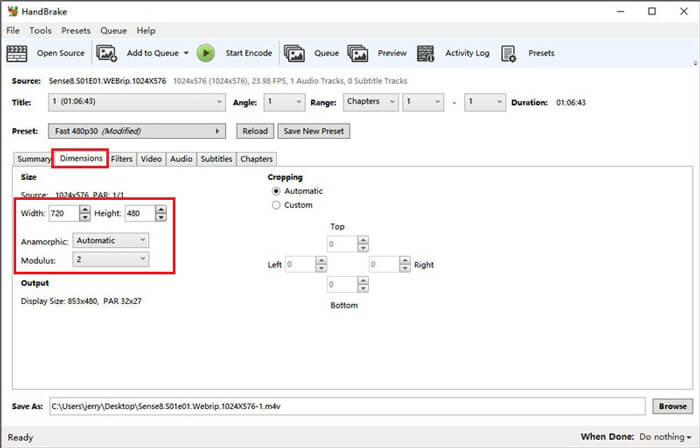
Langkah 4. Klik Dimensions dan tukar saiz bingkai atau resolusi video. Tukar Anamorphic kepada None, dan Modulus kepada 2. Kemudian tandakan Keep Aspect Ratio. Jika perlu, anda boleh menggunakan arrow down pada Width untuk mengurangkan saiz.
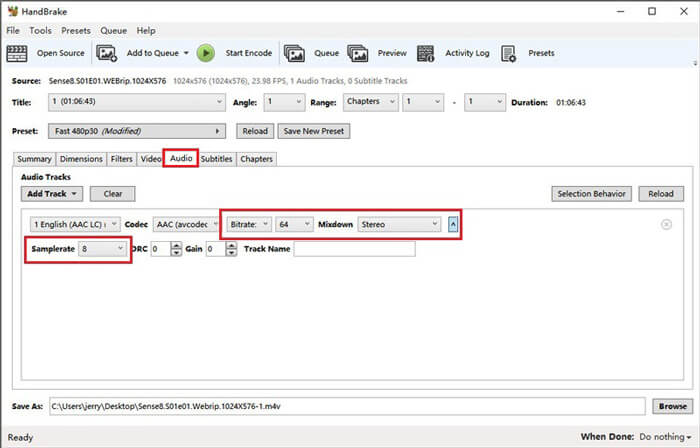
Langkah 5. Pilih tab Audio dan tarik turun menu tetapan tersembunyi. Pilih 8 untuk Samplerate dan pilih Stereo untuk Mixdown.
Langkah 6. Tekan butang Start Encode untuk mula memampatkan.
Bagi pemula, kami sebenarnya tidak mengesyorkan anda menggunakan HandBrake, kerana sukar untuk memahami dan menyesuaikan parameternya. Dan memerlukan masa yang lama untuk mendapatkan fail yang dimampatkan.
Bahagian 4. Soalan Lazim Mampatan MP4
1. Bolehkah ffmpeg memampatkan MP4?
Ya, anda boleh menggunakan rentetan aksara berikut untuk memampatkan fail MP4:
$ ffmpeg -i input.mp4 -vcodec h264 -acodec mp2 output.mp4
Tetapi sesetengah orang mungkin mendapati saiznya meningkat bukannya berkurang apabila video itu sudah cukup kecil.
2. Bolehkah HandBrake mengeksport WMV, MOV dan FLV?
HandBrake hanya menyokong pemampatan video kepada MP4(.M4V) dan MKV, yang bermaksud ia tidak boleh mengeksport fail dalam format lain, seperti WMV, MOV, FLV, AVI dan sebagainya. Jika anda menggunakan HandBrake untuk mendapatkan video termampat, maka anda perlu menukar MP4 kepada WMV atau format lain sendiri.
3. Adakah mampatan video MP4 kehilangan kualiti?
Kualiti pastinya akan berkurangan, sedikit atau banyak, apabila kita memampatkan MP4 daripada saiz penuh kepada saiz yang lebih kecil. Namun, dengan pemampat video profesional seperti FVC Free Video Compressor dan Video Converter Ultimate, anda boleh mengekalkan kualiti imej asal sedaya mungkin. Menggunakan pemain MP4 yang baik untuk memainkan fail MP4 juga boleh membantu anda mendapatkan output berkualiti tinggi.
Kesimpulannya
Setakat ini, kami telah memperkenalkan 3 kaedah untuk memampatkan MP4 kepada saiz yang lebih kecil. Jika anda tidak suka memasang terlalu banyak perisian pada komputer anda, anda boleh cuba FVC Free Video Compressor yang berasaskan dalam talian dan percuma untuk digunakan. Tetapi jika anda memerlukan pemproses video yang berkuasa, Video Converter Ultimate ialah pilihan terbaik anda. Semoga anda mendapati artikel ini bermanfaat dan jangan lupa untuk meninggalkan mesej kepada kami bagi menyatakan pendapat anda.
-
 Cara Menukar MP4 ke WMV untuk Mac / Windows
 Catatan ini berkongsi cara menukar video MP4 ke format WMV pada Mac atau Windows. Kami juga akan menawarkan beberapa pilihan, termasuk perisian desktop dan penukar dalam talian berasaskan web. Bersedia untuk mengetahui alat penukaran MP4 ke WMV terbaik?
-
 Cara Menukar Fail Video MP4 Anda ke Gambar GIF Animasi tanpa Kehilangan Kualiti
 Mencari kaedah terbaik untuk menukar video MP4 anda menjadi GIF animasi? Berikut adalah panduan terperinci untuk melakukannya di Photoshop, Windows Movie Maker, penukar video dalam talian dan banyak lagi.
-
 MOV VS MP4 - Mana Yang Lebih Baik
 MOV VS MP4, yang manakah lebih baik? Catatan ini memberitahu perbezaan antara MP4 dan MOV, sehingga anda dapat memperoleh pilihan yang lebih baik untuk digunakan untuk fail video anda.
