


 Video Converter Ultimate
 Perakam Skrin
 Pembaikan Video
3 Cara Mudah untuk Memajukan Cepat Video pada iPhone Anda
Ingin mempercepatkan main balik video pada iPhone secara percuma tetapi tidak tahu caranya?
After recording, while the basic editing, you often need to change the video playing speed. When it comes to speeding up a video on iPhone, you can rely on the built-in editing features in the Photos app, official video editor, iMovie, or some third-party video speed changer tools. This post will share 3 effective methods to fast forward a video on iPhone.

Bahagian 1. Cara Memajukan Cepat Video Slo-mo pada iPhone dengan Apl Foto
iOS dilengkapi dengan beberapa ciri penyuntingan asas untuk pengguna iPhone dan iPad untuk mengedit video atau foto secara terus. Apabila anda ingin memajukan video slo-mo pantas pada peranti iOS anda, anda boleh menggunakan editor terbina dalam dalam apl Photos untuk menukar kelajuan main video dengan mudah. Ambil perhatian bahawa, kaedah ini hanya berfungsi untuk menukar kelajuan video daripada slo-mo kepada kelajuan biasa.
Step 1. Open the Photos app on your iPhone, tap Albums on the bottom screen, scroll down to the Media Types option, and then choose the Slo-mo. Here you can find the slo-mo video that you want to fast forward.
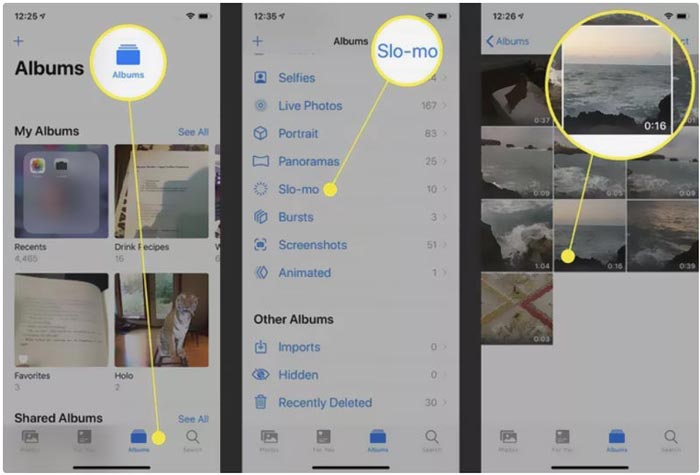
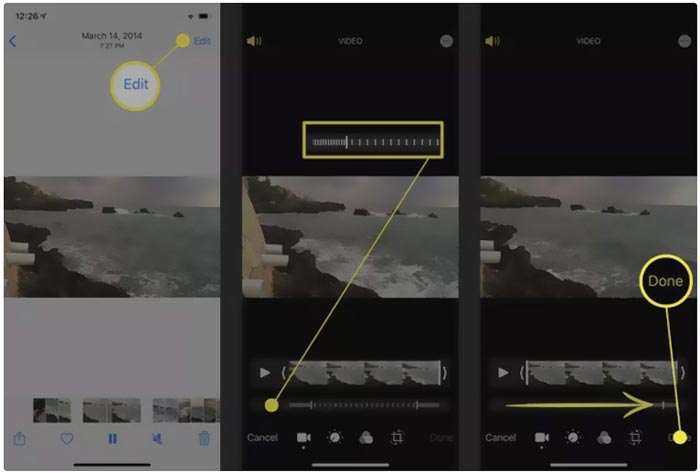
Step 2. Open the slo-mo video, and tap the Edit in the top-right corner to display more editing options.
Step 3. A set of vertical lines will appear under the slow motion video. Now you can tap on the lines and freely fast forward the video speed. After that, you can tap Done to confirm your operation and save the change.
Bahagian 2. Cara Memajukan Cepat Video pada iPhone dan iPad Menggunakan iMovie
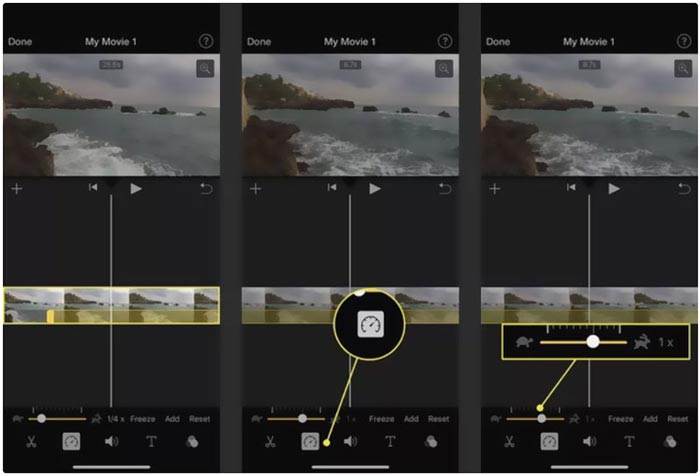
iMovie is the official video editor for iOS and macOS devices like iPhone, iPad, and Mac. It is equipped with many commonly-used editing features. You can easily fast forward or slow down a video on iPhone using iMovie.
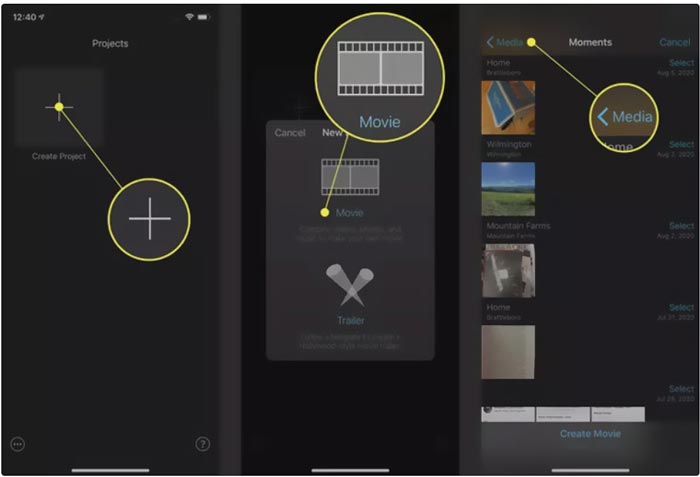
Step 1. To fast forward a video on your iPhone using iMovie, you should free install the app from App Store and then create a new project for the video speed changing. Select and load the video you want to speed up to the created project.
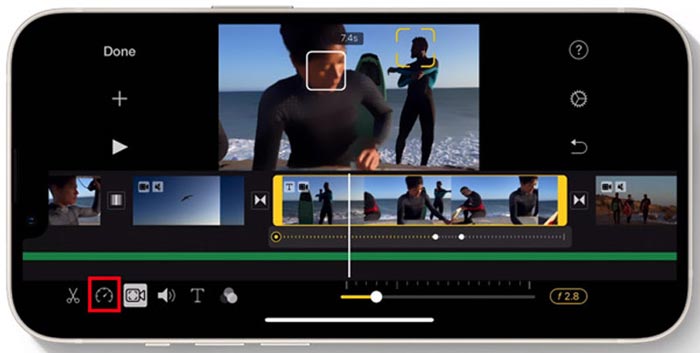
Step 2. Highlight the video clip on the timeline to reveal editing options at the bottom of the iPhone screen. You can tap on the second clock icon to access the playback speed controls. Now you can easily increase the video playback speed by dragging the bar to the right.
Bahagian 3. Cara Memajukan Cepat Video yang Dirakam oleh iPhone
For these videos captured by your iPhone, you can choose to edit them on your computer and handily change the playing speed. Here we introduce you to the all-featured video editing and converting software, Video Converter Ultimate to change the video speed.

FVC Video Converter Ultimate
5,689,200+ Muat Turun- Tawarkan alat Pengawal Kelajuan Video untuk memajukan atau memperlahankan video.
- Menyokong semua format video popular termasuk MP4, MOV, AVI, FLV dan MKV.
- 10 pilihan menukar kelajuan main balik video untuk mempercepatkan atau memperlahankan video.
- Pelbagai fungsi penyuntingan untuk mengedit video, imej/kesan bunyi tersuai, dan meningkatkan kualiti.
Muat Turun PercumaUntuk Windows 7 atau lebih baharuMuat Turun Selamat
Muat Turun PercumaUntuk MacOS 10.7 atau lebih baharuMuat Turun Selamat
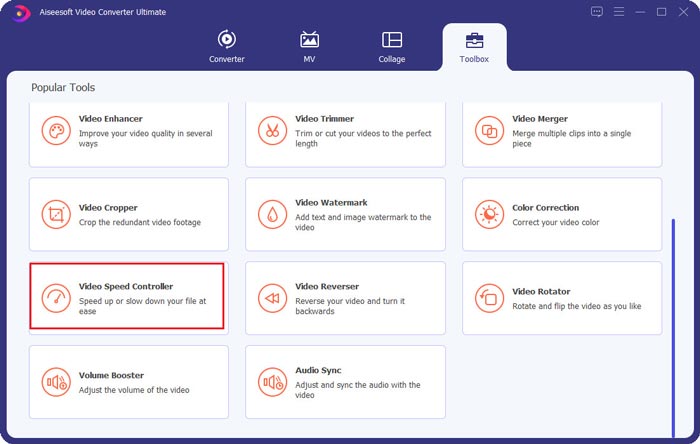
Step 1. Download and open this Video Converter Ultimate on your Windows 11/10/8/7 PC or Mac. Click on the Toolbox to access more tools. Locate and open the Video Speed Controller to fast forward a video.
Step 2. Add your video by clicking the big plus icon. After that, you have 10 options to fast forward or slow motion the video speed. With the built-in media player, you can directly view the speed changing. You can speed up a video to 1.25X, 1.5X, 2X, 4X, or 8X speed based on your need.
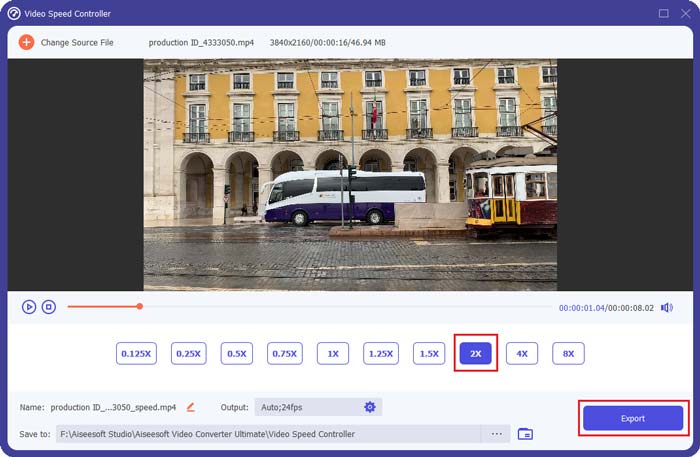
Step 3. When you are satisfied with the video playback speed, you can simply click on the Export button to save the edited video on your computer.
Berkaitan:
2 Cara Mudah untuk Mempercepat Video di TikTok
6 Trendy Video Speed Controllers to Speed up or Slow-down Videos
Bahagian 4. Soalan Lazim Menukar Kelajuan Main Balik Video pada iPhone
Bagaimana untuk memajukan pantas video pada iPhone dalam talian?
Apabila anda perlu mempercepatkan video pada iPhone anda, anda boleh menggunakan beberapa penukar kelajuan video dalam talian seperti Clideo, Kapwing, Media.io dan banyak lagi untuk menyelesaikan tugas dengan mudah.
Bolehkah saya memajukan video dengan pantas pada apl TikTok?
ya. Anda boleh membuka aplikasi TikTok, ketik dan tahan video yang anda mahu mempercepatkan kelajuannya sehingga anda melihat lebih banyak menu muncul di skrin bawah. Kini anda perlu menatal menu ini dari kanan ke kiri untuk mencari pilihan Kelajuan. Pilih dan gunakannya untuk memajukan video TikTok dengan pantas.
Bolehkah saya memajukan pantas video pada iPhone saya lebih daripada 2X?
iMovie hanya membenarkan anda mempercepatkan kelajuan video kepada 2X. Apabila anda ingin memajukan kelajuan memainkan video lebih daripada 2X pada iPhone, anda perlu bergantung pada beberapa apl pihak ketiga. Selain itu, anda boleh memilih untuk menyalin video iPhone anda ke komputer, dan kemudian bergantung pada Pengawal Kelajuan Video yang disyorkan untuk melaraskan kelajuan video.
Kesimpulannya
This post covers how to fast forward a video speed on iPhone using the Photos app, iMovie, and third-party video speed changer. You can select your preferred method to speed up or slow down the video playback speed.
-
 8 Penukar Resolusi Video Teratas untuk Digunakan dalam Multiplatform [Dikemas kini 2022]
 Adakah anda tidak mempunyai idea tentang penukar resolusi video terbaik pada peranti anda? Jika ya, anda boleh membaca artikel ini sepenuhnya untuk mengetahui lebih lanjut tentang penukar video yang tersedia.
-
 3 Cara Teratas untuk Menambah Penapis pada GIF dengan Editor GIF Terbaik [Kegemaran]
 Adakah anda ingin tahu cara menambah penapis pada GIF untuk menjadikannya lebih baik? Dalam blog ini, anda akan mempelajari teknik yang berbeza untuk menambah penapis pada GIF anda dengan mudah.
-
 6 Apl Penapis Video Teratas Anda Boleh Muat turun pada Android dan iPhone [2022]
 Adakah anda mahu mempunyai apl mudah alih penapis video terbaik? Baiklah, kami akan berikan apa yang anda mahu. Artikel ini akan membentangkan ulasan 6 aplikasi penapis terbaharu yang boleh anda muat turun.
