


 Video Converter Ultimate
 Perakam Skrin
 Pembaikan Video
 Muat Turun Selamat
Temui Cara Mengubah Saiz Video pada Android dengan Kaedah Berkesan
Sama ada anda seorang pempengaruh media sosial atau hanya ingin berkongsi pengembaraan perjalanan terbaru dengan rakan dan keluarga, mengubah saiz video anda boleh membuat perbezaan besar. Ia bukan sahaja membantu mengoptimumkan saiz fail agar lebih mudah dikongsi, malah dapat menambah baik pengalaman tontonan untuk audiens anda. Dalam artikel ini, kami akan tunjukkan kepada anda cara mengubah saiz video di Android, daripada melaraskan nisbah aspek hinggalah menukar resolusi video. Dengan panduan kami yang ringkas dan mudah diikuti, anda boleh mengubah saiz video seperti seorang profesional dan membawa kandungan anda ke tahap seterusnya.

Bahagian 1. Tutorial Cara Memangkas Video pada Android dengan Galeri Samsung
Apl Galeri Samsung mesti dimiliki untuk mengurus dan mengedit kandungan visual anda jika anda memiliki peranti Samsung. Salah satu ciri berguna apl ialah keupayaan untuk memangkas video semasa dalam perjalanan. Ia membolehkan pengguna mengalih keluar bahagian video yang tidak diingini atau melaraskan nisbah bidang. Ciri pemangkasan menjadikannya mudah dan intuitif. Dengan Galeri Samsung, anda boleh membuat dan berkongsi video berkualiti tinggi dengan mudah yang disesuaikan dengan keperluan anda. Lihat langkah di bawah untuk membantu anda menggunakan alat pemangkasan editor video Android ini.
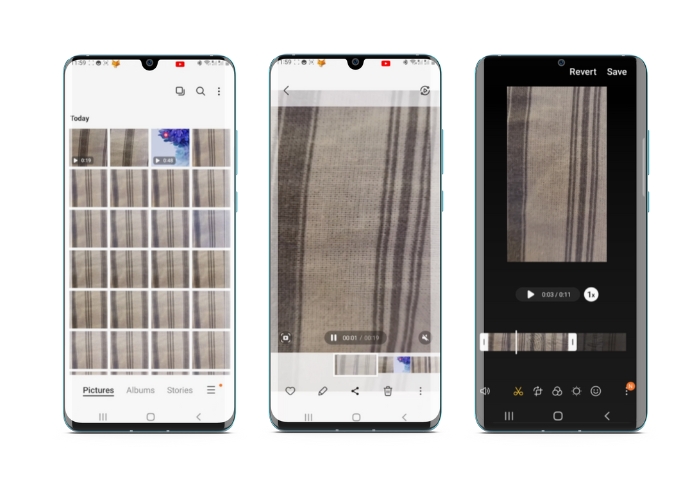
Langkah 1. Buka aplikasi Samsung Gallery pada peranti anda dan cari video yang ingin anda potong.
Langkah 2. Ketik video untuk membukanya, kemudian ketik butang Edit (ikon pensel) di bahagian bawah skrin. Dari skrin Edit, pilih pilihan Crop.
Langkah 3. Anda kini akan melihat satu segi empat tepat dilapiskan pada video, dengan pemegang di setiap sudut. Seret pemegang tersebut untuk mengubah saiz segi empat tepat mengikut keperluan bagi memotong video. Ketik butang Play untuk pratonton video yang telah dipotong.
Langkah 4. Jika anda berpuas hati dengan hasilnya, ketik butang Save untuk menyimpan video yang telah dipotong ke dalam Gallery anda.
Bahagian 2. Panduan Cara Memangkas Video pada Android dengan Google Photos
Google Photos ialah apl pengurusan foto dan video yang popular untuk pengguna Android, dan ia dilengkapi dengan pelbagai ciri untuk membantu anda mengedit dan meningkatkan kandungan visual anda. Satu ciri hebat alat ini ialah keupayaan untuk memangkas video, yang membolehkan anda mengalih keluar bahagian yang tidak diingini dan memfokuskan pada detik yang paling penting. Anda boleh memangkas video dengan hanya beberapa ketikan, menjadikannya mudah dan intuitif untuk mencipta kandungan video yang digilap dan kelihatan profesional pada peranti Android anda. Di sini, kami akan menunjukkan kepada anda cara memangkas video dengan Google Photos langkah demi langkah.
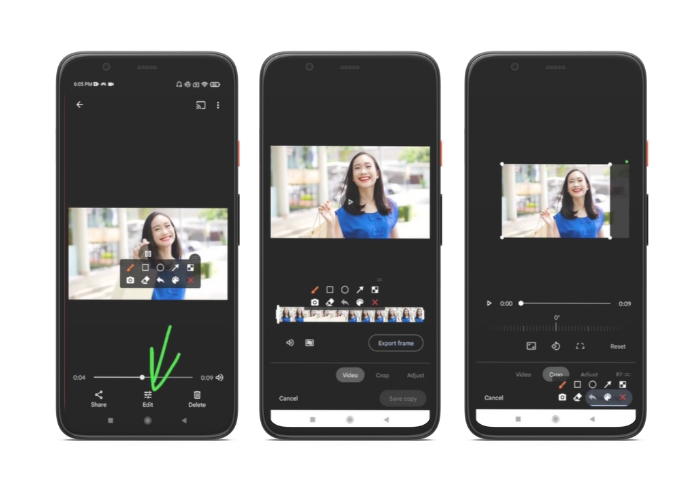
Langkah 1. Lancarkan aplikasi Google Photos pada peranti Android anda dan cari video yang ingin anda potong. Kemudian, ketik butang Edit yang terletak di bahagian bawah skrin.
Langkah 2. Dari skrin Edit, pilih pilihan Crop & rotate.
Langkah 3. Anda kini akan melihat segi empat tepat dilapiskan pada video, dengan pemegang di setiap sudut. Gunakan pemegang ini untuk mengubah saiz segi empat tepat mengikut keperluan bagi memotong video.
Langkah 4. Akhir sekali, ketik Save untuk menyimpan perubahan yang anda buat pada video.
Bahagian 3. Panduan Cara Memangkas Video pada Android dengan Apl Pihak Ketiga
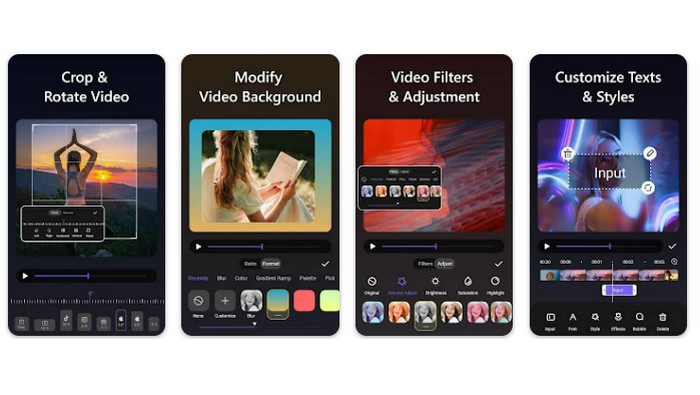
Penciptaan dan penyuntingan video yang mudah kini dapat dinikmati semua orang yang mempunyai telefon Android, terima kasih kepada Vid.fun. Program ini membolehkan pengguna menyunting video mereka dalam pelbagai cara, termasuk menambah muzik, teks dan efek, memotong serta menggabungkan segmen, dan banyak lagi. Anda boleh mempelajari cara mengubah saiz video di Android dengan mengikuti langkah-langkah untuk program ini di bawah.
Langkah 1. Muat turun aplikasi Vid.fun daripada Google Play Store, kemudian mulakan projek baharu.
Langkah 2. Dari galeri atau kamera roll peranti anda, pilih klip yang ingin anda potong dan letakkannya pada garis masa (timeline).
Langkah 3. Pilih segmen video yang dikehendaki dalam garis masa dengan mengetiknya; kemudian gunakan butang Crop di bahagian bawah skrin untuk mengubah suai segmen tersebut.
Langkah 4. Satu segi empat tepat akan dilapiskan pada video, dan anda boleh menyeret sudut-sudutnya untuk membuat pelarasan. Untuk memotong video, cukup tarik pemegang di sudut ke kedudukan yang diingini. Anda boleh menghantar video itu kepada orang tersayang atau menyiarkannya dalam talian apabila selesai.
Bahagian 4. Syor Apl
Sudah tentu, selain aplikasi mudah alih, kami juga mempunyai cadangan aplikasi desktop. Video Converter Ultimate oleh FVC ialah perisian menyeluruh untuk menukar format video, termasuk banyak alat penyuntingan. Pilihan untuk melaraskan nisbah aspek video ialah satu fungsi yang menonjol.
Dengan program ini, anda boleh mengubah suai bentuk dan saiz video dengan mudah dengan menukar nisbah bidang. Jika anda ingin berkongsi video di media sosial dengan nisbah aspek tertentu, atau jika anda hanya perlu menjadikan video itu sesuai dengan saiz skrin tertentu, FVC Video Converter Ultimate telah membantu anda. Ketahui cara memangkas video pada Android dengan bantuan program ini.
Langkah 1. Muat Turun dan Pasang FVC Video Converter Ultimate
Anda boleh memuat turun aplikasi ini dengan menandakan salah satu butang Free Download di bawah. Setelah program dimuat turun, pasang dan lancarkannya pada komputer anda.
Muat Turun PercumaUntuk Windows 7 atau lebih baharuMuat Turun Selamat
Muat Turun PercumaUntuk MacOS 10.7 atau lebih baharuMuat Turun Selamat
Langkah 2. Import video untuk dipotong
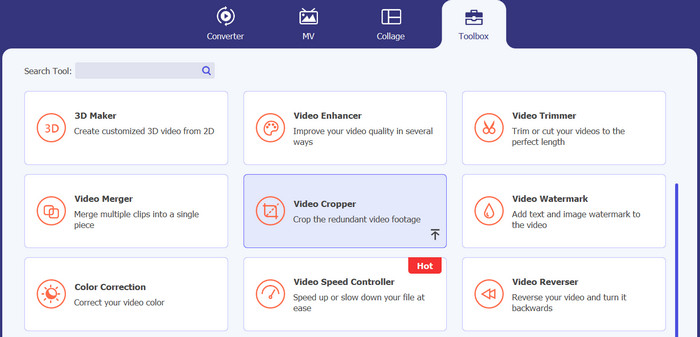
Seterusnya, pergi ke tab Toolbox yang terletak di antara muka bahagian atas program. Kemudian, pilih pilihan Video Cropper dan tambah fail dengan menekan butang tanda plus.
Langkah 3. Potong fail video
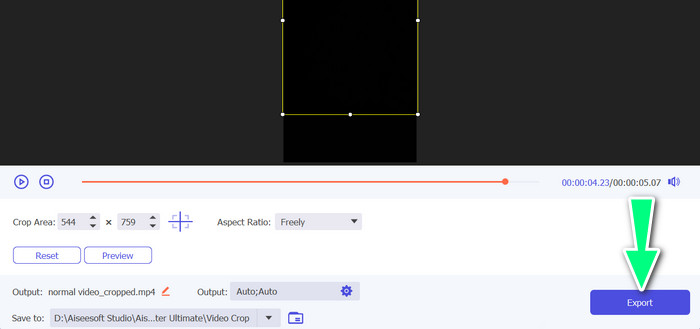
Anda kini boleh memangkas video yang diimport. Menggunakan peluncur kawasan pangkas, laraskan kawasan yang ingin anda pangkas daripada video. Anda juga boleh memilih nisbah aspek tertentu daripada menu lungsur. Pratonton video yang dipangkas untuk memastikan bahagian video yang dikehendaki telah dipangkas.

Langkah 4. Eksport video yang telah dipangkas
Akhir sekali, ketik butang Export di sudut kanan bawah untuk menyiapkan proses pemotongan dan menyimpan video yang telah dipotong.
Bahagian 5. Soalan Lazim tentang Memangkas Video pada Android
Bagaimanakah cara saya memangkas video tanpa kehilangan kualiti?
Satu cara untuk memangkas video tanpa kehilangan kualiti adalah dengan menggunakan alat penyuntingan video yang menyokong pemangkasan tidak merosakkan. Ini bermakna bahawa fail video asal tidak diubah, dan hanya bahagian yang dipangkas disimpan sebagai fail baharu.
Adakah pemangkasan video pada Android menjejaskan kualiti atau peleraiannya?
Ya, memangkas video pada Android boleh menjejaskan kualiti atau peleraiannya, kerana proses itu melibatkan mengalih keluar sebahagian daripada video asal. Walau bagaimanapun, sejauh mana kualiti atau peleraian terjejas bergantung pada pelbagai faktor, seperti saiz pemangkasan, kualiti video asal dan kaedah yang digunakan untuk memangkas video.
Adakah mungkin untuk memangkas video dan menambah kesan atau penapis pada masa yang sama pada Android?
Ya, adalah mungkin untuk memotong video dan menambah efek atau penapis pada masa yang sama di Android. Terdapat pelbagai aplikasi penyuntingan video yang tersedia di Google Play Store yang menawarkan kedua-dua fungsi pemotongan dan efek video serta pilihan penapis video. Antara contoh popular termasuk FVC Video Converter Ultimate, Filmora dan sebagainya.
Kesimpulannya
Mempelajari cara memotong video di Android ialah proses yang mudah dan boleh dilakukan dengan pelbagai aplikasi dan perisian. Samsung Gallery, Google Photos dan FVC Video Converter Ultimate hanyalah beberapa contoh alat yang boleh membantu anda memotong video pada peranti Android.
-
 Panduan Cara Membaiki Video Tidak Bermain di Telefon Android
 Ingin tahu apa sebab mengapa video pada peranti android anda tidak dapat dimainkan? Dan jika demikian, adakah cara untuk menyelesaikan masalah anda sendiri? Teruskan membaca untuk mengetahui lebih lanjut.
-
 Cara Paling Mudah tentang Cara Mempercepatkan Video pada Peranti Android Anda [2023]
 Adakah anda tahu bahawa anda boleh mempercepatkan video pada Android anda? Jadi, jika anda ingin mengetahui cara mempercepatkan video pada telefon Android anda, baca tulisan ini.
-
 3 Kaedah Cemerlang tentang Cara Memangkas Video pada Android
 Adakah anda mahu menggunakan peranti Android anda untuk memotong video? Kemudian jawatan ini adalah untuk anda. Kami akan membincangkan cara yang berharga tentang cara memendekkan video pada Android.
