


 Video Converter Ultimate
 Perakam Skrin
 Pembaikan Video
Petua Berguna untuk Membuat Video Gerak Perlahan dalam iMovie
iMovie ialah penyunting video yang hebat dan tersedia dalam setiap sistem operasi iOS dan Mac. Aplikasi ini boleh dimuat turun secara percuma dan mempunyai pelbagai alat yang sangat membantu untuk membuat perubahan ketara pada video anda, terutamanya apabila berkaitan dengan kelajuan main balik video atau menghasilkan video gerak perlahan. Oleh sebab aplikasi ini mesra pengguna, sukar untuk difahami dan digunakan bagi melaksanakan kesan gerak perlahan yang anda mahu terapkan pada video anda. Namun, untuk memahami setiap butiran dengan lebih mendalam bagi membuat video gerak perlahan dalam iMovie, baca artikel ini dan ikut langkah‑langkahnya dengan teliti.

Bahagian 1. Cara Membuat Video Gerak Perlahan dalam iMovie Menggunakan iPhone
Seperti yang dinyatakan di atas, iMovie hanya beroperasi dalam sistem iOS seperti iPhone. Untuk membuat video gerak perlahan terbaik menggunakan aplikasi ini, berikut adalah prosedur yang disediakan yang akan membimbing anda tentang cara menggunakan aplikasi ini juga.
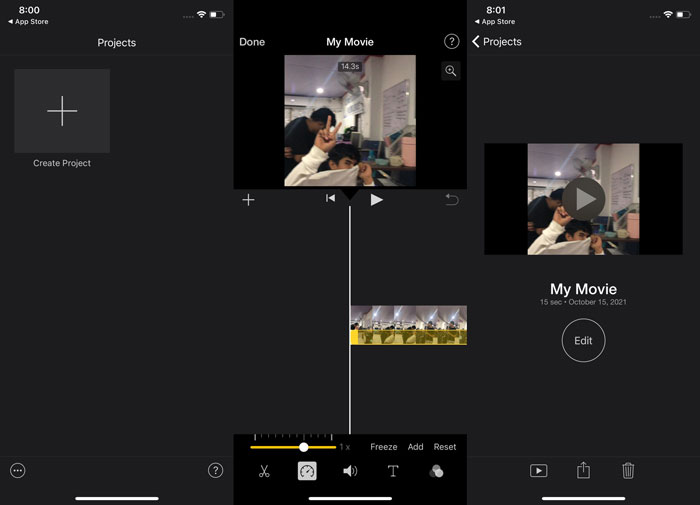
Langkah 1. Menggunakan iPhone atau iPad anda, lancarkan aplikasi iMovie. Butang Continue akan dipaparkan jika gambaran keseluruhan UI ditunjukkan. Pilih ikon tanda + daripada tab Projects untuk menyunting klip video baharu. Untuk meneruskan, pergi ke tetingkap New Projects dan pilih Movie.
Langkah 2. Selepas memilih video daripada kamera roll anda dan menekan butang Create Movie di bahagian bawah skrin. Alat kelajuan, yang kelihatan seperti speedometer, boleh ditemui dengan mengetik klip video dalam garis masa dan kemudian menunggu sehingga alat penyuntingan dipaparkan sebelum memilih salah satu pilihan. Untuk memajukan atau mengundur klip video anda, gerakkan sahaja Slider kuning di bahagian bawah ke kanan atau kiri. Anda boleh mempercepatkan sehingga dua kali ganda kelajuan asal atau memperlahankannya sehingga satu per lapan daripada kelajuan asal.
Langkah 3. Di penjuru kiri atas skrin telefon anda, tekan Done apabila segala‑galanya sudah siap. Untuk menyimpan filem yang telah siap, klik ikon Share di bahagian bawah halaman dan pilih lokasi untuk menyimpannya.
Bahagian 2. Cara Membuat Video Gerak Perlahan dalam iMovie Menggunakan Mac
iMovie juga tersedia pada Mac, menjadikan video gerak perlahan yang paling baik dengan cara yang paling mudah. Untuk mengetahui cara mencapai video seperti ini yang anda inginkan, berikut adalah langkah-langkah yang disediakan untuk anda ikuti:
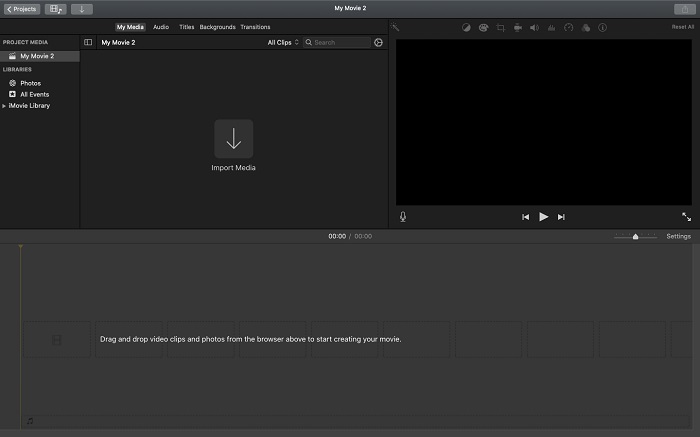
Langkah 1. Ubah kelajuan klip dalam program iMovie pada Mac anda dengan memilihnya dalam garis masa dan melaraskan kelajuan klip.
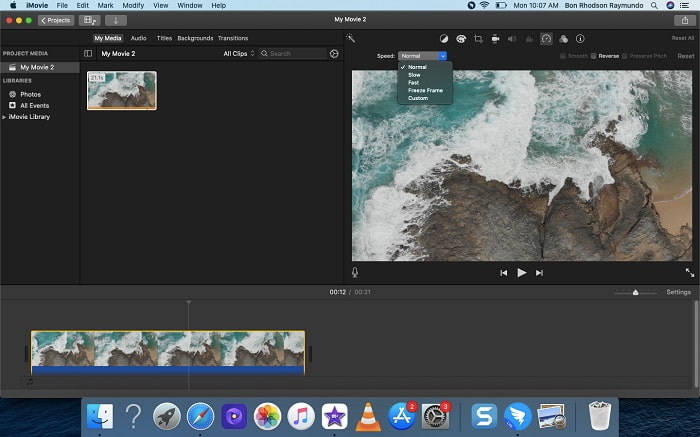
Langkah 2. Tetapan kelajuan boleh diakses dengan mengklik butang Speed yang terletak di penjuru kanan atas skrin. Untuk melaras dengan lebih tepat kelajuan main balik anda, pilih sahaja antara kadar Slow dan Fast daripada butang kelajuan pada desktop komputer anda.
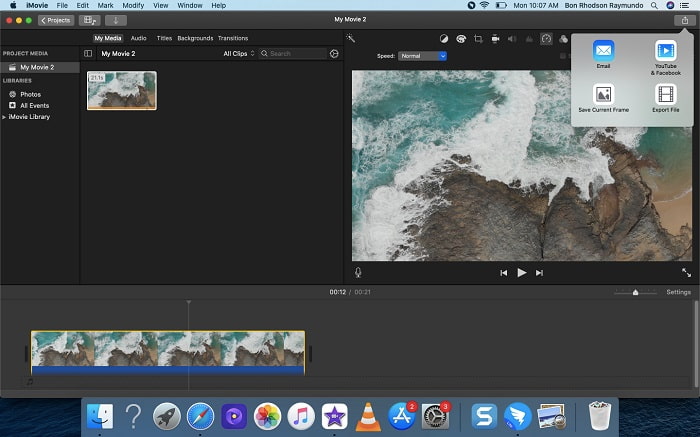
Langkah 3. Untuk menyimpan fail ke pemacu keras komputer anda, klik ikon Upload di penjuru kanan atas skrin.
Bahagian 3. Alternatif Terbaik dalam Mencipta Video Gerak Perlahan
Selain menggunakan iMovie untuk membuat video gerak perlahan, alternatif terbaik ini memberi manfaat kepada semua pengguna komputer meja/komputer riba. Video Converter Ultimate ialah perisian yang boleh dimuat turun secara percuma dan tersedia pada sistem operasi Windows dan Mac. Ia mudah diakses dan mempunyai antara muka yang mesra pengguna yang mengelakkan anda daripada kesukaran menganalisis alat yang perlu digunakan untuk membuat video gerak perlahan. Ia menampilkan salah satu alat terbaik, iaitu Video Speed Controller, yang boleh anda gunakan untuk melaras kelajuan main balik video, dan dengan ini, anda kini boleh menghasilkan video gerak perlahan daripada video berkelajuan normal yang anda miliki. Untuk mengetahui dengan lebih lanjut tentang butiran cara menggunakan perisian ini bagi mencapai kesan gerak perlahan yang anda inginkan, berikut ialah langkah‑langkah yang perlu anda ketahui:
Langkah 1. Sebelum menggunakan perisian ini, anda mesti memuat turunnya terlebih dahulu dengan mengklik downlink di bawah, berdasarkan sistem operasi anda. Proses pemasangannya semudah memuat turunnya ke desktop dan mengklik Start Now untuk bermula.
Muat Turun PercumaUntuk Windows 7 atau lebih baharuMuat Turun Selamat
Muat Turun PercumaUntuk MacOS 10.7 atau lebih baharuMuat Turun Selamat
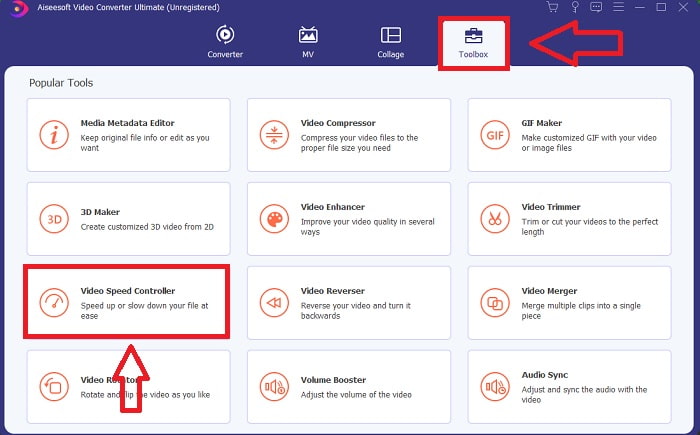
Langkah 2. Anda boleh melihat fungsi Converter pada antara muka utama perisian setelah anda selesai melancarkan program. Seterusnya, gunakan fungsi Toolbox untuk mencari apa yang anda perlukan bagi membuat video gerak perlahan. Jika anda mahu menukar kelajuan video anda atau sekadar membuat video gerak perlahan, pilih Video Speed Controller daripada senarai alat yang tersedia.
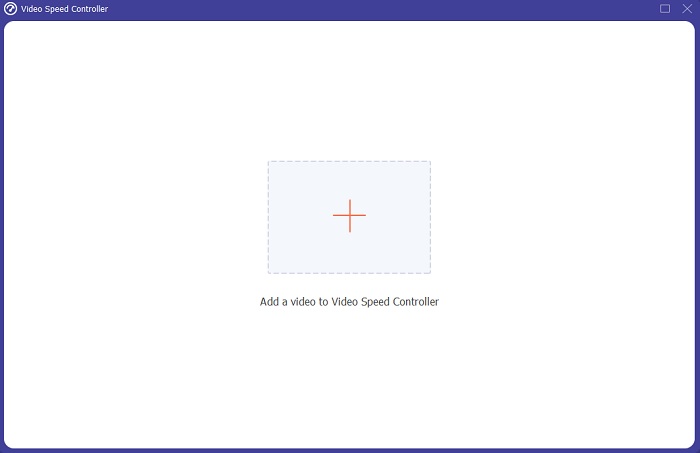
Langkah 3. Satu lagi tetingkap akan terbuka pada skrin komputer anda selepas anda meneruskan. Untuk mula menyunting, klik tanda tambah +.
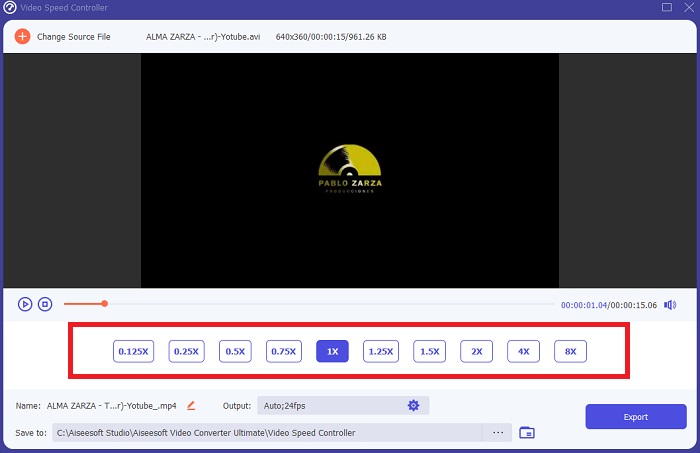
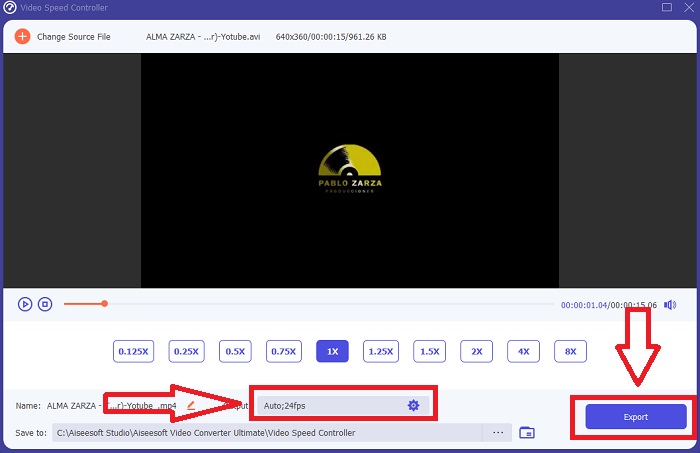
Langkah 4. Untuk mula menyunting, pilih berapa kali kadar bingkai video akan meningkat atau menurun semasa main balik untuk melihat betapa pantas atau perlahan ia akan dimainkan; ini akan menentukan kesan gerak perlahan yang akan anda terapkan pada video anda. Oleh sebab anda sedang menghasilkan video gerak perlahan, anda akan mengurangkan kelajuan dengan memilih kelajuan video di bawah kelajuan purata. Jika anda berpuas hati dengan kelajuan video anda, anda kini boleh menambah baik kualitinya dengan menukar format, resolusi, kadar bingkai, dan sebagainya. Anda juga akan mempunyai pilihan untuk menamakan semula output video anda.
Langkah 5. Klik Export dan pilih lokasi dalam sistem fail komputer anda untuk menyimpan hasil kerja anda.
Berkaitan:
Bahagian 4. Soalan Lazim tentang Membuat Video Gerak Perlahan dalam iMovie
Bagaimana jika iMovie tidak berfungsi?
Melainkan pilihan tersedia, klip video tidak cukup panjang untuk menyokong main balik yang dipercepatkan. Anda juga mungkin perlu menukar video anda. Jenis video tertentu, seperti yang dirakam pada iPhone atau dalam H.264 pada camcorder Flip, mesti ditukar sebelum kelajuan ditukar. Dalam pelayar Projek, klik dan klik dua kali fail video untuk membukanya. Jika anda melihat butang Tukar Klip Keseluruhan dalam pemeriksa yang terbuka, pilihnya. Ulang Klip, kemudian teruskan dengan proses Slow Motion / Fast Forward.
Bolehkah anda memperlahankan video selang masa pada iMovie?
Video selang masa anda akan mula dimainkan sebaik sahaja anda melepaskan butang pengatup untuk menamatkan rakaman. Gelangsar kelajuan selang masa boleh didapati di bahagian paling bawah skrin. Apabila anda berhenti merakam dengan butang pengatup ditekan, video selang masa anda akan mula dimainkan secara automatik. Gelangsar kelajuan selang masa boleh didapati di bahagian paling bawah skrin.
Bagaimana anda memperlahankan video Youtube?
Mainkan video pada apl Youtube, cari ikon gear atau dirujuk sebagai ikon tetapan. Klik Kelajuan Main Semula dan pilih pilihan di atas kelajuan biasa untuk mula memperlahankan video yang anda mainkan.
Kesimpulannya
Sebagai kesimpulan, iMovie ialah penyunting video yang hebat yang hanya tersedia dalam sistem operasi iOS dan Mac. Tetapi bagaimana jika anda menggunakan Windows untuk membuat video gerak perlahan? Kami mengesyorkan menggunakan Video Converter Ultimate untuk mencapai video gerak perlahan yang anda inginkan. Perisian ini tersedia pada Windows dan Mac. Selain itu, ia percuma dan mempunyai pelbagai alat untuk digunakan dalam penyuntingan video. Ia juga menampilkan alat yang digunakan khususnya untuk melaras kelajuan main balik sehingga menghasilkan video gerak perlahan. Selain alat‑alat utamanya, ia juga menyokong pelbagai format video supaya anda tidak menghadapi kesukaran menukar video anda.
-
 [Percuma & Berbayar] GIF Speed Changer: Pilihan Popular 2021
 Adakah anda tidak berpuas hati dengan GIF yang anda buat dalam talian kerana ia membosankan dan perlahan? Ini akan menjadi hari bertuah anda kerana kami membentangkan artikel tentang penukar kelajuan GIF dan butiran yang membantu anda menggunakan dan menguasainya.
-
 4 Pemain Video Terbaik dengan Pengawal Kelajuan pada 2021
 Tidakkah anda perasan kelajuan main balik setiap pemain media apabila anda memainkan video? Artikel ini sesuai untuk anda mempelajari semua tentang pemain video dengan kawalan kelajuan.
-
 3 Cara untuk Mempercepatkan Video pada iPhone [Terbukti&93;
 Menghadapi masalah melaraskan kelajuan main balik video anda kerana anda menggunakan iPhone? Ini adalah artikel yang sangat baik untuk membantu anda dengan isu anda.
