


 Video Converter Ultimate
 Perakam Skrin
 Pembaikan Video
 Muat Turun Selamat
Cara Bergabung dengan Fail MOV (QuickTime) secara Percuma
Setelah mengumpulkan banyak bahan video MOV, anda mungkin mahu menyusunnya dan memasukkannya ke dalam satu fail lengkap. Walau bagaimanapun, bagi pemula atau penerbit video amatur, menggunakan alat teknikal seperti Adobe Premiere Pro mungkin terlalu rumit. Mungkin anda akan menghabiskan masa berhari-hari atau bahkan berbulan-bulan untuk mempelajari cara mengendalikan program ini.
Sebenarnya, jika anda hanya mahu menggabungkan klip video, anda boleh menggunakan penggabung video yang ringkas dan berkesan untuk menyelesaikan masalah anda, yang hanya mengambil masa beberapa minit untuk menggabungkan dua atau lebih fail MOV sekali gus.
Dengan langkah-langkah berikut, anda boleh dengan mudah menggabungkan fail MOV pada Mac dan juga Windows. Jadi, sila teruskan membaca dan cuba kaedah-kaedah ini sendiri.

Bahagian 1. Cara Menggabungkan MOV Video dalam QuickTime
MOV, juga dikenali sebagai QuickTime File Format (QTFF), ialah bekas video digital dengan codec MPEG-4. Ia diperkenalkan oleh Apple pada tahun 1998 untuk menyokong QuickTime Player. Oleh itu, jika anda mempunyai Mac, anda sebenarnya boleh menggunakan QuickTime Player untuk menggabungkan fail MOV dengan mudah.
Anehnya, QuickTime bukan hanya pemain media, tetapi juga editor video yang membolehkan anda menggabungkan video yang terpisah, mengedit klip video, dan bahkan merakam audio atau video di Mac anda. Selain itu, ia mudah digunakan dan menjaga kualiti video yang asli.
Berikut adalah langkah-langkah bagaimana menggabungkan klip video dalam QuickTime.
Langkah 1. Cari video yang anda mahu gabungkan dan buka salah satu daripadanya dengan QuickTime Player. (Anda boleh memindahkannya ke satu folder atau ke desktop terlebih dahulu untuk memudahkan.)
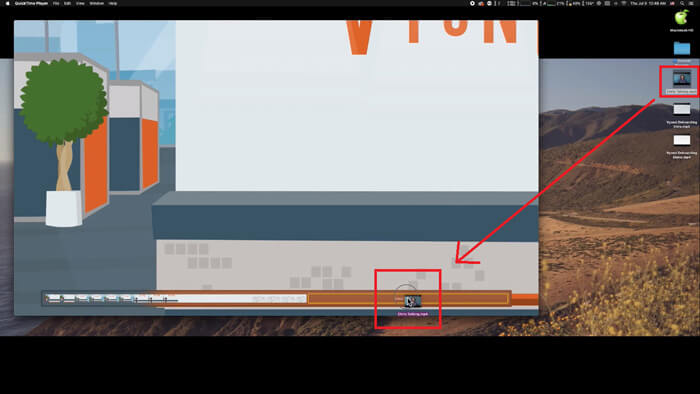
Langkah 2. Selepas membuka fail, satu tetingkap pemain akan muncul pada skrin. Sekarang seret klip video yang lain ke dalam QuickTime Player. Anda boleh tahan dan seret klip video tersebut ke susunan yang betul. Apabila anda melepaskan tetikus, akan ada butang Done di sebelah klip video anda. Klik butang itu.
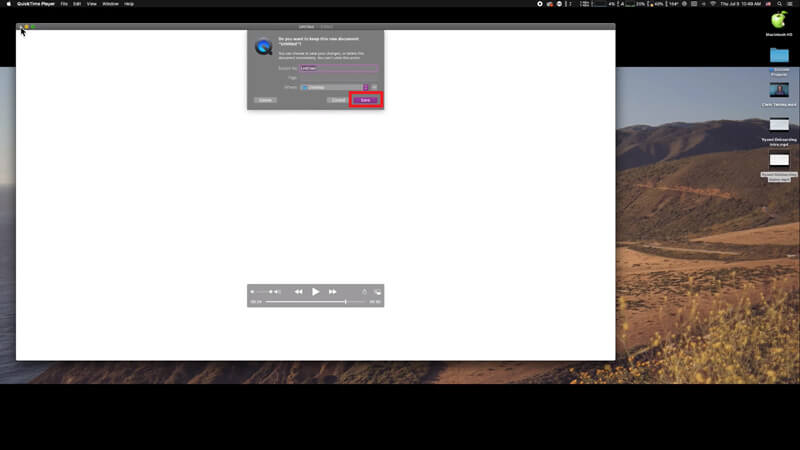
Langkah 3. Keluar dari QuickTime dan anda akan segera menerima satu peringatan untuk menyimpan video yang telah digabungkan. Hanya masukkan nama baharu dan pilih destinasi sebelum mengklik butang Save.
Bahagian 2. Cara Menggabungkan Fail MOV Secara Dalam Talian & Percuma
Namun, QuickTime tidak dapat membantu anda menggabungkan pelbagai fail video dalam format berbeza, seperti MP4, MOV, AVI, WMV, FLV dan lain-lain ke dalam satu fail MOV. Dalam keadaan ini, anda perlu menggunakan penggabung video yang lebih profesional yang menyokong pelbagai format video.
Jadi, kenali FVC Free Online Video Merger, penggabung video terbaik untuk menggabungkan video secara percuma. Dengan alat ini, anda boleh memuat naik seberapa banyak video yang anda mahu tanpa had. Selain MOV, anda boleh mengeksport format video popular lain, yang sangat memudahkan anda untuk berkongsi video ke laman penstriman seperti YouTube.
Daripada memasang program yang serius dan mahal pada PC anda, anda boleh bergabung dengan mana-mana video untuk menghasilkan satu video luar biasa dalam talian dengan penggabung video yang mudah digunakan ini, yang juga membolehkan anda membuat video tanpa tanda air. Tidak kira sistem apa yang anda gunakan, Windows, Mac atau Linux, ia dapat berfungsi dengan baik. Yang anda perlukan hanyalah penyemak imbas dan rangkaian yang stabil.
Langkah-langkah berikut akan membimbing anda mengenai cara mengendalikan alat penggabungan video ini.
Langkah 1. Klik pautan di atas untuk membuka laman web FVC Free Online Video Merger pada penyemak imbas anda.
Langkah 2. Klik butang Upload Videos to Merge pada banner terlebih dahulu. Kemudian anda perlu mengikut arahan pada skrin untuk memuat turun dan memasang pelancar ke komputer anda.

Langkah 3. Sebaik sahaja pemasangan selesai, satu tetingkap akan muncul serta-merta. Kini, anda boleh memilih dan menambah semua fail MOV yang anda mahu gabungkan ke dalam penggabung video.
Langkah 4. Selepas memuat naik, sila semak sama ada susunan klip video sudah betul. Kemudian tukar Resolution mengikut keperluan anda dan Format kepada MOV atau mana-mana format lain yang anda inginkan.
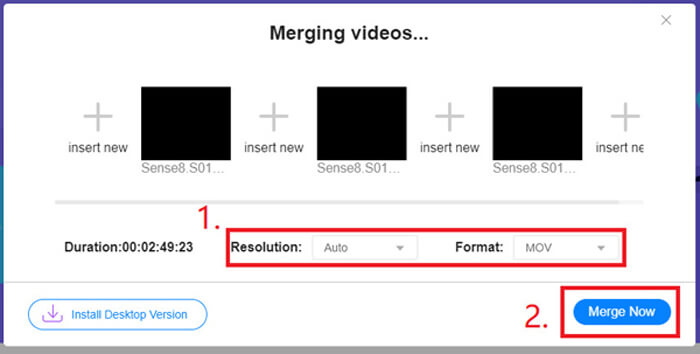
Langkah 5. Klik Merge Now untuk memulakan proses penggabungan.
Bahagian 3. Cara Menggabungkan Fail MOV di Windows 10
Sekiranya anda tidak mempunyai Mac tetapi memiliki PC dengan Windows 10, anda boleh mencuba langkah-langkah berikut untuk menggabungkan fail MOV.
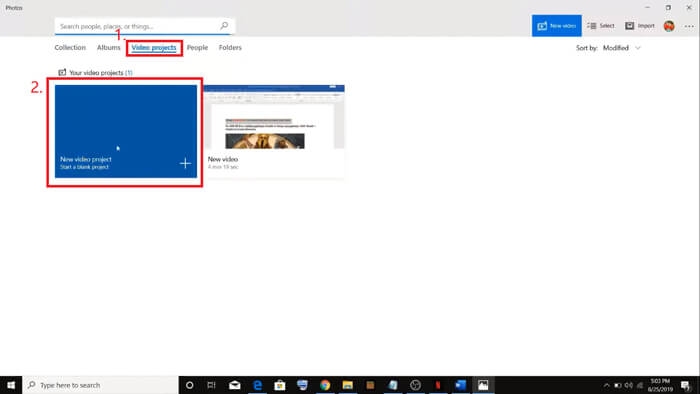
Langkah 1. Buka aplikasi Photos pada PC anda. Anda boleh mencarinya melalui bar Search. Kemudian pilih tab Video projects di bahagian atas dan klik New video project. Namakan projek video tersebut.
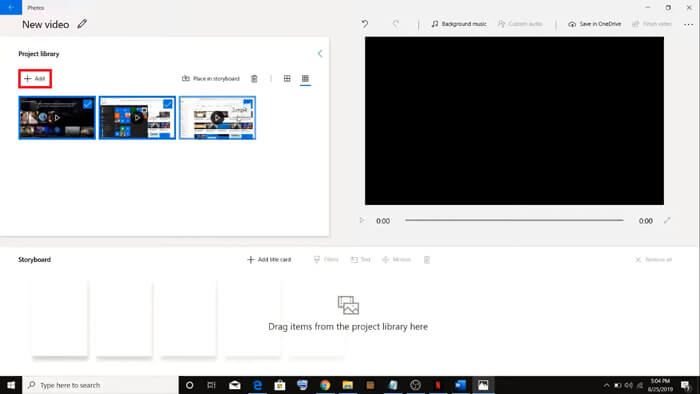
Langkah 2. Klik butang Add di penjuru kiri atas dan pilih semua video yang anda mahu tukar daripada PC anda.
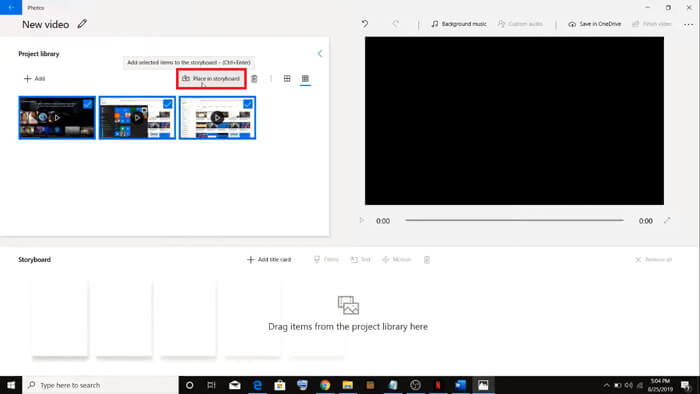
Langkah 3. Kemudian klik butang Place in storyboard untuk menggabungkan semua fail MOV anda.
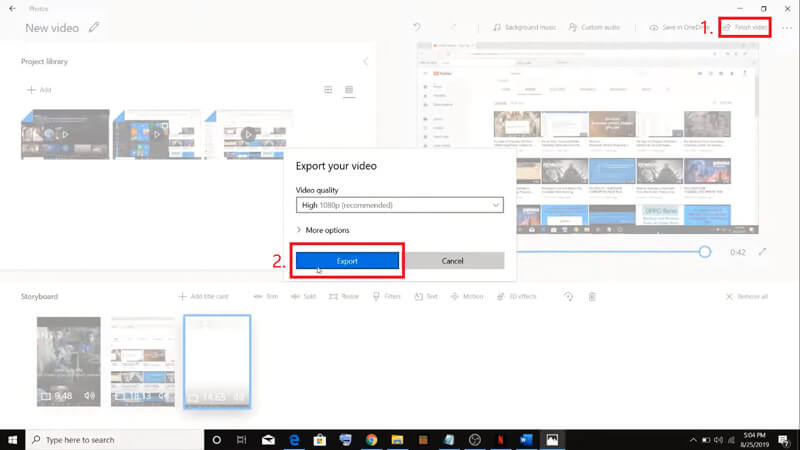
Langkah 4. Selepas melaraskan susunan video, klik Finish video di penjuru kanan atas. Kemudian Eksport video yang telah digabungkan ke PC anda.
Bahagian 4. Soalan Lazim Menggabungkan MOV
1. Bolehkah saya menggunakan Pemain QuickTime pada Windows?
Walaupun Apple tidak lagi menyokong QuickTime untuk Windows, anda masih boleh mencari pakej pemasangan QuickTime di Internet. Namun, anda perlu sedar bahawa anda hanya boleh menggunakannya untuk memainkan video. Jadi, ia pada asasnya hanyalah pemain biasa yang tidak banyak membantu anda.
Jika anda pengguna Windows yang mahu menggabungkan fail MOV, anda boleh terus menggunakan FVC Free Online Video Merger yang berkuasa ini.
2. Mana yang lebih baik untuk YouTube, MOV atau MP4?
Selepas menghasilkan video yang hebat dengan menggabungkan semua bahan video anda, anda mungkin mahu memuat naiknya ke YouTube, Facebook, Instagram atau platform lain. Jika begitu, MP4 akan menjadi pilihan yang lebih baik kerana saiznya lebih kecil dan lebih mudah dikongsi melalui Internet.
Mungkin anda ingin mengetahui lebih banyak perbezaan antara MOV dan MP4.
3. Bolehkah QuickTime Player mengeksport video MP4?
Tidak dan ya. Kerana QuickTime sendiri tidak menyokong pengguna mengeksport fail MP4. Tetapi jika anda telah membayar dan menaik taraf QuickTime anda kepada QuickTime Pro, maka anda boleh menikmati fungsi menggabungkan fail MOV dan secara automatik mendapatkan fail MP4 yang telah ditukar. Jika anda tidak mahu membayar walau satu sen tetapi masih mahu menukar MOV kepada MP4 pada Mac, anda boleh cuba penukar dalam talian percuma bernama FVC Free Online Video Converter yang serasi dengan Mac dan juga Windows.
Kesimpulannya
Jadi, inilah kaedah yang boleh anda gunakan apabila anda perlu menggabungkan fail MOV menjadi satu. Jika anda menggunakan Mac, anda boleh menggunakan perisian terbina dalam, QuickTime Player, secara terus untuk mendapatkan fail MOV yang telah digabungkan. Pengguna Windows 10 boleh mencuba Photos. Bagi komputer Windows yang lain, pengguna boleh memilih FVC Free Online Video Merger dan menikmati perjalanan penggabungan video yang hebat tanpa sebarang sekatan, tanpa iklan dan tanpa virus.
Sekiranya anda menyukai siaran ini dan menganggapnya praktikal, anda boleh berkongsi dengan rakan anda. Dan jangan ragu untuk memberikan komen anda kepada kami. Sekarang giliran anda untuk mencuba kaedah dan menggabungkan fail anda.
-
 Cara Menukar QuickTime ke MP4 pada Windows / Mac / Online / iOS / Android
 Baca dan dapatkan 4 cara untuk menukar video QuickTime ke MP4 secara percuma di telefon atau komputer anda. Anda boleh menukar format fail dari MOV ke MP4 pada Windows / Mac / iPhone / Android / dalam talian dengan mudah.
-
 4 Kaedah Teratas untuk Menukar MP4 ke MOV Percuma
 Bagaimana cara menukar MP4 ke MOV pada Mac? Adakah cara percuma untuk menukar MP4 ke MOV tanpa kehilangan kualiti? Siaran ini berkongsi 4 cara mudah untuk membantu anda membuat penukaran video dari MP4 ke MOV pada Mac, PC Windows dan dalam talian.
-
 Cara Menukar M2TS ke MOV pada Windows / Mac (Dalam Talian / Luar Talian)
 Perlu menukar M2TS ke MOV kerana memainkan fail video pada sebilangan pemain dan platform? Artikel ini akan membantu anda mencari kaedah Online / Offline terbaik untuk menukar M2TS ke MOV pada Windows / Mac.
