


 Video Converter Ultimate
 Perakam Skrin
 Pembaikan Video
 Muat Turun Selamat
Cara Paling Mudah untuk Mengalih Keluar Logo daripada Video Menggunakan Windows Movie Maker
Bagaimanakah cara membuang logo daripada video menggunakan Windows Movie Maker? Inilah soalan yang paling kerap ditanya oleh mereka yang gemar menonton filem kegemaran, klip video, tayangan slaid dan sebagainya. Menonton video sambil melihat logo memang tidak memuaskan. Namun anda tidak perlu risau lagi. Kami mempunyai kaedah berkesan untuk membuang logo daripada video anda menggunakan Windows Movie Maker. Selain itu, ada satu lagi alat yang boleh anda gunakan untuk membuang logo selain Windows Movie Maker. Jika anda ingin mengetahui tentang aplikasi lain ini dan kaedah mudah tersebut, teruskan membaca artikel ini.

Bahagian 1: Bagaimana untuk Membuang Logo daripada Video Menggunakan Windows Movie Maker
Jika anda pengguna Windows, anda wajib cuba Windows Movie Maker untuk membuang logo daripada video anda. Selain itu, alat ini boleh menggunakan pelbagai kaedah untuk membuang unsur daripada video anda, seperti logo, tera air, teks, setem dan banyak lagi. Di samping itu, Windows Movie Maker ialah perisian penyuntingan video yang membantu pengguna mencipta dan menambah baik video. Antaramukanya yang ringkas menjadikan proses lebih mudah, sangat sesuai untuk pengguna bukan profesional. Semasa membuang logo, anda boleh menggantikannya dengan unsur lain seperti gambar atau teks. Tambahan pula, aplikasi ini mempunyai banyak alat suntingan yang boleh anda nikmati, seperti memotong, mencantum, memusing dan memotong (crop) video anda. Anda juga boleh menambah peralihan, teks, kesan dan banyak lagi. Jika anda ingin mengetahui cara mudah ini, ikut langkah di bawah.
Langkah 1: Langkah pertama, muat turun Windows Movie Maker pada Windows anda. Tunggu proses pemasangan selesai, kemudian buka aplikasi tersebut.
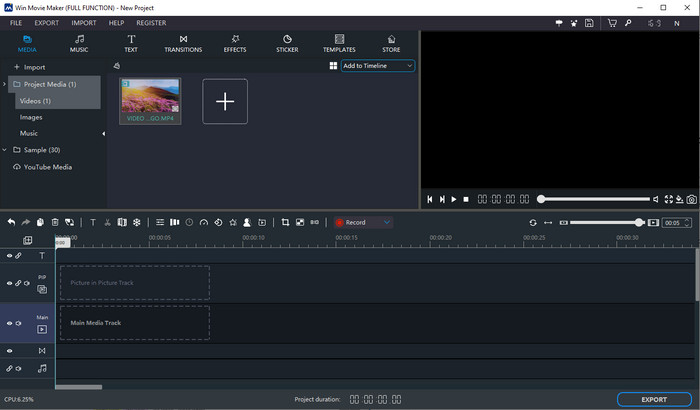
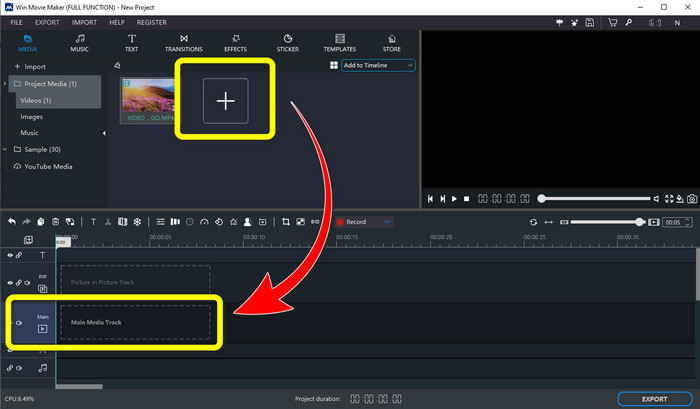
Langkah 2: Klik ikon tanda Tambah untuk menambah video anda yang mempunyai logo. Setelah video anda dimasukkan, seret dan letakkannya pada Main Media Track.
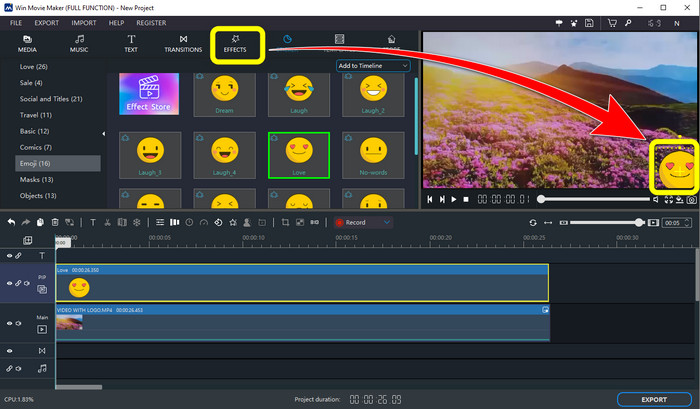
Langkah 3: Untuk menggantikan logo, klik butang Sticker. Kemudian pilih pelekat atau unsur lain yang anda inginkan, dan letakkannya pada kawasan logo untuk menutupnya.
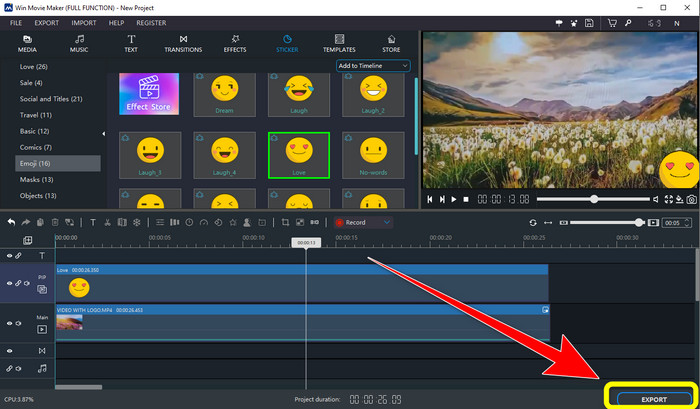
Langkah 4: Untuk langkah terakhir, apabila anda selesai menutup logo dalam video anda, pilih butang Export untuk menyimpan hasil akhir.
Bahagian 2: Cara Alternatif Terbaik untuk Mengalih Keluar Logo daripada Video
Video Converter Ultimate ialah salah satu alternatif terbaik kepada Windows Movie Maker untuk membuang logo daripada video anda dengan mudah. Aplikasi ini membolehkan anda membuang unsur yang tidak diperlukan seperti tera air, logo, tandatangan, setem dan banyak lagi. Di samping itu, anda boleh menggunakan alat pemotongan (cropping) untuk membuang logo yang diletakkan di bahagian tepi atau bucu video anda. Video Converter Ultimate menawarkan antaramuka yang ringkas dan intuitif, sesuai untuk pengguna bukan profesional. Selain membuang logo daripada video, perisian ini juga menyediakan pelbagai alat penyuntingan yang boleh anda gunakan. Ia mempunyai pemampat video, pengawal kelajuan video, pembuat GIF, pembuat kolaj, tambah dan buang tera air, pemutar video dan banyak lagi. Ia juga menyokong pelbagai format fail seperti MP4, MKV, FLV, MOV, XVID, DIVX, TRP, MTS dan sebagainya. Akhir sekali, Video Converter Ultimate tersedia untuk Windows dan Mac, yang memudahkan pengguna. Ikuti panduan terperinci ini untuk membuang logo daripada video anda menggunakan Video Watermark Remover dan Video Cropping.
Menggunakan Fungsi Pembuang Tera Air Video
Langkah 1: Pertama, muat turun Video Converter Ultimate dan pasang pada Windows atau Mac anda.
Muat Turun PercumaUntuk Windows 7 atau lebih baharuMuat Turun Selamat
Muat Turun PercumaUntuk MacOS 10.7 atau lebih baharuMuat Turun Selamat
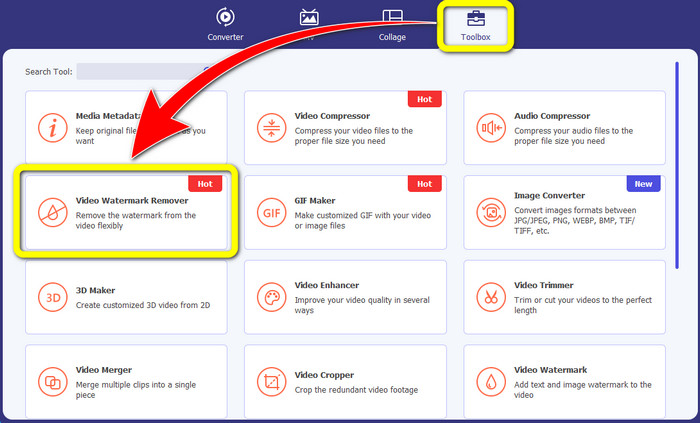
Langkah 2: Selepas melancarkan aplikasi, pergi ke panel Toolbox, cari Video Watermark Remover, dan pilihnya.
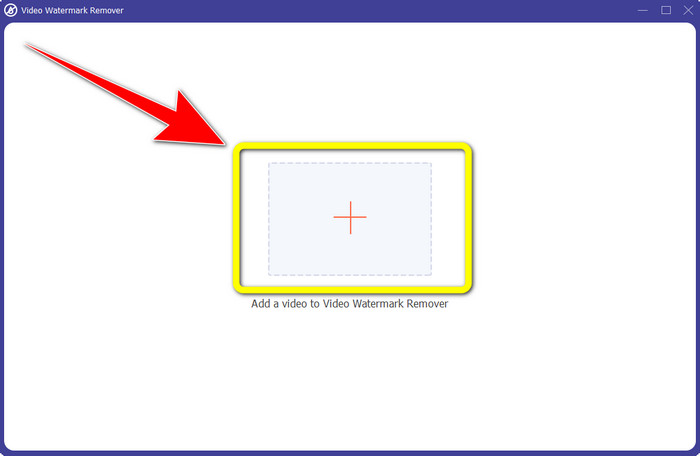
Langkah 3: Selepas itu, satu lagi antara muka akan muncul. Klik ikon tanda tambah untuk menambah video yang anda mahu buang logonya.
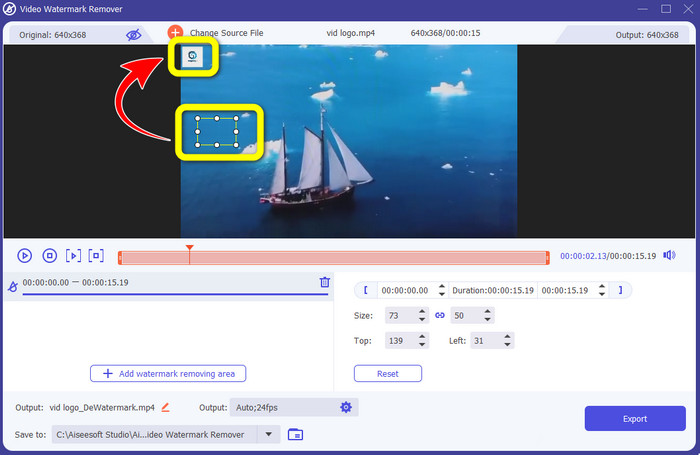
Langkah 4: Satu kotak mini akan muncul pada skrin apabila anda sudah memasukkan fail. Seret kotak tersebut untuk menutup logo.
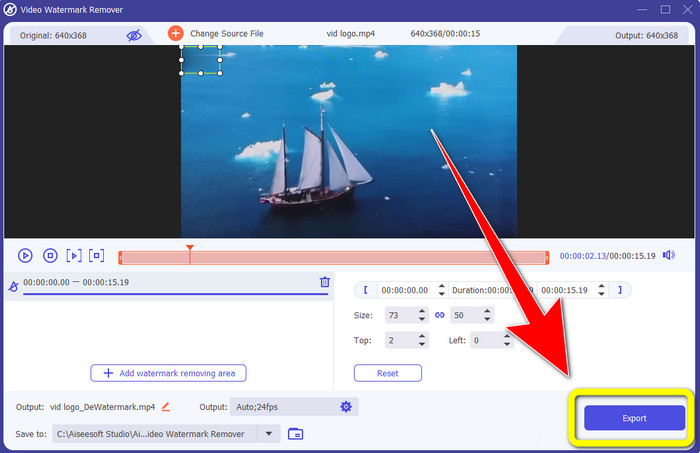
Langkah 5: Apabila anda selesai membuang logo daripada video anda, pilih butang Export untuk mengeksport dan menyimpan video anda tanpa logo.
Menggunakan Fungsi Pemotong Video
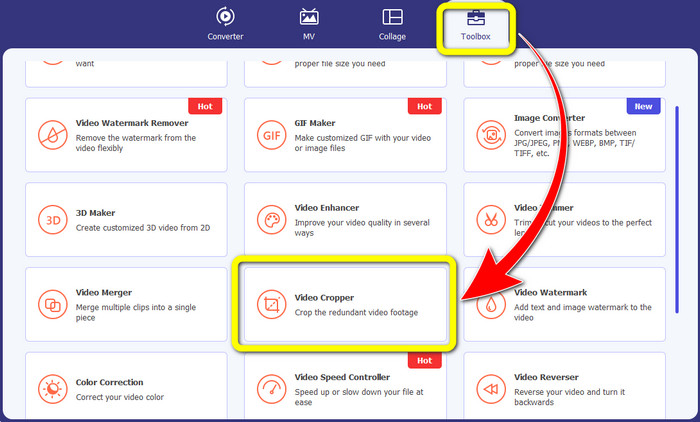
Langkah 1: Perkara pertama ialah klik panel Toolbox. Selepas itu, cari alat Video Cropper dan pilihnya.
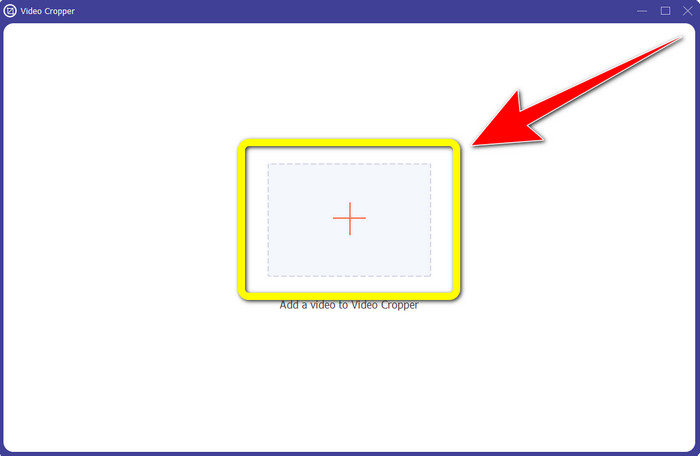
Langkah 2: Kemudian, anda boleh klik butang tanda Tambah untuk mengimport video yang mempunyai logo.
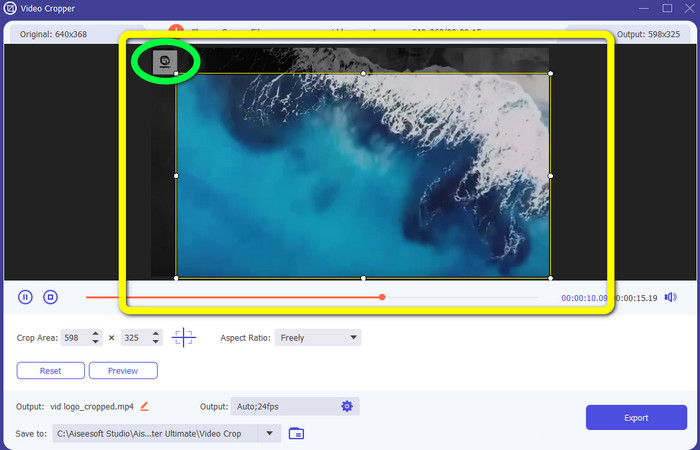
Langkah 3: Dalam fungsi ini, anda boleh memotong kedua-dua sisi, atau bahagian atas dan bawah video untuk membuang logo daripada video anda.
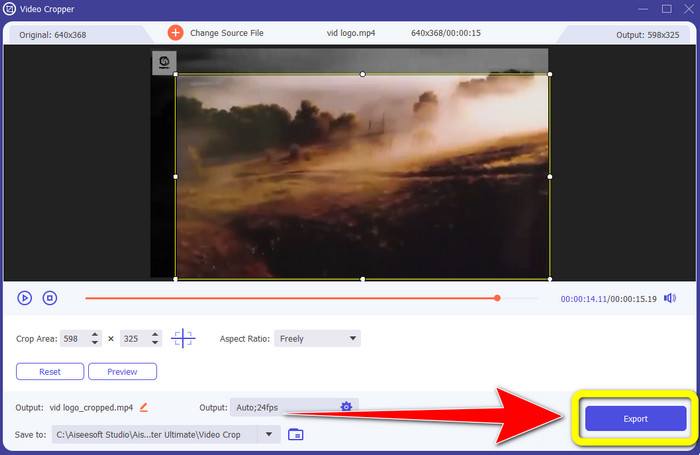
Langkah 4: Untuk langkah terakhir, klik butang Export dan simpan video anda ke komputer.
Bahagian 3: Soalan Lazim tentang Mengalih Keluar Logo daripada Video Menggunakan Windows Movie Maker
Berapa lama masa yang diambil untuk mengeksport video saya dalam Windows Movie Maker selepas mengalih keluar logo?
Dalam menggunakan Windows Movie Maker, anda boleh mengeksport video anda hanya dalam satu minit selepas mengeluarkan logo.
Aplikasi manakah yang terbaik apabila mengalih keluar logo daripada video?
Jika anda sedang mencari aplikasi terbaik dan paling boleh dipercayai dengan fungsi penanggal logo, anda boleh menggunakan Video Converter Ultimate. Aplikasi ini membolehkan anda menikmati video selepas anda membuang logo daripada video anda.
Adakah terdapat aplikasi berguna yang boleh saya gunakan untuk mengalih keluar logo daripada video menggunakan telefon saya?
Ya, sudah tentu ada! Anda boleh menggunakan aplikasi PicLab. Ia tersedia pada Android dan iPhone. Berikut panduan amnya:
1. Muat turun PicLab pada telefon anda dan buka.
2. Masukkan fail anda dan pilih alat marker.
3. Pilih bahagian yang hendak dibuang, kemudian tekan erase dan simpan.
Adakah mungkin untuk mengalih keluar logo daripada video tanpa kehilangan kualiti?
Ya, betul! Aplikasi yang paling disyorkan yang boleh anda gunakan ialah Video Converter Ultimate.
Adakah terdapat alat dalam talian yang boleh saya gunakan untuk mengalih keluar logo daripada video saya?
Sudah tentu boleh! Anda boleh menggunakan banyak alat dalam talian untuk membuang logo daripada video anda. Anda boleh gunakan Apowersoft Online Watermark Remover. Dan berikut langkah mudah menggunakan alat ini:
1. Pergi ke laman web Apowersoft Online Watermark Remover dan klik butang remove watermark from video.
2. Masukkan fail anda. Gunakan kotak untuk menutup logo.
3. Klik Erase dan muat turun video anda.
Kesimpulannya
Artikel ini menyediakan kaedah yang sangat baik tentang cara membuang logo daripada video menggunakan Windows Movie Maker pada komputer anda. Selain menggunakan Windows Movie Maker, artikel ini juga menawarkan salah satu alternatif terbaik untuk membuang logo daripada video anda. Aplikasi yang boleh dipercayai ini ialah Video Converter Ultimate. Perisian ini boleh membantu anda membuang logo dengan dua kaedah mudah. Yang pertama ialah alat Video Watermark Remover, dan satu lagi ialah alat Video Cropper.
-
 Cara Mengeluarkan Tera Air Bandicam Dengan Mudah [3 Cara Berkesan]
 Bagaimana untuk membuang tera air Bandicam? Dengan alatan, kami menambah di sini anda akan tahu cara menanganinya dengan berkesan!
-
 Cara Mengeluarkan Tera Air iStock Menggunakan Cara Paling Berkesan
 Bagaimana untuk mengalih keluar tera air iStock pada video dan imej? Jika anda sedang mencari jalan keluar untuk menghilangkan tera air, baca ini!
-
 Alih keluar Tera Air DaVinci Resolve pada Video yang Dieksport dengan Tutorial Lengkap
 Untuk mengalih keluar tera air Davinci Resolve, anda perlu menggunakan alat atau membeli versi rasminya, teruskan membaca ini untuk mengetahui lebih lanjut.
