


 Video Converter Ultimate
 Perakam Skrin
 Pembaikan Video
Kajian Komprehensif tentang Pemampat Fail 8MB (2024)
Pada masa kini, menghantar fail kepada penerima tertentu melalui e-mel boleh dilakukan hanya dengan satu klik. Banyak perkara boleh diakses melalui Internet. Perkara yang sama akan berlaku sama ada fail itu video atau audio. Anda mungkin menghadapi kesukaran untuk menghantar fail kepada penerima yang betul jika saiznya terlalu besar. Ini kerana proses penghantaran akan mengambil lebih banyak masa jika fail anda bersaiz besar. Namun begitu, anda tidak perlu bimbang. Dalam artikel ini kami akan membincangkan tentang Pemampat 8MB. Kaedah ini boleh menghantar data ke mana-mana lokasi dengan selamat tanpa menimbulkan kebimbangan tentang keselamatannya.

Bahagian 1. Semakan Pemampat 8MB
Pemampat Video 8MB ialah alat pemampatan video dalam talian yang diiktiraf secara meluas yang serasi dengan pelayar web popular seperti Google Chrome, Mozilla Firefox dan Safari. Dengan menggunakan Pemampat Video 8MB, pengguna boleh mengurangkan saiz fail video mereka yang luas kepada maksimum 8MB dengan berkesan. Aplikasi ini membolehkan pengguna memilih daripada pelbagai saiz pratetap, termasuk 100MB, 50MB, 25MB dan 8 MB. Pemampat 8MB menawarkan antara muka mesra pengguna yang anggun dan intuitif, menjadikannya menarik kepada pelbagai pengguna. Tambahan pula, pengguna tidak akan menemui iklan atau tetingkap pop timbul semasa menggunakan program ini.
Di samping itu, perisian ini menawarkan pelbagai ciri penyuntingan, termasuk perapi video, bermain dan fungsi tambahan. Yakinlah bahawa Pemampat Video 8MB menjamin keselamatan data dan fail anda, menghapuskan sebarang kebimbangan yang mungkin anda miliki mengenai keselamatannya. Walau bagaimanapun, ia tidak dapat melakukan pemampatan tanpa kehilangan pada fail anda. Mengurangkan saiz mampatan akan mengakibatkan penurunan kualiti yang sepadan. Walau bagaimanapun, ia kekal sebagai alat dalam talian yang sangat cekap untuk pemampatan video.
Kelebihan
- Program dalam talian hanya memerlukan pengguna melengkapkan proses pendaftaran sebelum digunakan.
- Antara muka adalah sangat intuitif.
- Produk ini mesra pengguna dan sangat sesuai untuk individu yang baru menggunakan pemampat video.
Keburukan
- Proses yang digunakan menggunakan teknik mampatan lossy.
- Peranti memerlukan sambungan internet untuk berfungsi.
Bahagian 2. Cara Menggunakan Pemampat 8MB
Di bawah ialah panduan pengajaran ringkas yang menggariskan langkah untuk memampatkan fail anda dengan berkesan menggunakan alat Pemampat 8MB.
Langkah 1: Untuk bermula, gunakan pelayar web anda dan cari 8MB Video Compressor. Seterusnya, jalankan program tersebut dan teliti cara navigasi serta antara mukanya.
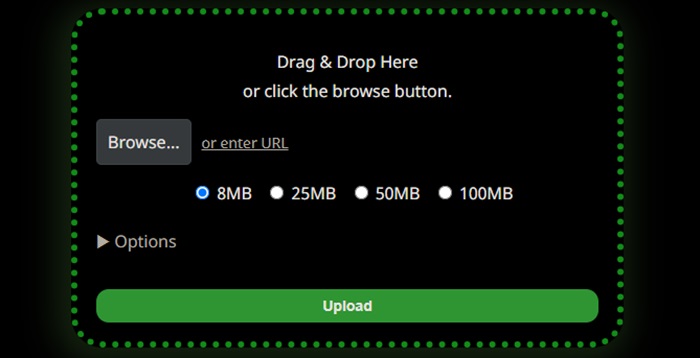
Langkah 2: Untuk memulakan proses pemampatan video, sila pergi ke antara muka utama aplikasi dan cari butang Upload. Klik butang tersebut untuk memilih dan menambah fail video yang dikehendaki.
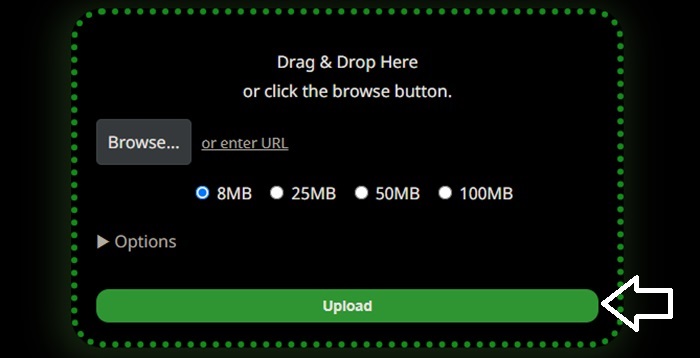
Langkah 3: Sila pilih saiz pemampatan yang dikehendaki. Anda boleh memilih antara kapasiti storan 8MB, 25MB, 50MB, dan 100MB. Sila nyatakan saiz yang anda inginkan dengan memilih bulatan yang sepadan. Sila ingat bahawa mengurangkan saiz video anda akan menurunkan kualitinya. Selain itu, pengguna boleh mengklik anak panah jatuh bawah untuk mengakses pelbagai tetapan alternatif yang boleh digunakan pada video mereka.
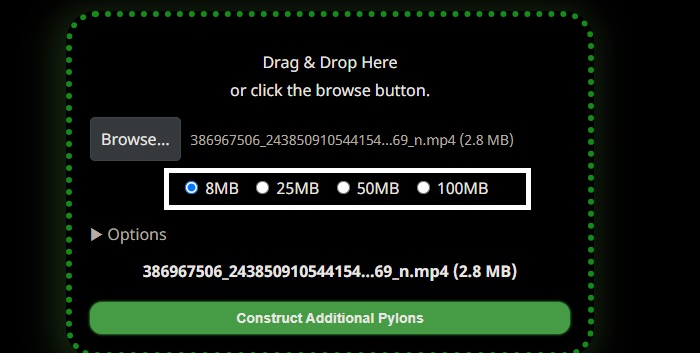
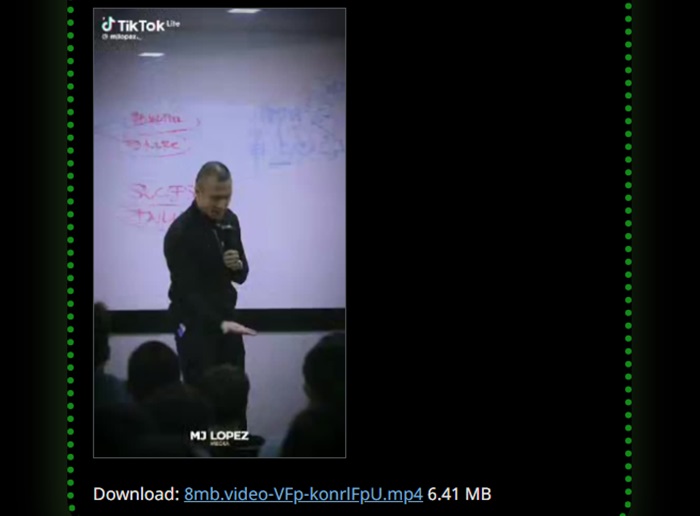
Untuk memulakan proses pemampatan untuk video anda, sila klik pada pautan di bahagian bawah antara muka. Setelah proses pemampatan selesai, sila teruskan memuat turun video anda.
Bahagian 3. Alternatif kepada Pemampat 8MB
Jika Pemampat 8MB tidak berfungsi dengan betul, kaedah alternatif tersedia, dalam talian dan luar talian, yang boleh memampatkan fail anda dengan mudah.
1. Pemampat Video FVC Dalam Talian
FVC Video Compressor Online diiktiraf sebagai salah satu alat pemampatan video berasaskan web yang terkenal dan mesra pengguna. Program dalam talian ini sesuai untuk individu yang mahukan cara mudah untuk mengurangkan saiz video tanpa menjejaskan kualiti. Perisian ini membolehkan pemampatan video dalam resolusi 4K, HD atau SD dan menyokong pelbagai format video termasuk MP4, MKV, MOV, 3GP, RMVB, WebM dan FLV. Selain itu, ia membolehkan pengguna menyesuaikan kualiti video mengikut citarasa mereka. Di bawah ini disertakan panduan lengkap tentang cara menggunakan pemampat yang mesra pengguna ini.
Langkah 1: Gunakan enjin carian pilihan anda untuk mencari FVC Video Compressor Online. Setelah mengakses halaman web tersebut, muat turun pelancar dan benarkan ia mengakses komputer anda.
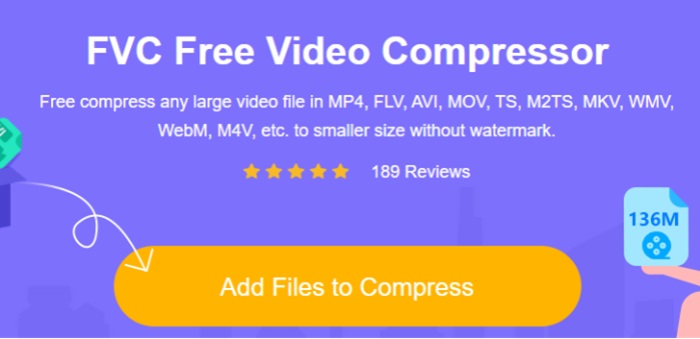
Langkah 2: Klik butang Add Files to Compress untuk memulakan muat naik fail. Untuk mengecilkan saiz fail video anda, anda boleh melaraskan bar Slider dengan menggerakkannya ke sebelah kiri. Selain itu, anda boleh menukar format dengan memilih salah satu format yang tersedia pada skrin.
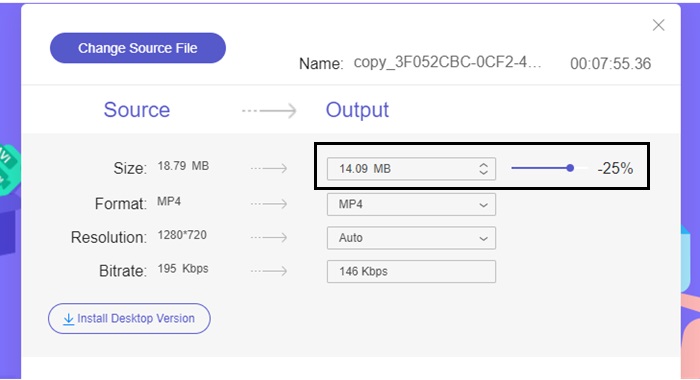
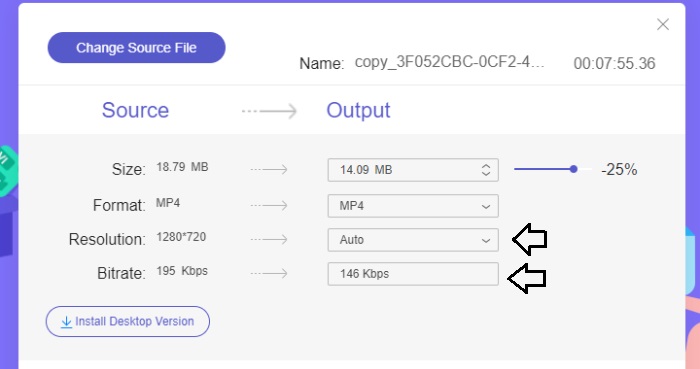
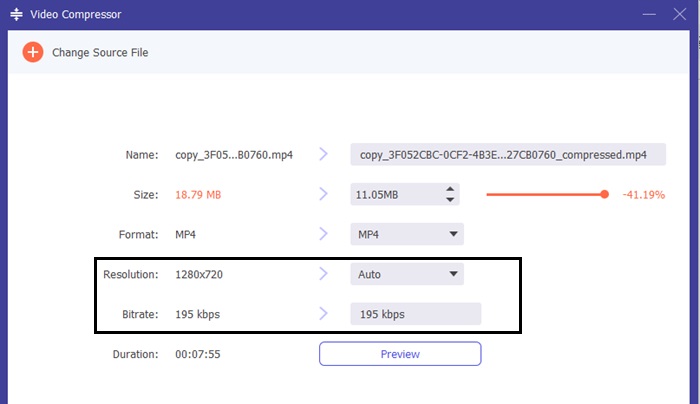
Tambahan pula, pengguna boleh memperibadikan Bitrate dan Resolution video mereka dengan memilih daripada pelbagai pilihan yang disediakan.
Langkah 3: Setelah semua pelarasan yang diperlukan siap, anda boleh menyimpan video anda dengan memilih butang Compress. Sila pilih direktori tempat anda ingin menyimpan fail video yang terhasil.
2. Video Converter Ultimate
Jika anda mahukan pemampat video luar talian, pertimbangkan untuk beralih kepada Video Converter Ultimate. Perisian ini serasi dengan sistem pengendalian Mac dan Windows serta menawarkan pelbagai fungsi lain selain pemampatan fail audio dan video. Tambahan pula, ia serasi dengan hampir 200 format fail dan membolehkan pengguna mengoptimumkan kualiti fail mengikut keperluan mereka. Satu aspek ketara yang membezakan program luar talian ini daripada pemampat video lain ialah keupayaannya mengecilkan saiz fail sambil mengekalkan kualiti video yang tinggi dengan berkesan.
Langkah 1: Untuk menggunakan perisian pemampatan video yang berkuasa ini dengan berkesan, sila muat turun dan pasangkannya pada komputer anda. Seterusnya, jalankan perisian tersebut untuk mula menggunakan fungsinya.
Muat Turun PercumaUntuk Windows 7 atau lebih baharuMuat Turun Selamat
Muat Turun PercumaUntuk MacOS 10.7 atau lebih baharuMuat Turun Selamat
Langkah 2: Untuk bermula, sila pergi ke bahagian Toolbox dan pilih pilihan Video Compressor. Selepas itu, anda kini boleh memuat naik video anda.
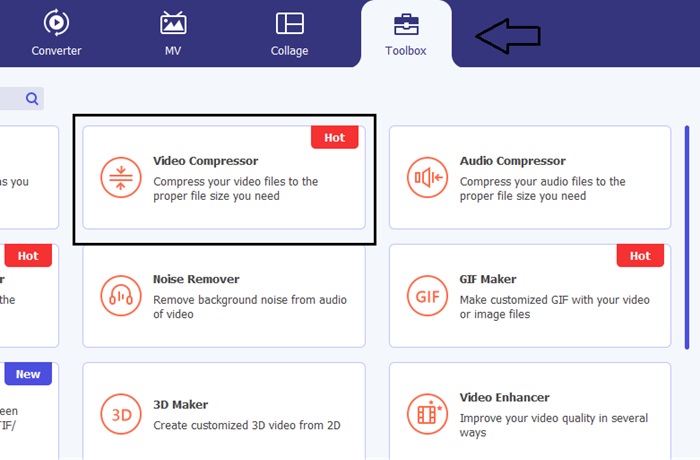
Laras bar Slider untuk mencapai saiz sasaran yang dikehendaki setelah anda mengakses tetapan Video Compressor. Seterusnya, sila klik butang Save untuk melaksanakan perubahan.
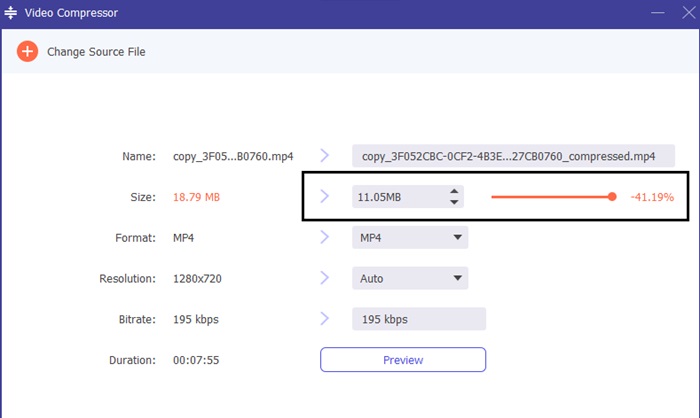
Untuk memilih format video yang sesuai, sila pergi ke pilihan Profile dan pilih salah satu format yang disediakan dalam menu jatuh bawah. Pengguna juga boleh mengubah suai tetapan seperti Encoder, Resolution, Bitrate, dan konfigurasi audio.
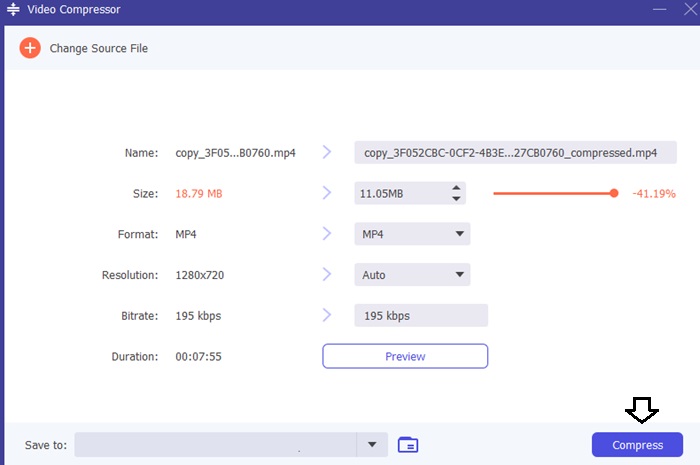
Langkah 3: Sila klik butang Compress untuk memulakan pemampatan video.
Bacaan Lanjut:
Veed Video Compressor: Ulasan yang Teliti dan Terperinci
Bagaimana untuk Memampatkan Video untuk Twitter? 4 Kaedah Boleh Dipercayai
Bahagian 4. Soalan Lazim Mengenai Pemampat 8MB
Berapa saat video ialah 8 MB?
Jika seseorang bergantung pada kadar bit, ia boleh ditentukan bahawa video 8MB adalah lebih kurang bersamaan dengan 25.6 saat.
Berapa MB adalah 1 minit video 1080p?
Pelbagai format rakaman akan menduduki ruang storan peranti mudah alih anda. Walau bagaimanapun, perbandingan keseluruhan antara format akan mempamerkan persamaan merentas pelbagai peranti. Kapasiti storan yang diperlukan untuk video 1080p 1 minit pada peranti iPhone ialah kira-kira 130MB.
Adakah Pemampat Video 8MB percuma?
Pemampat Video 8MB ialah alat percuma yang membolehkan pengguna memampatkan video. Walau bagaimanapun, adalah penting untuk ambil perhatian bahawa video yang dimuat naik mesti memenuhi kriteria tertentu. Secara khususnya, video hendaklah berdurasi di bawah 5 minit dan saiz fail tidak melebihi 2GB.
Kesimpulannya
Sebagai rumusan, 8MB File Compressor amat bermanfaat bagi mereka yang ingin mendapatkan kaedah ringkas untuk memampatkan video mereka secara dalam talian. Jika anda mencari pemampat video yang boleh diharap, adalah digalakkan untuk meneroka pilihan lain seperti Video Converter Ultimate.
-
 2 Cara Memampatkan Video untuk YouTube
 Video YouTube besar dan lambat dimuat naik? Cukup tekan saiz fail video menjadi lebih kecil untuk YouTube dengan 2 cara dalam talian dan di komputer.
-
 Pemampat Video untuk Perselisihan yang Perlu Anda Ketahui
 Muat naik video kegemaran anda ke Discord tanpa dikekang dalam saiz fail. Rujuk pemampat fail Discord di sini untuk membantu anda.
-
 Petua Pantas: Cara Memampatkan Video pada iPhone Secara Percuma
 Artikel ini mengandungi panduan menyeluruh tentang cara memampatkan video iPhone. Sila semak penyelesaian yang disenaraikan di sini. Analisis mereka untuk memilih mana yang sesuai dengan anda!
