


 Video Converter Ultimate
 Perakam Skrin
 Pembaikan Video
5 Alat Terbaik yang Boleh Anda Gunakan untuk Mempercepatkan Video dengan Lancar dalam Semua Platform
Mempercepat video sangat berguna terutamanya jika anda mahu menonton video dalam gerakan lebih pantas berbanding biasa. Selain itu, jika anda mahu mempercepatkan video, ia akan memendekkan tempoh fail dan juga menjadikannya bersaiz lebih kecil berbanding fail video mentah asal. Namun begitu, mempercepatkan video juga ada keburukannya, contohnya jika kelajuannya terlalu tinggi video mungkin tidak dapat dimainkan. Jadi, untuk mengelakkan masalah ini kami memperkenalkan pelbagai alat untuk anda pilih. Semua kenyataan yang anda akan baca di bawah adalah fakta dan telah pun dicuba sebelum kami menulis artikel ini. Sekarang, mari kita terokai pelbagai alat yang diperkenalkan di bawah untuk mengetahui perisian terbaik pada Windows, Mac dan Linux.

Bahagian 1. 3 Perisian Terbaik untuk Mempercepatkan Video pada Windows
1.Video Converter Ultimate
Jika masalah anda ialah mempercepat atau memperlahankan video, maka ada satu penyelesaian: Video Converter Ultimate. Perisian ini sedia untuk menjadikan video anda jauh lebih pantas daripada sebelumnya atau memperlahankannya jika anda mahu. Selain itu, kualiti output apabila anda mengeksport tidak akan berkurang atau diturunkan ke kualiti yang jauh lebih rendah. Jadi, jika anda memasukkan video 1080p atau 4K UHD di sini, jangkakan kualitinya tidak akan berubah walaupun anda menukar kelajuannya. Dan kini, jika anda mahu tahu cara mempercepatkan video melalui Video Converter Ultimate, ikuti langkah‑langkah yang disediakan di bawah. Sebagai tambahan, anda tidak boleh pratonton kelajuan 4x dan 8x di sini tetapi anda masih boleh mencapai kelajuan tersebut selepas pengeksportan tanpa merosakkan kualiti.
Langkah-langkah Cara Menjadikan Video Lebih Pantas dengan Bantuan Video Converter Ultimate:
Langkah 1. Pertama sekali, anda perlu klik butang muat turun di bawah untuk memilih sama ada versi PC atau Mac. Kemudian pasang perisian tersebut dan ubah tetapan pemasangan jika anda mahu, kemudian klik Finish untuk menyimpan perubahan.
Muat Turun PercumaUntuk Windows 7 atau lebih baharuMuat Turun Selamat
Muat Turun PercumaUntuk MacOS 10.7 atau lebih baharuMuat Turun Selamat
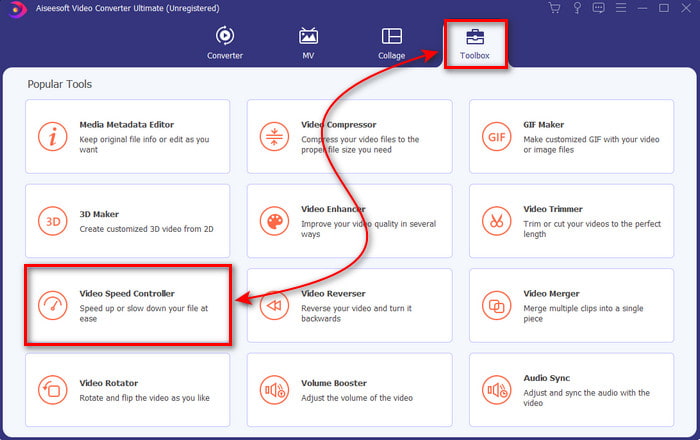
Langkah 2. Pergi ke Toolbox dan cari Video Speed Controller kemudian klik padanya.
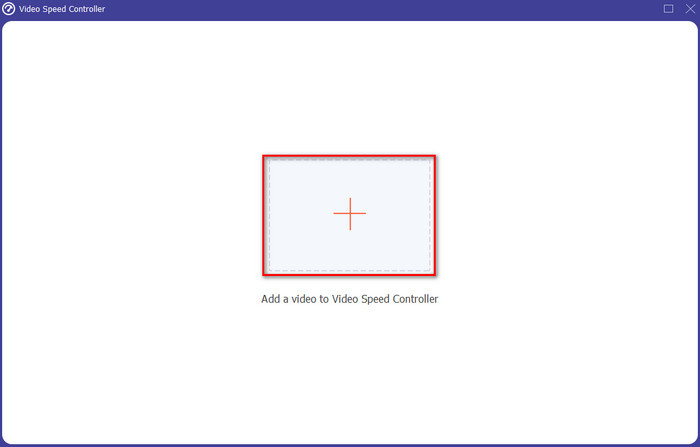
Langkah 3. Klik tanda + untuk memasukkan fail video yang anda mahu percepatkan dan klik Open untuk meneruskan.
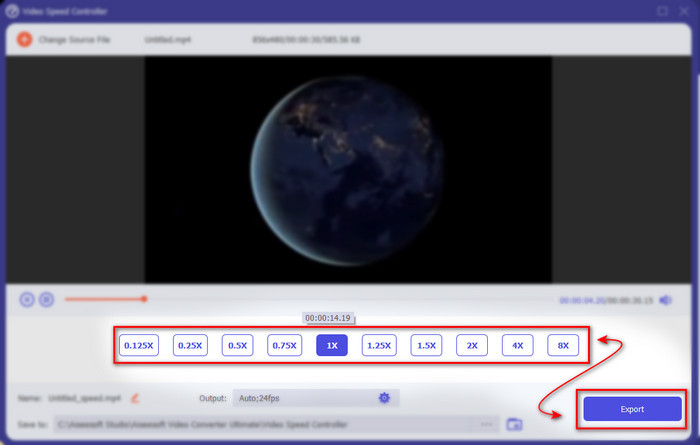
Langkah 4. Pada antara muka, pilih pilihan kelajuan yang anda inginkan sama ada untuk memperlahankan atau mempercepatkan video. Pratonton hanya tersedia sehingga 2x dan ke bawah. Kemudian, untuk menyimpan video yang anda telah percepatkan, klik butang Export.
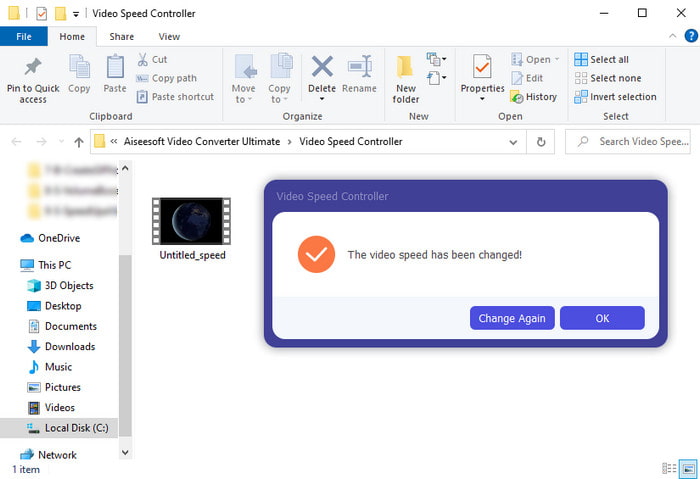
Langkah 5. Tunggu beberapa minit untuk proses eksport, kemudian jika fail video sudah siap, satu folder yang mengandungi video yang telah dipercepatkan akan muncul. Klik video itu untuk menonton versi pantas video anda.
Kelebihan
- Ciri penyuntingan lanjutan dan futuristik telah pun dibentangkan dalam Video Converter Ultimate.
- Alat ini mudah digunakan namun outputnya mengagumkan.
- Antara muka alat sudah lebih mengagumkan daripada alat lain yang dibentangkan di sini.
Keburukan
- Ia dibayar tetapi tidak begitu mahal.
- Sebelum anda boleh menggunakan alat ini, anda perlu memuat turunnya terlebih dahulu.
2. Adobe Premiere Pro
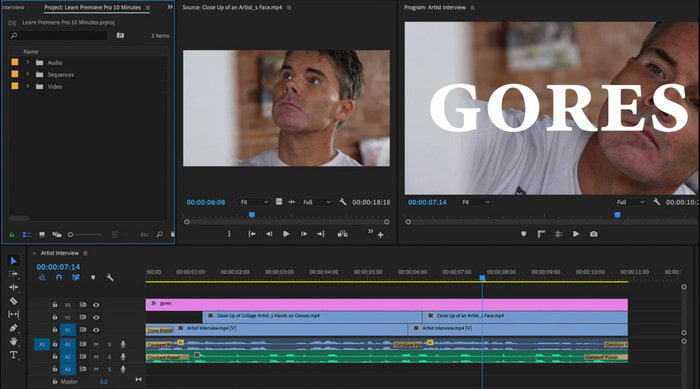
Adobe Premiere Pro ialah salah satu penyunting video terbaik yang boleh anda gunakan. Alat Adobe ini adalah antara yang paling banyak dipilih kerana anda boleh melakukan apa sahaja yang anda mahu dalam mengedit dan menghasilkan video profesional. Namun, alat ini jauh lebih mahal berbanding Video Converter Ultimate dan ia juga tidak mesra pengguna. Bukannya terus boleh mengedit sebaik sahaja anda melancarkan alat ini, anda perlu mencari cara untuk mempercepatkan video dalam Premiere. Selain itu, keluk pembelajaran alat ini agak lebih rumit daripada yang dijangka kerana anda perlu menonton YouTube tentang cara menggunakannya dan membaca beberapa manual berkaitan alat ini.
Kelebihan
- Salah satu alat terbaik yang telah digunakan oleh pro.
- Alat ini boleh melakukan penyuntingan video yang berat.
- Antara muka kelihatan lebih elegan dan lebih kemas daripada alat lain.
Keburukan
- Adobe Premier Pro benar-benar mahal.
- Keluk pembelajaran alat ini akan mengambil sedikit masa sebelum anda boleh menggunakannya sepenuhnya.
3.FFmpeg
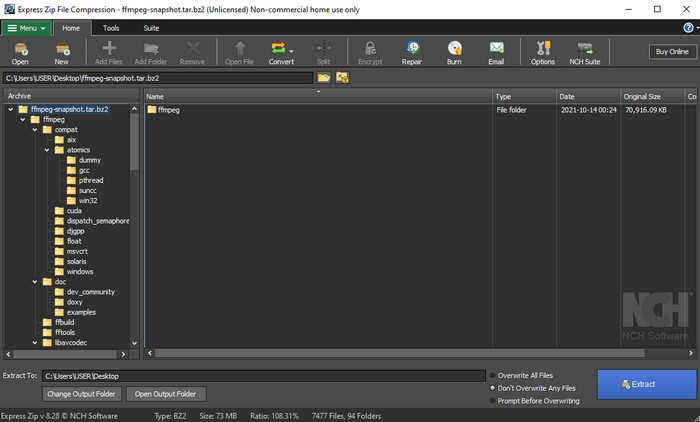
FFmpeg ialah salah satu alat yang dikenali sebagai rangka kerja multimedia terkemuka. Alat ini pada asasnya ibarat pisau serbaguna untuk mengendalikan video, audio, strim dan fail multimedia lain yang anda perlukan. Walaupun alat ini serbaguna, terdapat beberapa peningkatan yang diperlukan oleh perisian ini. Contohnya, antara muka FFmpeg perlu dipermudahkan. Seperti Adobe Premiere, alat ini sukar dikendalikan oleh pemula kerana antara mukanya yang terlalu kompleks. Secara keseluruhan, fungsi FFmpeg untuk mempercepatkan video boleh digunakan jika anda mempelajari cara mengendalikan alat ini. Jika anda meluangkan banyak masa untuk mempelajari alat ini, ia mungkin berbaloi tetapi ia akan mengambil masa yang panjang.
Kelebihan
- Ia adalah projek perisian sumber terbuka.
- Ia menyokong pelbagai jenis codec.
- Pilihan yang bagus untuk setiap profesional yang mahukan ciri penyuntingan yang berkesan.
Keburukan
- Bukan pilihan terbaik untuk pemula untuk melaksanakan sendiri.
- Ia menyokong rangkaian kecil platform silang.
- Antara mukanya sangat besar untuk dikendalikan oleh bukan pro.
Bahagian 2. 2 Perisian Mac Terbaik untuk Mempercepatkan Video
1.QuickTime Player
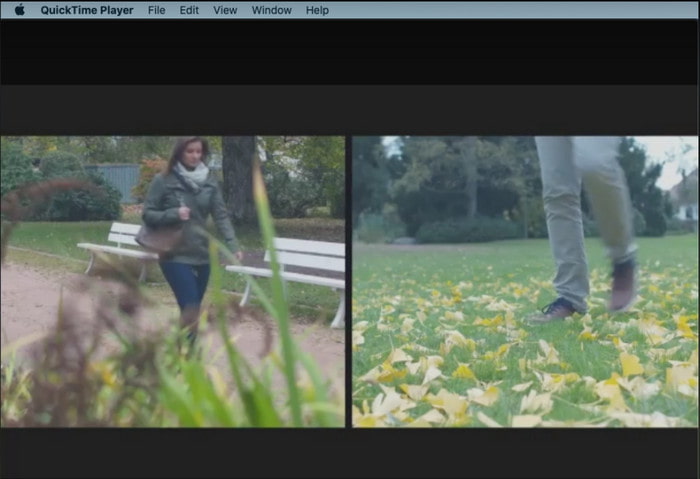
Mempelajari cara mempercepatkan video dalam QuickTime adalah semudah satu dua tiga. Ini kerana anda tidak perlu memuat turun alat ini kerana ia sudah dipra‑pasang pada setiap desktop Mac. Kita tahu QuickTime Player dibuat oleh Apple Inc. untuk digunakan sebagai pemain media natif bagi semua pengguna Mac. Walaupun alat ini mempunyai fungsi terbina dalam untuk mempercepat dan memperlahankan, anda perlu melakukannya secara manual yang sedikit memakan usaha. Namun begitu, antara muka keseluruhannya sangat kemas dan baik berbanding VLC, tetapi QuickTime hanya tersedia pada produk Apple dan tiada QuickTime Player pada Windows.
Kelebihan
- Tidak perlu memuat turun alat tersebut kerana ia sudah diprapasang.
- Sambungan Internet tidak diperlukan jika anda ingin menggunakan alat tersebut.
- Tonton dan kemukakannya dengan mudah dengan bantuan alat ini.
Keburukan
- Tiada versi Windows yang tersedia untuk alat ini.
- Lakukan kelajuan naik dan turun secara manual.
- Ia tidak menyokong format media berskala luas.
2. Buka Pukulan
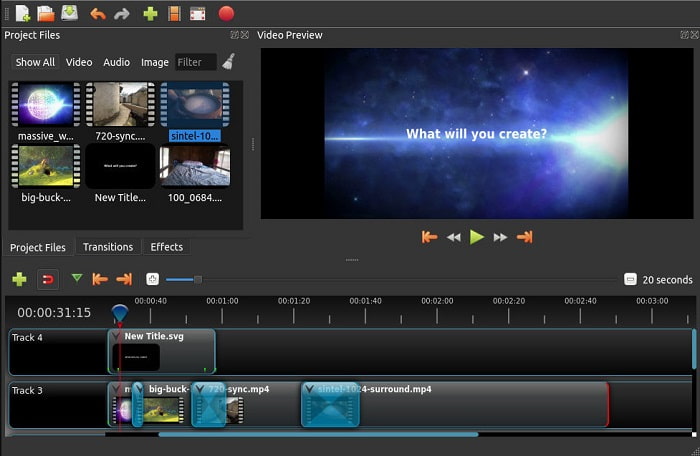
Open Shot ialah salah satu perisian penyunting video terbaik yang boleh anda gunakan terutamanya untuk Mac. Walaupun alat ini menyokong Windows, versi Mac adalah yang terbaik. Selain itu, fungsi Open Shot untuk mempercepatkan video boleh dilakukan dengan berkesan dengan bantuan perisian ini. Tambahan lagi, alat ini percuma untuk digunakan bagi mereka yang tidak cukup yakin menggunakan alat yang rumit dengan ciri lanjutan. Secara asasnya, alat ini menawarkan beberapa ciri penyuntingan asas yang mungkin anda mahu gunakan. Namun, beberapa cirinya masih perlu ditambah atau dikemas kini.
Kelebihan
- Ia mempunyai keupayaan untuk menyimpan output video akhir anda ke dalam format lain yang anda suka.
- Video boleh diedit hanya dengan bantuan ciri alat yang tersedia.
- Ia datang dengan arahan yang sangat intuitif untuk diikuti oleh pemula. Jadi, jika anda ingin belajar bagaimana mempercepatkan video Windows 10, Mac atau Linux ini adalah pilihan yang bagus.
Keburukan
- Bukan pilihan terbaik untuk pengguna yang ingin mempunyai output yang luar biasa kerana ia tidak mempunyai beberapa ciri lanjutan.
- Kadangkala alat ranap kerana beban pengeditan yang anda buat atau kadangkala kerana sebab yang tidak diketahui.
- Bukan pilihan terbaik untuk profesional yang ingin mendapatkan yang terbaik.
Bahagian 3. Soalan Lazim tentang Cara Mempercepatkan Video Windows dan Mac
Bolehkah saya mempercepatkan bahagian pada video saya?
Sudah tentu boleh. Anda boleh memotong satu klip video dan mempercepatkannya, kemudian menggabungkannya dengan video lain untuk menghasilkan satu video baharu yang dipercepatkan keseluruhannya. Sebagai contoh, jika anda mempunyai fail AVI yang anda mahu percepatkan, anda boleh ikuti langkah‑langkah di atas dan setelah selesai anda boleh menggabungkannya dengan penyatu AVI terbaik pada pautan ini.
Kelajuan mana yang paling sesuai dengan anda; 2x, 4x, atau 8x?
Jika menonton filem, mempercepatkan video anda kepada 4x ke atas akan sukar diikuti kerana video menjadi terlalu pantas sehingga mata manusia tidak dapat mengejarnya. Jadi, adalah ideal untuk memainkan filem pada 2x jika anda mahu menontonnya dengan lebih pantas dan masih boleh mengikut jalan ceritanya dengan mudah. Dengan mengklik pautan ini, anda akan pergi ke artikel baharu dan belajar cara mempercepatkan video sehingga 2x lebih pantas.
Bagaimana untuk memperlahankan tutorial video ke hadapan pantas?
Jika video yang anda muat turun atau tukar format terlalu pantas, maka anda boleh menontonnya dalam gerakan perlahan dengan 5 Pemain Video Gerak Perlahan Terbaik. Jadi, pergi sekarang ke artikel ini untuk mengetahui cara memperlahankan video.
Kesimpulannya
Untuk membuat kesimpulan, kini lebih mudah bagi kami untuk memahami bahawa anda boleh mempercepatkan video dengan mudah dengan bantuan alat yang dibentangkan di atas. Semua alatan mampu meningkatkan kelajuan video atau memperlahankannya. Selain itu, terdapat satu alat yang membuktikan ia mampu untuk tidak mempunyai video yang tertangguh walaupun anda meningkatkan kelajuan video. Dan alat itu ialah editor fenomenal Video Converter Ultimate, perisian ini mudah digunakan, pilihan terbaik untuk pro dan pemula, ia mempunyai banyak ciri lanjutan yang boleh anda pilih dan banyak lagi. Jadi, jangan puas hati dengan alat yang okey jika anda boleh mendapatkan yang terbaik, seperti Video Converter Ultimate.
-
 Windows Media Player Tidak Memainkan MP4? 5 Kaedah Cekap untuk Memperbaikinya
 Gagal memainkan MP4 di Windows Media Player? Ketahui lebih lanjut mengenai sebab dan penyelesaian utama untuk memainkan MP4 di Windows Media Player di Windows 10 Computer.
-
 [Panduan Terperinci] Cara Membetulkan Video Google Drive Tidak Dimainkan pada Komputer
 Video di Google Drive tidak bermain dengan ralat "Terdapat masalah memainkan video ini". Ia boleh disebabkan oleh Google Drive itu sendiri atau masalah krom. Artikel ini akan memperkenalkan 6 penyelesaian secara terperinci.
-
 Cara Memperbaiki Windows Media Player Tidak Bekerja dengan Video atau Audio
 Windows Media Player tiba-tiba tidak berfungsi dengan atau tanpa sebarang gesaan ralat? Itu mungkin disebabkan oleh banyak sebab, dan terdapat 4 kaedah untuk menyelesaikan masalah ini dalam artikel ini.
