


 Video Converter Ultimate
 Perakam Skrin
 Pembaikan Video
 Muat Turun Selamat
Panduan Penuh tentang Cara Memangkas Video dengan VLC pada Win & Mac
Pemain VLC sememangnya alat yang hebat untuk mengendalikan pelbagai tugas penyuntingan video dan audio—ia percuma, sumber terbuka, dan serasi dengan Windows, Mac, serta Linux. Ia sangat serba guna: ia boleh memainkan fail multimedia, menukar format fail, memotong dan menyunting video serta audio, malah merip DVD. Ia benar-benar berfungsi seperti penyunting video profesional.
Panduan ini akan menumpukan pada cara memotong video dengan VLC, menyediakan langkah terperinci untuk peranti Windows dan Mac, sambil memperkenalkan anda kepada alternatif VLC terbaik yang boleh melakukan tugas yang sama.

Bahagian 1. Bagaimana untuk Memangkas Video dalam VLC pada Windows dan Mac
Mula-mula, mari kita mulakan dengan pengesahan teori—Pemain VLC pasti boleh mengendalikan pemangkasan video dengan mudah, pada Windows dan Mac. Walau bagaimanapun, ia adalah pemain media terutamanya, jadi antara muka penyuntingannya berbeza daripada perisian penyuntingan video konvensional. Memandangkan pengguna kali pertama mungkin mengalami kesukaran mencari fungsi pemangkasan pada antara mukanya, panduan ini akan memberikan arahan langkah demi langkah dalam bahagian ini tentang cara memangkas video dengan VLC Media Player.
Mari mulakan dengan Windows dahulu:
Potong Video dengan VLC pada Windows
Sebelum anda memulakan, sila pastikan anda mempunyai perkara berikut:
• Sambungan internet yang stabil
• Pemain Media VLC yang serasi dengan komputer Windows anda, sebaik-baiknya versi terkini
Berikut ialah panduan tentang cara memangkas video dengan VLC.
Langkah 1. Muat turun dan pasang VLC Media Player yang sesuai pada komputer Windows anda daripada laman sesawang rasmi VideoLan.
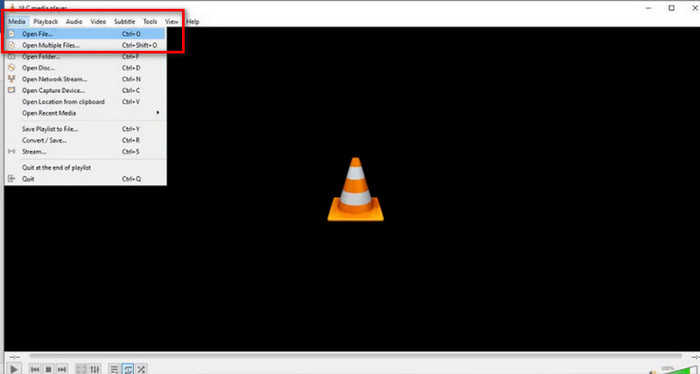
Langkah 2. Lancarkan VLC Media Player. Pergi ke penjuru kiri atas dan klik Media > Open File. Pilih video yang ingin anda potong dan klik Open.
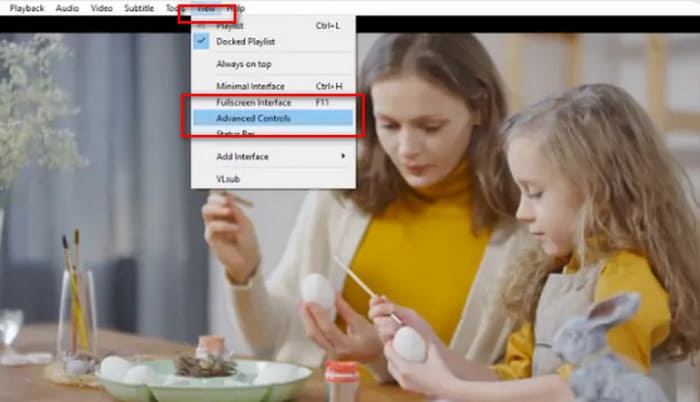
Langkah 3. Pergi ke menu atas dan klik View > Advanced Controls. Kemudian, anda akan melihat fungsi penyuntingan dipaparkan di bawah paparan media.
Langkah 4. Kenal pasti bahagian video yang ingin anda potong dan klik butang main pada titik permulaan. Tekan butang merah Record.
Langkah 5. Mainkan video sehingga ke titik di mana anda mahu klip itu berhenti, kemudian klik butang Record sekali lagi.
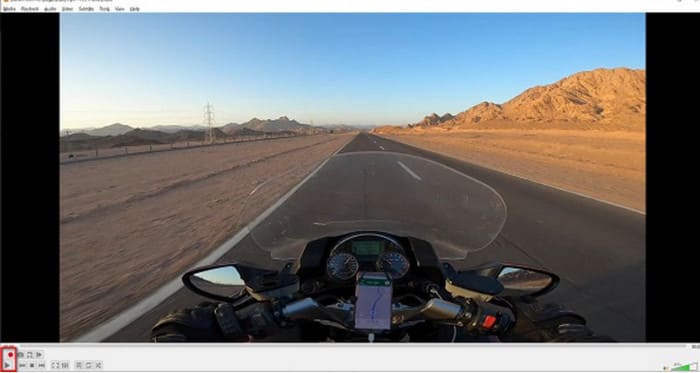
Kini, anda telah berjaya memotong video dalam VLC. Jika anda ingin mencari lokasi di mana video yang dipangkas disimpan, sila lihat:
Langkah 6. Setelah selesai dengan klip tersebut, VLC akan menyimpan fail secara automatik dalam folder Video pada komputer Windows anda. Anda boleh mencarinya melalui laluan C:UsersUsersnameideo .
Potong Video dengan VLC pada Mac
Langkah-langkah untuk memangkas video dengan VLC pada Mac adalah sama mudah.
Sekali lagi, ingat untuk memastikan Mac anda mempunyai sambungan rangkaian yang stabil dan bahawa sistem serta pemotong video VLC adalah serasi.
Sekarang, mari kita pelajari cara mengklip video dalam VLC pada komputer Mac.
Langkah 1. Muat turun dan pasang VLC Media Player pada komputer anda.
Langkah 2. Lancarkan VLC Media Player. Buka fail yang ingin anda potong dan seretkannya ke senarai main VLC. Video akan mula dimainkan secara automatik. Jika tidak, klik dua kali untuk memainkannya secara manual.
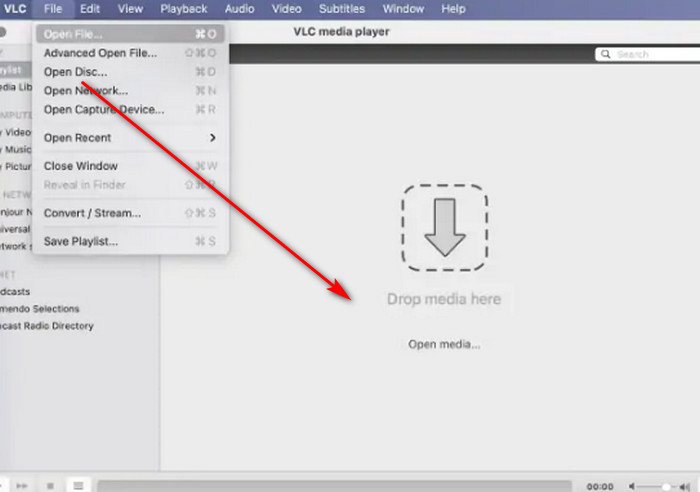
Langkah 3. Main atau seret ke titik permulaan segmen yang ingin anda kekalkan. Pergi ke menu atas dan klik Playback > Record.
Langkah 4. Biarkan video dimainkan sehingga ia mencapai titik akhir segmen tersebut. Klik butang Record sekali lagi untuk menghentikan rakaman.
Video yang dipangkas akan disimpan secara automatik dalam folder Filem anda. Nama fail mungkin bermula dengan vlc-record. Anda boleh cuba mencarinya.
Bahagian 2. Alternatif VLC Terbaik untuk Memangkas Video
Bolehkah anda memangkas video dengan Pemain VLC?
Ya, berdasarkan garis panduan dalam dua bahagian di atas, memangkas video dengan VLC agak mudah pada kedua-dua komputer Windows dan Mac.
Walau bagaimanapun, terdapat beberapa isu yang anda tidak boleh terlepas pandang:
• Modul untuk memilih bahagian penyuntingan dalam VLC tidak begitu fleksibel dan hanya boleh melakukan pemilihan bahagian berterusan yang paling asas.
• VLC tidak boleh membahagikan video kepada berbilang segmen yang lebih kecil, terutamanya berbilang segmen yang sama panjang.
• VLC tidak boleh memproses kumpulan pemangkasan video; setiap proses hanya boleh mengedit satu fail pada satu masa.
Pada masa ini, fungsi pemotongan VLC Media Player hanya sesuai untuk melaksanakan tugas penyuntingan video yang paling asas. Jika selepas mencubanya anda mendapati fungsinya tidak cukup fleksibel untuk mengendalikan penyuntingan segmen yang lebih rumit, kami amat mengesyorkan anda meneroka beberapa alternatif VLC.
Antara semua produk seumpamanya, kami amat mengesyorkan anda mencuba FVC Video Converter Ultimate. Perisian ini menggabungkan pelbagai fungsi seperti penukaran video, pemotongan, penggabungan, pemampatan dan penambahbaikan, menyediakan anda penyelesaian sehenti untuk perkhidmatan pemotongan dan penyuntingan audio visual malah imej. Selain itu, ia serasi dengan kedua-dua sistem Windows dan Mac, tiada halangan penggunaan, dan menampilkan antara muka yang ringkas serta intuitif. Anda juga tidak perlu bimbang tentang isu keserasian. FVC Video Converter Ultimate menyokong lebih seribu format multimedia, yang secara berkesan merangkumi hampir semua format video yang mungkin anda temui dalam kehidupan seharian.
Muat Turun PercumaUntuk Windows 7 atau lebih baharuMuat Turun Selamat
Muat Turun PercumaUntuk MacOS 10.7 atau lebih baharuMuat Turun Selamat
• Menyokong 1000+ format video, audio dan imej.
• Menyediakan fungsi pemangkasan, pangkas dan belah. Anda bukan sahaja boleh mengedit panjang video, tetapi juga menyokong pembahagian video kepada beberapa segmen yang sama panjang.
• Menyokong muat naik kumpulan fail video untuk penyuntingan.
• Menyediakan tetapan pelarasan main balik video yang komprehensif, termasuk pelarasan kelantangan, pelarasan kelajuan main balik dan sebagainya.
Berikut ialah cara untuk memangkas video dengan FVC Video Converter Ultimate.
Langkah 1. Muat turun dan pasang FVC Video Converter Ultimate pada komputer anda. Klik Add Files untuk memuat naik video yang ingin anda potong.
Langkah 2. Klik ikon Cut untuk membuka antara muka pemotongannya. Seret bar masa untuk menetapkan titik mula dan tamat.
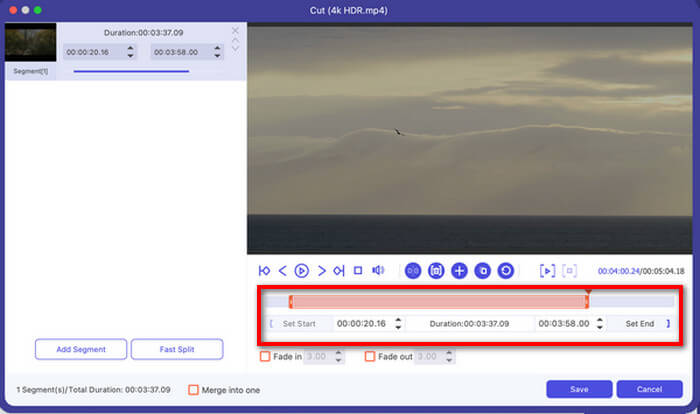
Anda juga boleh menggunakan butang Set Start dan Set End.
Selepas selesai memotong, klik Save.
Langkah 3. Kembali ke antara muka utama. Klik Convert All untuk mengeksport video anda.

Bahagian 3. Soalan Lazim bagi Trim Video dengan VLC
Bolehkah saya memangkas video dengan VLC?
Ya, anda boleh memotong video sepenuhnya pada VLC. Pemain video ini mempunyai ciri penyuntingan video yang berfungsi untuk pengguna Windows dan Mac. Anda boleh mendapatkan langkah terperinci dalam teks di atas.
Bolehkah anda menukar fail video dalam VLC?
ya. VLC Media Player menyokong pelbagai jenis format video dan boleh membantu anda menyelesaikan tugas penukaran format. Walau bagaimanapun, proses penukaran formatnya mungkin agak rumit, tidak seperti penukar video tradisional.
Adakah yang lebih baik daripada VLC?
Selepas menggunakan VLC untuk memendekkan video, anda mungkin mendapati ia kurang mesra pengguna. FVC Video Converter Ultimate berprestasi lebih baik dalam hal ini. Bukan sahaja langkah-langkahnya lebih mudah, tetapi ia juga menyokong pemprosesan kelompok.
Kesimpulannya
Kini kita boleh mengesahkan dengan pasti bahawa VLC Player menyokong pemotongan video. Untuk membantu anda memahami proses ini dengan lebih baik, kami telah menyediakan panduan menyeluruh tentang cara memotong video dengan VLC, merangkumi kedua-dua platform Windows dan Mac. Walau bagaimanapun, VLC Player tidak menyokong pemprosesan kelompok, dan fungsi pemotongannya agak asas.
Jika anda sedang mencari alat yang lebih mudah dengan lebih banyak pilihan pemotongan, seperti membahagikan video kepada beberapa segmen, kami mengesyorkan menggunakan FVC Video Converter Ultimate sebagai alternatif kepada fungsi potong video VLC.
-
 Cara Menggunakan VLC untuk Membaiki Video | Panduan Terbaik Anda
 Adakah anda mempunyai video rosak yang tersekat pada fail anda? Terokai panduan muktamad untuk pembaikan video VLC untuk membaiki video anda dan membolehkannya dimainkan semula dengan mudah.
-
 Cara Merakam Audio dengan Pemain Media VLC: Panduan Lengkap
 Dalam siaran ini, anda akan belajar cara merakam audio dengan VLC Media Player. Artikel ini mempunyai langkah terperinci dan akan mengesyorkan salah satu alternatif terbaik kepada VLC.
-
 Tangkapan Skrin dalam VLC - Cara Mengambil Gambar di Pemain Media VLC
 Bagaimana untuk mengambil gambar dalam VLC Media Player dan di mana untuk menyimpannya? Pergi melalui ciri syot kilat VLC dan alternatifnya daripada artikel.
