


 Video Converter Ultimate
 Perakam Skrin
 Pembaikan Video
 Muat Turun Selamat
Cara Memotong Video dengan TikTok: Termasuk Program Luar Talian untuk Memotong Video untuk TikTok
Adakah anda mempunyai video dalam telefon yang mahu anda siarkan di TikTok? Tetapi masalahnya, video itu terlalu panjang. Jika begitu, panduan ini akan menawarkan kepada anda langkah paling mudah untuk memendekkan video bagi TikTok. Selain itu, anda akan mempelajari cara mudah untuk memotong video dengan TikTok. Tambahan pula, kami akan menyediakan satu program luar talian untuk memangkas video anda. Jadi, jika anda teruja untuk mengetahui semua topik ini, sila baca hantaran ini.

Bahagian 1. Cara Memotong Video untuk TikTok pada Desktop
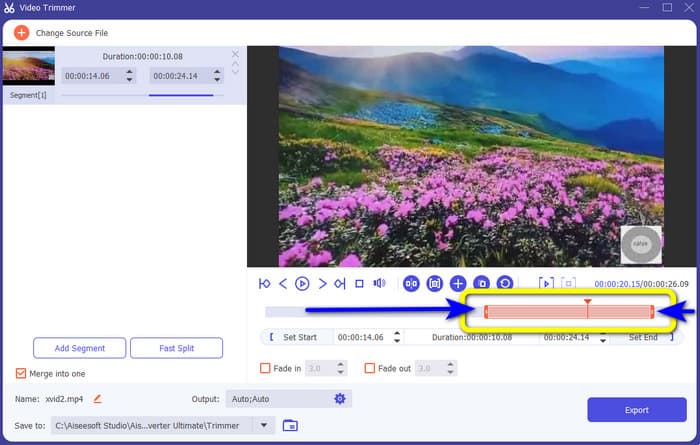
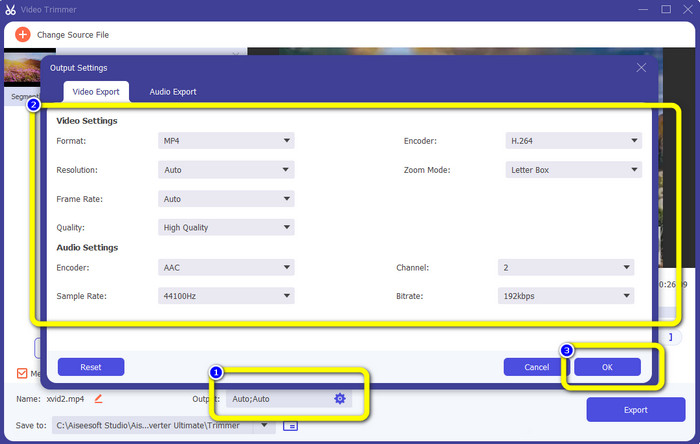
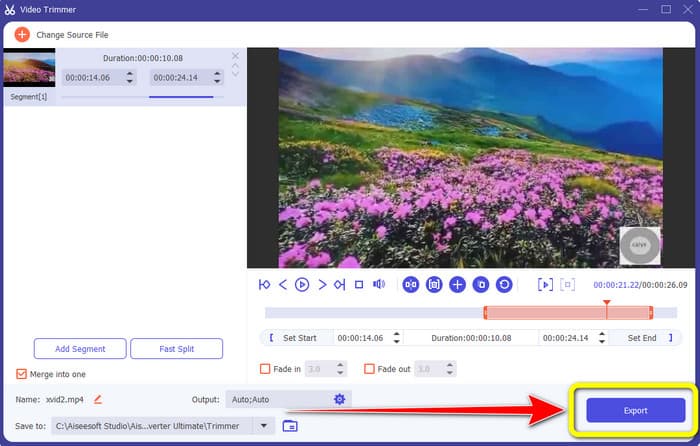
Jika anda menggunakan komputer untuk memotong video bagi TikTok, ada satu program yang sangat sesuai untuk anda. Untuk memotong video pada komputer, gunakan Video Converter Ultimate. Dari segi pemotongan video, ia menawarkan kaedah yang sangat mudah. Ia membolehkan anda memotong video dengan hanya beberapa klik, menjadikannya mudah untuk semua pengguna. Selain itu, anda boleh melaras bahagian tepi video anda untuk memangkas atau memotongnya. Cara lain ialah menggunakan pilihan Set Start dan Set End. Tambahan lagi, anda boleh klik pilihan Fade In dan Fade Out untuk memberikan kesan tambahan pada video anda. Anda masih boleh pergi ke pilihan Setting atau Output semasa pemangkasan untuk membuat beberapa perubahan. Program ini membolehkan anda menukar resolusi, kadar bingkai, mod zum dan kualiti video. Anda juga boleh menukar kadar pensampelan dan bitrate audio video.
Tambahan pula, pengguna Mac dan Windows boleh mengakses perisian yang boleh dimuat turun ini. Video Converter Ultimate tersedia pada komputer Windows dan Mac, menjadikannya mudah untuk pengguna. Terdapat lebih banyak ciri yang boleh anda temui apabila menggunakan program luar talian ini. Jika anda ingin merasai ciri-cirinya, cuba sendiri. Lihat langkah mudah di bawah untuk memendekkan video untuk TikTok menggunakan Video Converter Ultimate.
Langkah 1. Anda boleh klik butang Muat Turun di bawah untuk mengakses Video Converter Ultimate. Butang di bawah boleh digunakan untuk komputer Windows dan Mac. Selepas memasang program, jalankannya pada komputer anda.
Muat Turun PercumaUntuk Windows 7 atau lebih baharuMuat Turun Selamat
Muat Turun PercumaUntuk MacOS 10.7 atau lebih baharuMuat Turun Selamat
Langkah 2. Apabila antara muka muncul pada skrin, lihat bahagian atas antara muka dan klik panel Toolbox. Kemudian, pilih alat Video Trimmer untuk meneruskan proses pemangkasan. Pastikan video sudah ada pada komputer anda sebelum menggunakan program luar talian ini.
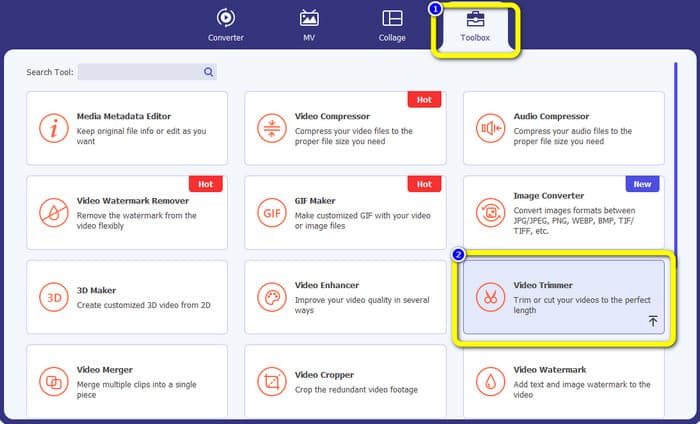
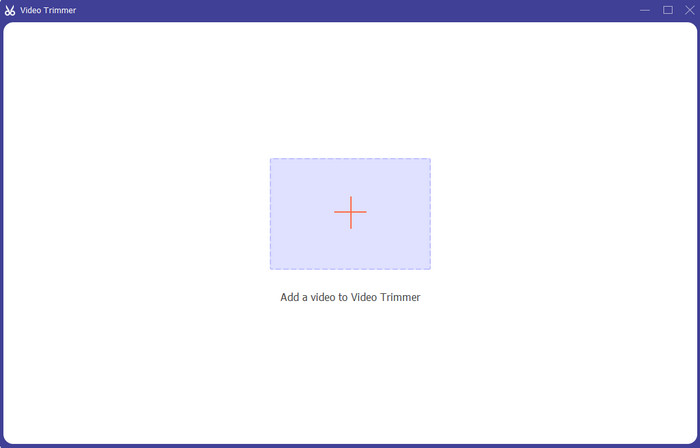
Langkah 3. Klik ikon Tambah di bahagian tengah antara muka dan tambahkan video daripada folder fail.
Langkah 4. Kemudian, anda boleh meneruskan proses pemangkasan. Arahkan ke kepala main (play head) video. Selepas itu, anda boleh menyeret setiap bahagian tepi video untuk memulakan proses pemangkasan.
Langkah 5. Selain itu, anda boleh pergi ke pilihan Output Settings di mana anda boleh menukar resolusi video, format output, kualiti dan kadar bingkai. Di samping itu, anda juga boleh menukar bitrate audio, kadar pensampelan dan parameter lain.
Langkah 6. Apabila anda sudah selesai dengan proses pemangkasan, klik pilihan Export untuk menyimpan video yang sudah disunting. Selepas itu, tunggu proses eksport selesai, dan anda siap.
Bahagian 2. Cara Memangkas Video untuk TikTok Menggunakan Aplikasi Mudah Alih
Jika anda mahu menggunakan telefon bimbit untuk memotong video anda, gunakan Easy Video Cutter. Aplikasi mudah alih ini mampu memendekkan klip video anda dengan mudah dan pantas. Selain itu, ia mempunyai prosedur yang mudah difahami, menjadikannya sesuai untuk semua pengguna. Tambahan pula, bagi pengguna Android, ia ialah aplikasi yang boleh diakses di Play Store. Ia lebih kepada pakej penyuntingan video yang serba lengkap. Namun, alat pemotong video dalam aplikasi ini sangat menonjol kerana kemudahannya. Video yang telah diproses selepas dipotong juga tidak mempunyai tera air. Dengan program ini, anda juga boleh menggabungkan berbilang video menjadi satu. Mencari video yang anda ingin sunting adalah mudah, dan anda malah boleh mengisih video mengikut masa, tarikh, album, artis, durasi dan faktor lain. Ini mengelakkan kesulitan yang tidak perlu ketika mencari video yang kononnya berada di bahagian bawah senarai video.
Walau bagaimanapun, Pemotong Video Mudah mempunyai kelemahan. Apl mudah alih ini hanya boleh diakses oleh Android. Jika anda pengguna iPhone, anda tidak boleh menggunakan apl itu. Selain itu, aplikasi itu memaparkan iklan yang menjengkelkan semasa mengedit video. Gunakan langkah di bawah untuk memotong video menggunakan aplikasi mudah alih ini.
Langkah 1. Pergi ke Google Play Store anda dan muat turun aplikasi Easy Video Cutter. Selepas proses pemasangan, jalankan aplikasi pada telefon anda.
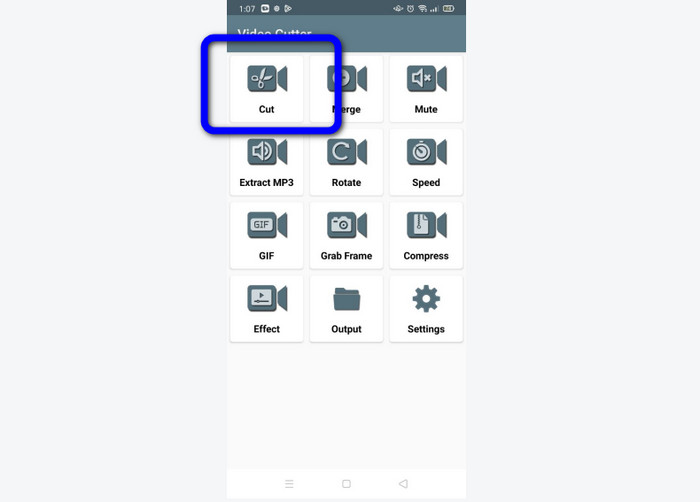
Langkah 2. Selepas aplikasi dilancarkan, antara muka utama akan muncul pada skrin telefon anda. Terdapat banyak alat yang boleh anda lihat pada antara muka. Klik pilihan Cut. Kemudian, buka video daripada fail anda.
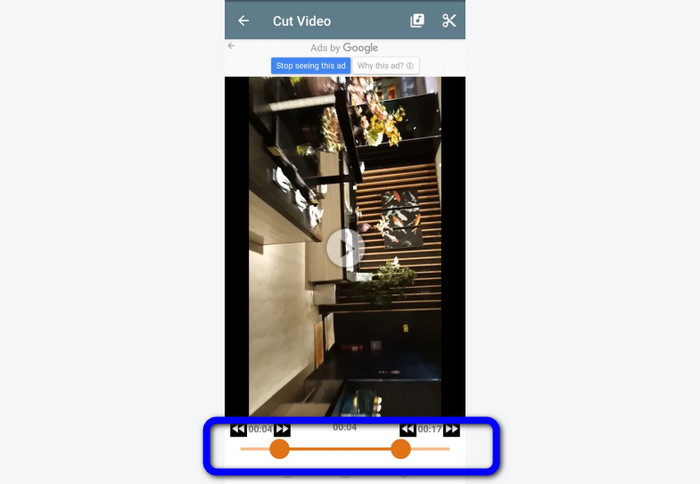
Langkah 3. Pada bahagian ini, anda boleh memangkas video dengan melaras peluncur video di bahagian bawah antara muka. Anda boleh melaras titik mula dan titik akhir.
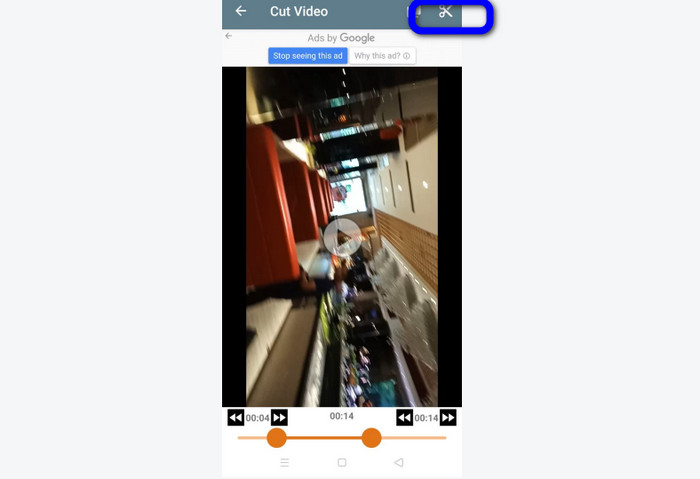
Langkah 4. Klik ikon Gunting di sudut kanan atas skrin untuk memotong video. Selepas itu, simpan video yang telah disunting pada telefon anda. Itulah sahaja tentang cara memangkas video pada Android.
Bahagian 3. Cara Memangkas Video Menggunakan TikTok
Adakah anda ingin mempelajari cara memotong video di TikTok? Anda akan dapati jawapannya di bahagian ini. Ikuti langkah di bawah untuk mengetahui kaedah cara memangkas video dalam draf TikTok.
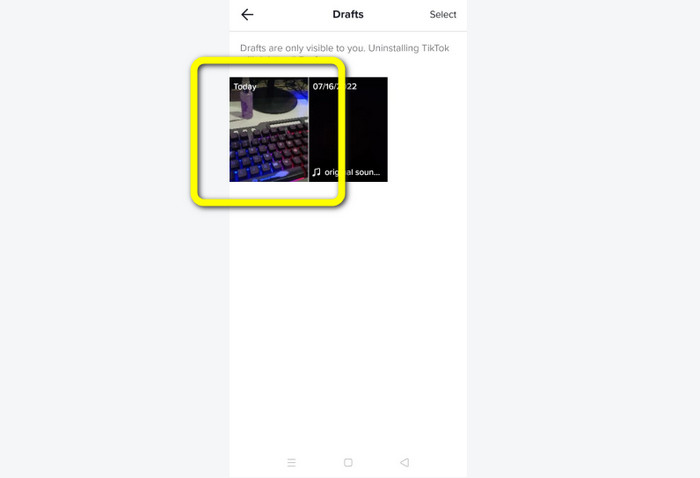
Langkah 1. Lancarkan TikTok pada telefon mudah alih anda. Selepas itu, pergi ke Profile anda dan buka video dalam Drafts.
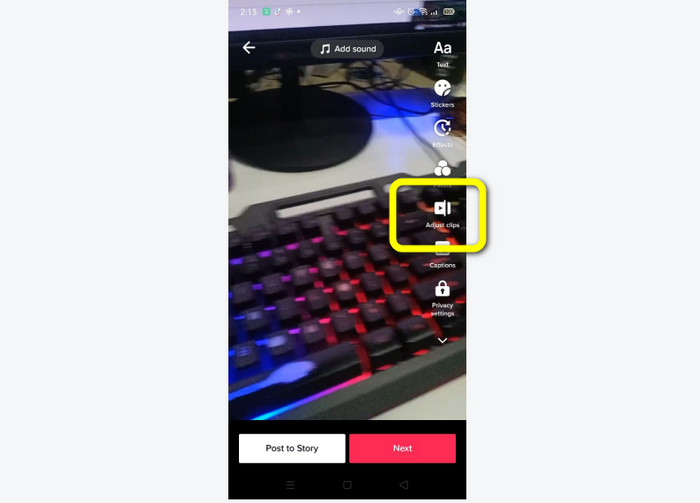
Langkah 2. Selepas anda membuka video, pergi ke bahagian kanan skrin dan klik pilihan Adjust Clip.
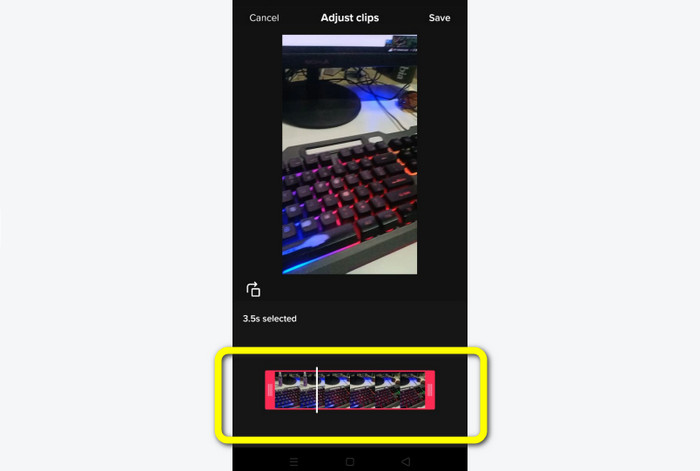
Langkah 3. Kemudian, anda boleh memangkas video dengan melaras bahagian tepi kepala main (play head). Anda boleh menggerakkan kedua-dua bahagian tepi kanan dan kiri video.
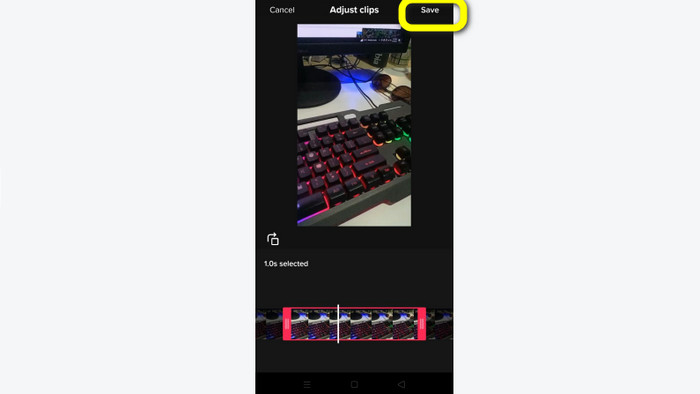
Langkah 4. Selepas memangkas video, klik butang Save di sudut kanan atas skrin telefon. Dengan cara itu, anda boleh menyimpan video yang telah disunting dan menyiarkannya di TikTok anda.
Bahagian 4. Soalan Lazim tentang Cara Memangkas Video dengan TikTok
1. Mengapakah TikTok tidak membenarkan saya memangkas video saya?
Salah satu sebabnya ialah anda tidak dapat melihat butang lalai atau telah menyiarkan video tersebut.
2. Mengapa TikTok memotong klip saya pendek?
TikTok mempunyai panjang video maksimum. Jika video anda tidak memenuhi keperluan, TikTok akan memotong klip anda. Ini bermakna TikTok memastikan bahawa video adalah pada panjang yang betul.
3. Berapa lama video TikTok saya?
Anda boleh menyiarkan sehingga 3 minit video sebelum ini. Tetapi kini, TikTok membenarkan anda memuat naik video sehingga 10 minit lebih lama.
Kesimpulannya
Itu sahaja! Kini anda sudah mampu memangkas video menggunakan TikTok. Jadi, jika anda ingin tahu cara memangkas video dengan TikTok, baca maklumat terperinci di atas. Selain itu, jika anda mahu memendekkan video untuk TikTok, perisian penyuntingan video terbaik yang boleh kami cadangkan ialah Video Converter Ultimate. Program ini mempunyai cara yang lebih mudah dan antara muka yang ringkas, menjadikannya sesuai untuk semua pengguna.
-
 2 Cara Mudah untuk Mempercepatkan Video di TikTok
 Adakah anda ingin tahu rahsia bagaimana untuk mempercepatkan video di TikTok? Kemudian baca artikel ini untuk mendapatkan idea tentang cara melakukannya dan mengetahui apakah 2 alatan lain yang akan membantu anda
-
 4 Cara Berkesan untuk Mengalih Keluar Tera Air Tiktok daripada Video Tiktok
 Adakah anda perlu mengalih keluar tera air Tiktok daripada video Tiktok anda yang dieksport? Anda boleh melakukannya di sini dengan bantuan alatan yang kami sediakan; anda boleh melakukannya dengan mudah.
-
 3 Cara Berkesan untuk Menambah Video dan Gambar Bersama-sama di Tiktok
 Ingin tahu cara menambah imej pada video Tiktok? Dalam kes itu, klik dan baca artikel ini untuk mengetahui cara menambahkan imej pada video Tiktok anda dengan mudah.
