


 Video Converter Ultimate
 Screen Recorder
 Reparație video
Recomandări pe care trebuie să le urmați pentru a converti MXF în MOV la calitate înaltă
Formatul de Schimb de Materiale este ceea ce înseamnă MXF. Un format de fișier deschis care permite schimbul de material audiovizual și al datelor și metadatelor care îl însoțesc se numește OMF. Designul inițial al MXF a fost conceput de un grup de companii de top din domeniul difuzării TV și al producției digitale. Obiectivul MXF este să standardizeze formatele de fișiere, să faciliteze compatibilitatea între diverși furnizori de hardware și software și, în cele din urmă, să elimine nevoia de bandă. Dacă vrei un convertor potrivit pentru a converti MXF în MOV, iată câteva opțiuni dintre care poți alege ce ți se potrivește cel mai bine.
Partea 1. O prezentare generală: MXF și MOV
MXF este o alegere excelentă atât pentru achiziție, cât și pentru livrare. Folosirea compresiei inter‑cadru nu este optimă pentru realizarea de filme. Decompresia compresiei inter‑cadru durează mai mult, deoarece multe metode necesită informații la nivel sub‑pixel pentru precizie cadru cu cadru în AE. Atunci când se folosește compresia inter‑cadru, utilizatorii trebuie să recreeze unele cadre în timpul decompresiei, iar aici After Effects întâmpină probleme.
Totuși, extensia de fișier MOV simbolizează formatul video QuickTime al Apple. Acest container multimedia poate stoca, de asemenea, mai multe piste cu tipuri diferite de date (audio, video, subtitrări). Funcții precum separarea datelor media de la offseturile media, referințe de date abstracte și liste de editare a pistelor îl fac ideal pentru montaj video. Containerul video MOV este, de asemenea, utilizat pe scară largă pentru distribuția video online.
Partea 2. Metode excelente de utilizat în conversia MXF în MOV
Folosind cel mai nou și eficient software numit Video Converter Ultimate, poți acum să convertești MXF în MOV offline, într-o mare varietate de formate care pot fi redate. Cu acest software, poți converti MXF în MOV mai rapid decât cu alte convertoare. Calitatea videoclipului poate fi, de asemenea, modificată înainte de conversie. Îți poți îmbunătăți fișierul video folosind diversele funcții ale convertorului. Folosind această aplicație, nu va mai trebui să îți faci griji în privința conversiei fișierelor video care nu sunt compatibile cu formatul pe care îl preferi. După ce ai aflat despre cel mai bun convertor, iată ce trebuie să faci în continuare:
Pasul 1. Fă clic pe butonul Free Download de mai jos pentru a începe descărcarea! După ce descărcarea este finalizată, poți alege să instalezi software‑ul pe Windows sau pe Mac. Mai întâi trebuie să instalezi software‑ul pe desktopul computerului, apoi să faci clic pe Start Now pentru a începe să îl folosești.
Descărcare gratuită pentru Windows 7 sau o versiune ulterioară Descărcare securizată
Descărcare gratuită pentru MacOS 10.7 sau o versiune ulterioară Descărcare securizată
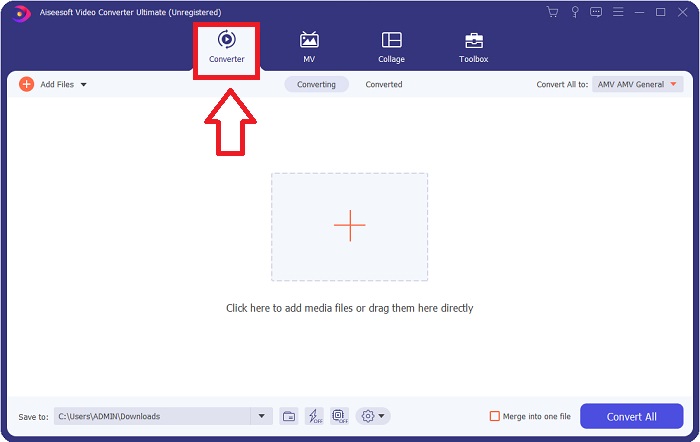
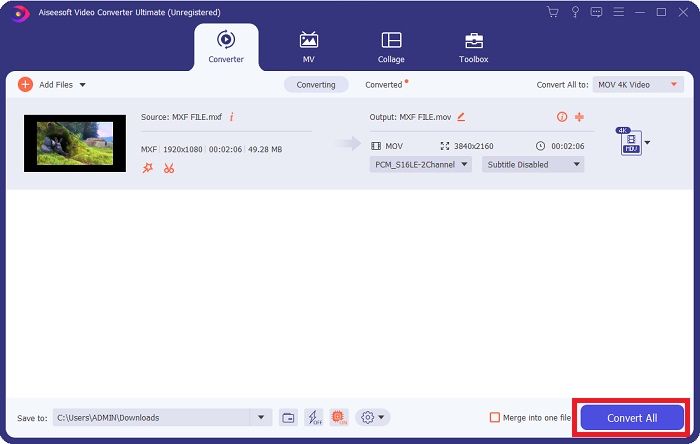
Pasul 2. Pornește programul descărcat făcând clic pe butonul aferent. Interfața Converter va fi afișată imediat ce lansezi software‑ul pentru prima dată. Aici vei începe procesul de transcodare a videoclipului.
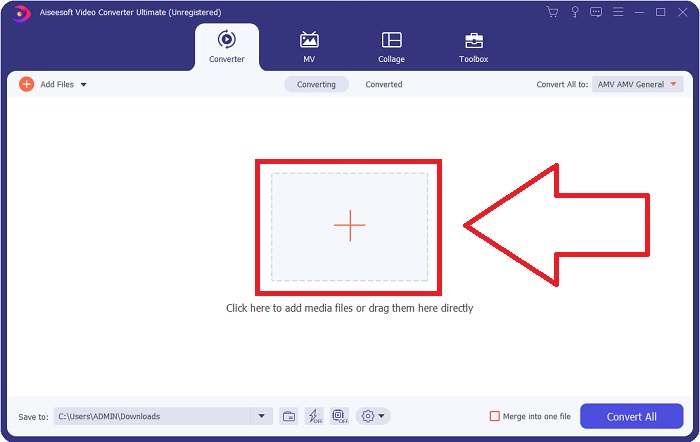
Pasul 3. Începe procesul de conversie importând fișierele în convertor. Fișierul video pe care vrei să îl convertești poate fi tras și plasat peste pictograma +.
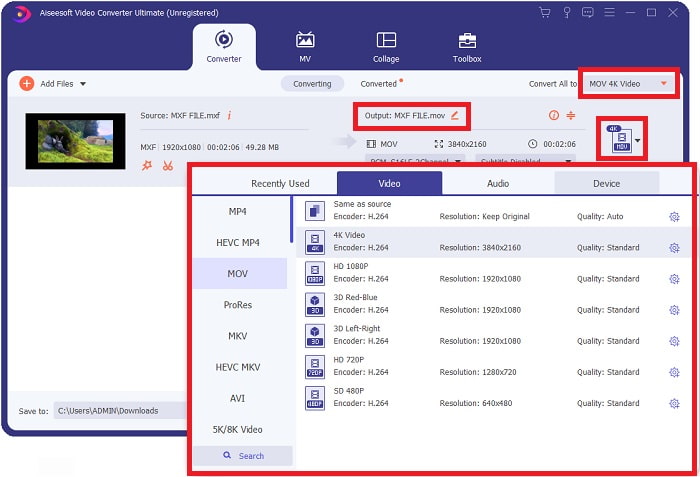
Pasul 4. Apoi selectează formatul MOV din meniul derulant Convert All to. După ce ai ales un fișier MOV, vei avea acces la o varietate de opțiuni de calitate video. Dar dacă formatul video de ieșire ales nu este listat, poți modifica setările de calitate în funcție de nevoile tale. Selectând pictograma sub formă de rotiță, poți ajusta rezoluția ecranului, rata de cadre și chiar calitatea audio. Fă clic pe butonul Create New pentru a salva modificările.
Pasul 5. Conversia videoclipului este la fel de simplă ca un clic pe Convert All după ce ai terminat de editat calitatea, rezoluția, rata de cadre etc.
Partea 3. Un alt sfat pentru conversia MXF în MOV [Online]
Folosirea Free Video Converter Online este cel mai bun mod de a converti o gamă largă de formate video într‑un timp scurt. Acest convertor, spre deosebire de alte convertoare online, nu are restricții privind formatele pe care le poate accepta. De aceea este o opțiune bună pentru anumiți începători. Iată pașii pe care trebuie să îi urmezi pentru a afla mai multe despre acest instrument web online.
Pasul 1. Intră pe pagina principală a convertorului FVC făcând clic pe acest link.
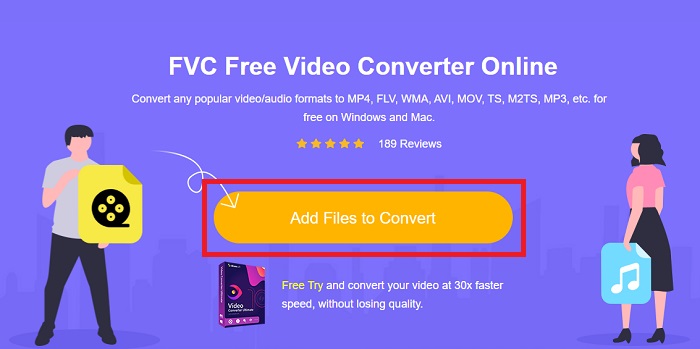
Pasul 2. Pentru a obține launcher‑ul pentru computerul tău, fă clic pe butonul Add Files to Convert dacă este prima dată când folosești acest instrument. De îndată ce este descărcat din nou, va rula automat. Deschide fișierul din folderul de descărcări selectându‑l și făcând clic pe Open.
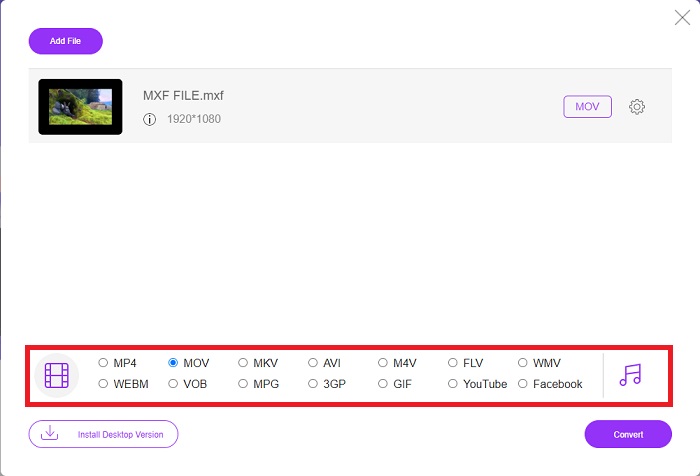
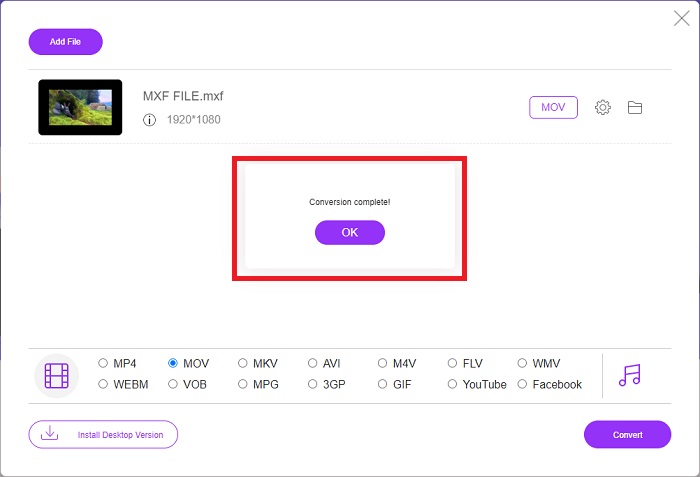
Pasul 3. După ce ai selectat formatul MOV pe care dorești să îl folosești, fă clic pe el pentru a începe procesul de conversie.
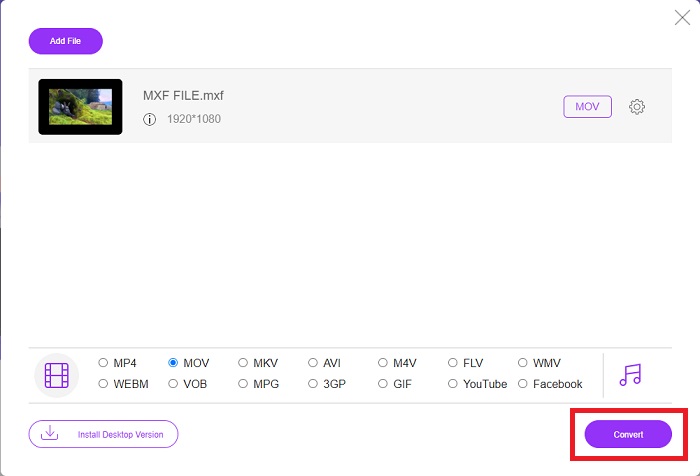
Pasul 4. Poți începe procesul de conversie făcând clic pe butonul Convert după ce ai selectat formatul MOV.
Pasul 5. Poți începe să vizionezi fișierul convertit făcând clic pe el după câteva minute, când apare într‑un folder de pe desktopul computerului tău.
Partea 4. Întrebări frecvente despre conversia MXF în MOV
Este MXF la fel cu MOV?
Și în lumea digitală, aceasta este o problemă. Formatul de schimb de materiale și formatul video QuickTime se încadrează ambele sub termenul umbrelă „formate de containere”. Când un program video acceptă un anumit format de container, poate utiliza instrumente standard pentru a manipula containerele, cum ar fi deschiderea fișierului, căutarea unui anumit moment în timp și redarea sau derularea rapidă înainte sau înapoi, folosind standarde și biblioteci disponibile în mod obișnuit. Nu sunt necesare un nou format de fișier sau biblioteci noi pentru manipularea media.
MOV-ul este brut?
Când lucrați cu videoclipuri RAW, cele mai frecvent întâlnite tipuri de fișiere sunt AVI (. avi) și MOV (. mov); deoarece sunt videoclipuri necomprimate, dimensiunile fișierelor lor pot fi extrem de mari - până la un gigaoctet sau mai mult, în funcție de lungimea și calitatea videoclipului.
Ce este fișierul MXF Pro Tools?
Folosind capabilitățile Quicktime ale Pro Tools, SoundCode Exchange MXF poate schimba fișiere MXF. Pro Tools poate vizualiza fișierele MXF ca filme Quicktime datorită unei componente Quicktime și a unui utilitar drag-and-drop. O pistă video poate fi creată în câteva secunde utilizând caracteristica Quicktime Import din Pro Tools, care poate reda fișiere MXF de înaltă definiție sau standard. Folosind o placă video Blackmagic, acum puteți vedea filmările ca o fereastră în Pro Tools sau puteți să vă transmiteți pe un afișaj extern. În același timp, piesele audio MXF pot fi importate ca fișiere WAV pentru editare și mixare în Pro Tools.
Concluzie
În concluzie, ai la dispoziție o gamă largă de opțiuni, fie că folosești un software, fie un serviciu web pentru a‑ți converti videoclipurile dintr‑un format în altul. Totuși, în ceea ce privește posibilitățile sau comoditățile pe care le oferă, acestea se completează reciproc. Unele doar își fac treaba, în timp ce altele oferă o varietate de opțiuni. Acest articol se concentrează pe acest aspect pentru a te ajuta să decizi pe care să îl utilizezi, în funcție de situație. Deoarece nu știi niciodată când ai putea avea nevoie de unele dintre aceste funcții suplimentare – inversare, îmbunătățire, îmbinare etc. – îți recomandăm în primul rând Video Converter Ultimate. În loc să cauți mereu un convertor online, poți păstra acest software în permanență pe computer.
-
 4 moduri gratuite de a converti camera video MXF în MP4 pentru redare universală
 Această postare este ghidul detaliat pentru a converti MXF în MP4 pe computer. Puteți obține 4 convertoare MXF în MP4 gratuite pentru a transcoda camera video MXF în MP4 în pași simpli.
-
 4 cele mai bune convertoare MXF pentru a converti MXF în AVI [gratuit și plătit]
 Ce este un fișier MXF? Cum se convertesc MXF în AVI? Acestea sunt câteva întrebări la care răspundem. Deci, dacă aveți aceeași întrebare, citiți acest articol.
-
 Cum se convertește AVI în MOV cu pași și instrumente ușoare
 Vrei să știi cum să convertești AVI într-un MOV redabil? Trebuie să urmați acest articol pentru a ști cum să o faceți și sfaturi pentru a avea o conversie de succes.
