


 Video Converter Ultimate
 Screen Recorder
 Reparație video
Ghid cuprinzător despre cum să convertiți AMV în WMV cu pași [Rezolvați]
Vrei să te bucuri de fișiere video AMV pe Windows sau să le folosești pentru streaming online? Atunci trebuie să citești acest articol ca să afli cum să convertești AMV în WMV, să îmbunătățești calitatea și să le faci compatibile. În această listă vei descoperi programele pe care le poți folosi pentru a converti fișierele AMV. Așadar, fără alte introduceri, prinde-ți centura și află mult mai multe despre formatele AMV și WMV.

Partea 1. Convertiți AMV în WMV cu FVC Video Converter Ultimate
FVC Video Converter Ultimate este prima noastră alegere pentru conversia AMV în WMV, deoarece îți permite să transcodezi fișiere media și formate specifice dispozitivelor. Mai mult, este capabil să convertească nu doar unul, două sau trei fișiere simultan, ci chiar mai multe. În plus, acest convertor este conceput pentru a le oferi utilizatorilor doar rezultate excelente la conversie. Vrei să știi de ce? Atunci citește caracteristicile-cheie de mai jos.

FVC Video Converter Ultimate
4.355.888+ Descărcări- Vă poate ajuta cu problema de conversie pe AMV în WMV, AVI, FLV, SWF, MP4, AVI.
- Acceptă conversia ultra-rapidă pentru a converti formatul și mai rapid.
- Editați videoclipurile dvs. AMV cu funcțiile unice de editare oferite de acest instrument.
- Te ajută să devii un expert în câteva clicuri.
- Acceptă toate platformele precum Windows și macOS.
Descărcare gratuită pentru Windows 7 sau o versiune ulterioară Descărcare securizată
Descărcare gratuită pentru MacOS 10.7 sau o versiune ulterioară Descărcare securizată
Sunteți uimit de caracteristicile instrumentului? Dacă da, să citim procedura de conversie a fișierelor AMV și să copiem pașii pentru a reuși conversia.
Pasul 1. Descarcă FVC Video Converter Ultimate pe unitatea computerului făcând clic pe butonul de descărcare de mai jos. Apoi dă clic pe fișierul de instalare pentru a instala programul și apasă Start Now pentru a lansa instrumentul.
Descărcare gratuită pentru Windows 7 sau o versiune ulterioară Descărcare securizată
Descărcare gratuită pentru MacOS 10.7 sau o versiune ulterioară Descărcare securizată
Pasul 2. După lansarea software‑ului, poți adăuga unul sau mai multe fișiere făcând clic pe opțiunea Add Files. Folderul computerului va apărea pe ecran, selectează fișierul AMV și apasă Open pentru a-l încărca.
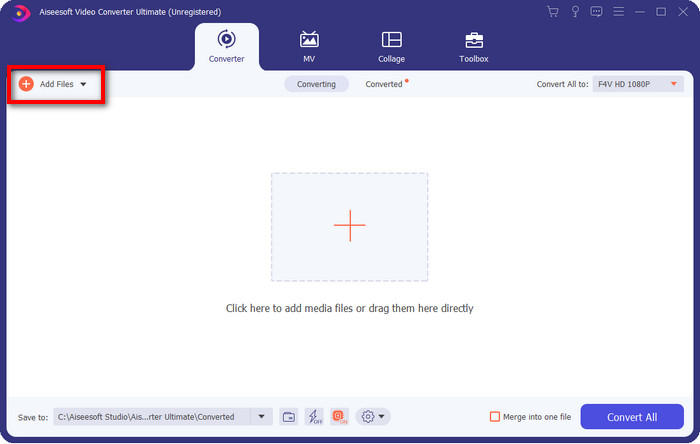
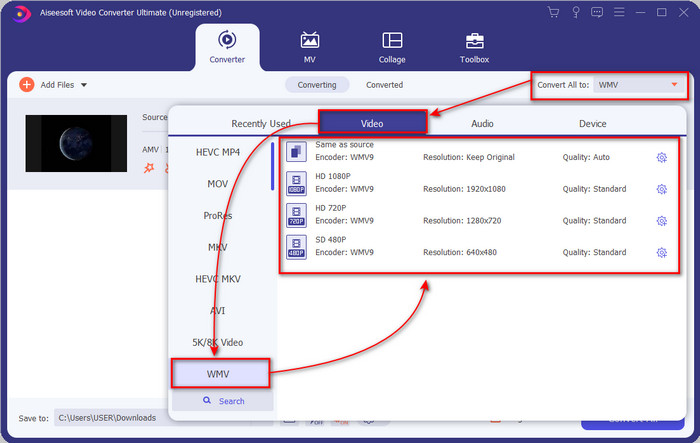
Pasul 3. Dând clic pe opțiunea Convert All to, va apărea o listă de formate. Găsește formatul WMV și alege rezoluția, encoderul și calitatea dorite.
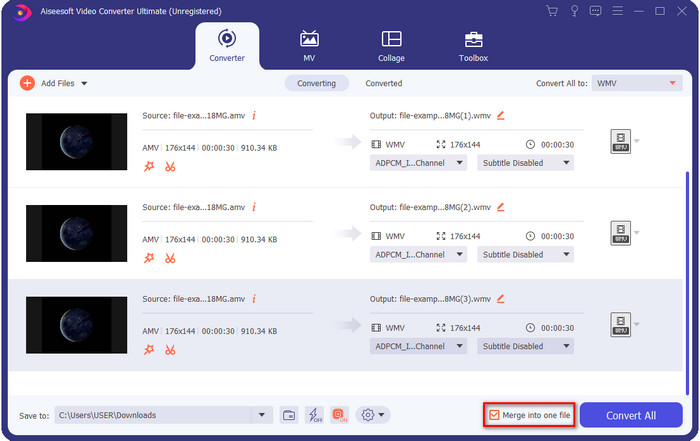
Opțional. Vrei să îmbini fișierele AMV într-un singur fișier WMV? Atunci bifează caseta cu mențiunea merge into one file (îmbină într-un singur fișier).
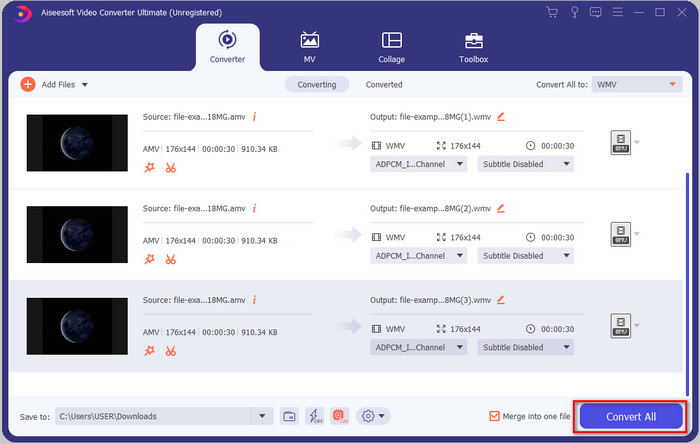
Pasul 4. Apasă Convert All pentru a porni procesul de conversie. După finalizare, pe ecran va apărea un folder cu fișierul WMV convertit.
Partea 2. Conversia AMV în WMV online
Nu vrei să descarci un convertor offline pentru că nu ai suficient spațiu de stocare? Atunci folosește FVC Free Online Video Converter. Nu va trebui să descarci întregul convertor, ci doar un launcher foarte mic, care nu îți va afecta spațiul de pe computer. În plus, acest convertor web transformă AMV în WMV, permițând ajustarea rezoluției. Totuși, viteza de conversie va depinde de conexiunea ta la internet. Ai conexiune la internet? Atunci ar trebui să încerci acest serviciu și să experimentezi conversia online.
Pasul 1. Apasă pe acest link pentru a deschide site‑ul principal al convertorului.
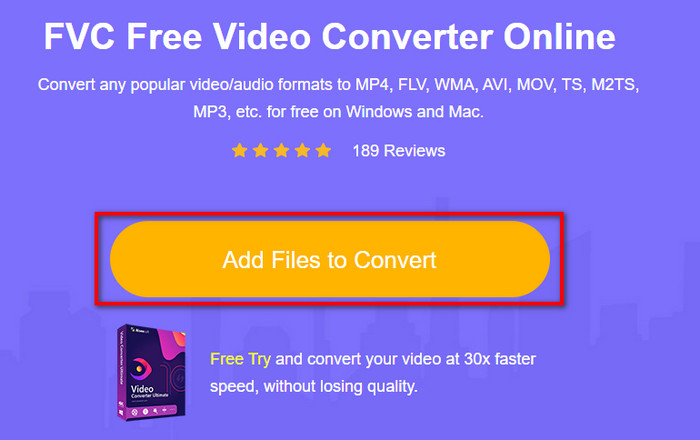
Pasul 2. Fă clic pe Add Files to Convert, se va deschide un folder în care poți găsi fișierul AMV, apoi apasă Open.
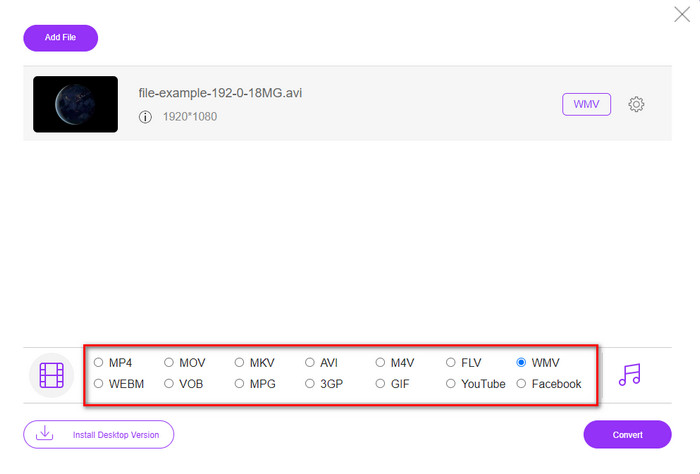
Pasul 3. Alege formatul WMV care va fi afișat pe ecran.
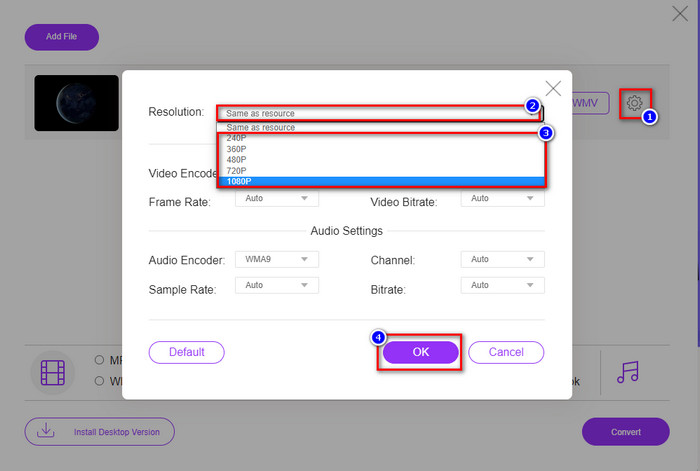
Opțional. După cum am menționat, poți ajusta rezoluția aici. Așadar, modifică rezoluția făcând clic pe butonul cu rotiță (gear). În partea de sus, apasă pe butonul drop-down, iar o listă de rezoluții va apărea; alege una și apasă OK pentru a continua.
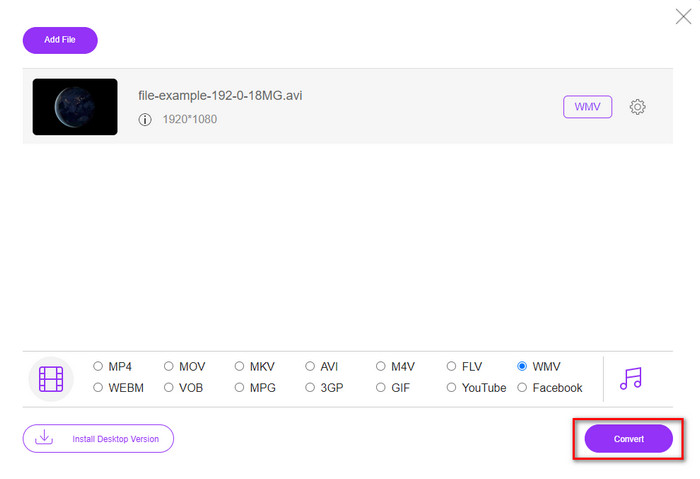
Pasul 4. Dacă vrei să înceapă conversia, apasă pe butonul Convert, iar procesul va demara.
Partea 3. Care este diferența dintre AMV și WMV
În primul rând, aceste două containere media au devenit populare datorită capacităților lor unice ca format. Dar astăzi, vom studia care sunt avantajele și dezavantajele formatului în sine. Mai mult, vom preciza trei aspecte făcându-ne o întrebare pentru a afla mai multe despre AMV și WMV.
Ce format are o rezoluție media mai bună?
Între cele două formate, fără nicio îndoială, WMV are o calitate mai bună. Un fișier WMV poate stoca și transmite în flux o rezoluție video de până la 300.000 de pixeli pentru o ieșire vizuală mai detaliată. Dar puteți seta rata la rezoluția ecranului de 528x576. Iar pentru AMV, calitatea pe care o poate conține este de la 96x96 la 320x240, ceea ce este destul de scăzut în comparație cu rezoluția scăzută a WMV. Unul dintre motivele pentru care AMV are o rezoluție mai mică este că trebuie să se potrivească pe ecranul playerului media chinez.
Ce format are o dimensiune mai mică a fișierului?
Această victorie va merge cu AMV deoarece acest format este super comprimat. Deși WMV are un compresor, dimensiunea AMV este mai prietenoasă din punct de vedere economic, mai ales pe unitatea computerului dvs., decât WMV.
Ce format este mai compatibil?
Putem spune că, atunci când vorbim de compatibilitate, fiecare are punctele sale forte, deoarece WMV este destinat în principal programelor pentru Windows. Dacă folosești Mac, nu poți pur și simplu să utilizezi acest format și să-l redai în QuickTime sau să-l editezi în iMovie. Va trebui în schimb să convertești WMV în MOV pentru a-l face compatibil. În ceea ce privește AMV, acest format a fost conceput pentru a fi redat pe playere media portabile chinezești. Însă, în prezent, poți folosi un player media portabil obișnuit în loc să cumperi un player special AMV. Totuși, găsirea unui player AMV este destul de dificilă, deoarece sunt foarte puține dispozitive care acceptă acest format și encoderul lui. Putem spune că WMV a câștigat mai mult la capitolul compatibilitate decât AMV, mai ales când transferăm fișierul pe Windows.
Și acum că știm motivul, convertirea fișierului într-un nou format este necesară în acest caz. Din acest motiv, trebuie să învățați cum să convertiți AMV în WMV pentru a face fișierul media compatibil cu software-ul Windows.
Partea 4. Întrebări frecvente despre conversia AMV și WMV
Cum îmi transform AMV în MOV?
Există o mulțime de tehnici și metode pe care le putem căuta și încerca, disponibile online dacă facem o căutare pe web. Dar este greu de ales care instrument este mai bun pentru a converti AMV în MOV. Pentru a scurta lucrurile, apasă pe acest link și află cum să convertești AMV în MOV și să îl faci compatibil cu macOS.
Pot folosi un player media VLC pentru a viziona și a reda AMV?
Desigur, poți descărca VLC media player pe desktop ca să redai fișierele AMV fără să mai fie nevoie de un codec suplimentar. Dar dacă vrei să afli mai multe despre VLC și alternativele sale, citește acest articol făcând clic pe acest link.
De ce trebuie să comprim AMV?
Ne comprimăm fișierele media și AMV pentru că avem nevoie să eliberăm spațiu pe unitatea de stocare. Vrei să înveți cum să comprimi fișierele AMV? Atunci apasă pe acest link.
Concluzie
Aceste două soluții oferă excelență pentru a face conversia dvs. de la AMV în WMV ușoară și de succes. În plus, acestea sunt cele mai bune soluții pe care le putem găsi pe web. Deci, acum, este în mâna ta să alegi ce convertor folosești pentru a converti fișierul AMV în WMV. Pentru a obține succes, trebuie să utilizați instrumentele FVC furnizate mai sus.
-
 Cea mai bună metodă de utilizat în conversia AMV în AVI [Aprobat]
 Vă este greu să convertiți fișierul video în format AMV în AVI? Iată câteva sfaturi oferite pe care le puteți găsi doar în acest articol.
-
 [Dovedit] 2 moduri de a converti AMV în FLV offline și online
 V-ați gândit vreodată să încercați un convertor pentru a vă converti fișierele AMV în format de fișier FLV. Pentru a vă rezolva problema în vizionarea unui videoclip AMV, citiți acest articol pentru a cunoaște convertoarele potrivite pe care ar trebui să le utilizați.
-
 Gratuit | Cele mai bune 3 metode pentru a converti MP4 în WMV fără a pierde calitatea
 Această postare prezintă modul de convertire a videoclipurilor MP4 în format WMV pe Mac sau Windows. Vă vom oferi, de asemenea, mai multe opțiuni, inclusiv software-ul desktop și convertoarele online bazate pe web. Sunteți gata să cunoașteți cele mai bune instrumente de conversie MP4 în WMV?
