


 Video Converter Ultimate
 Screen Recorder
 Reparație video
Cum să schimbați metadatele fișierelor MOV pe Mac cu pași fără efort
We all know that MOV is one of the top-notch formats you can ideally use on video playback on your Apple devices and for editing. But what makes MOV unique? It supports a video compression that is preferably used by pro. Although it can store multiple elements on a single file, it is still possible that the MOV can have mixed-up tags that could lead to a problem. It would help to edit them accordingly to have proper metadata to fix it immediately. With the helpful tool, this task is a piece of cake. So today, we will present the best ways to edit MOV file metadata instantly.

Partea 1. Cum să editați metadatele MOV cu Ultimate Tag Editor pe Mac
FVC Video Converter Ultimate is your one-stop solution regarding this metadata problem that supports more than 1000+ formats on Mac and Windows. With this tool, you can instantly remove, edit or add the metadata on your MOV file. What's more? You can do multiple edits on your MOV, such as cutting, trimming, merging, cropping, and a thousand more, even if you are not a pro on editing. Indeed, it is impressive to have this tool by your side, and there are many more things you can do with this tool within a few clicks away. But today, we present to you the detailed instruction we've added that you can follow to edit your MOV files metadata successfully.
Step 1. You can attain the ultimate converter on your Mac or Windows by tapping the download button below. Proceed to the installation process by clicking the file you've downloaded, and click Start Now to launch the tool immediately.
Descărcare gratuită pentru Windows 7 sau o versiune ulterioară Descărcare securizată
Descărcare gratuită pentru MacOS 10.7 sau o versiune ulterioară Descărcare securizată
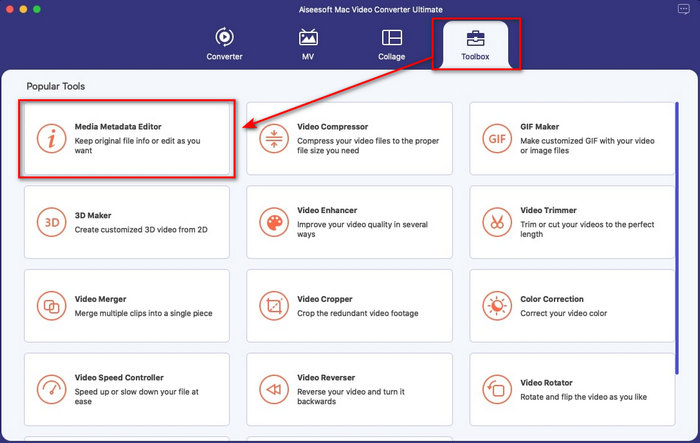
Step 2. The tool's interface will show on your display; go to the Toolbox part and open the Media Metadata Editor.
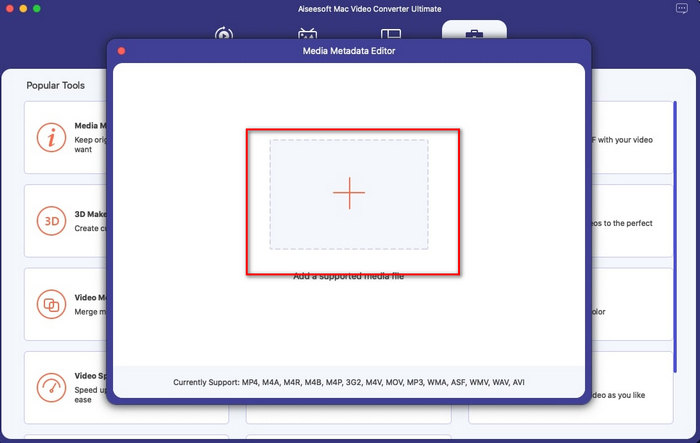
Step 3. Once you've already opened the editor, a mini window will show; tap the + button to open a folder on where you can locate the file, and to insert it click Open.
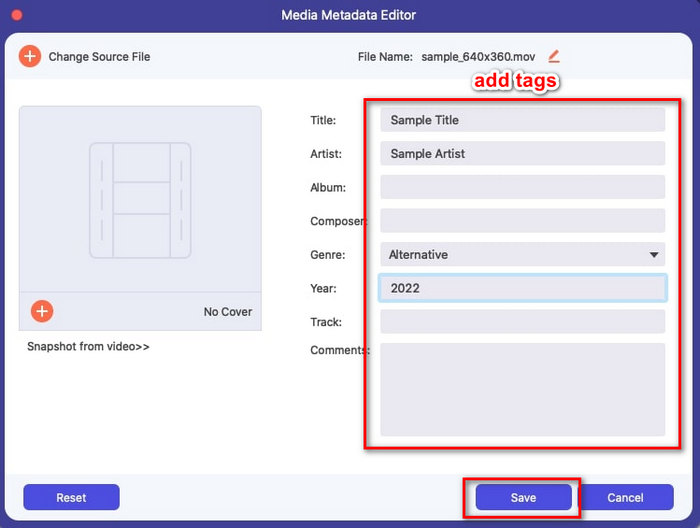
Step 4. This time you can now add, edit or remove the tags on your MOV file here in the text box. If you've finished it all, click the Save button. You have now edited the metadata on your MOV files as quickly as that.
Articole similare:
Partea 2. 3 a celor mai bune editori de etichete MOV pentru a schimba metadatele MOV
VLC Media Player
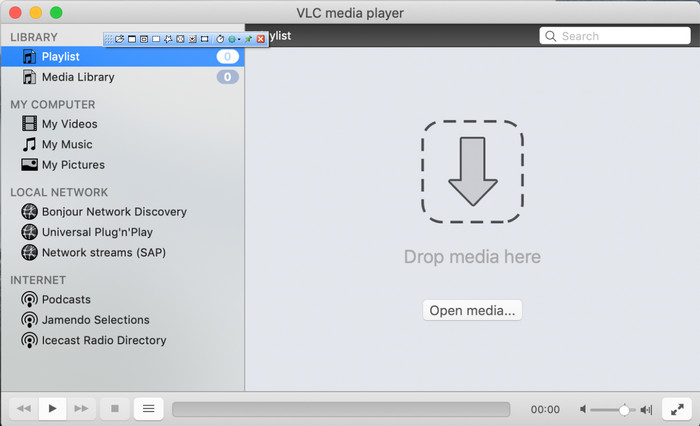
VLC Media Player is a famous media player available on Mac and Windows. Although it can play different video formats, it can change the metadata of your media file, like on MOV. Moreover, if you want to view your file's metadata, you can easily use this to view it. However, it is not as effective as the other dedicated metadata editor you can use on Mac or Windows. Yet, it is still doable with the media player to edit the MOV file metadata.
Step 1. Download the media player on the official website of the VLC, then open it.
Step 2. Press Command + I on your keyboard, and the media information will show where you can add or delete the metadata of your MOV file.
Step 3. Click Save Metadata if you've done applying the tags on your MOV.
iTunes
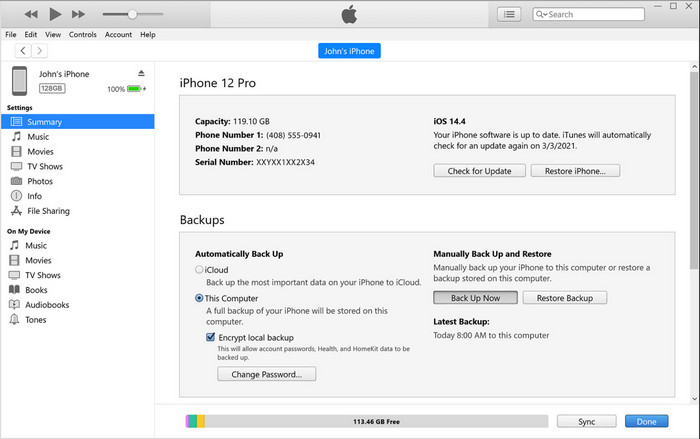
iTunes is the best built-in streaming app you can access on any Apple device. This tool is jam-packed with different features such as the music player and store for music, movies, podcast, and many more protected with DRM to avoid copy-right issues. Despite being a great built-in app, the competition for metadata editors is too stiff for iTunes to join. But we still reconsider this app because it can change the MOV metadata on Mac.
Step 1. Open then import the MOV file on iTunes library.
Step 2. Then right-click the .mov file you've added and select Get Info. After you've clicked it, there are different options you have to change the metadata, such as details, artwork, lyrics, options, sorting, and file, adjust them according to your needs.
Step 3. Press OK to save the changes.
MetaZ
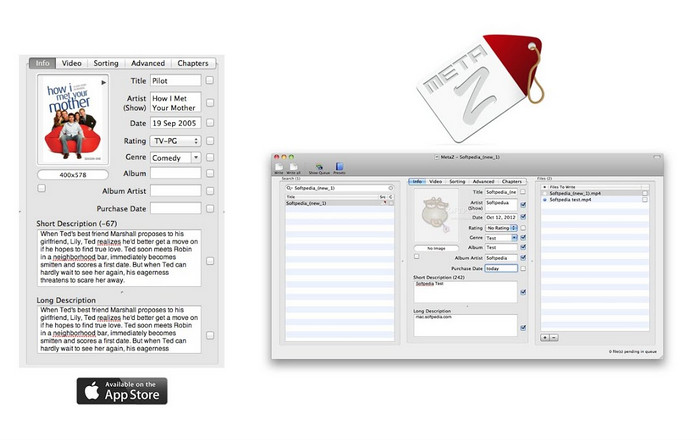
Pentru macOS X, puteți descărca gratuit Metaz pentru a schimba cu ușurință metadatele fișierelor. Acest editor de metadate vă poate ajuta să vă schimbați etichetele video în majoritatea formatelor, cum ar fi MOV. Cu această aplicație, puteți face trucul cu ușurință și puteți organiza MOV-ul în biblioteca dvs. Cu toate acestea, în ultima vreme au apărut multe rapoarte cu aplicația; utilizatorii întâmpină multe probleme supărătoare în timpul utilizării aplicației. Chiar dacă pot apărea probleme, este totuși unul dintre cele mai alese editoare de metadate MOV pe care le puteți descărca pe Mac.
Step 1. Download the app on your Mac, launch it, then three sections of the tools' interface will show on your display, where you can add the file, edit the tags, and search the tags.
Step 2. Drag and drop the MOV file to the left side; on the left side of it, you will see that it will automatically go to search tags for your MOV file based on its title, but you can modify them in the middle section if you want to.
Step 3. Press Write, and the tags will add to the MOV file.
Partea 3. Întrebări frecvente despre Editorul de metadate MOV
Pot folosi editorul de metadate QuickTime pentru a schimba etichetele?
Din păcate, nu puteți, deoarece acest instrument poate reda doar formatul media, edita videoclipurile și poate înregistra. Dar puteți vizualiza liber metadatele fișierului dvs. pe Quicktime urmând acești pași simpli. Mai întâi, deschideți fișierul MOV pe Quicktime și redați-l. Veți vedea diferite opțiuni în partea de sus; faceți clic pe Fereastră și sub ea, apăsați pe View Inspector, apoi o nouă fereastră va apărea pe ecran pentru a vedea puținele informații despre fișierul MOV.
Schimbarea etichetelor MOV afectează calitatea?
Din fericire, nu va fi pentru că ați ajustat etichetele, nu rezoluția sau calitatea fișierului MOV. Deci, dacă vă faceți griji că rezoluția video s-ar putea reduce după schimbarea etichetelor, o vom repeta; nu va fi.
Adăugarea de metadate pe MOV va crește dimensiunea fișierului?
În orice fișier, odată ce ați adăugat metadate la acel fișier, veți vedea diferența dintre fișierul care nu are etichetă și cel care are. Cu toate acestea, aceste etichete nu sunt la fel de mari ca conținutul fișierului. Deci, dacă adăugați metadate pe MOV, așteptați-vă să crească puțin în dimensiune, deoarece ați adăugat informații despre fișierul video.
Concluzie
Now that we've finished teaching you how to change MOV file metadata, this is now the time for you to choose which tutorial you'll go to follow. If you want to download a free tool on your Mac, you can download the VLC and Metaz to fix or edit the metadata of your MOV. But if you don't want to, you can use iTunes to edit the metadata easily. Although these tools are great to use, there is still no tool with powerful editing features on metadata that you can download on Mac, like what the FVC Video Converter Ultimate can bring to you. So, if you are still wondering what to use, we would highly recommend that you use the ultimate tool regarding this task because it is easy to use but has the ultimate package you will need on any given day.
-
 Ce sunt metadate: aflați informațiile de bază despre metadate
 Ce sunt metadatele? Este acest lucru important? Care sunt părțile metadatelor? Aveți aceeași întrebare? În acest articol, veți afla informațiile de bază despre metadate.
-
 4 dintre cele mai bune vizualizatoare de metadate online și offline [Actualizat 2022]
 Pot verifica metadatele fișierului meu? Da, poți, cu ajutorul acestei postări îți vom prezenta diferitele vizualizatoare de metadate pe care le poți folosi.
-
 Top 4 cele mai alese editori de etichete WMV de pe desktop [Actualizare 2022]
 Aveți nevoie de un editor de etichete WMV de încredere pentru a edita etichetele WMV? Ei bine, acest articol oferă suficiente cunoștințe despre instrumentul care acceptă WMV.
