


 Video Converter Ultimate
 Screen Recorder
 Reparație video
 Descărcare sigură
Pas cu pas despre cum să adăugați imagini de album la MP3 folosind cel mai bun software de pe desktop
Prefixarea copertei albumului poate deveni utilă, mai ales dacă vrei să‑l ajuți pe ascultător să se simtă mai atașat de muzica pe care o ascultă. Cu această copertă de album, utilizatorii pot intui despre ce este vorba în muzică, în special în cazul pieselor digitale. În anumite situații, fișierul MP3 nu are o copertă de album corespunzătoare sau aceasta nu este atașată fișierului. Dacă ți se întâmplă și ție acest lucru, este esențial să înveți cum să adaugi copertă de album la fișierele MP3 pe desktop. Pentru a afla mai multe despre acest subiect, continuă să citești acest articol, în care îți oferim informații concise despre această problemă.

Partea 1. Cum să adăugați grafică de album în MP3 cu Video Converter Ultimate [Editor de etichete recomandat]
Vrei să folosești un software complet pentru a adăuga copertă de album la fișierele MP3? FVC Video Converter Ultimate este editorul de etichete recomandat pentru această sarcină. Acest software nu este recomandat fără motiv. Spre deosebire de alte programe, la care formatele de copertă de album pe care le poți încărca și folosi ca imagine de copertă pentru muzica ta MP3 sunt limitate, acest instrument nu are astfel de restricții. Cu acest software „ultimate”, poți adăuga copertă de album la MP3, WAV, WMA, AAC, FLAC și peste 1000 de formate video și audio. Impresionant, nu‑i așa? Acest instrument este prima alegere pentru adăugarea unei imagini de copertă albumului tău. Vrei să știi cum să folosești acest software complet? În acest caz, poți citi și urma cu atenție demonstrația pe care o includem mai jos.
Pasul 1. Apasă butonul de descărcare de mai jos și alege sistemul de operare pe care îl folosești în prezent. După ce ai descărcat software‑ul, treci la instalarea lui. Dacă totul este gata, fă clic pe Start Now pentru a lansa programul pe desktop.
Descărcare gratuită pentru Windows 7 sau o versiune ulterioară Descărcare securizată
Descărcare gratuită pentru MacOS 10.7 sau o versiune ulterioară Descărcare securizată
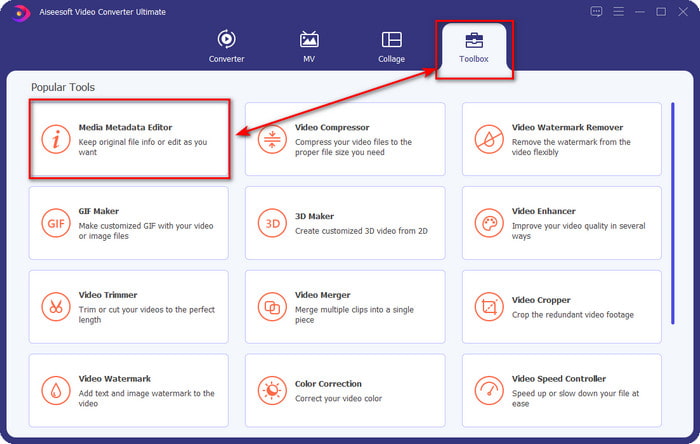
Pasul 2. Mergi la secțiunea Toolbox și fă clic pe Media Metadata Editor din listă.
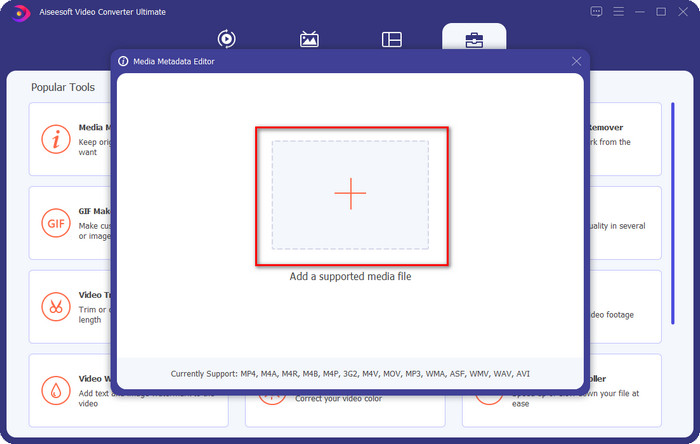
Pasul 3. Selectează fișierul audio la care vrei să adaugi coperta de album făcând clic pe butonul +. Pentru a insera fișierul audio selectat, apasă pe Open.
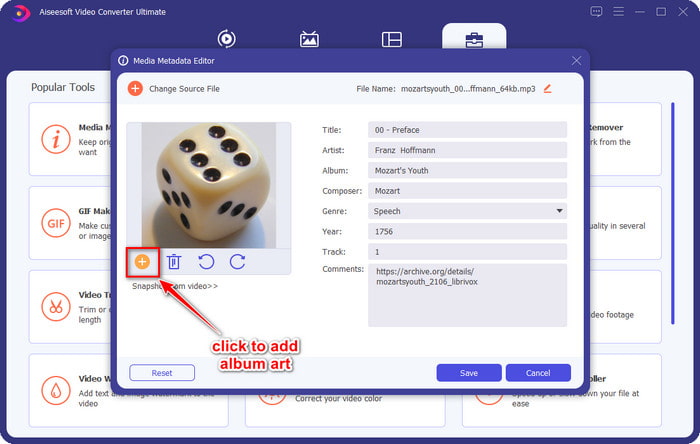
Pasul 4. Apoi, fă clic pe butonul + din partea stângă jos a interfeței, găsește coperta de album pe care vrei să o folosești și apasă pe Open. Adaugă și celelalte metadate dorite în caseta de text, dacă este nevoie.
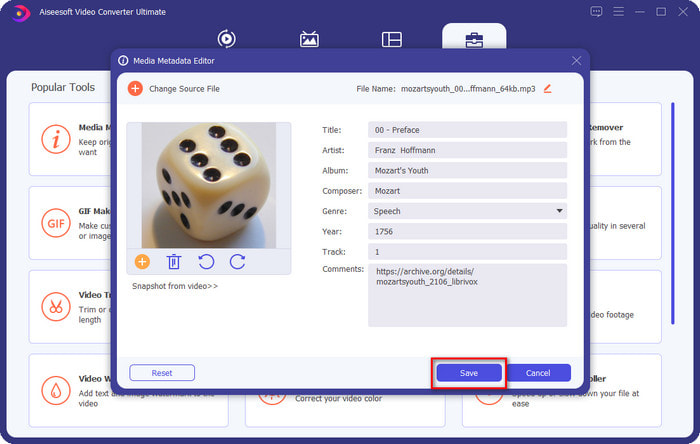
Pasul 5. Dacă ai terminat de adăugat coperta de album și metadatele la fișierul MP3, poți acum să faci clic pe Save pentru a atașa coperta fișierului MP3 încărcat. Simplu, nu‑i așa? Totul devine posibil și ușor dacă folosești acest instrument „ultimate” pentru a rezolva problema.
Partea 2. Cum să adăugați grafică de album la MP3 utilizând Editorul gratuit de metadate VLC Media Player]
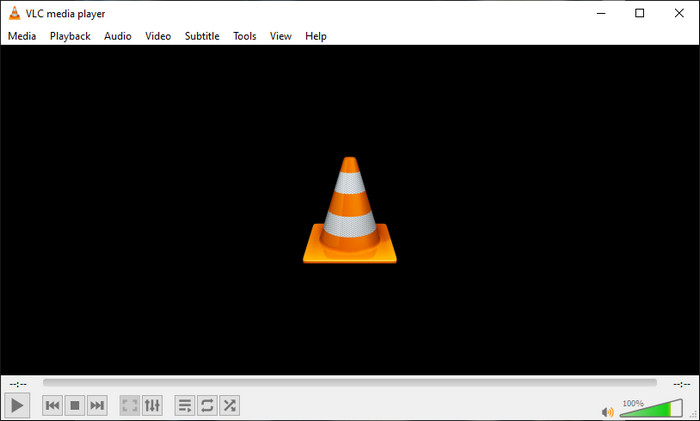
VLC Media Player este cel mai bun player media pe care îl are majoritatea dintre noi. Acest instrument poate reda orice fișier video și este capabil, de asemenea, să editeze metadatele, cum ar fi adăugarea unei coperte de album la un fișier audio. Cu acest player media poți ajusta sau adăuga metadate în mod liber. Dacă vrei un tutorial despre cum să adaugi copertă de album la MP3 în Windows 10/11 sau pe Mac folosind acest instrument, pașii de mai jos sunt pentru tine.
Pasul 1. Descarcă playerul media pe desktop și deschide‑l.
Pasul 2. În interfața principală, fă clic pe Tools și, în meniul derulant, pe Information.
Pasul 3. Fă clic dreapta pe pictograma VLC din colțul din dreapta jos, adaugă coperta de album și apoi apasă pe Save.
Partea 3. Cum să adăugați grafică de album la MP3 în iTunes [Editor de metadate încorporat pe Mac]
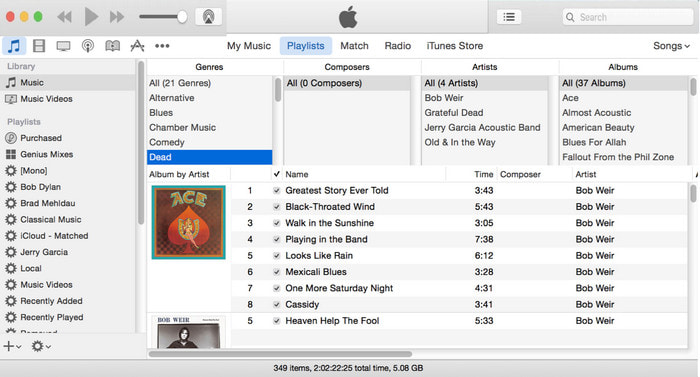
Pentru utilizatorii de Mac, iTunes este aplicația noastră de bază pentru editarea metadatelor și adăugarea unei imagini de copertă la fișierele MP3. Această aplicație preinstalată ne poate ajuta să edităm metadatele fișierelor pe care le avem pe Mac. Totuși, software‑ul nu mai este disponibil pe unele versiuni de Mac, deoarece a fost împărțit în trei aplicații separate care îndeplinesc aceeași funcție ca iTunes. Însă pe unele Mac cu versiuni mai vechi, iTunes există încă. Dacă ești unul dintre utilizatorii de Mac care vor să știe cum să adauge copertă de album la MP3 în iTunes, poți urma pașii de mai jos.
Pasul 1. Deschide aplicația iTunes pe Mac.
Pasul 2. Fă clic pe Music, apoi pe Library și dă clic dreapta pe fișierul audio care nu are copertă de album.
Pasul 3. Din opțiunile de sus, fă clic pe Artwork, apoi pe Add Artwork, selectează imaginea pe care vrei să o încarci și apasă pe OK pentru a o aplica.
Partea 4. Întrebări frecvente despre cum să adăugați imagini de album pe MP3
Pot adăuga grafică de album la MP3 pe Audacity?
Din păcate, nu puteți adăuga imaginea pe fișierul MP3 pe care îl aveți folosind Audacity. Acest instrument nu acceptă niciun format de imagine sau video, deoarece este destinat să fie utilizat ca editor de muzică. Dar puteți utiliza în continuare Audacity ca editor de metadate dacă doriți să editați metadatele MP3.
De ce lipsește arta albumului meu din fișierul meu audio?
Există trei motive pentru care arta albumului lipsește din fișierul audio. Primul motiv este că fișierul pe care trebuie să-l descărcați nu include arta albumului, mai ales dacă este vorba de piraterie. Majoritatea fișierelor de muzică pe care le-am descărcat de pe web nu vine cu artă de album pentru a evita problemele de copywriting. Apoi, fișierul a dispărut deoarece imaginea nu a fost atașată corect. Unii utilizatori se confruntă cu această problemă și este dificil să o rezolve, așa că este esențială utilizarea unui adaos profesionist pentru albume. În cele din urmă, imaginea este coruptă; dacă fișierul pe care l-ați încărcat nu este disponibil ca artă de album sau fișierul muzical pe care îl aveți este corupt, acesta ar putea fi motivul din spatele acestuia.
Care sunt cele mai bune metadate pe care le pot folosi?
Dacă editorii de metadate pe care i‑am prezentat mai sus sunt prea limitați, poți apăsa pe acest link pentru a deschide un nou articol în care găsești toți cei mai buni editori de metadate pe care îi poți folosi.
Concluzie
Acum că ne-am gândit să adăugăm imagini de album pe MP3, este timpul să alegem ce instrument credem că ni se potrivește cel mai bine. Dacă sunteți un utilizator Mac și nu doriți să descărcați niciun software de pe desktop, trebuie să alegeți iTunes. Dar iTunes este eliminat treptat pe versiunea actualizată de Mac. Dacă doriți să descărcați un instrument gratuit care vă poate ajuta să adăugați coperta muzicii dvs., atunci VLC este o alegere excelentă. Cu toate acestea, instrumentul nu este un instrument profesional. Așadar, dacă doriți un software expert care să vă găzduiască în această sarcină disponibil pe ambele sisteme de operare, Windows și Mac, atunci utilizați software-ul suprem. Descărcați software-ul de pe desktop pentru a avea instrumentul profesional la îndemâna dvs. făcând clic pe butonul de descărcare prezentat mai sus.
-
 Cum să vizualizați cu ușurință metadatele fotografiilor și videoclipurilor pe iOS
 Vrei să știi cum să vezi metadatele pe iPhone și iPad? Atunci citirea acestui articol vă poate ajuta să rezolvați această problemă fără efort.
-
 Cele mai bune tehnici despre cum să editați etichetele iD3 pe iTunes [Sfaturi eficiente]
 Trebuie să știți cum să editați etichetele pe iTunes? Atunci ești în locul potrivit. După cum am discutat despre metode, puteți urma pentru a edita etichetele folosind iTunes.
-
 Cum să editați proprietățile fișierelor WAV pe Windows 10/11 și Mac [Rezolvat]
 Căutați o modalitate de a edita proprietățile fișierelor dvs. WAV pe Windows 10/11? Această întrebare va avea un răspuns dacă vei continua să citești acest articol.
