


 Video Converter Ultimate
 Screen Recorder
 Reparație video
 Descărcare sigură
Pași simpli despre cum să redimensionați fotografia pentru Facebook
Mulți mileniali și adulți folosesc Facebook ca cea mai populară platformă de socializare. Facebook este o aplicație în care poți încărca imagini și le poți distribui sau trimite prietenilor tăi. Iar multe persoane vor să aibă o imagine de calitate excelentă pentru a o încărca pe Facebook. Dacă și tu vrei să încarci fotografii cu rezoluție și calitate înaltă, avem instrumentul care te poate ajuta. Din fericire, am găsit aplicații pentru iPhone, Android și online care pot redimensiona imaginile rapid și eficient. Așadar, pregătește-te, pentru că, în această postare, vei învăța rapid cum să redimensionezi fotografii pentru Facebook.

Partea 1. Cum să redimensionați fotografia pe iPhone pentru Facebook
Dacă utilizați un dispozitiv iPhone, aplicațiile pot fi descărcate în AppStore pentru a vă ajuta să vă redimensionați fotografia. În plus, există aplicații gratuite pe care le puteți utiliza pe dispozitivul iPhone. Cu toate acestea, nu toate aplicațiile produc rezultate de înaltă calitate. De aceea am căutat cea mai bună aplicație pentru a redimensiona imaginile instantaneu.
Remini este cea mai populară aplicație de redimensionare a fotografiilor pe care o poți descărca pe iPhone. Această aplicație are o interfață prietenoasă, deoarece funcțiile sale sunt intuitive. În plus, Remini îți poate îmbunătăți imaginea folosind enhancerul său bazat pe AI (Inteligență Artificială), care redimensionează automat imaginea și o optimizează la cea mai bună calitate. Și nu numai atât, cu această aplicație îți poți îmbunătăți și videoclipurile cu ajutorul funcției de îmbunătățire video. Mai mult, este compatibilă cu toate formatele de imagine uzuale, precum JPEG, JPG și PNG. Un alt lucru grozav la această aplicație este că o poți descărca gratuit din AppStore. Așadar, dacă vrei să folosești această aplicație pentru a redimensiona o fotografie pentru coperta de Facebook, urmează procedurile de mai jos.
Cum să redimensionați o imagine folosind aplicația Remini:
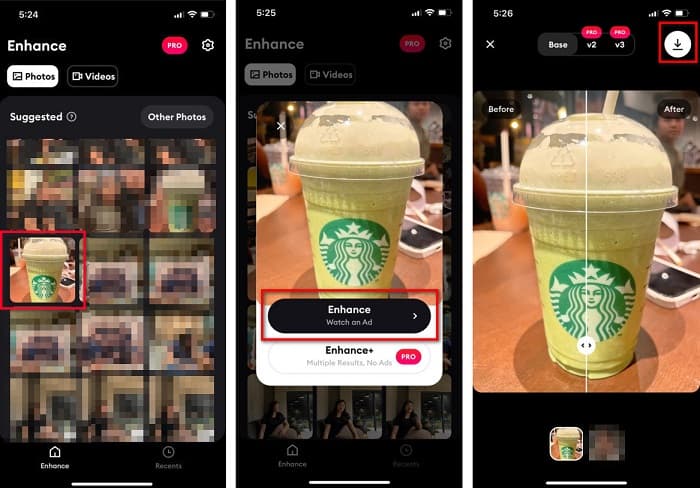
Pasul 1. Deschide AppStore, caută aplicația Remini și descarc-o pe dispozitivul tău. După instalarea aplicației, deschide-o.
Pasul 2. După ce ai deschis aplicația, îți vor apărea fotografiile; selectează imaginea pe care vrei să o îmbunătățești. Apoi atinge butonul Enhance pentru a trece la următoarea interfață.
Pasul 3. Înainte de a trece la următoarea interfață, trebuie mai întâi să urmărești o reclamă. Apoi vei vedea imaginea înainte și după. Atinge pictograma Descărcare din partea dreapta-sus a ecranului.
Partea 2. Cum să redimensionați fotografia pe Android pentru Facebook
Sunteți utilizator de Android? Nu vă faceți griji; vă vom prezenta și o aplicație pe care o puteți folosi pentru a redimensiona o imagine. Deși există multe aplicații pe care le puteți descărca din PlayStore, am ales-o pe cea mai bună dintre ele pentru a vi le prezenta. Citiți mai jos pentru a afla cum să redimensionați imaginile pentru Facebook pe Android.
AI Photo Enhancer & PixelLeap este o altă aplicație excelentă care te ajută să îți redimensionezi imaginea pentru o calitate mai bună. Acest redimensionator de fotografii este gratuit de descărcat din PlayStore și este sigur de utilizat. În plus, dacă vrei să îmbunătățești sau să restaurezi o fotografie veche, poți folosi AI Photo Enhancer & PixelLeap. Iar cu ajutorul tehnologiei sale AI, trebuie doar să încarci imaginea pe care vrei să o redimensionezi, iar aplicația o va îmbunătăți automat. Mai mult, are o interfață simplă, fiind o aplicație foarte bună pentru utilizatorii începători. De asemenea, dispune de alte funcții de editare pe care le poți folosi, cum ar fi corectarea, colorizarea, animarea, adăugarea de expresivitate și iluminarea imaginii. Totuși, problema acestei aplicații este că include multe reclame care durează să se termine și lasă un filigran pe rezultatul final. Cu toate acestea, această aplicație este soluția dacă vrei să redimensionezi o fotografie pentru Facebook fără decupare.
Cum să redimensionați o imagine folosind AI Photo Enhancer și PixelLeap:
Pasul 1. Instalează AI Photo Enhancer & PixelLeap pe dispozitivul tău Android.
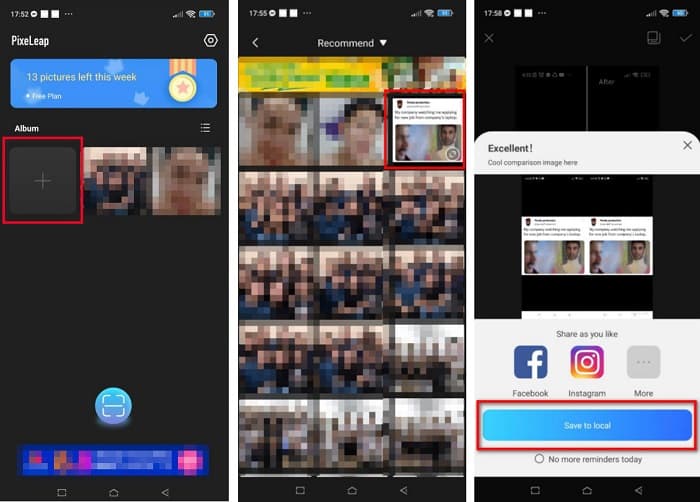
Pasul 2. Apoi, în interfața principală a aplicației, atinge caseta cu semnul + pentru a încărca imaginea pe care vrei să o redimensionezi. După aceea, aplicația îți va afișa o reclamă înainte de a trece la următoarea interfață.
Pasul 3. Caută imaginea pe care vrei să o redimensionezi și apoi atinge-o. După ce ai selectat imaginea, atinge opțiunea Enhance. Aplicația îți va îmbunătăți automat imaginea. Atinge Save to local pentru a descărca rezultatul.
Partea 3. Cum să redimensionați fotografia online pentru Facebook
Avantajul utilizării unei aplicații online este că vă permite să economisiți spațiu pe dispozitiv. În plus, există multe aplicații web cu acces gratuit pe care le puteți utiliza în browser. Deci, dacă doriți să utilizați o aplicație online pentru a redimensiona o imagine pentru a o încărca pe Facebook, vă vom arăta cum să redimensionați o fotografie pentru Facebook.
FVC Free Image Upscaler este cel mai bun redimensionator de fotografii online, care îți permite să mărești imaginea de până la 2x, 4x, 6x și 8x. Datorită interfeței sale simple, începătorii pot redimensiona cu ușurință o imagine. În plus, este compatibil cu toate formatele de imagine, inclusiv JPEG, JPG, PNG și BMP. Și mai impresionant la această aplicație este că folosește o tehnologie AI care detectează automat zonele cu rezoluție redusă ale unei imagini și apoi le îmbunătățește. De asemenea, poate repara pixelii pierduți, texturile de culoare și mai multe detalii în mod complet și precis. În plus, este accesibilă din toate browserele web, inclusiv Google, Firefox și Safari. Prin urmare, dacă vrei să folosești FVC Free Image Upscaler pentru a redimensiona sau îmbunătăți imaginea, urmează pașii simpli de mai jos.
Cum să redimensionați o imagine pentru Facebook folosind FVC Free Image Upscaler:
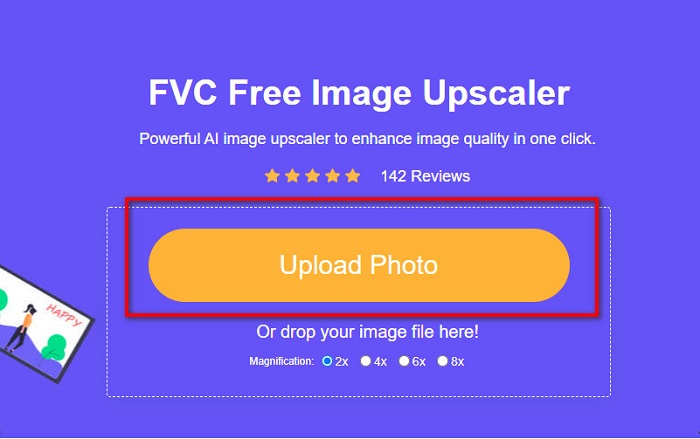
Pasul 1. Deschide browserul și tastează FVC Free Image Upscaler în bara de căutare. Poți apăsa pe linkul furnizat pentru a fi direcționat către site. Fă clic pe Upload Photo pentru a lansa aplicația.
Pasul 2. Iar în interfața principală a software-ului, fă clic pe Upload Photo pentru a importa imaginea pe care vrei să o redimensionezi.
Pasul 3. Pe următoarea interfață, selectează presetarea de mărire pe care o dorești pentru rezultatul imaginii. Poți alege între mărire 2x, 4x, 6x și 8x. Apoi treci la pasul următor.
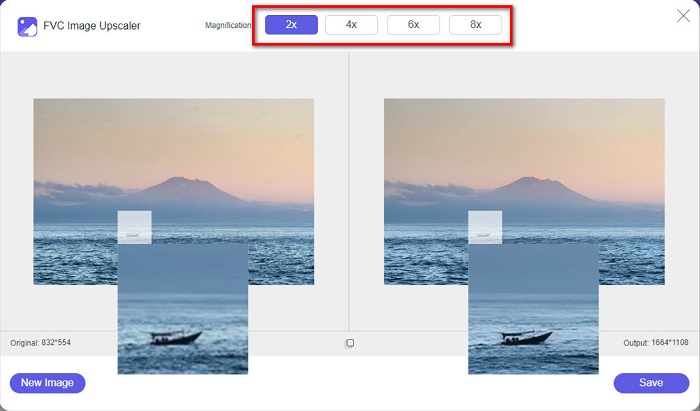
Pasul 4. În final, bifează butonul Save pentru a salva rezultatul pe computerul tău. Vei vedea diferența dintre fișierul original și imaginea redimensionată. În doar o secundă, imaginea ta va fi salvată.
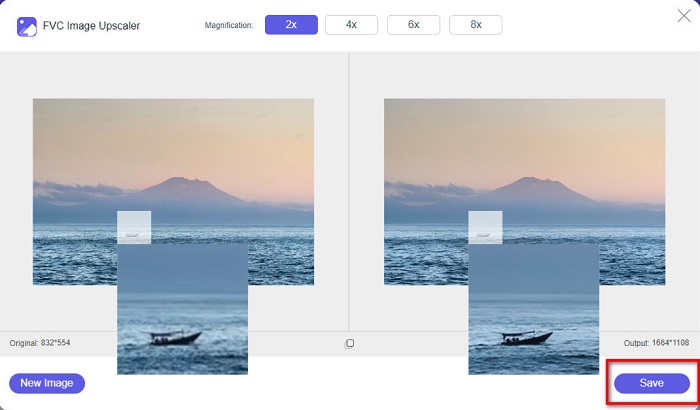
Si asta e! La fel de ușor ca ABC, imaginea ta este acum îmbunătățită și redimensionată.
Legat de:
Cum să ascuți o imagine online și offline în 4 moduri simple
Cum să redimensionezi o imagine – Adobe Resize Image [Online și Offline]
Partea 4. Întrebări frecvente despre cum să redimensionați fotografia pentru Facebook
Care este cel mai bun raport foto pentru Facebook?
În ceea ce privește raportul foto, cel mai bine este utilizarea unei imagini verticale cu un raport de aspect de 4:5 și 1200 x 1500 px. Iar dacă vrei o imagine pătrată, rezoluția trebuie să fie de 1080 x 1080 px.
Care este dimensiunea unei postări pe Facebook?
Dimensiunea recomandată a imaginii pentru o postare pe Facebook este de 1200 x 630 pixeli pentru a evita pixelarea și a avea un timp de încărcare mai rapid.
Care este cel mai bun format de imagine de încărcat pe Facebook?
Cel mai bun și recomandat format de imagine de încărcat pe Facebook este formatul JPG. Cel mai bine este să încărcați un format JPG cu o culoare RGB mai mică de 15 MB.
Concluzie
Avem soluțiile de mai sus dacă vrei să redimensionezi o fotografie pentru Facebook. Printr-o lectură atentă a acestui articol, sperăm că ai aflat tot ce trebuie să faci. Cu siguranță poți redimensiona orice imagine dorești folosind aplicații pentru iPhone, Android sau online. Însă, pentru rezultate mai bune, folosește FVC Free Image Upscaler, care îți va permite, de asemenea, să economisești spațiu pe dispozitiv.
-
 Cea mai bună aplicație Photo Resizer online, offline, Android și iPhone
 Care sunt cele mai bune aplicații de redimensionare a fotografiilor? Faceți clic pe pagină pentru a afla primele cinci cele mai puternice aplicații de redimensionare a fotografiilor pe care le puteți utiliza pentru a îmbunătăți sau a redimensiona fișierul.
-
 Cum să redimensionați imaginea - Adobe Redimensionați imaginea [Online și Offline]
 Dacă sunteți în căutarea unei imagini de redimensionare Adobe, atunci avem soluția pentru dvs. Vizualizați această postare în detaliu pentru a afla cum să redimensionați imaginile folosind Adobe pe computer.
-
 Top 4 dispozitive de mărire GIF offline și online pe care nu trebuie să le ratați
 Această postare este pentru tine dacă cauți cele mai bune dispozitive de mărire GIF. Am enumerat cele mai performante dispozitive de mărire GIF online și offline pentru computerul dvs.
